Integração do Reach RS4 / RS4 Pro com a Topcon para controle de máquinas
Este guia explica como integrar a base Reach RS4 / RS4 Pro ao rover da Topcon para controle de máquinas.
Visão geral
O Reach RS4 pode ser utilizado como estação base RTK com um rover da Topcon para aplicações de controle de máquinas, utilizando o rádio UHF integrado.
Nesse fluxo de trabalho, o receptor Reach transmite correções RTK por rádio UHF, enquanto o rover da Topcon, instalado na máquina, recebe as correções e calcula uma posição com precisão centimétrica. A base e o rover devem utilizar a mesma frequência de rádio e o protocolo TrimTalk 450S.
O sistema de controle da máquina utiliza então essa posição corrigida para controlar:
- Altura da lâmina
- Posição da caçamba
- Nivelamento de superfícies
- Profundidade de escavação
Configurando o Reach RS4 como base
Para configurar sua base, siga os passos abaixo:
-
Abra o aplicativo Emlid Flow e conecte-se ao Reach RS4/RS4 Pro.
-
Vá para Configurações e toque em Configurações GNSS.
-
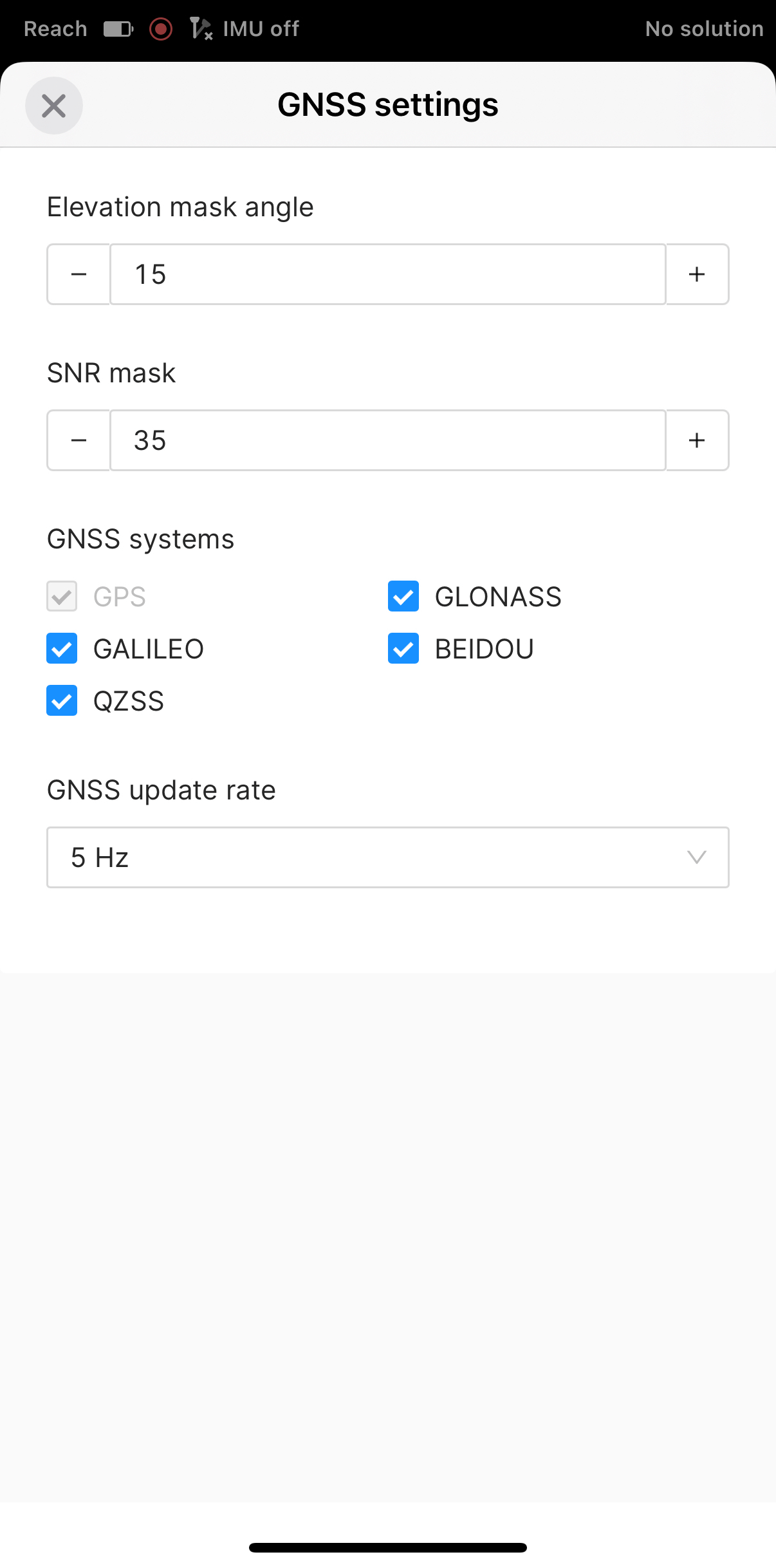
Mantenha a seleção de constelação padrão e a taxa de atualização, conforme mostrado na captura de tela abaixo.
-
Volte para a tela Receptores e toque em Configurações de base.
-
Toque em RTCM3 messages (Mensagens RTCM3). Por padrão, todas as mensagens RTCM3 estão ativadas.
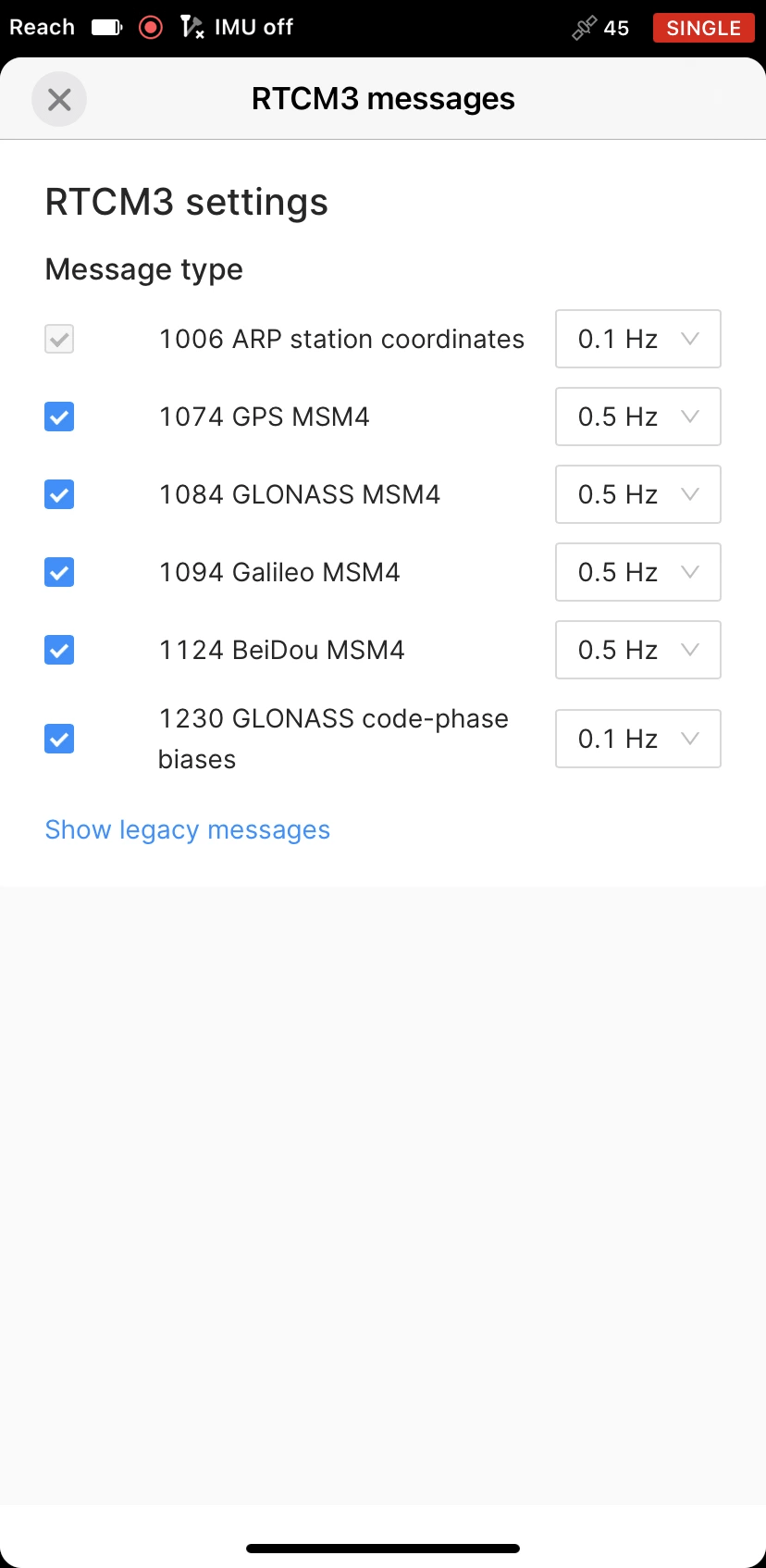
No entanto, em algumas regiões, as regulamentações locais podem limitar a largura de banda de rádio disponível, impedindo que o Emlid Flow utilize o conjunto padrão de mensagens. Nesse caso, recomendamos aplicar uma das seguintes configurações, dependendo da sua região:
Região Constelações recomendadas Europa GPS + Galileo Norte da Europa GPS + Galileo + GLONASS Ásia GPS + BeiDou América do Norte GPS + Galileo ou BeiDou + GLONASS América do Sul GPS + Galileo ou BeiDou África GPS + Galileo ou BeiDou Austrália/Oceania GPS + BeiDou + Galileo O GPS é utilizado como constelação de referência. O Galileo, o BeiDou e o GLONASS oferecem cobertura global, mas podem apresentar vantagens regionais devido à sua configuração orbital. O Galileo é geralmente o preferido na Europa, o BeiDou na Ásia e na Oceania, e o GLONASS nas latitudes mais setentrionais. Quando a largura de banda for limitada, recomendamos ativar o GPS e a constelação mais relevante para a sua região.
-
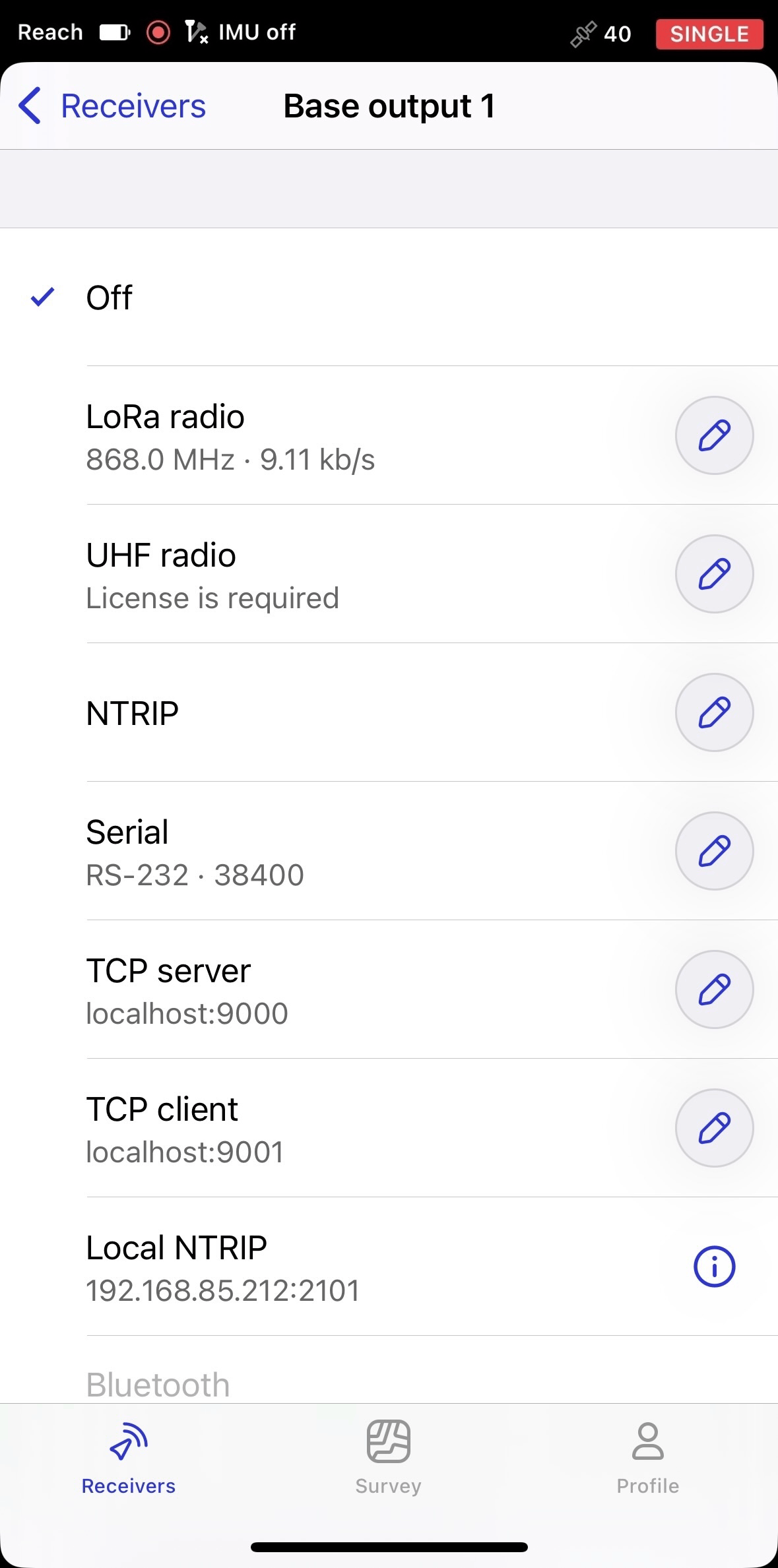
Volte para a tela Receivers (Receptores) e toque em Base output 1 (Saída da base 1).
-
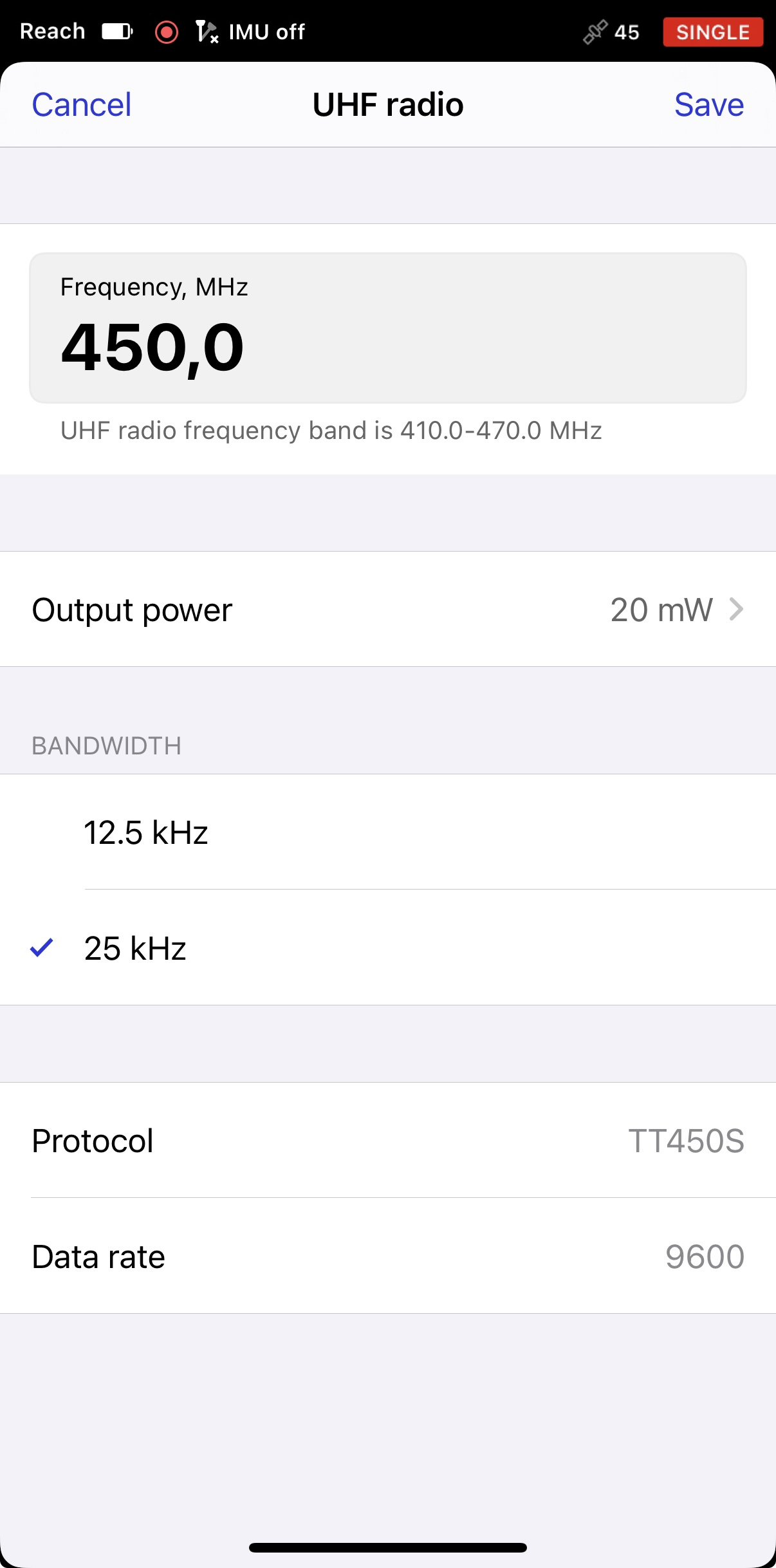
Selecione UHF radio (rádio UHF) e toque no botão Edit (Editar) para configurar a saída.
-
nota
Esta etapa se aplica apenas aos EUA. Nos Estados Unidos, a transmissão em UHF exige uma licença válida da FCC emitida pela Federal Communications Commission (FCC), a agência do governo dos EUA responsável pela regulamentação das comunicações por rádio. Por esse motivo, a interface de saída UHF permanece bloqueada até que uma licença válida seja enviada à nossa equipe de suporte para verificação. Para obter mais informações sobre como obter uma licença, consulte o processo oficial de licenciamento da FCC.
Para solicitar a ativação à nossa equipe de suporte, faça o seguinte:
1. Selecione UHF radio (Rádio UHF).
2. Toque em Submit license (Enviar licença). Isso abrirá o formulário, no qual você poderá informar sua licença da FCC, o número de série do receptor e seu endereço de e-mail, dados necessários para a ativação da saída UHF.
3. Depois que seu envio for verificado, geralmente em um dia útil, você receberá um código de ativação no endereço de e-mail fornecido no formulário. O código é emitido especificamente para o receptor identificado pelo número de série enviado. Digite esse código no Emlid Flow e toque em Apply code (Aplicar código).
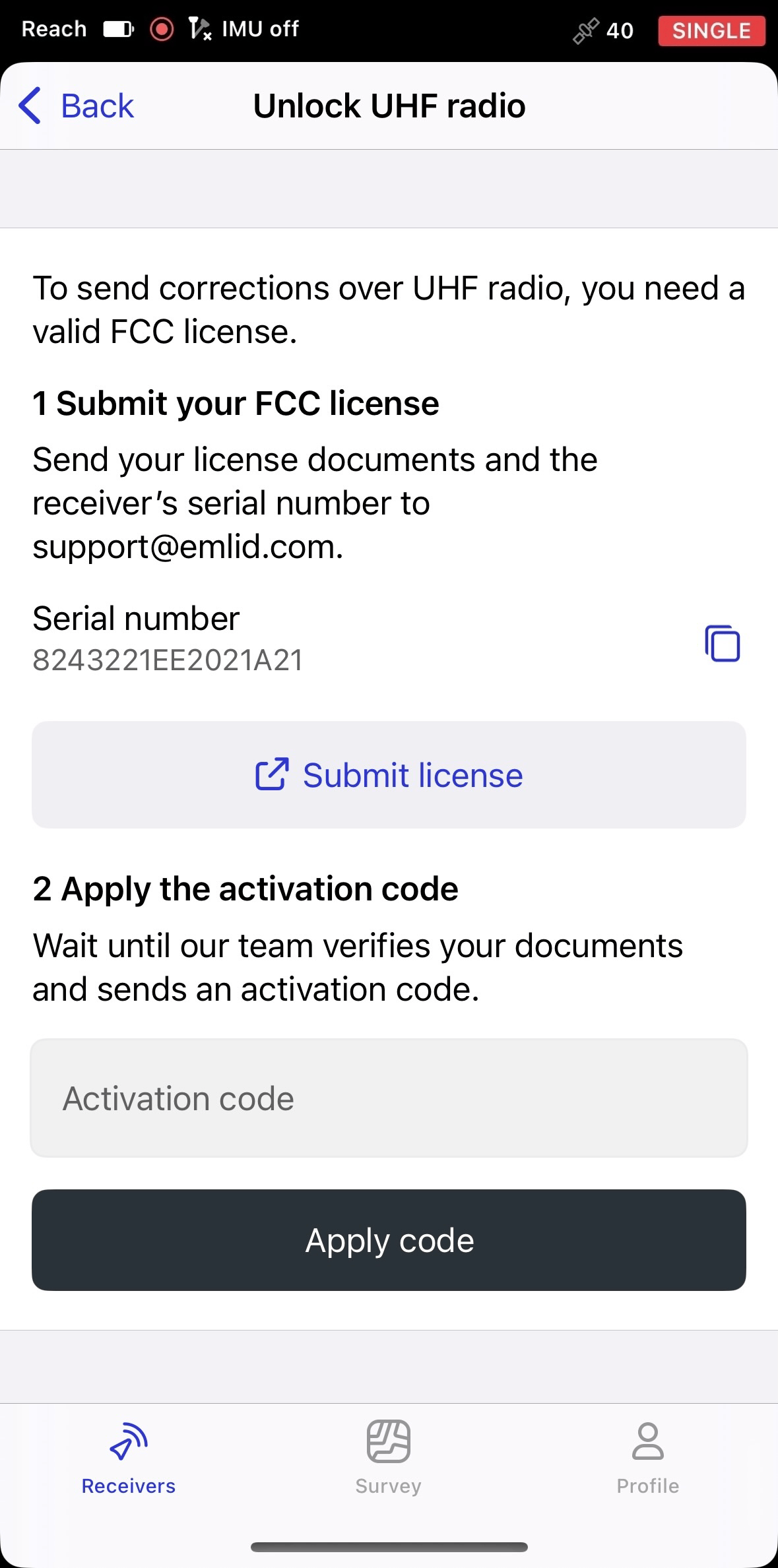
Depois de inserir o código de ativação, o canal UHF operará somente nas frequências e na potência de saída permitidas pela sua licença. A tela do UHF exibirá os detalhes da sua licença, o indicativo de chamada e a data de validade. Quando sua licença expirar, o sistema bloqueará automaticamente o canal UHF, e você terá que enviar uma nova licença para restaurar o acesso.
Se você levar o receptor para outro país, precisará fornecer uma licença local, se o país exigir uma. Se não for necessária nenhuma licença, você poderá desbloquear o canal UHF para uso sem documentação adicional.
cuidadoPara remover a licença, reprograme o receptor. A redefinição das configurações ou a atualização do firmware não a removerá, pois a licença é armazenada no receptor, não no aplicativo. Consequentemente, se você conectar um receptor sem uma licença ao Emlid Flow, o aplicativo solicitará que você insira uma.
-
Escolha uma frequência compatível com o seu rover Topcon.
-
Volte para Settings (Configurações), toque em Base settings (Configurações da base) e defina sua posição de base escolhendo o método adequado para inserir as coordenadas da base.
dicaSaiba mais sobre a configuração da base no guia Escolhendo um método de colocação da base.
Depois de configurado, o Reach RS4 começará a transmitir correções via UHF.
Configuração do rover Topcon
Para configurar seu rover Topcon para receber correções da estação base Reach RS4, configure as opções do link de rádio no software de controle da máquina da seguinte forma:
-
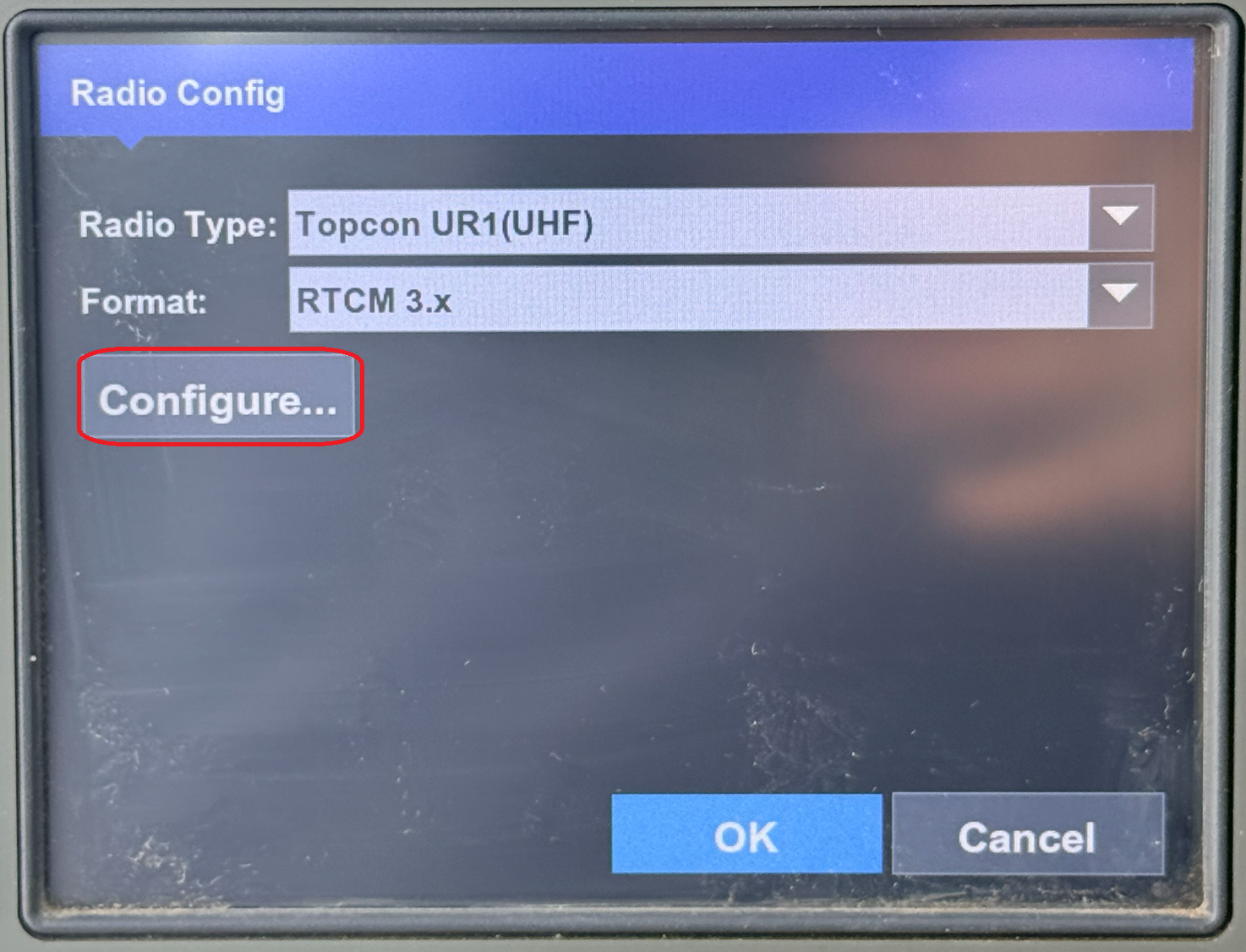
Em Radio Config (Configuração do rádio), selecione o modelo correto de rádio UHF e certifique-se de que o formato de correção esteja definido como RTCM3.
-
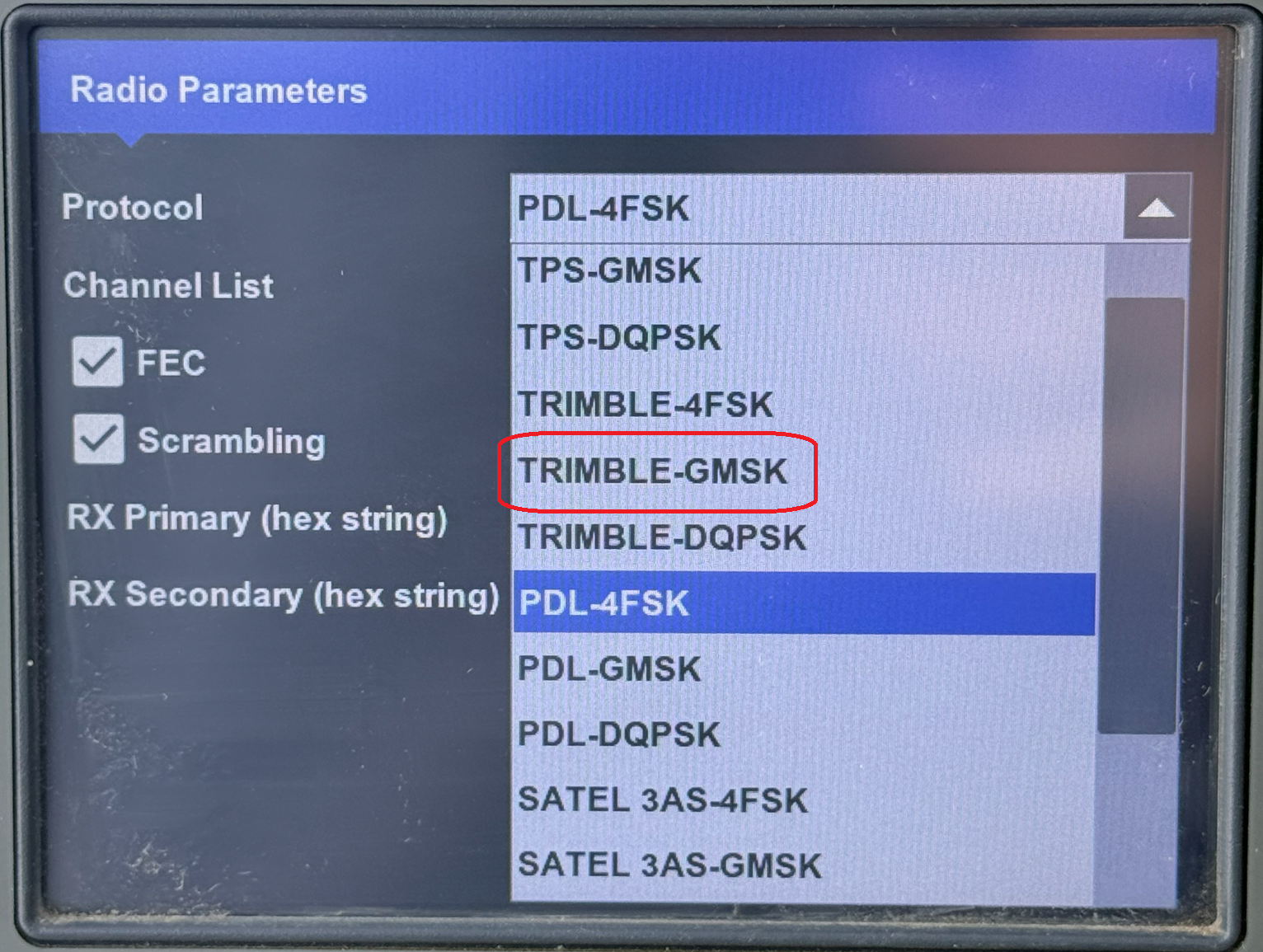
Em Radio Parameters (Parâmetros do rádio), selecione o protocolo Trimble-GMSK.
-
Verifique se o canal e a frequência do rádio correspondem às configurações utilizadas no Reach RS4 e, em seguida, toque em OK.
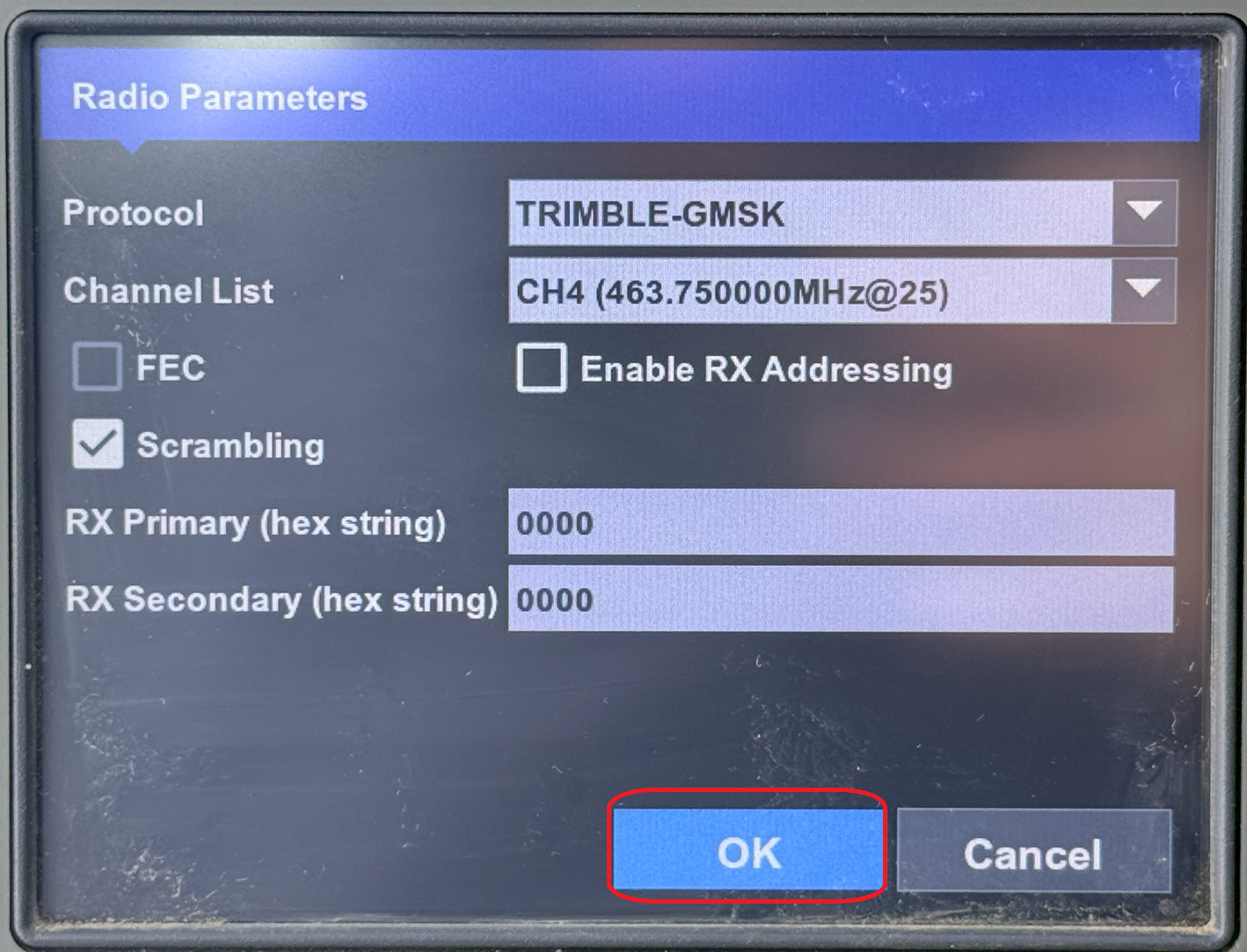
Depois de configurado, o rover da Topcon começará a receber correções RTK transmitidas pelo Reach RS4.