How to work with third-party base over UHF radio
This guide explains how to configure your Reach RS4 / RS4 Pro to work with a third-party base over UHF radio.
Overview
You can configure your Reach RS4 or Reach RS4 Pro as a rover to work with a third-party base over UHF radio.
Reach RS4 and Reach RS4 Pro have a built-in UHF radio that operates in the 410–470 MHz band, provides up to 2 W output power, and works using the Trimtalk 450S* protocol, with regional limits applied according to local regulations. Reach RS4 can both transmit and receive RTK corrections over UHF. In most regions, the RS4 series ships with region-specific channel plans and power limits preconfigured in Emlid Flow to support compliant operation. Depending on your jurisdiction, UHF operation may still require a license.
To set up UHF radio communication, use the supplied UHF antenna.
*Trademark of Trimble Inc.
Set up your third-party base
Configure RTK settings and UHF radio communication on your third-party base. Setup details depend on the base model you are using.
To properly set up your third-party base, follow the manufacturer's instructions.
Set up your Reach RS4 / RS4 Pro rover
To set up your rover, follow the steps below:
-
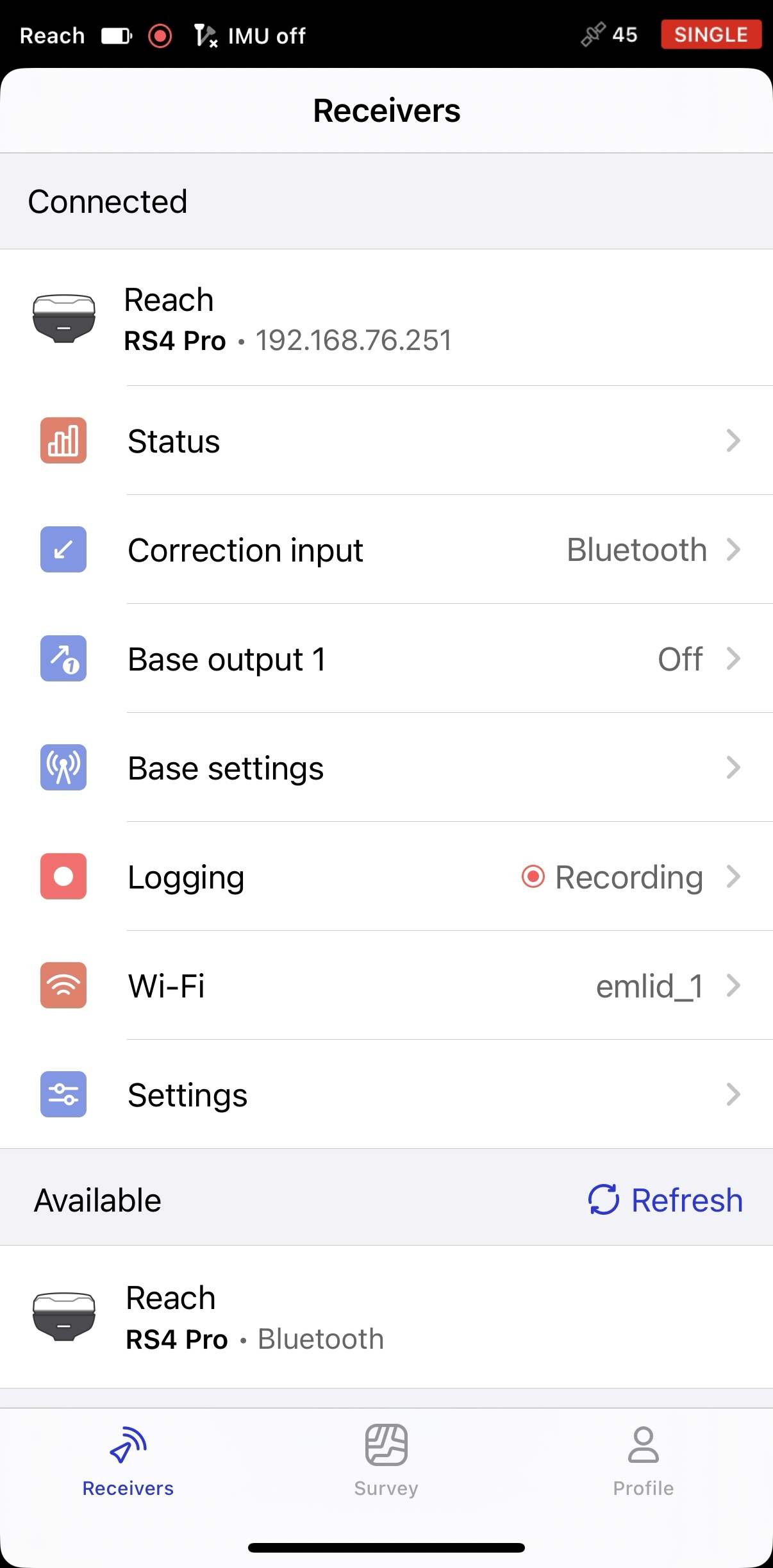
Open the Emlid Flow app and connect to Reach RS4 / RS4 Pro.
-
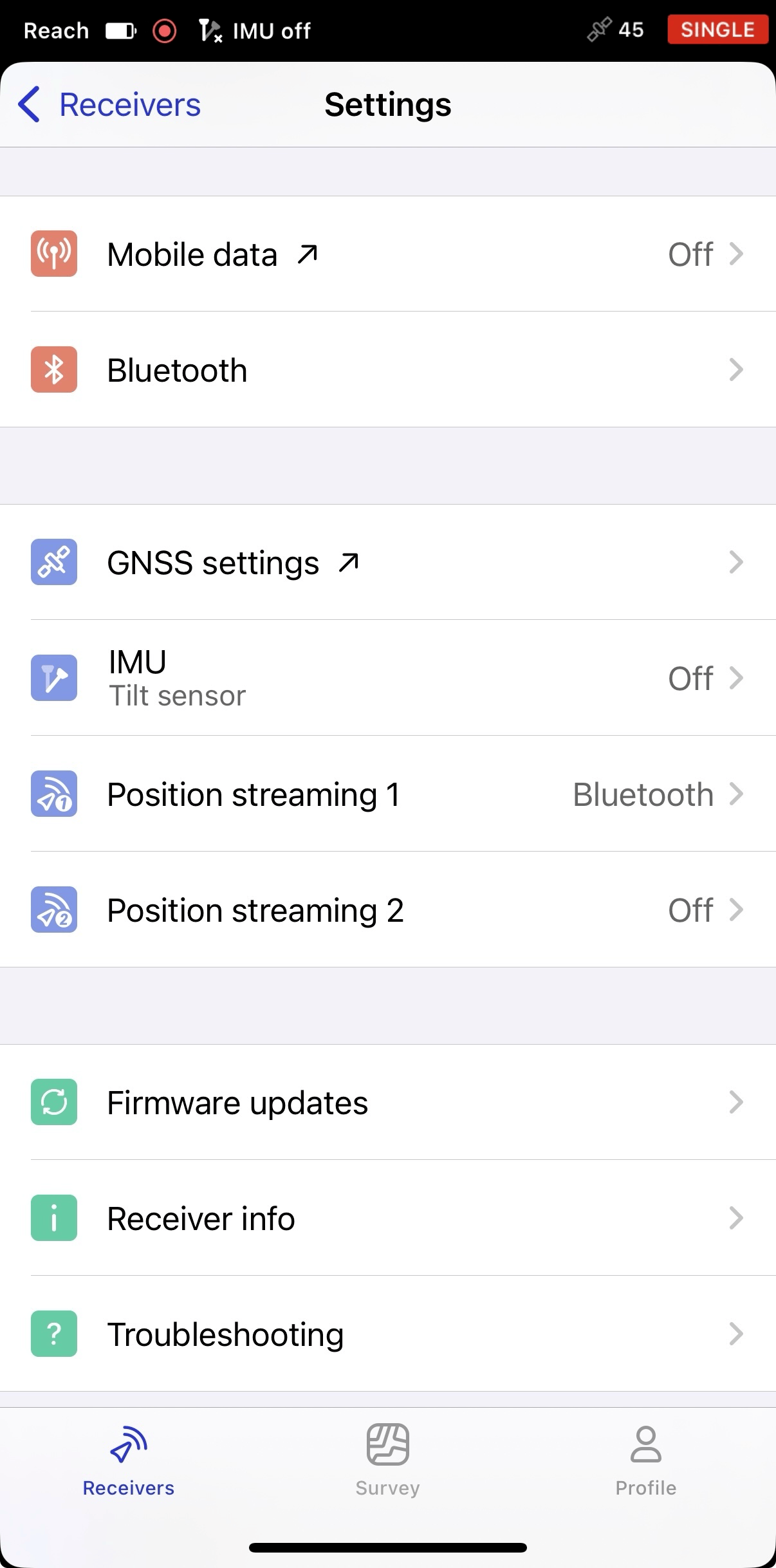
Go to Settings and tap GNSS settings.
-
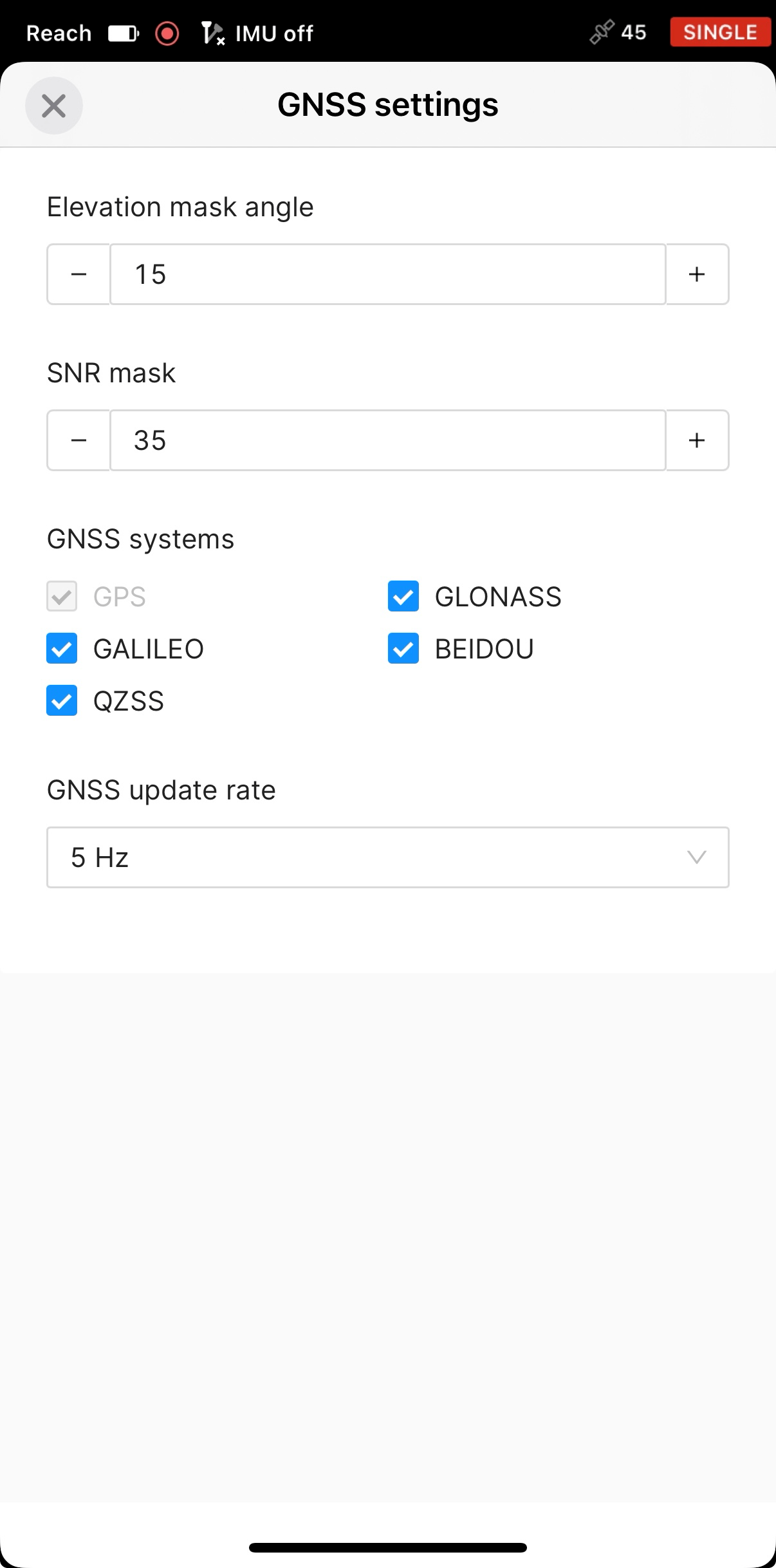
Select the needed GNSS systems and set a 5 Hz GNSS update rate. Apply changes.
-
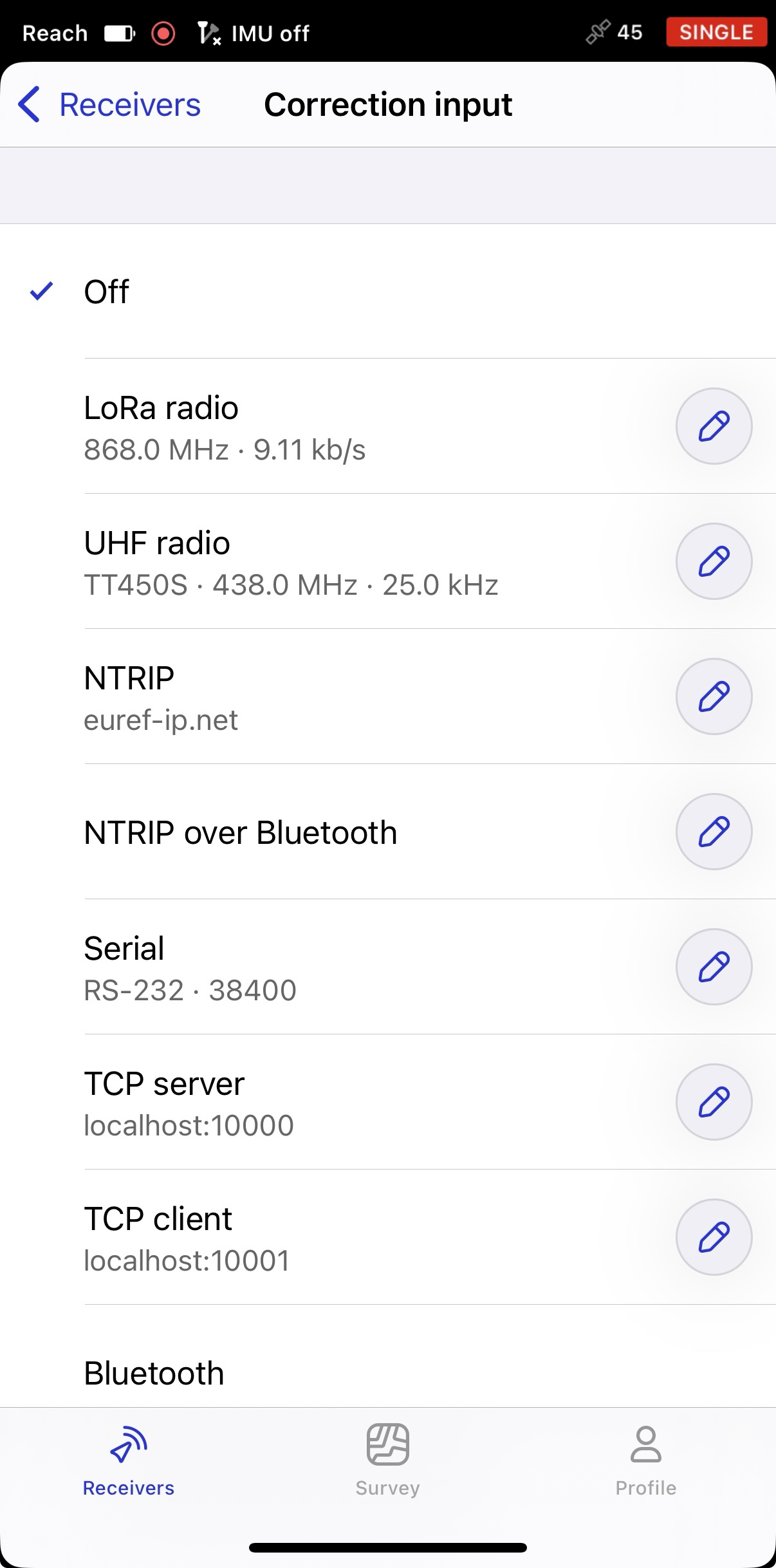
To configure your rover to receive the corrections, return to the Receivers screen and tap Correction input.
-
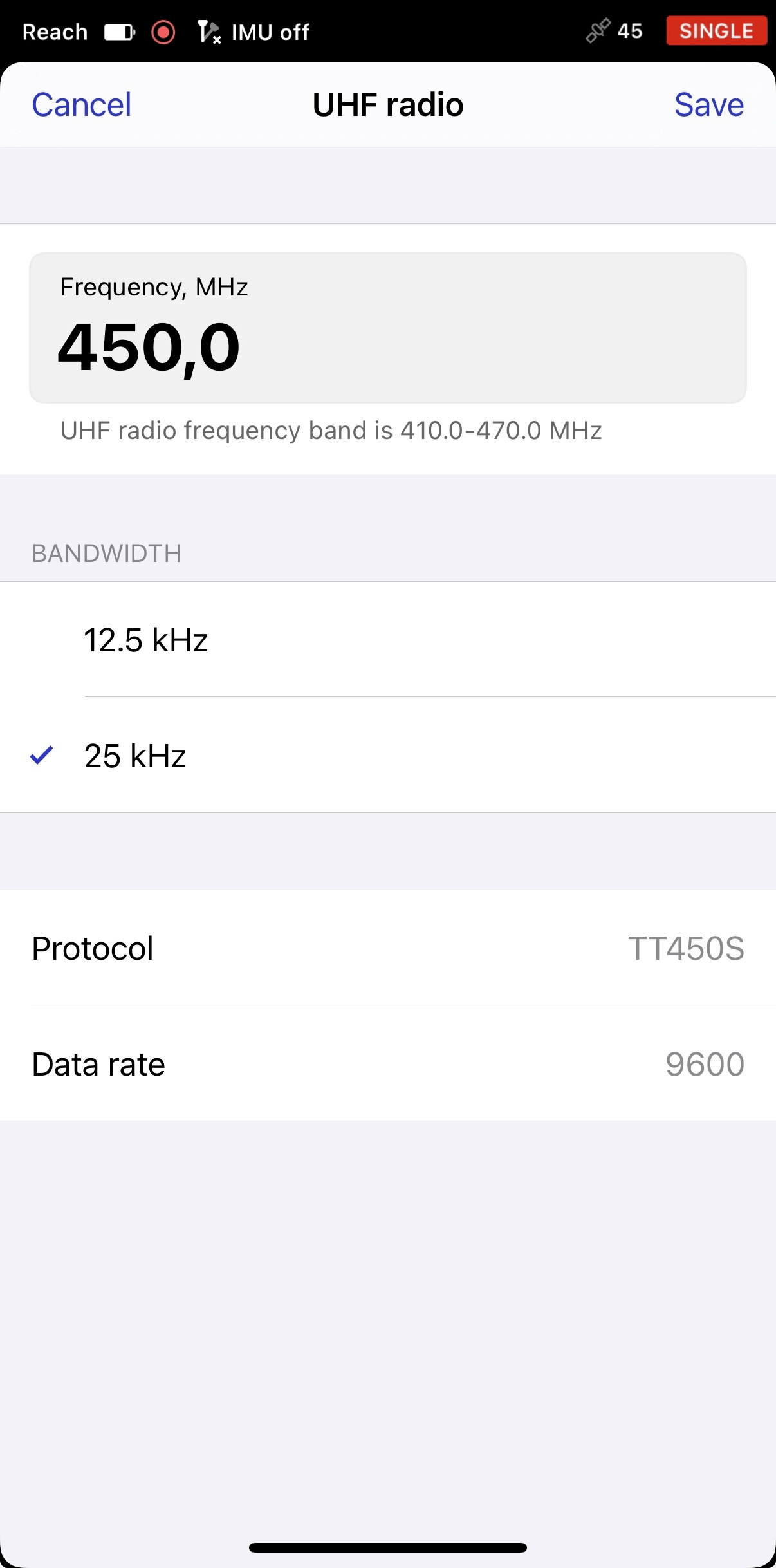
In the UHF cell, tap the Edit button. Set the same frequency and bandwidth as for the base. The data rate will automatically change depending on the chosen bandwidth: for 25kHz, it is 9600 bit/s, for 12.5—4800 bit/s. Tap Save.
 note
noteThe UHF radio frequency band is 410.0 - 475.0 MHz. The protocol used is TRIMTALK450S*.
To make sure that the corrections are passing from the base to the rover, you can attach UHF antennas and place both receivers by the window for a few minutes to get a clear view of the sky. Then open Emlid Flow, connect to the rover and go to the Status screen. Scroll down to the Corrections section and make sure that your rover is receiving corrections.
Place units
When you have configured settings on both the base and rover, you are ready to go outside to place the base and complete the setup process. For the field works, you will need a tripod and a survey pole. To place the units, follow the steps below:
Before placing the base, make sure that you are in an open area with a clear sky view. This will ensure good signal reception and a fair number of available satellites.
-
Mount your base on the tripod and accurately level the tripod.
-
Put the rover on the pole.
-
Attach the UHF antennas to both units.
-
Turn on the receivers.
-
Complete the base setup.
noteRefer to your base manufacturer’s documentation for details on the base coordinate entry method and how to specify the base position.
View results
When you have completed your RTK setup over UHF radio, you can see the current solution status in the top right corner of the Emlid Flow app:
-
SINGLE means that the rover has found a solution relying on its own receiver and base corrections are not applied. Precision in standalone mode is usually at the several-meter level.
-
FLOAT means that the rover receives the base station's observation data and position but cannot resolve ambiguities needed to calculate its position with centimeter-level accuracy. In this case, the positioning accuracy can vary from a few centimeters to about 1 meter.
-
FIX means that the rover using corrections from the base resolved the ambiguities in its positional calculation and achieved the solution with the centimeter-level precision.
After a short period of time, the rover gets a fixed solution. In good environments, it will take a few seconds to get a fixed solution. In tough conditions, it may take a little longer. Once the rover gets FIX, you are all set for surveying.
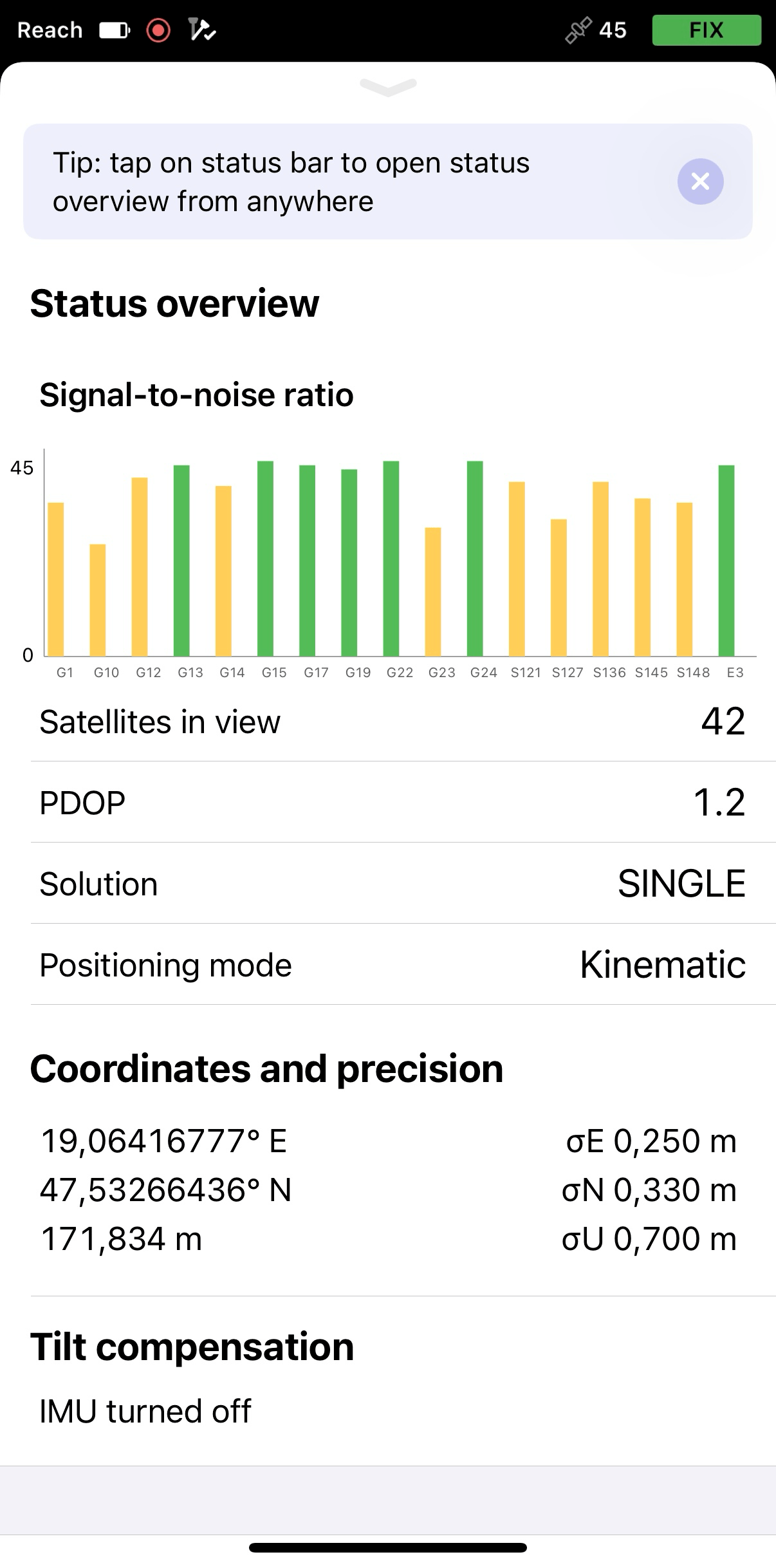
You can also find the current solution status as well as your position in real time on the Status screen.
When you learn how to set up RTK over UHF radio, you can check how to work with tilt compensation on your Reach RS4 / RS4 Pro rover in the How to enable tilt compensation on rover guide.
Further reading
- How to create or import a project
- How to collect points
- How to collect lines
- How to stake out points
- How to stake out lines
- How to export projects
*trademark of Trimble Inc.