Working with CAD drawings
Unlock the full set of features for topo, set-out, and as-built surveys
This guide explains how to import CAD drawings into your projects in Emlid Flow 360 and how to stake out the objects within them in Emlid Flow.
Overview
Emlid Flow 360 allows you to import CAD drawings in DXF format into your projects while preserving geometry view, colors, and annotations from CAD software. These drawings can be used as background maps or for stakeout in Emlid Flow, optimizing the design set-out and as-built survey workflows.
When surveying using CAD drawings, you can:
- Stake out polygons, lines, and their segments.
- Stake out block references.
Curved geometries, such as circles or arcs, will be converted to polylines.
Preparing CAD drawings
Before using a CAD drawing in Emlid Flow, prepare the file to meet the size limit and ensure that its coordinate system and measurement units match your project's parameters. Use the following sections to prepare your CAD file:
Matching coordinate system and units
Before importing your CAD drawing, check that its coordinate system and units match those set for your Emlid Flow project. This ensures correct positioning and scale.
- Find out which coordinate system was used to create the CAD drawing, then select the corresponding coordinate system for your project in Emlid Flow. If you're unsure, check the drawing documentation or contact the person who provided the file.
- Make sure your drawing uses the same linear units as your project. In AutoCAD, run the
-DWGUNITScommand to check the current units and change them if needed.
Reducing CAD file size
Emlid Flow & Emlid Flow 360 support CAD files up to 100 MB. DXF files can be significantly larger than DWG files because they store drawing data as uncompressed text. If your file exceeds the limit, use a CAD editor to reduce its size before uploading it to Emlid Flow 360, following the sections below.
Drawing cleanup tools vary by CAD editor. The examples below show how to do this in AutoCAD. If you use a different CAD editor, check its documentation for equivalent tools.
To learn more about AutoCAD commands, refer to the official AutoCAD documentation.
Remove unnecessary data
Keep only the objects you need for measurements:
- Keep the geometry you want to use in Emlid Flow in Model Space, where the actual drawing objects are created. Remove the Layout tabs (Paper Space) used to prepare sheets for plotting or printing, such as title blocks, viewports, and other presentation elements.
- In Layer Manager, review layers that are turned off or frozen and remove the ones you don't need. If you're unsure about a layer, turn it on or unfreeze it to check its contents first.
- Find and remove unused blocks, layers, and other drawing elements using the
PURGEcommand in AutoCAD. - Find and remove the duplicate or overlapping lines, arcs, and other objects using the
OVERKILLcommand in AutoCAD. - Remove design and visualization data you don't need in the field, such as contours, cross-sections, profiles, and surface visualization layers.
If you remove surface visualization data but still need the TIN survey, export it from your CAD software in LandXML format and import it into your Emlid Flow project. Learn more in the Working with surfaces guide.
Check the drawing for errors
Find and fix errors in the drawing using the AUDIT command in AutoCAD. These errors can come from editing or converting the file.
Create a smaller drawing
If the file still exceeds 100 MB, divide the drawing into smaller parts and upload each file separately. Isolate the required layers using LAYISO, and create the new drawing using COPYBASE or WBLOCK in AutoCAD.
Importing CAD drawings
To import a surface file, follow these steps:
You can import CAD drawings into your project only through the Emlid Flow 360 app.
To import your CAD drawing, follow these steps:
-
Open Emlid Flow 360 and go to your project.
cautionYour CAD drawing must use the same coordinate system and measurement units as your project in Emlid Flow 360.
-
Click the Import button on the top of the screen.
-
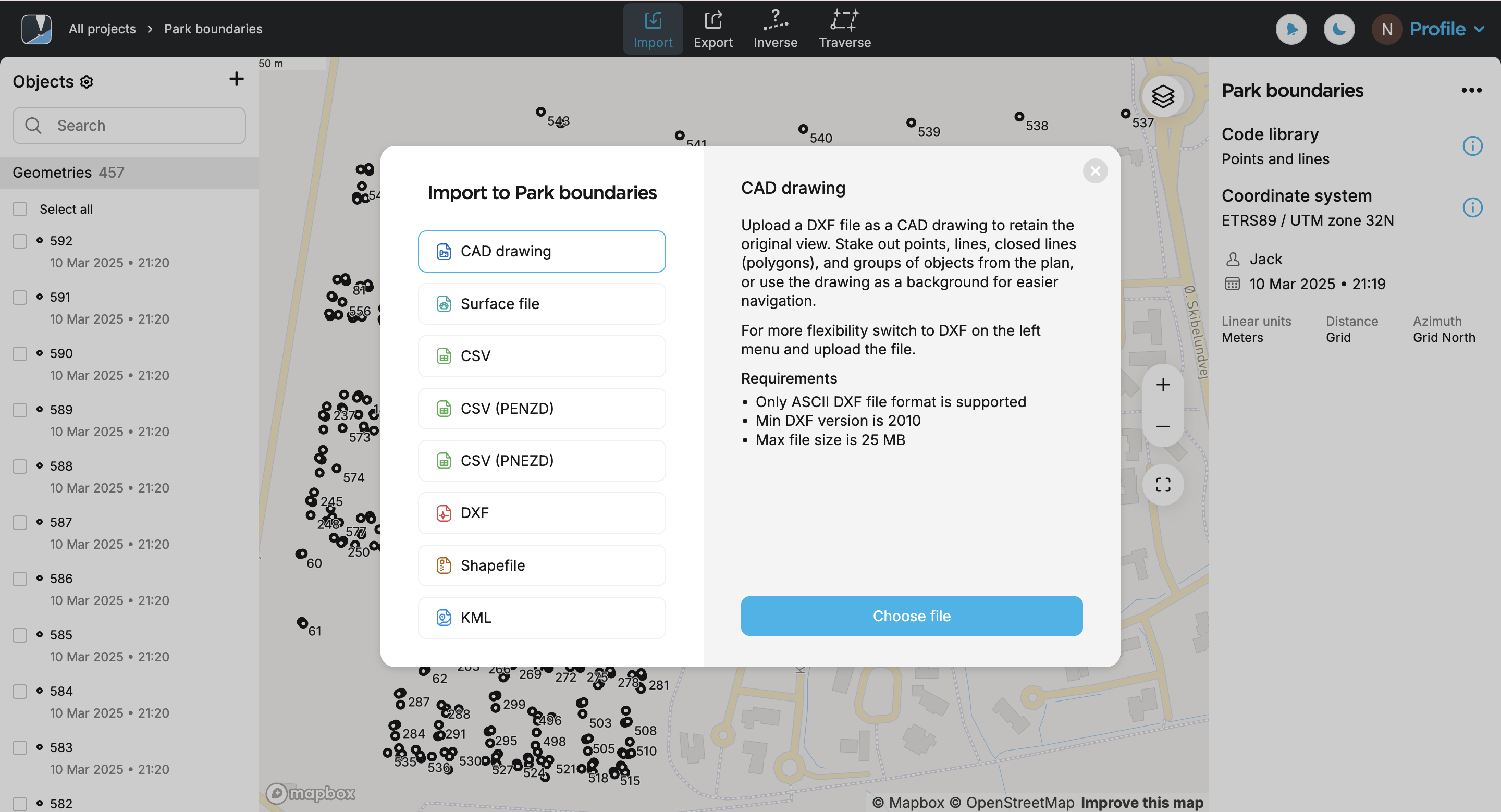
Select CAD drawing and click Choose file.
noteMake sure you have checked the file requirements and your storage is not exceeded.
-
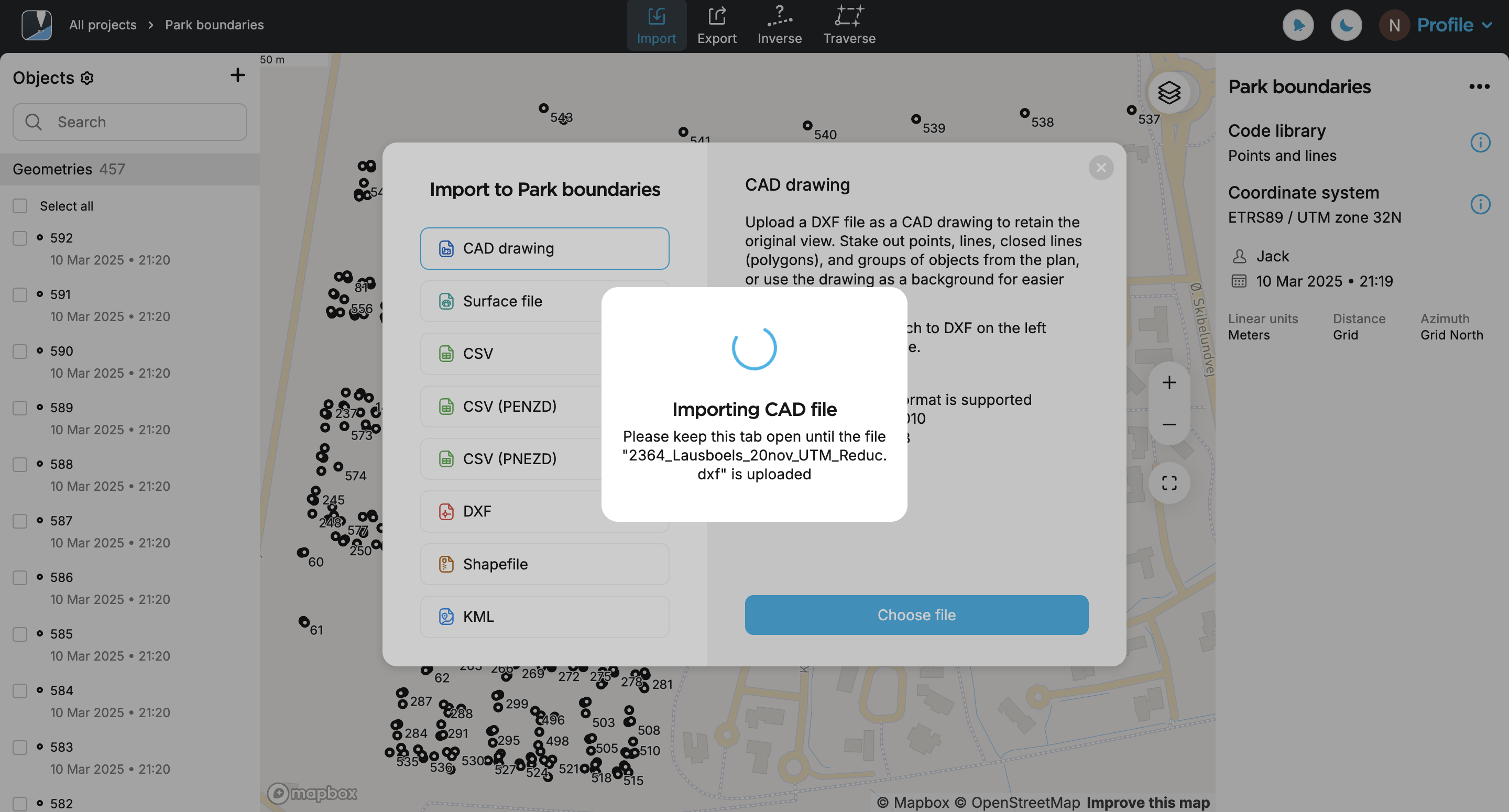
Upload a file in DXF format. Your drawing will appear in the list of objects and on the map. By default, the most recently added drawing from the list is shown.
noteThe drawing may take some time to appear on the map. If it isn’t fully converted or only partially appears, try zooming in on the map.
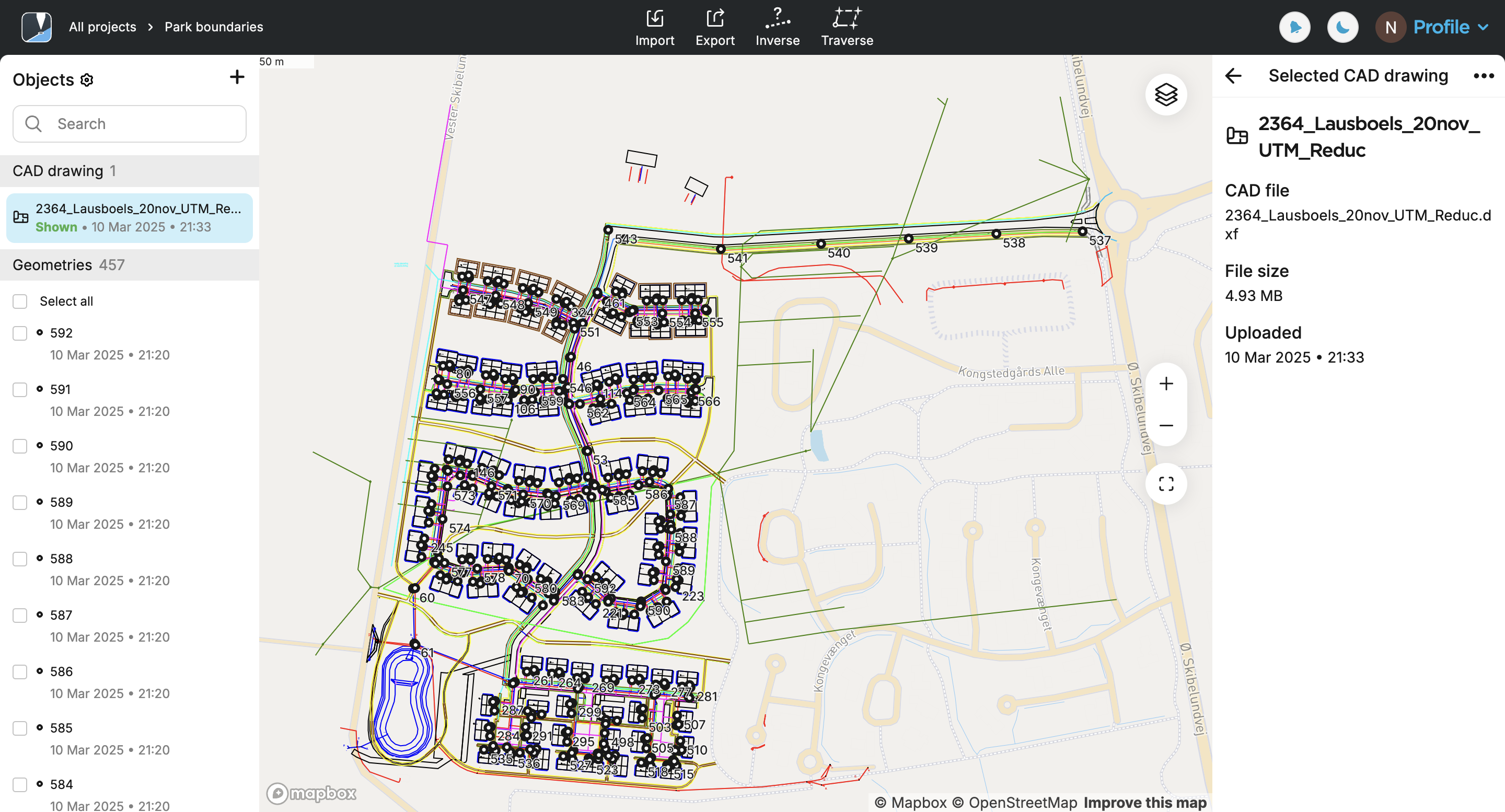
Now, you can access your CAD drawing in the Emlid Flow app.
When importing a new CAD file, it appears at the top of the object list and is immediately visible. The app adds it to the map preview automatically. You can change their visibility later in the object list, and then change the default map view by clicking Save new default or Reset in the upper left part of the map. Look for a more detailed description of map view presets in the Create or Import Project guide.
Accessing CAD drawing in Emlid Flow
After uploading the CAD drawing to your project in Emlid Flow 360, the data will be synchronized, and the drawing will automatically appear in the object list in the Emlid Flow app.
Before starting staking out the objects, ensure that your Reach rover has an established RTK connection and the FIX status.
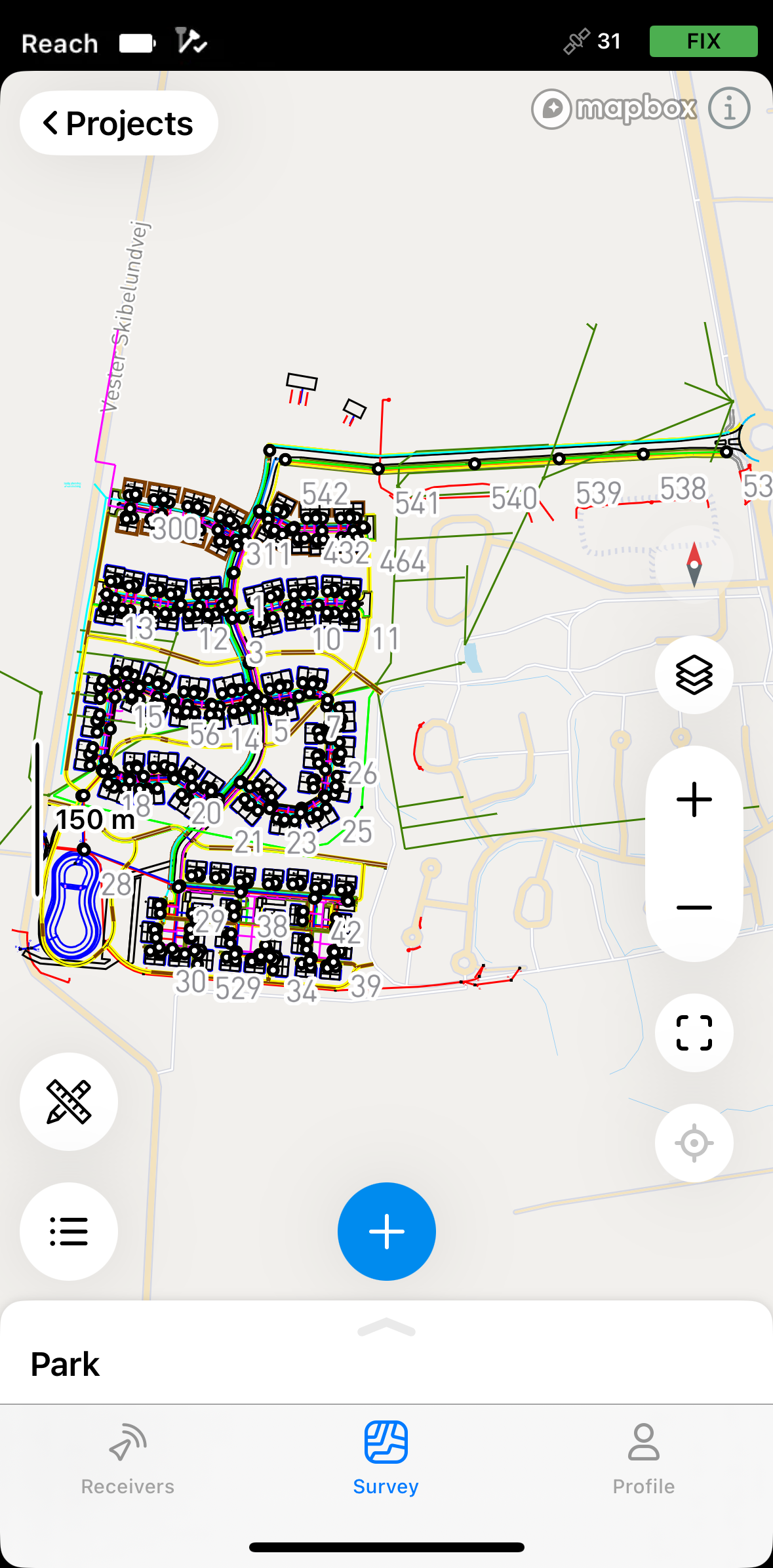
The geometries are available for stakeout only when the CAD drawing is active. To activate or hide a drawing from the object list, tap the eye icon.
Curved geometries, such as circles or arcs, are converted to polylines.
For stakeout, follow the workflows below depending on the type of the geometry.
Staking out points, line vertices, block references
The Stakeout tool has two modes that you can choose between as you navigate to the point you want to stake out:
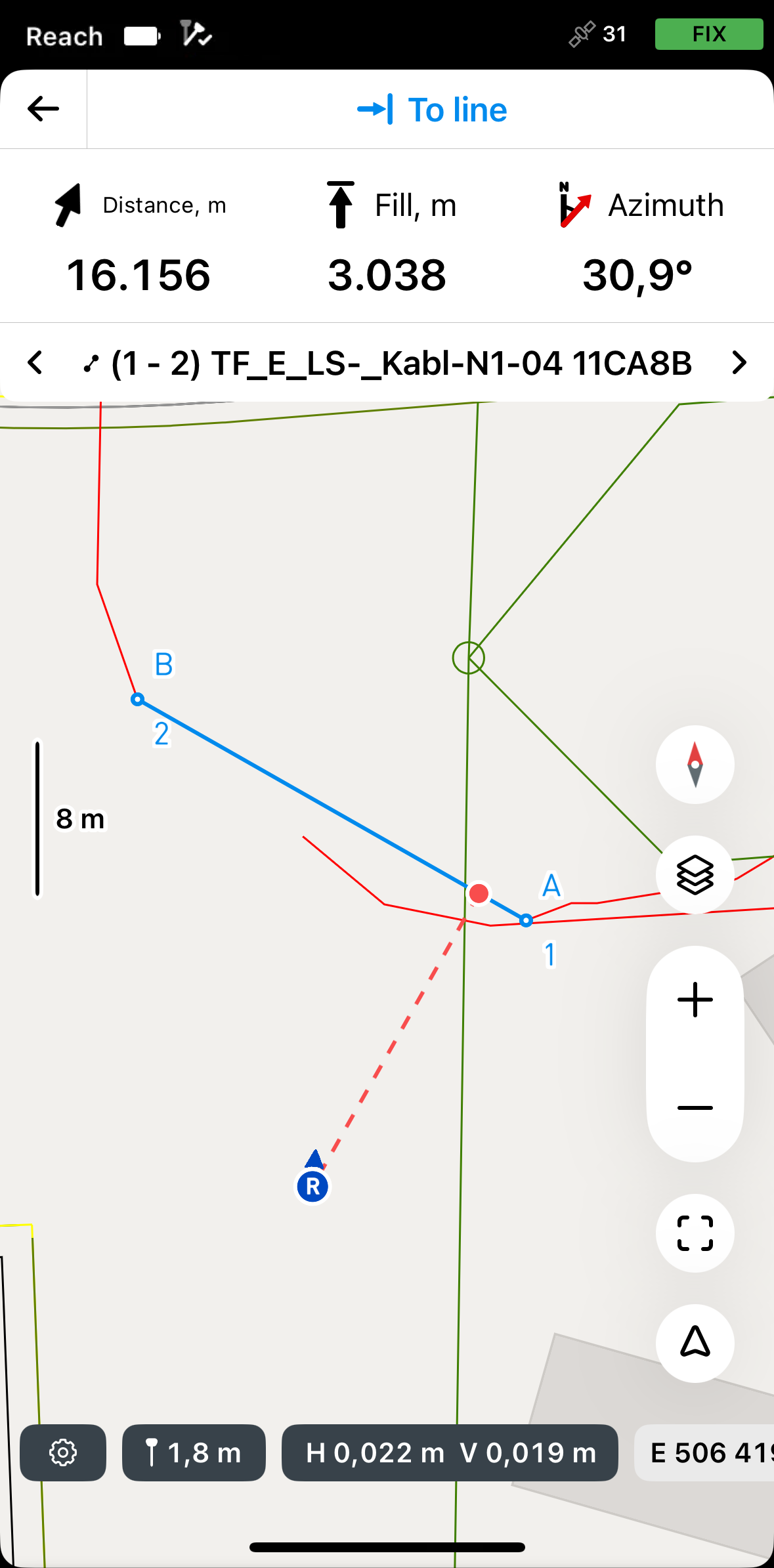
By direction
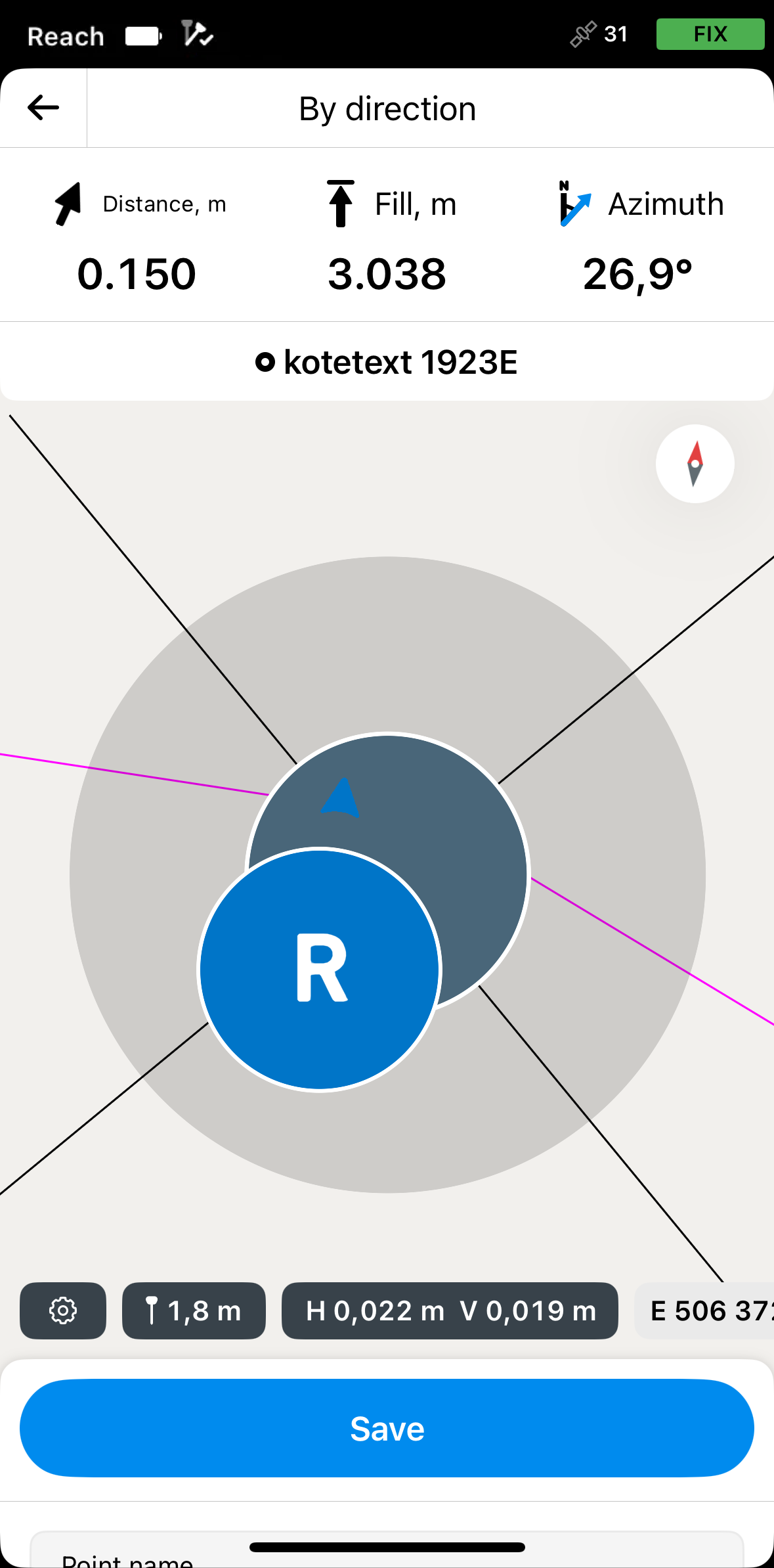
In this mode, the rover is always centered on the map, and the map rotates so that the heading is always forward. The stakeout plate shows distance and features azimuth, which shows the direction from the rover to the projected point on a line. This is the default mode and it is indicated by the arrow on the Mode button in the lower right corner of the screen.
If you’re using a Reach receiver model other than Reach RS3, walk with it for a while to orient it.
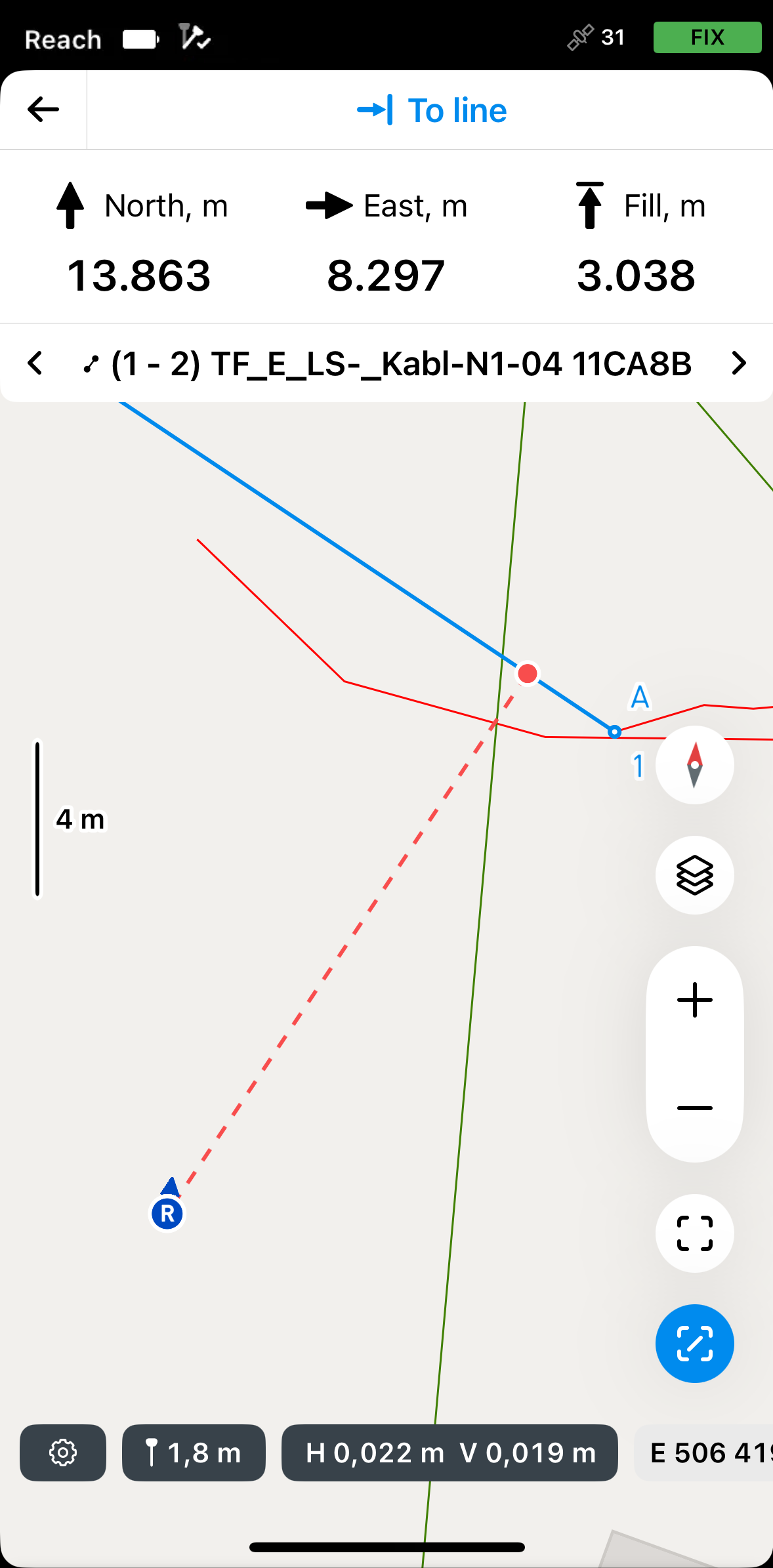
By distance
In this mode, the rover is not centered on the map and the stakeout plate shows direction by separating it into North/South and East/West directions and corresponding distances from the rover to the target point on the line. This mode is indicated by the line in the square on the Mode button in the lower right corner of the screen.
To stake out a block reference on the CAD drawing, follow the steps below:
-
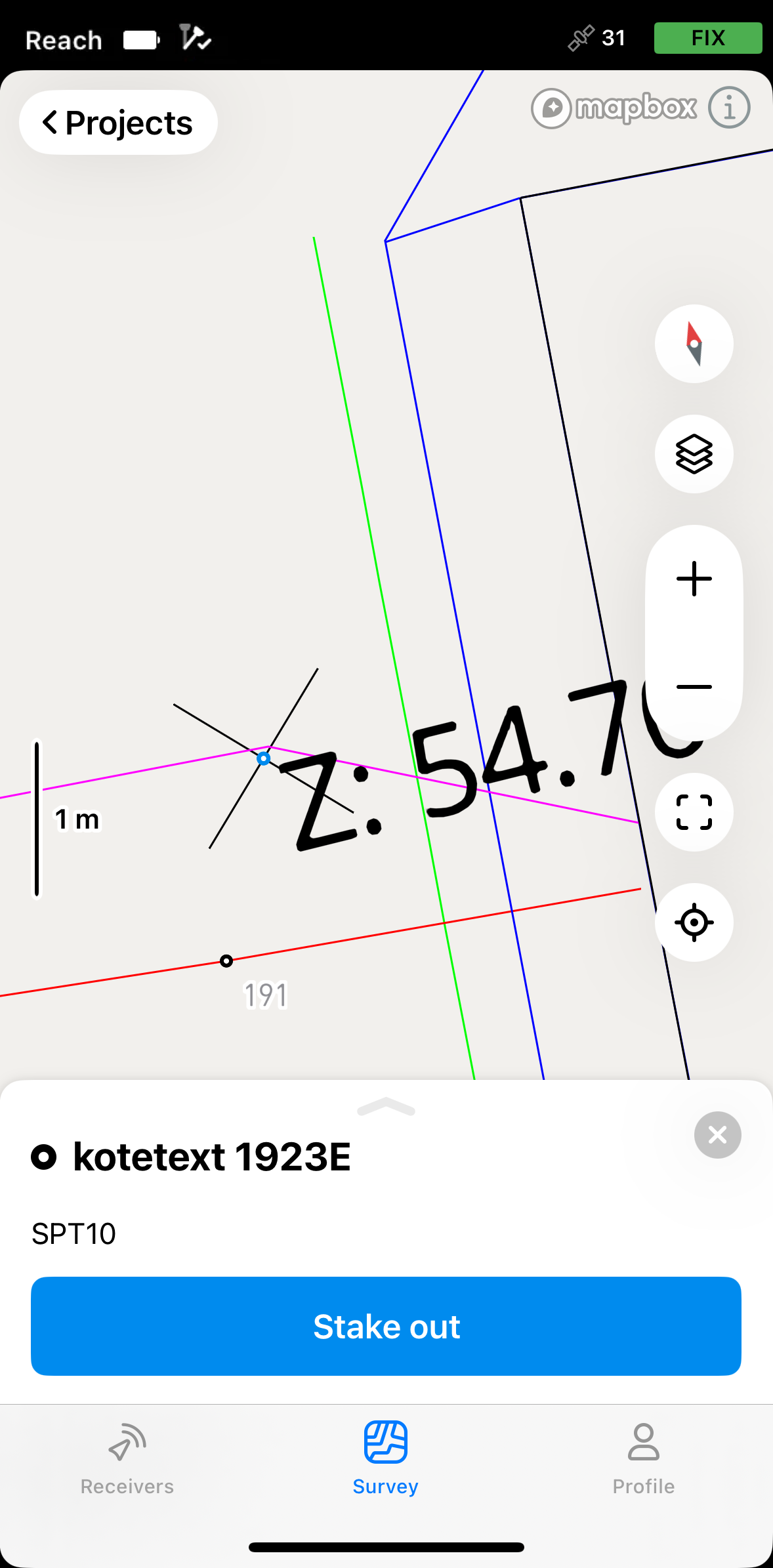
Tap the block reference you want to stake out on the map. You will see its center point highlighted in blue.
noteCAD drawing geometries are only accessible from the map.
-
Tap the Stake out button.
-
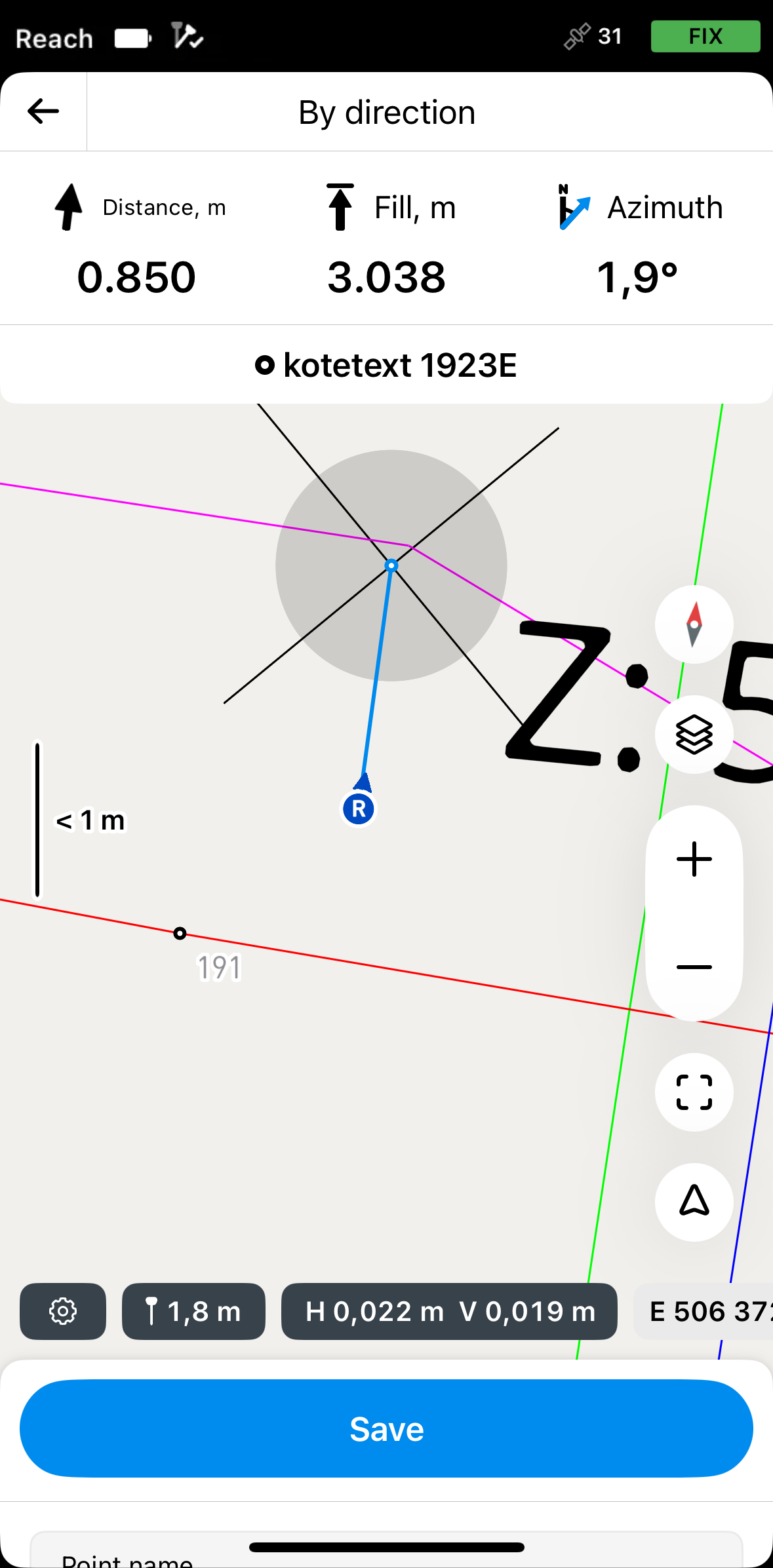
Move your Reach in the direction of the point. When you get closer, the map zooms in automatically.
 note
noteThe direction arrows on the stakeout plate can help you navigate to the point.
-
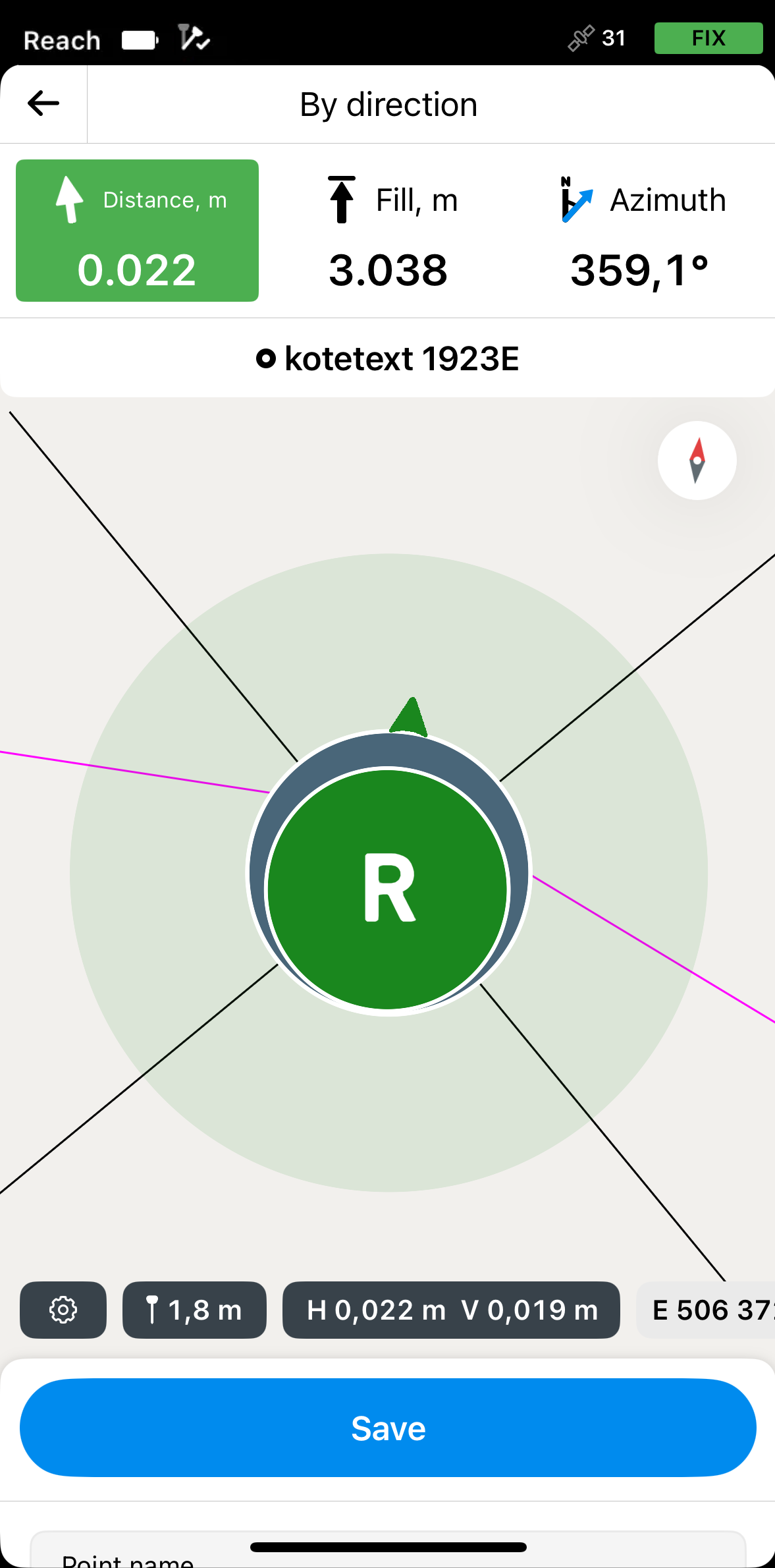
Move your Reach so that the bull’s eye turns green, showing that your Reach is less than 2.5 cm (0.08 ft) away from the point you are staking out.
 note
noteEnsure the pole isn’t tilted if you use a Reach receiver model other than Reach RS3.
-
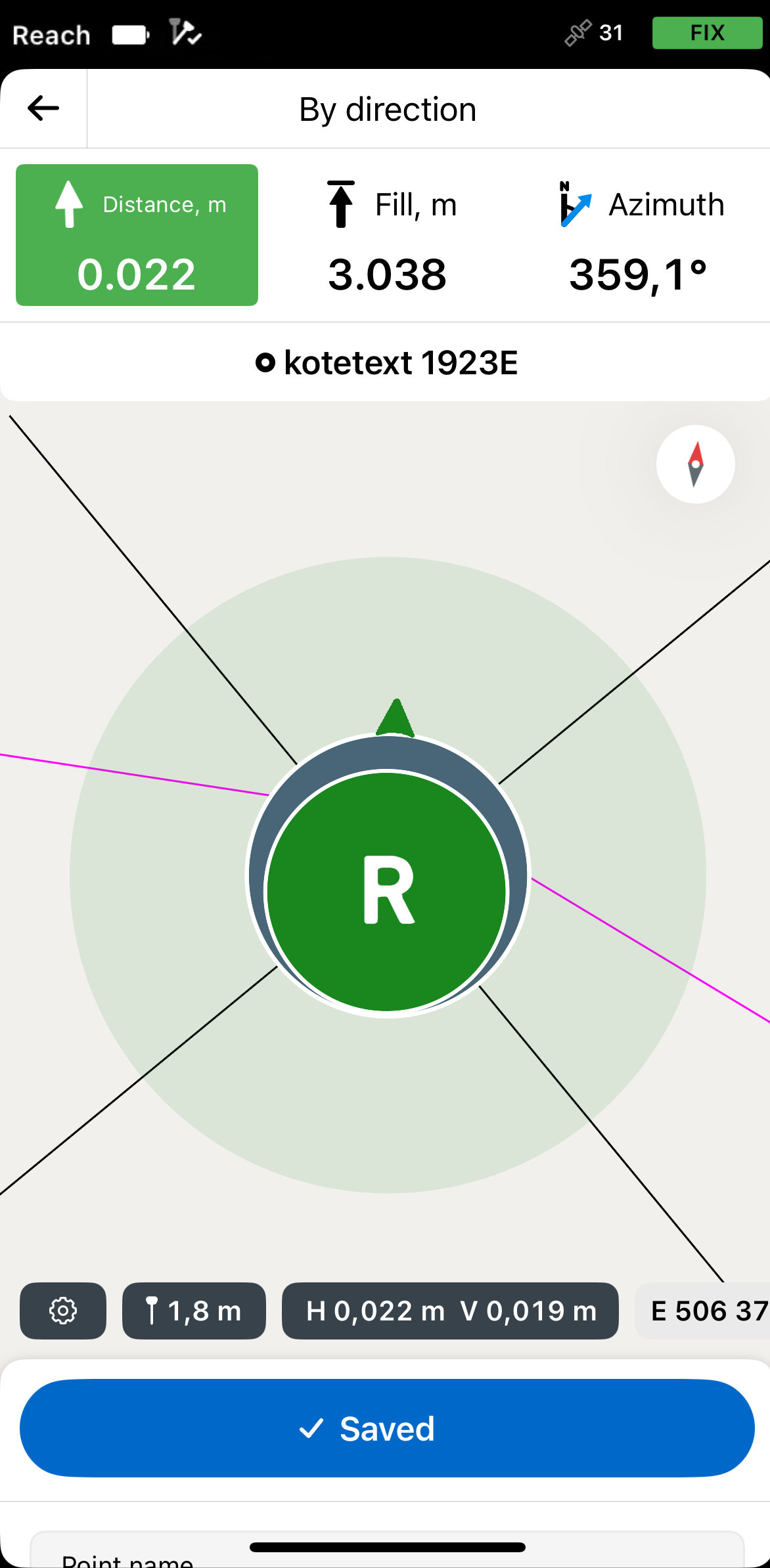
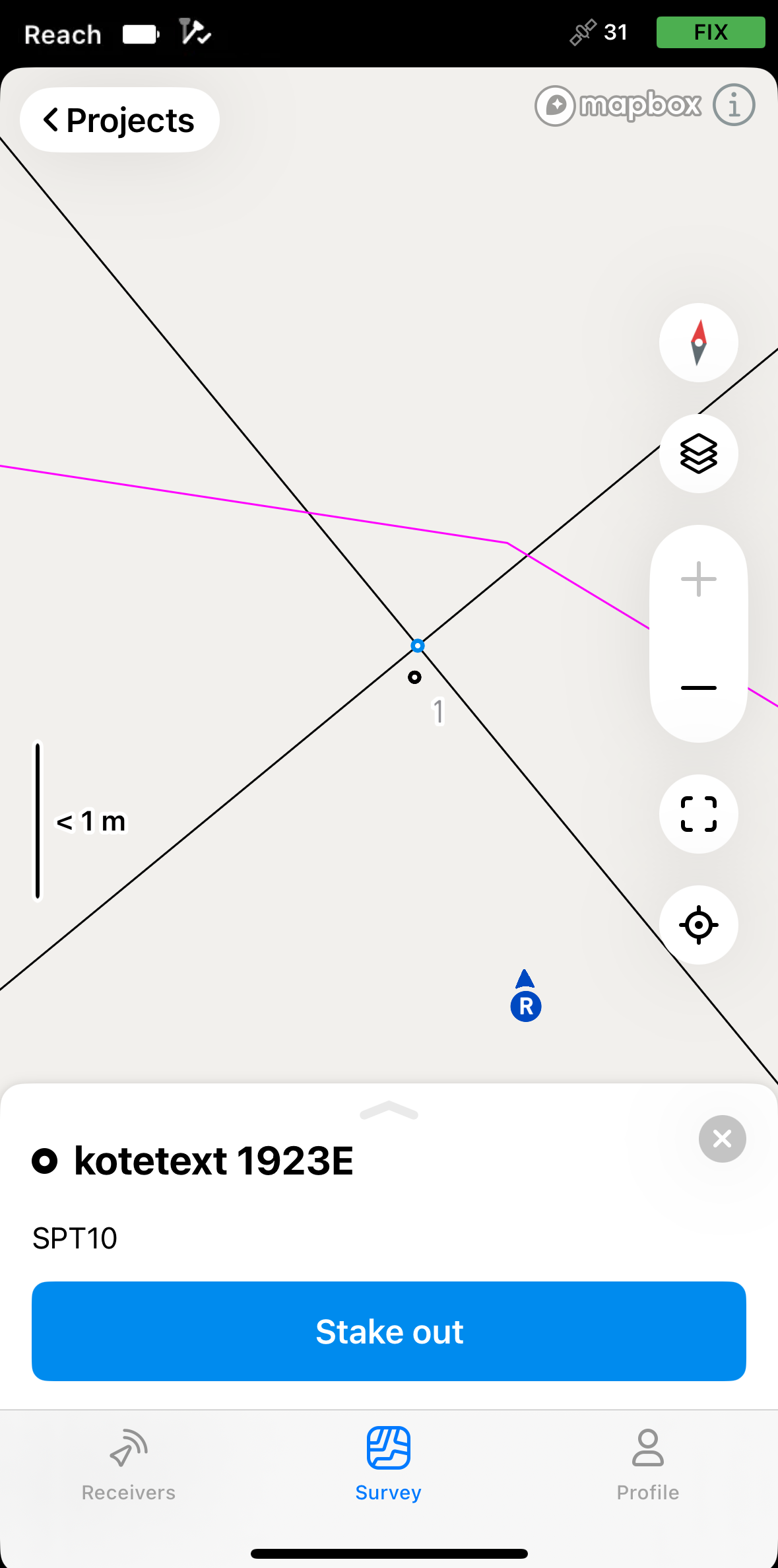
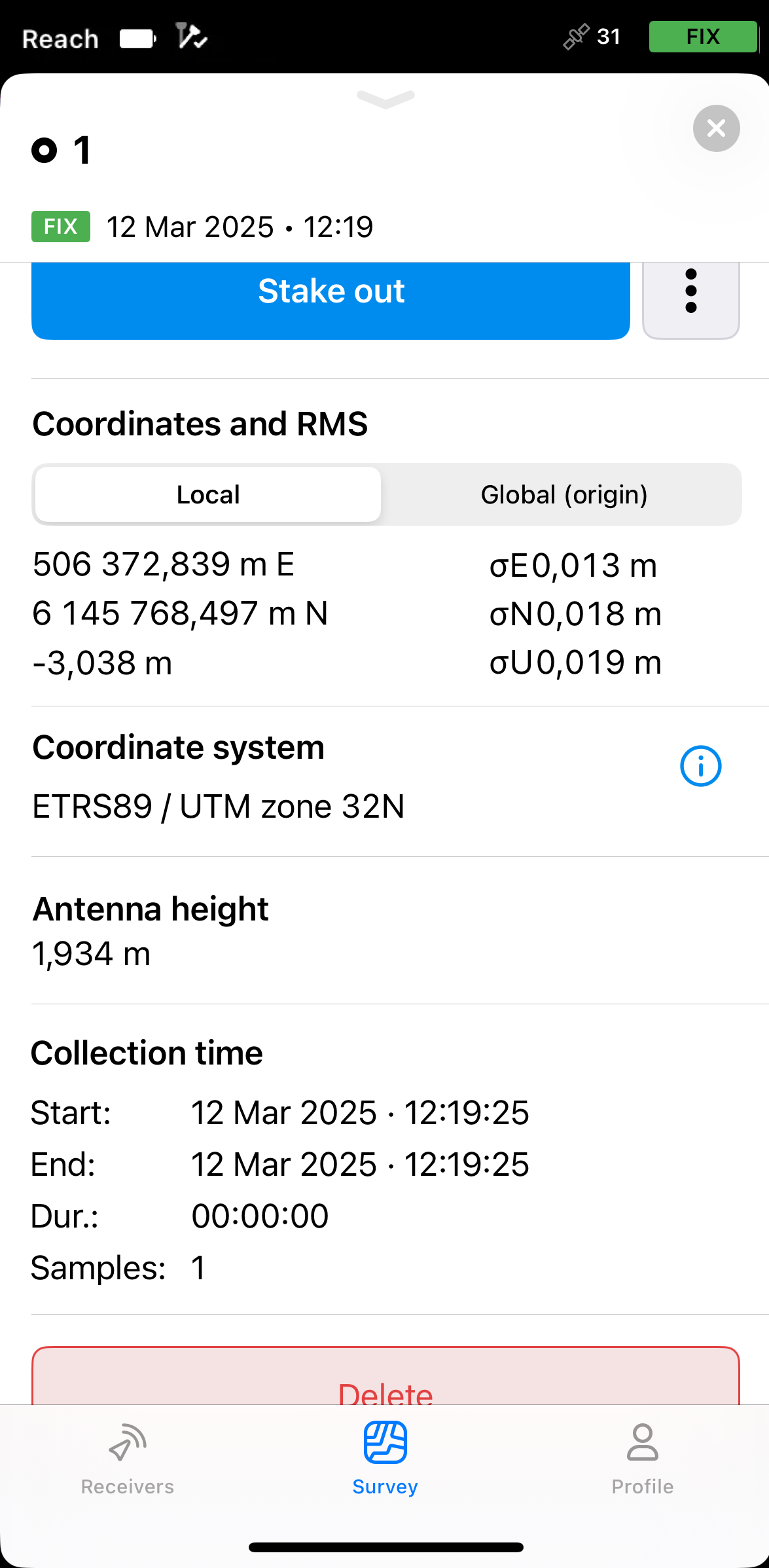
Tap Save. The saved point will appear on the map as a standard point and will be assigned an ordinal number. To view its information, tap the point and swipe up the drawer.
noteThe saved point is independent of the CAD drawing and is stored in the project.
-
Tap the back button on the Stakeout plate to finish staking out the block reference. Select another geometry on the map for stakeout and repeat the steps.
Staking out lines, polygons, and their segments
The workflow for staking out lines, polygons, and their segments is the same. This guide demonstrates the process using a line from a CAD drawing as an example.
-
Choose the line stakeout mode
In this guide, we use the Along line mode, which lets you stake out the full line with 3D distance, offset, and cut/fill values. This mode is enabled by default. To learn more about other modes, see the Stake out lines guide.
-
In Emlid Flow, open your project.
-
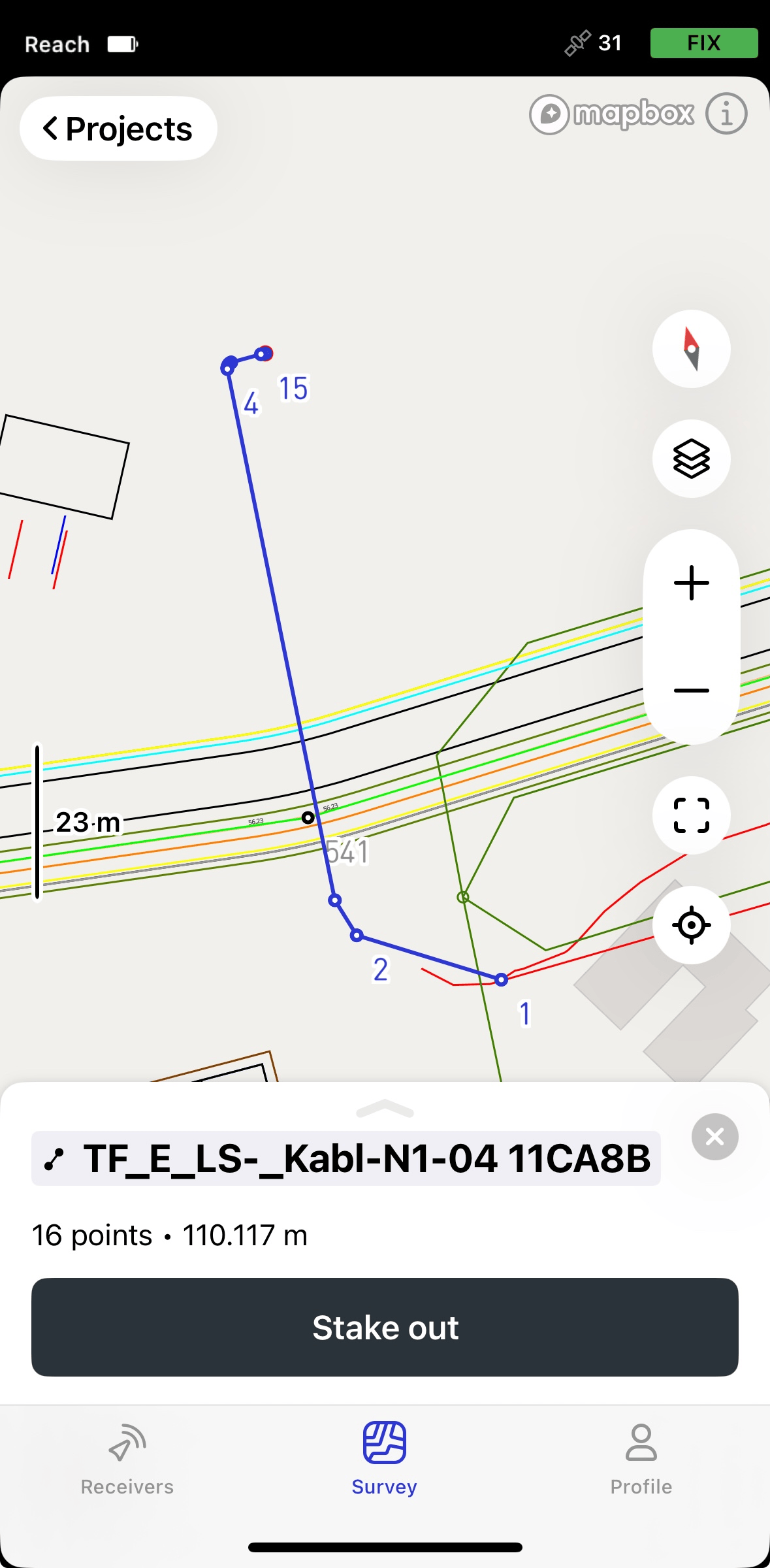
Choose a line on the map or from the list. The selected line will be highlighted in blue on the map.
-
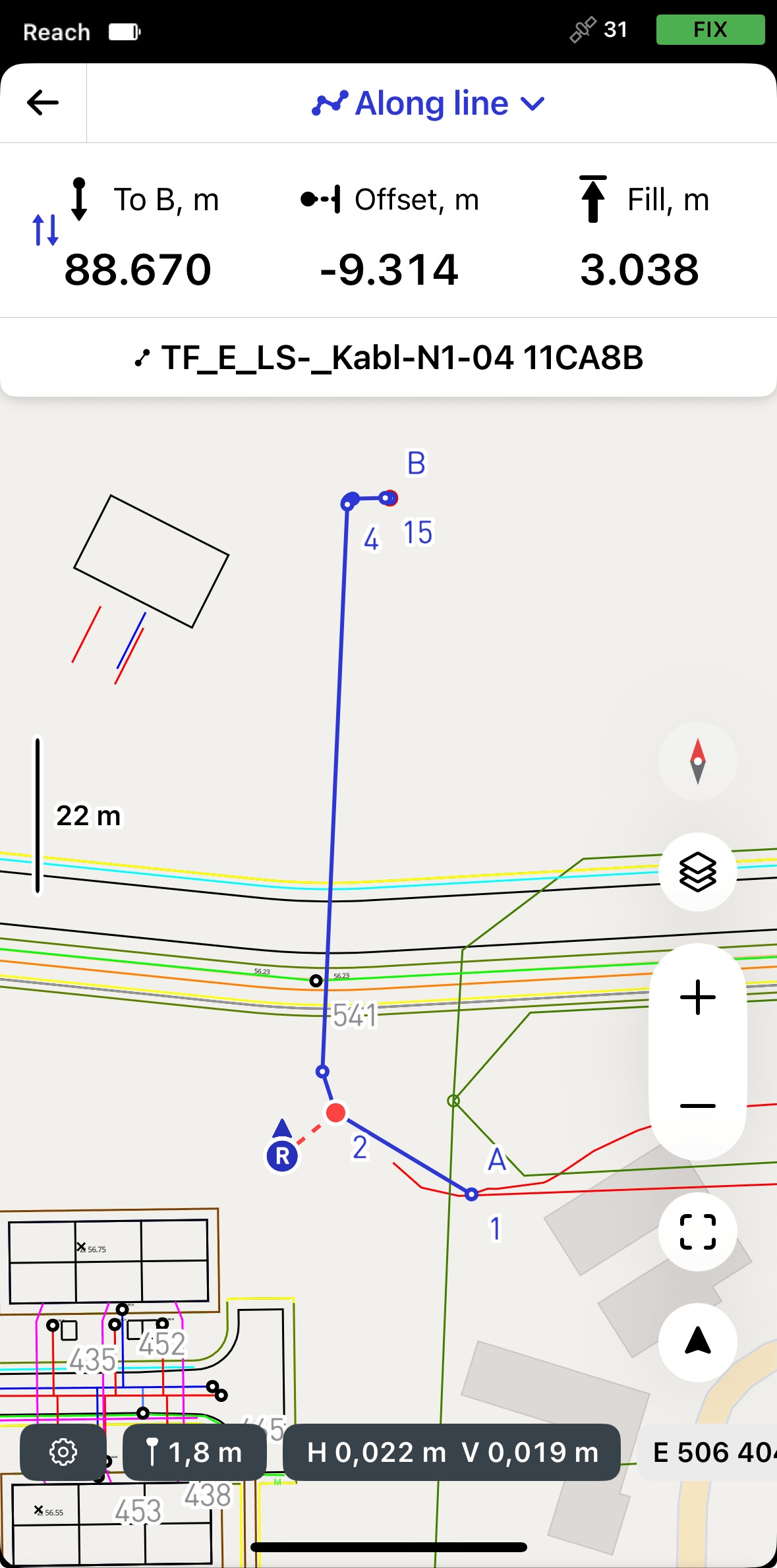
Tap the Stake out button. The Along line mode is applied by default. The line will get the A and B labels at the start and the end points.
 note
noteEmlid Flow remembers the last mode used. If you’ve previously used the Line stakeout tool and a different mode is active, tap the top of the Stakeout plate or tap the survey settings to access the menu with all available modes, then select Along line.
-
Tap the To B section to choose the end of the line from which the stakeout will begin.