Create points
This guide explains how to create points in your project in the Emlid Flow and Emlid Flow 360 app to use them for base setup, design layout, and stakeout tasks.
Overview
Emlid Flow and Emlid Flow 360 allow you to create points by entering their coordinates in either local or global coordinate systems. These points can be used as known points for base setup or as reference points for design layout and stakeout tasks, including creating lines.
We recommend using an Emlid account to automatically sync your project between the Emlid Flow app and Emlid Flow 360. Any changes you make in one platform will instantly appear in the other.
Workflow
To create a point, follow the steps below:
- Emlid Flow
- Emlid Flow 360
-
Open your project in the Emlid Flow app.
-
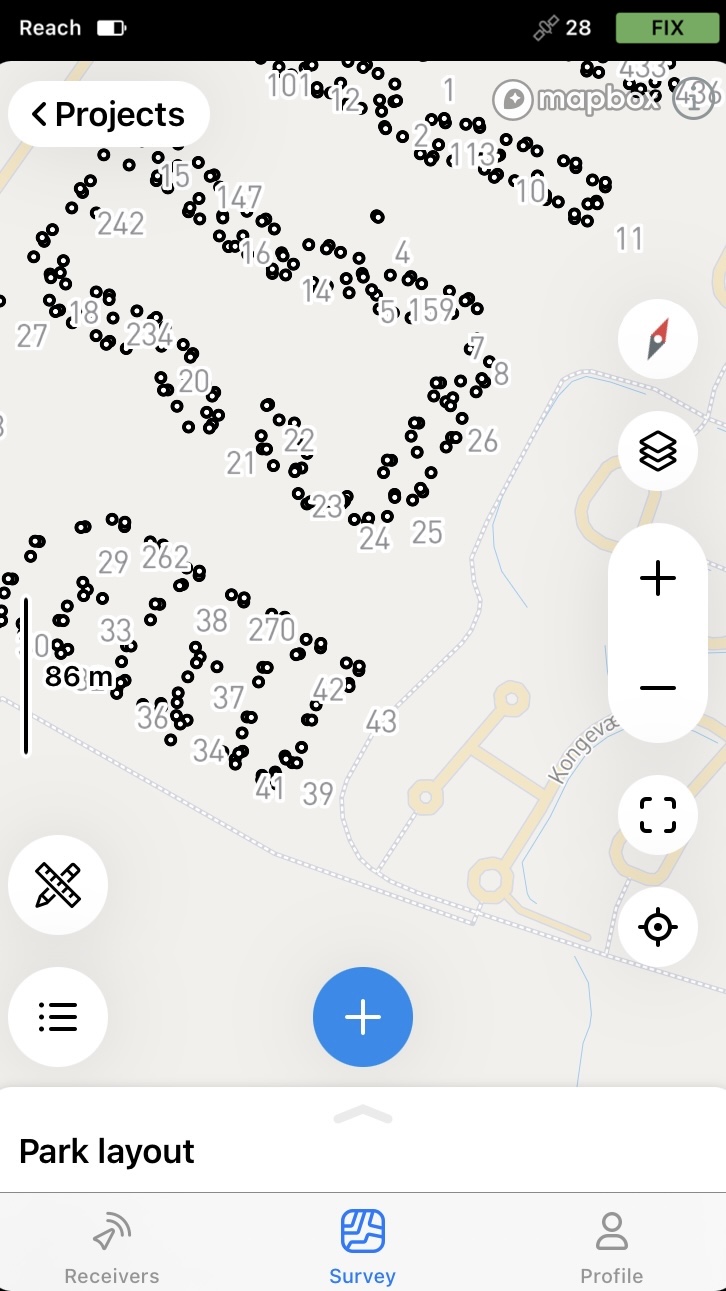
Tap the Tools icon.
-
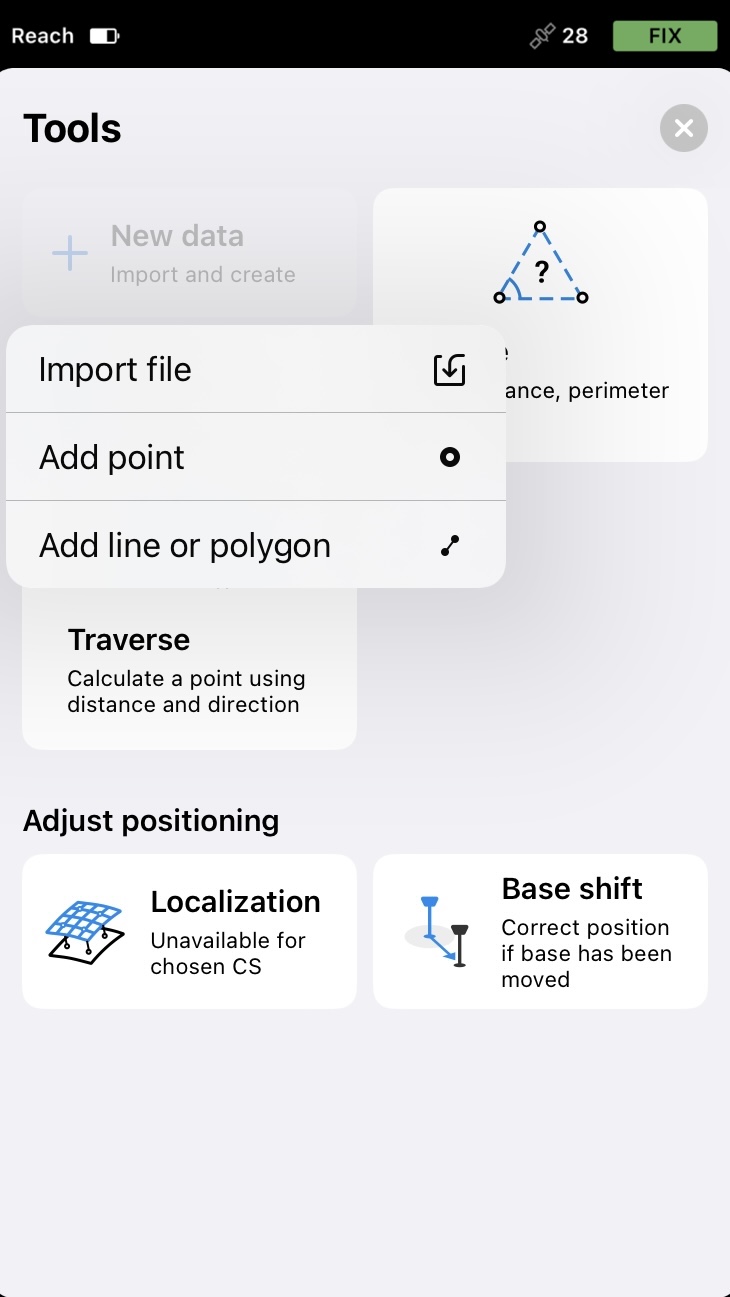
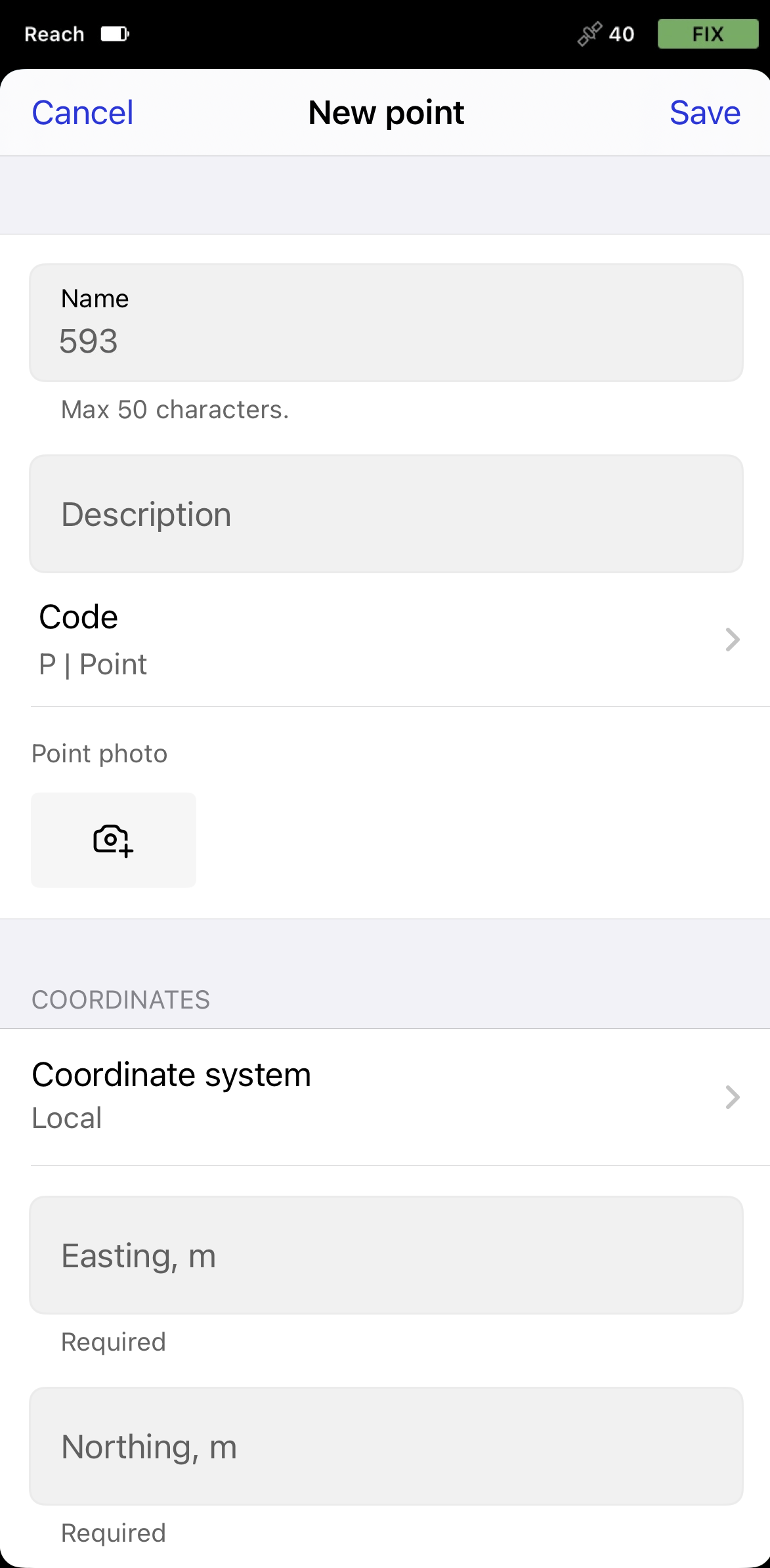
Tap New data and select Add point.
-
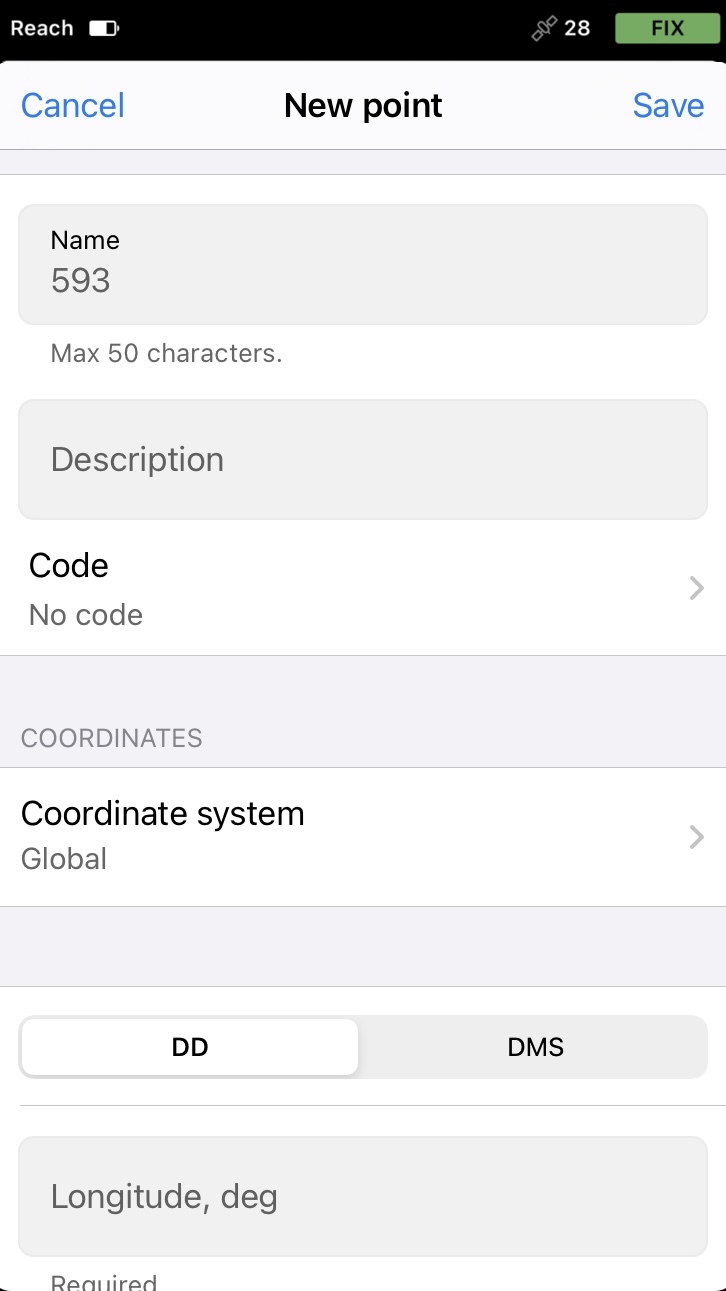
Add a name and a description to your point. If you don’t name a point, the app will automatically use the next number in sequence as its name.
-
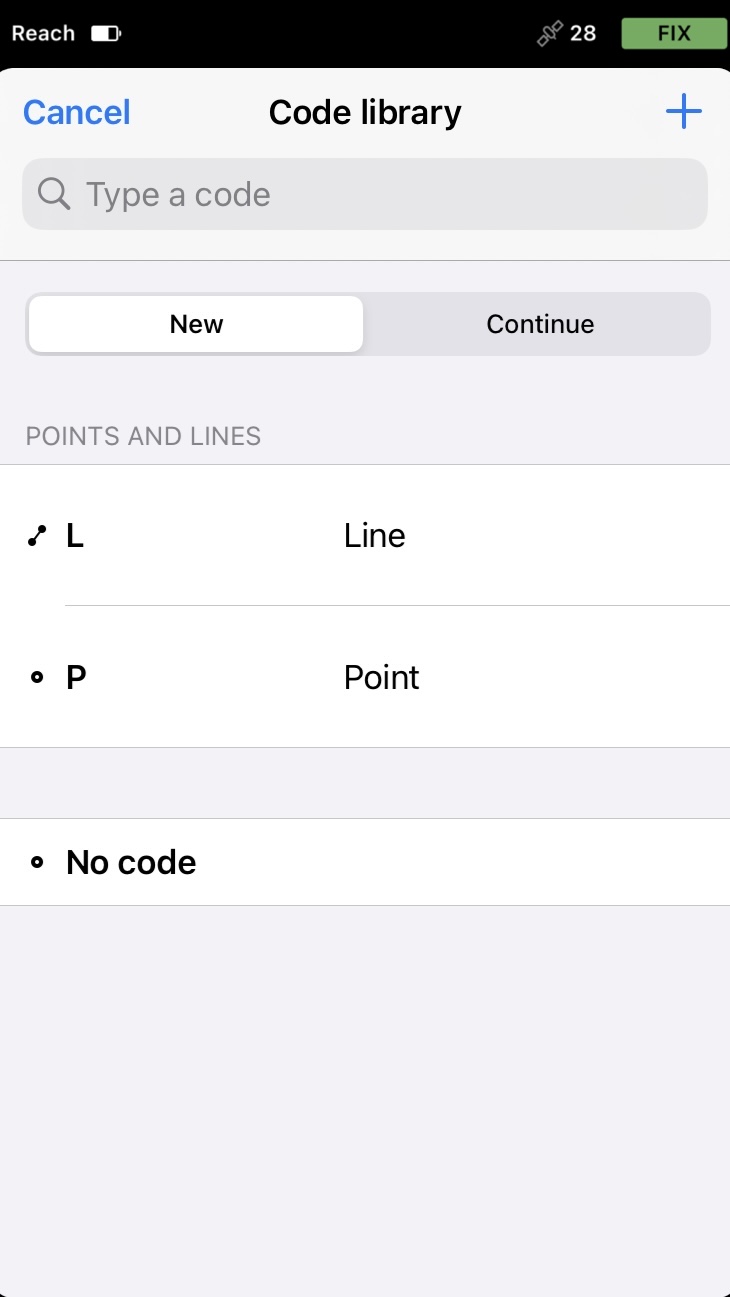
With the Pro plan, you can add a survey code with a description, an already configured color, and attributes by tapping the Code selector button. Choose a code from the library and enter the associated attributes, if required.
-
With the Pro plan, you can attach one photo to the point in two ways:
-
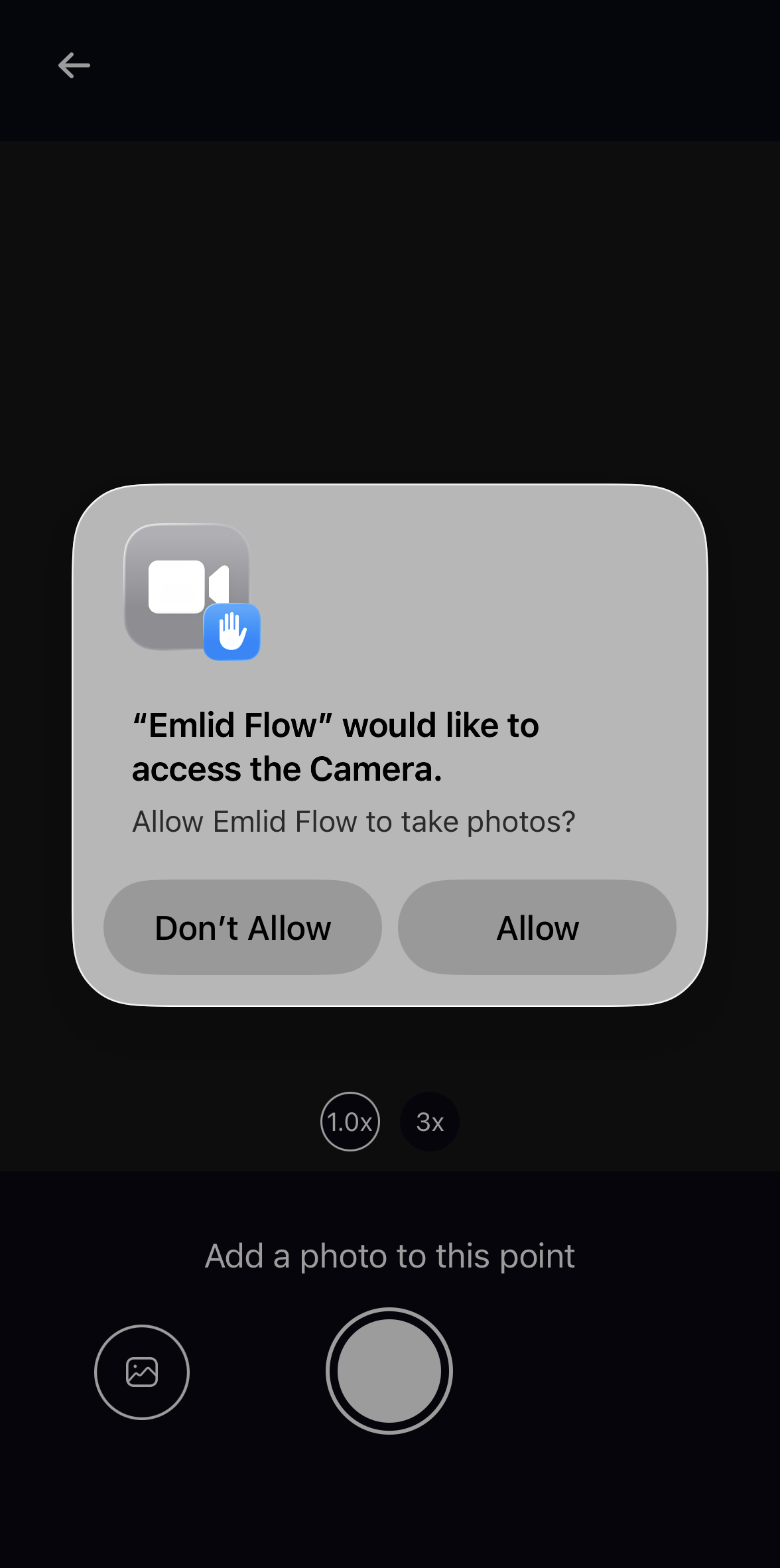
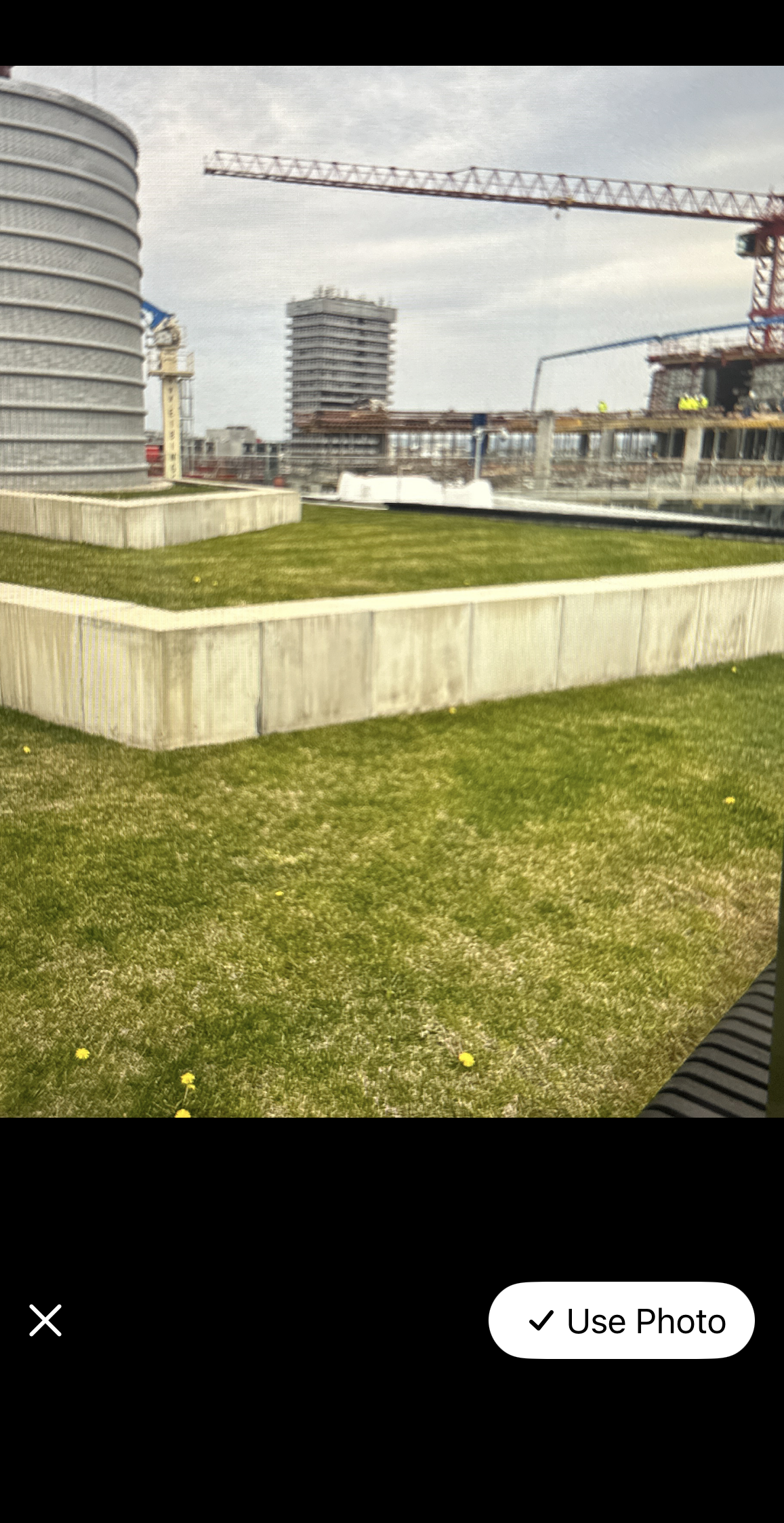
Take a photo directly in Emlid Flow. Navigate to the object, tap the Camera button, provide access to the camera, and take a photo of the point.
-
Add a photo from your gallery. Tap the Camera button, provide access to your device’s gallery, and select the required photo.
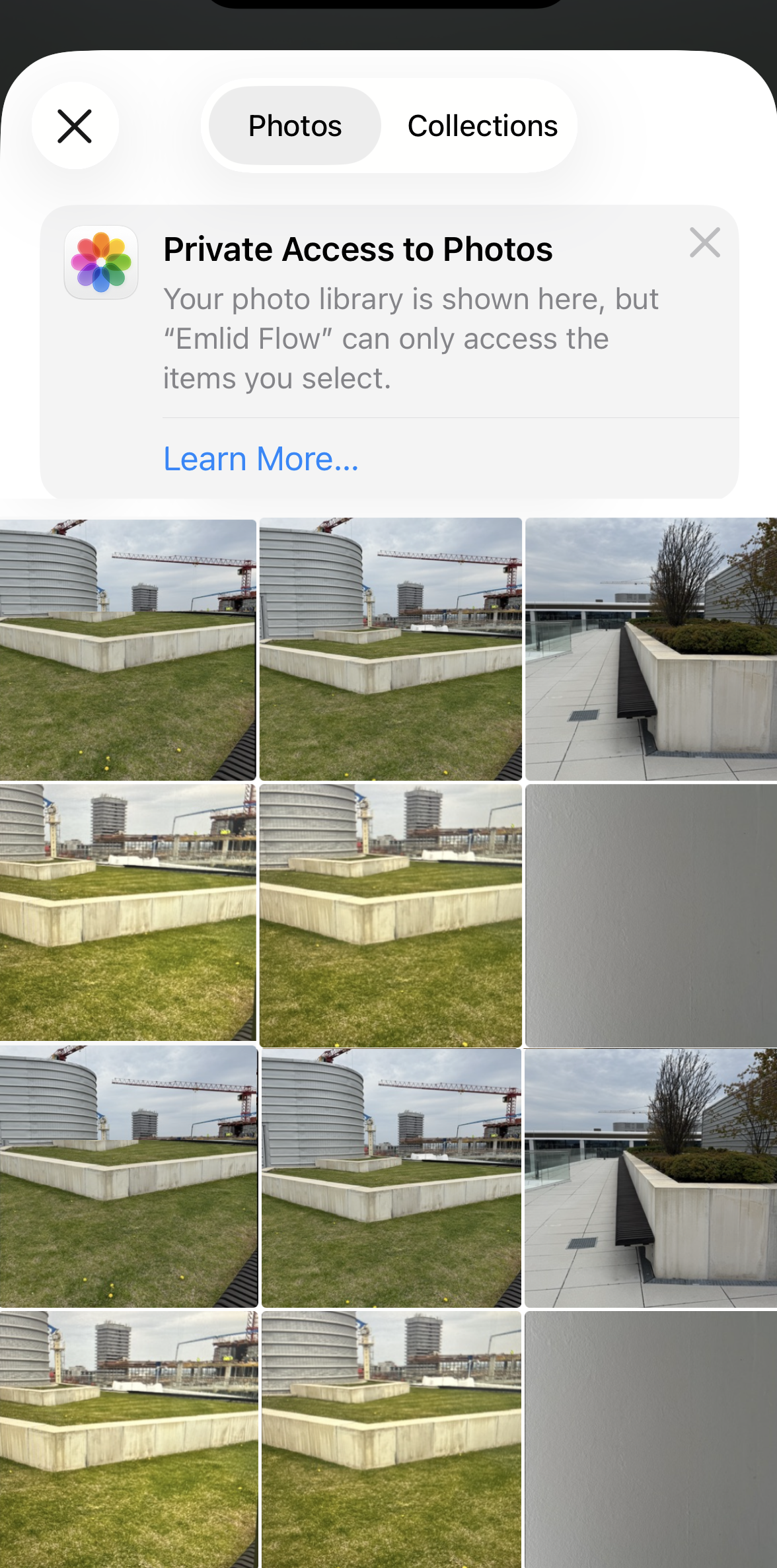
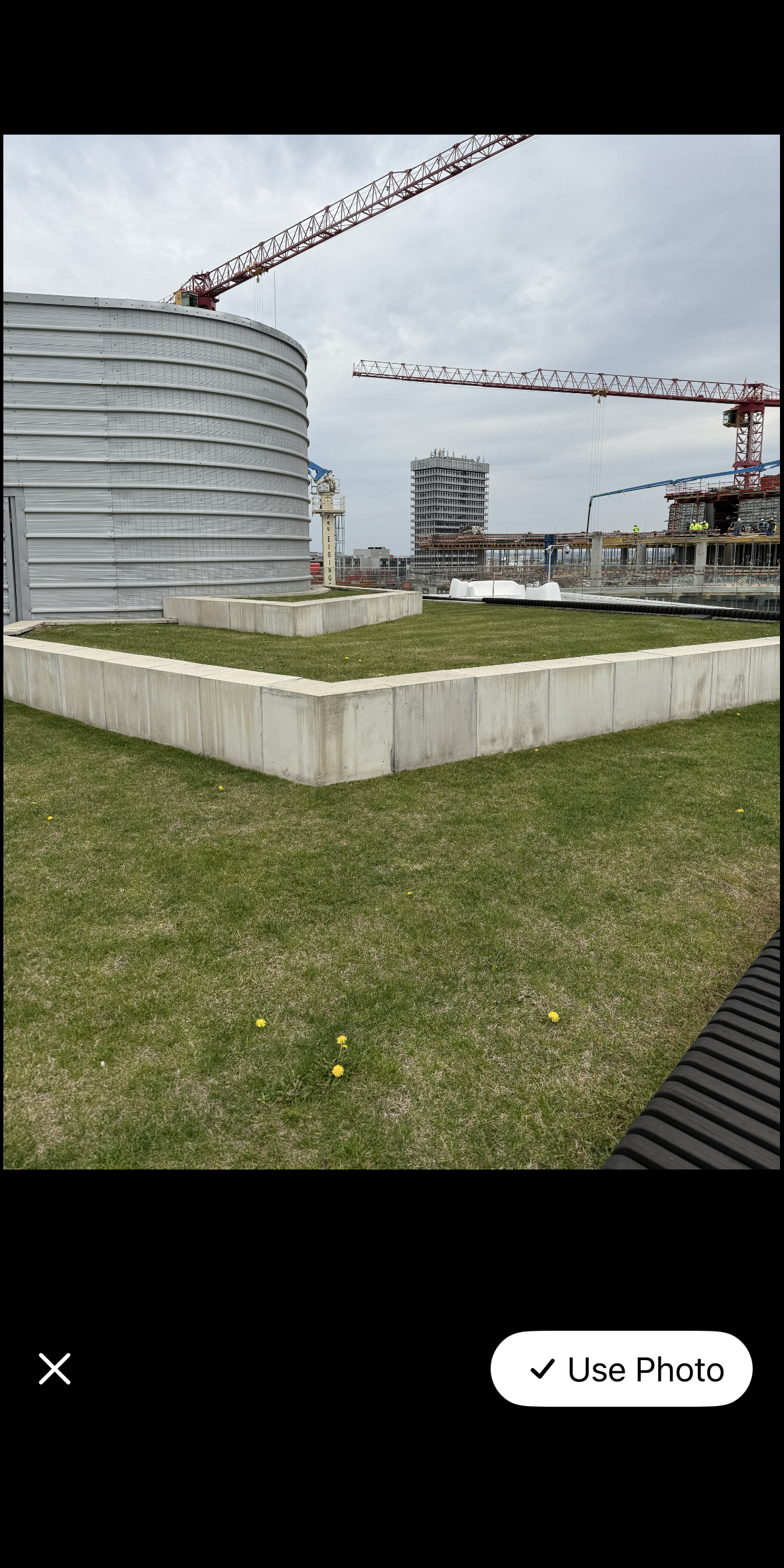
The attached photo will appear in the Point photo field. If needed, you can delete it and replace it with a new one.
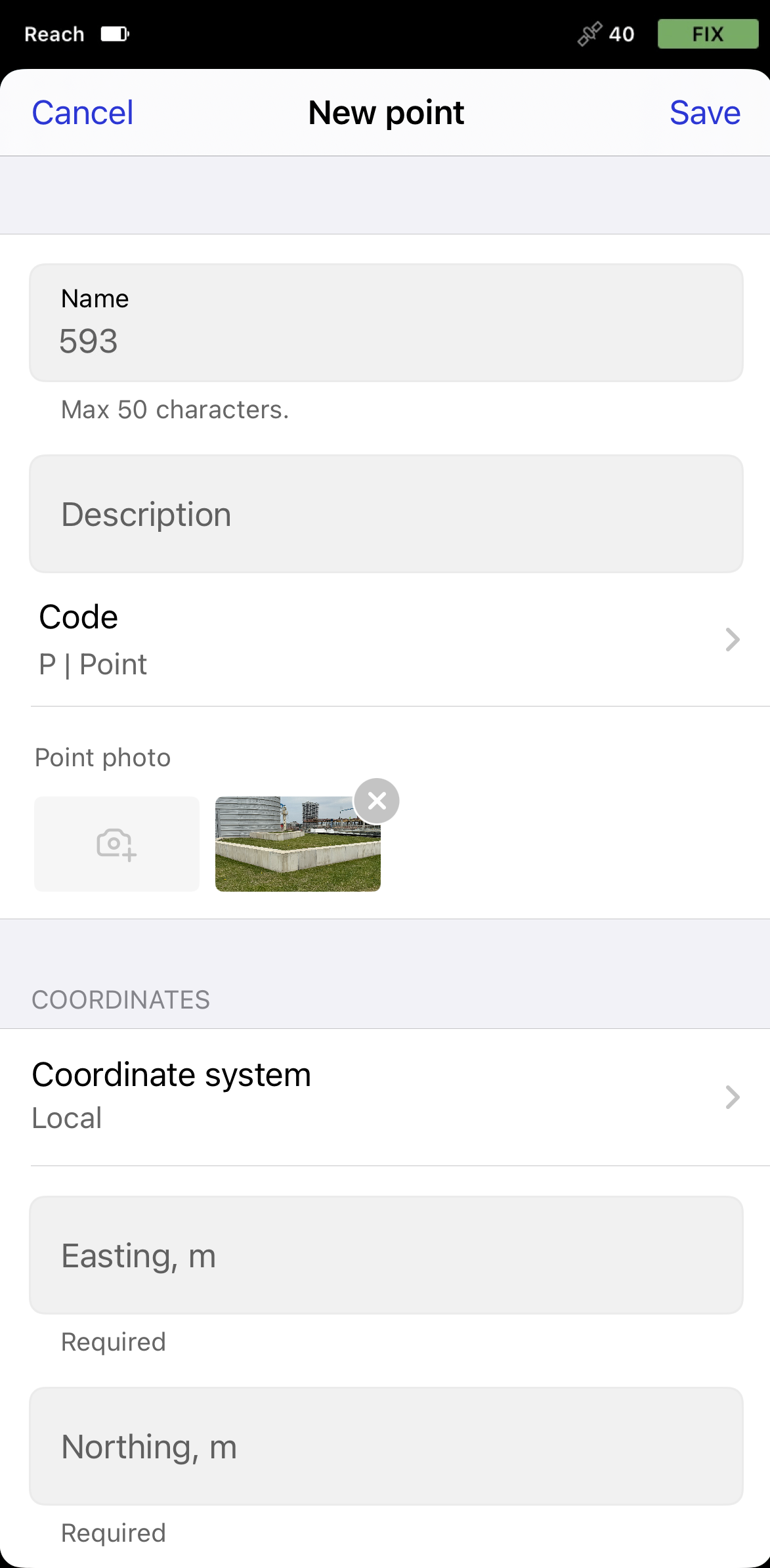
The attached photo will also appear in Emlid Flow 360 when you finish creating a point and save it. For that, you need to be logged in to your account, have an active internet connection, and refresh the Emlid Flow 360 page in the browser.
noteIf you add photos on Android, restart the Emlid Flow app to sync them with Emlid Flow 360. This will be resolved in the upcoming release.
cautionPhoto deletion is only available in Emlid Flow.
-
-
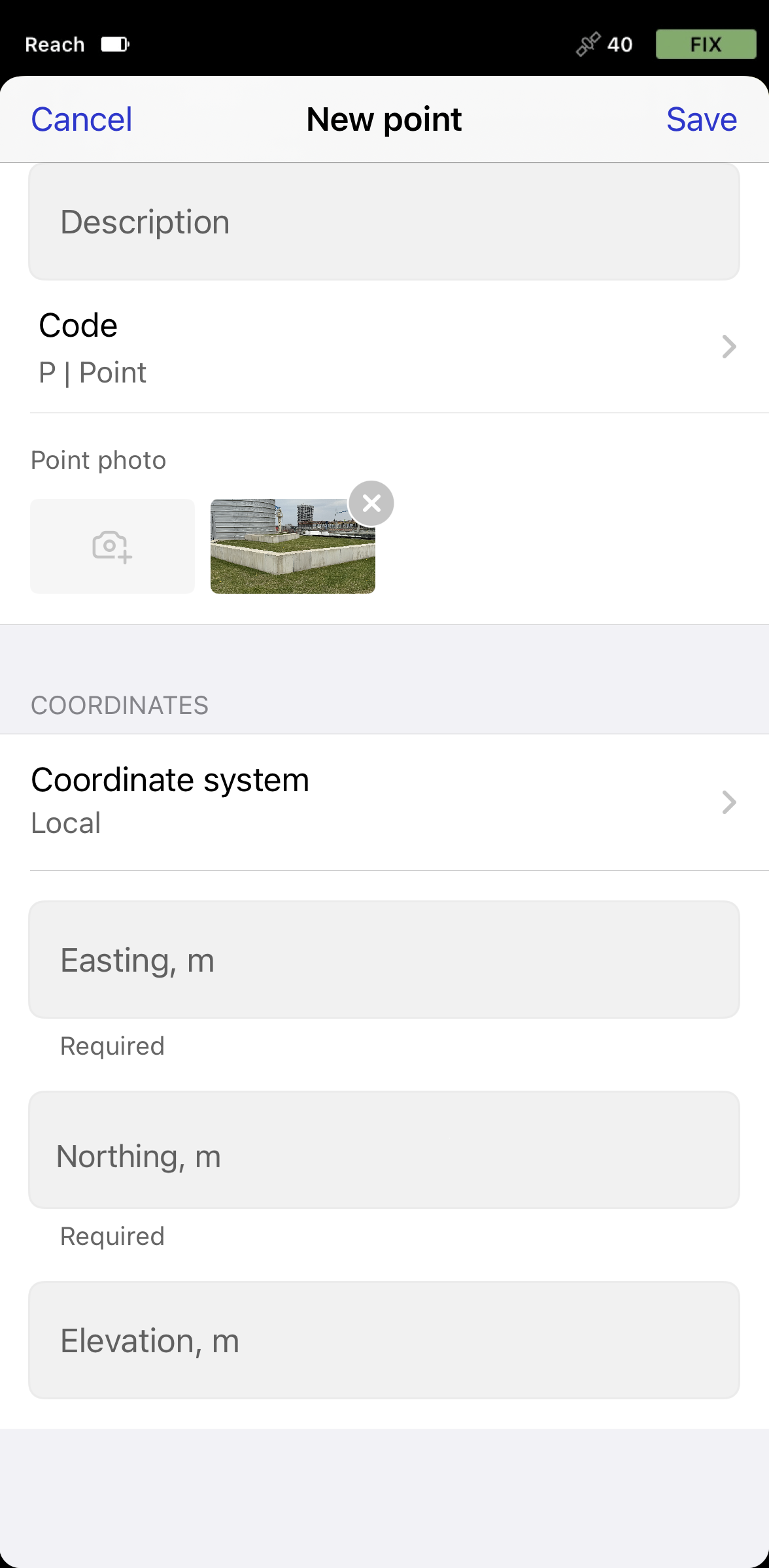
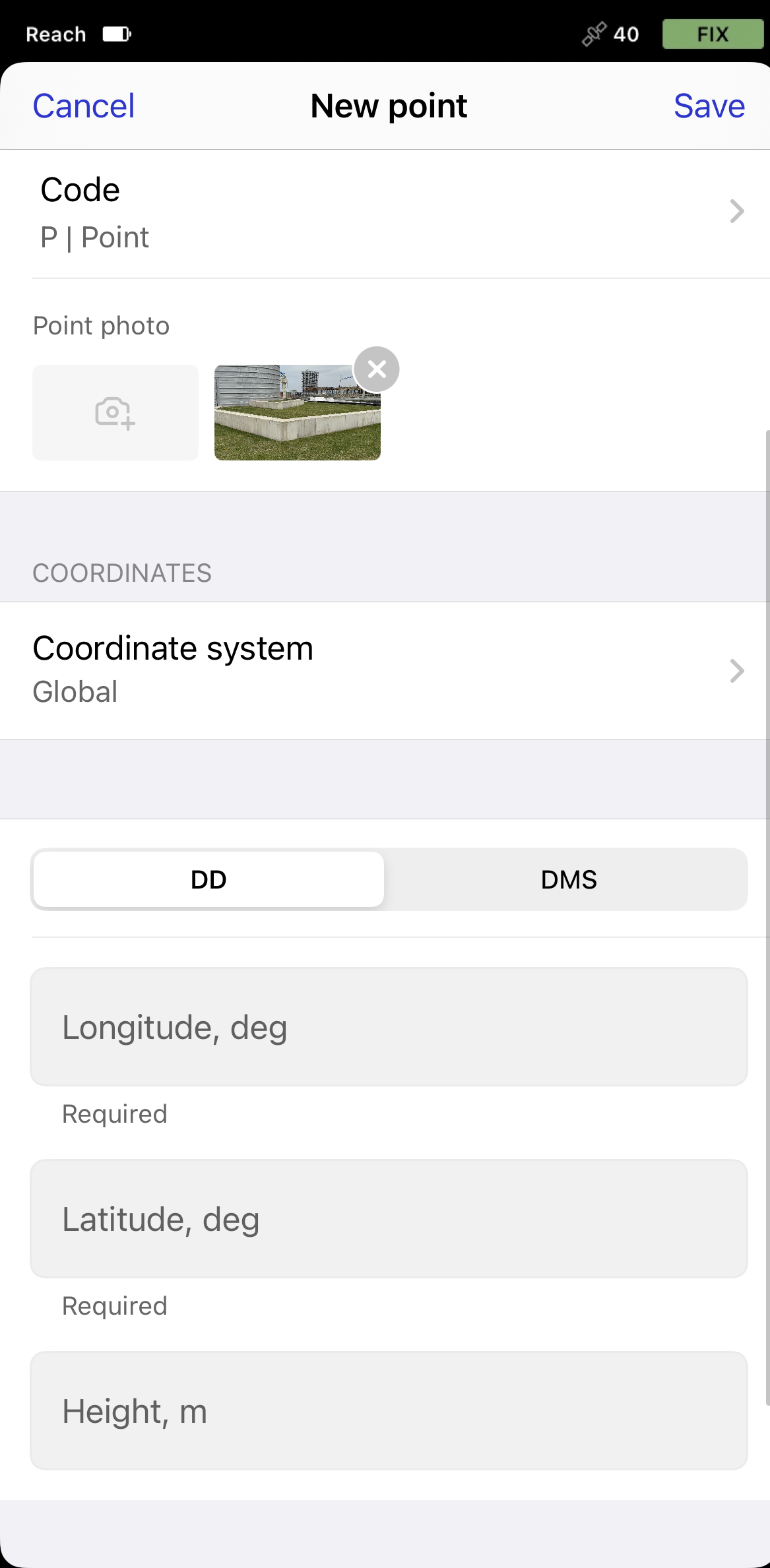
Enter your point coordinates. You can choose between local and global
coordinate systembased on your preferences. When choosing a global origin, you can decide whether you want to give your coordinates in decimal degrees (DD) or in degree-minute-second (DMS) format.Coordinate system is a coordinate-based local, regional or global system used to locate geographical entities. A spatial reference system defines a specific map projection, as well as transformations between different spatial reference systems.
tipLearn more about coordinate systems in the Introduction to coordinate systems guide.
-
Tap Save
Now you can add new points or create lines of them following the Create lines from existing points guide.
-
Open the project you want to work with.
-
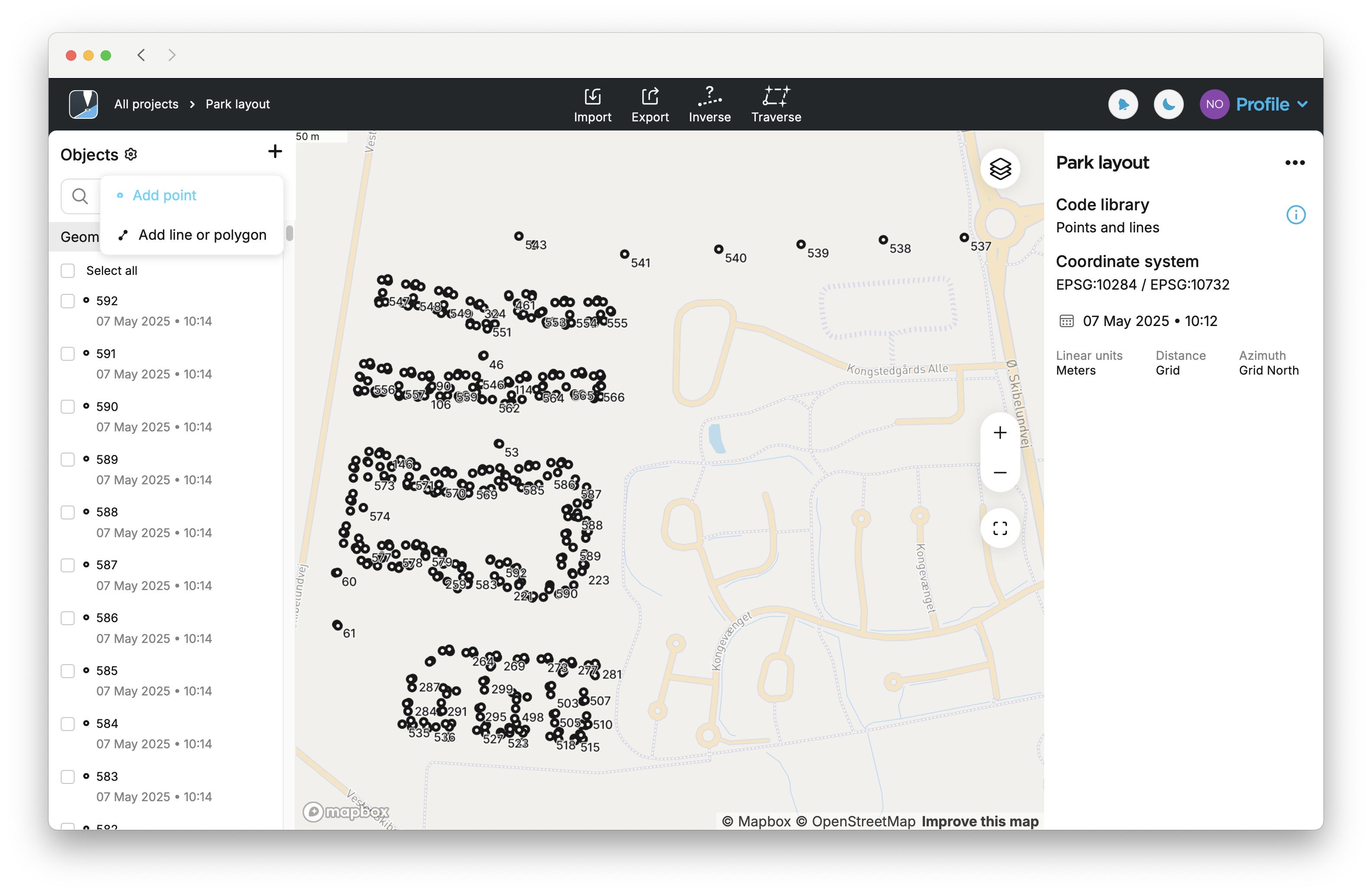
Go to the list of objects, click the + button at the top, and select Add point from the drop-down menu.
-
Here you can add a name and description to your point. If you don’t name a point, the app will automatically use the next number in order as its name.

-
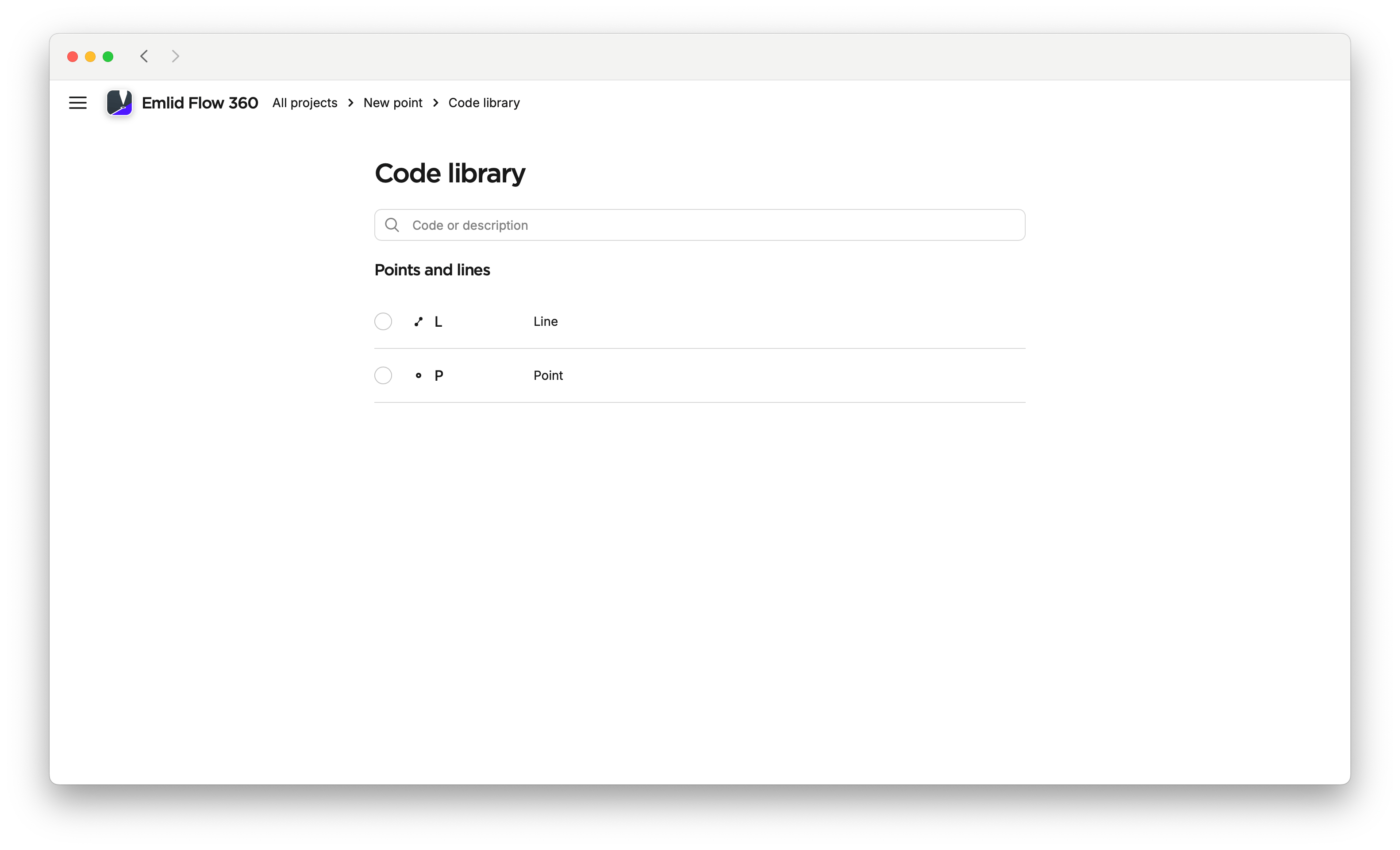
By clicking on the pencil icon, choose Point in the code library.
noteThe options for the code library depend on your project settings.
-
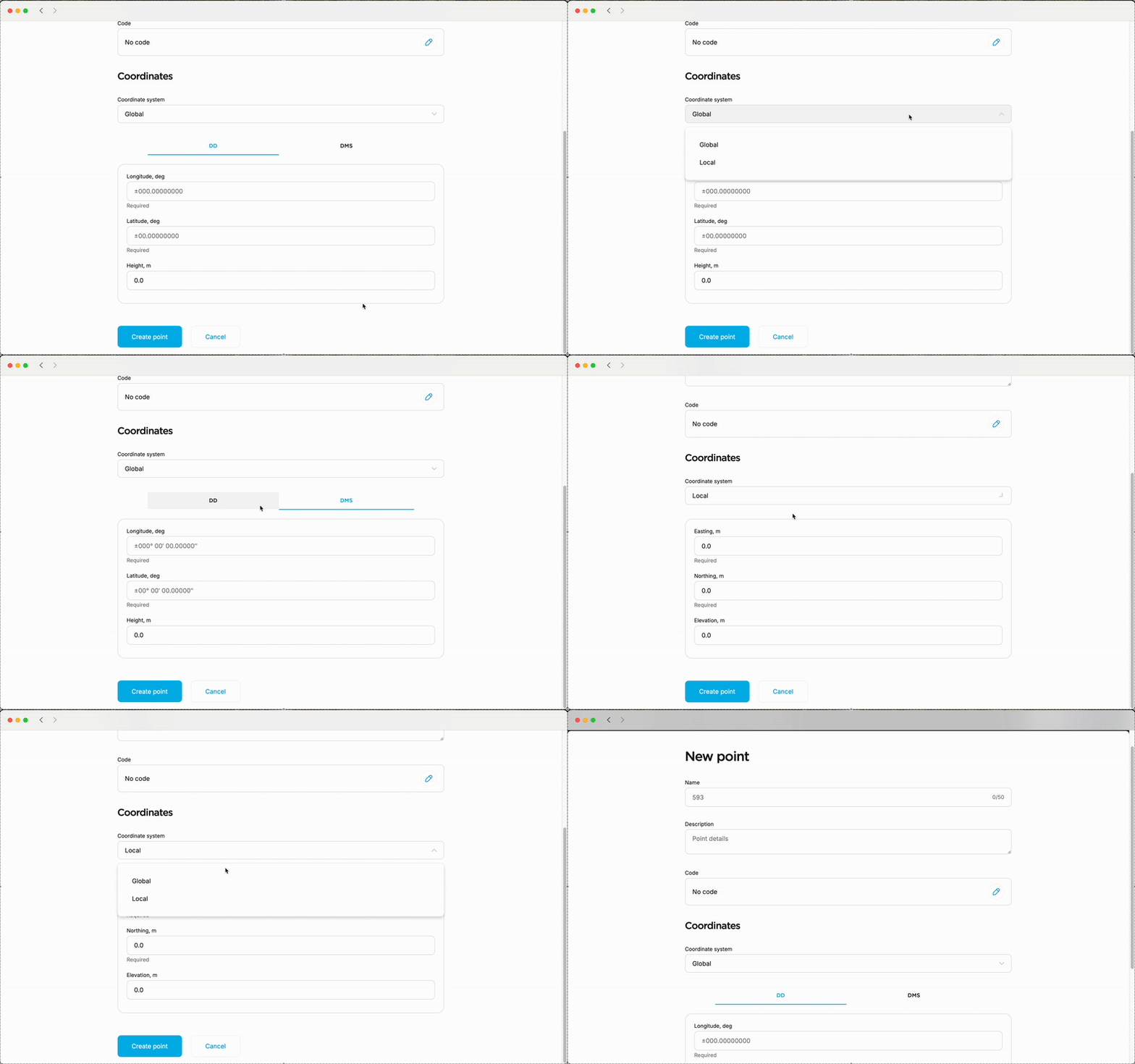
After selecting the code, enter your coordinates. You can choose between local and global origin and select the format of your coordinates based on your preferences.
tipBy choosing Global, you can decide whether you want to give your coordinates in decimal degrees (DD) or in degree-minute-second (DMS) format.
-
Click on Create point.
Now you can add new points and create lines of them following the Create lines from existing points guide.