Integration with Microsurvey FieldGenius for Android devices
This tutorial explains how to integrate your Reach RX2 with MicroSurvey FieldGenius on Android devices via Bluetooth.
Overview
Reach RX2 allows integration with MicroSurvey FieldGenius for mobile data collectors via Bluetooth. For this, you don’t need to preconfigure your Reach RX2—it uses Bluetooth and streams the position in the NMEA format by default. However, if you want to send NMEA messages with compensation, follow the steps below:
Workflow
To integrate your Reach RX2 with MicroSurvey FieldGenius, follow the steps below.
Configuring corrections in Emlid Flow
To achieve centimeter-level accuracy when surveying with Reach RX2, you need to configure your receiver to receive corrections. You can do this in one of two ways:
- Directly in Emlid Flow by configuring the correction source in the app.
- Through FieldGenius by configuring the corrections source within the FieldGenius software by following the steps in the Configuring FieldGenius to receive corrections section.
Choose the option that matches your workflow.
If you choose to configure corrections in Emlid Flow, follow the steps below.
For more information on how to receive corrections on your Reach RX2, refer to the Quickstart section.
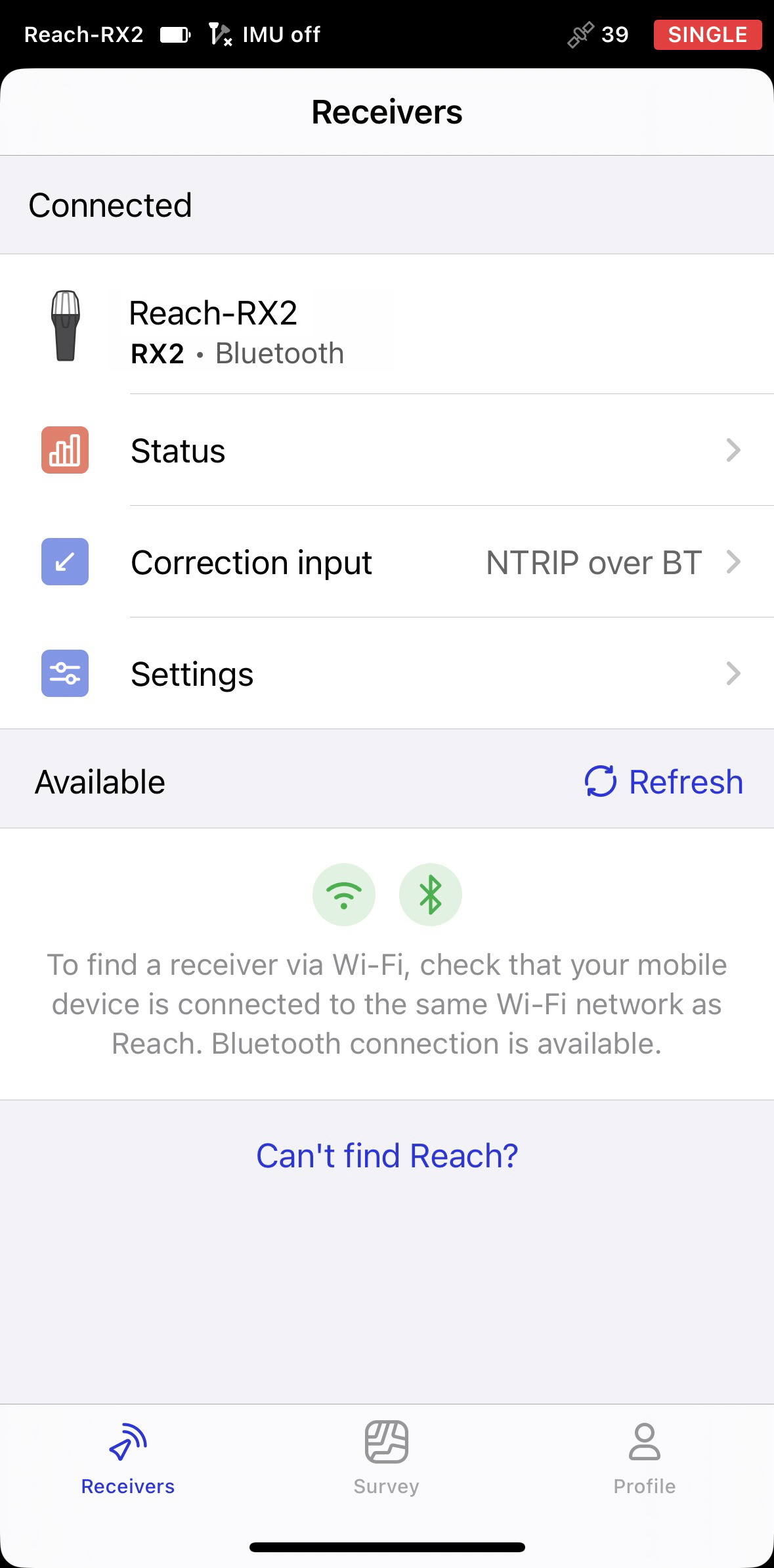
- Open Emlid Flow and connect to your Reach.
-
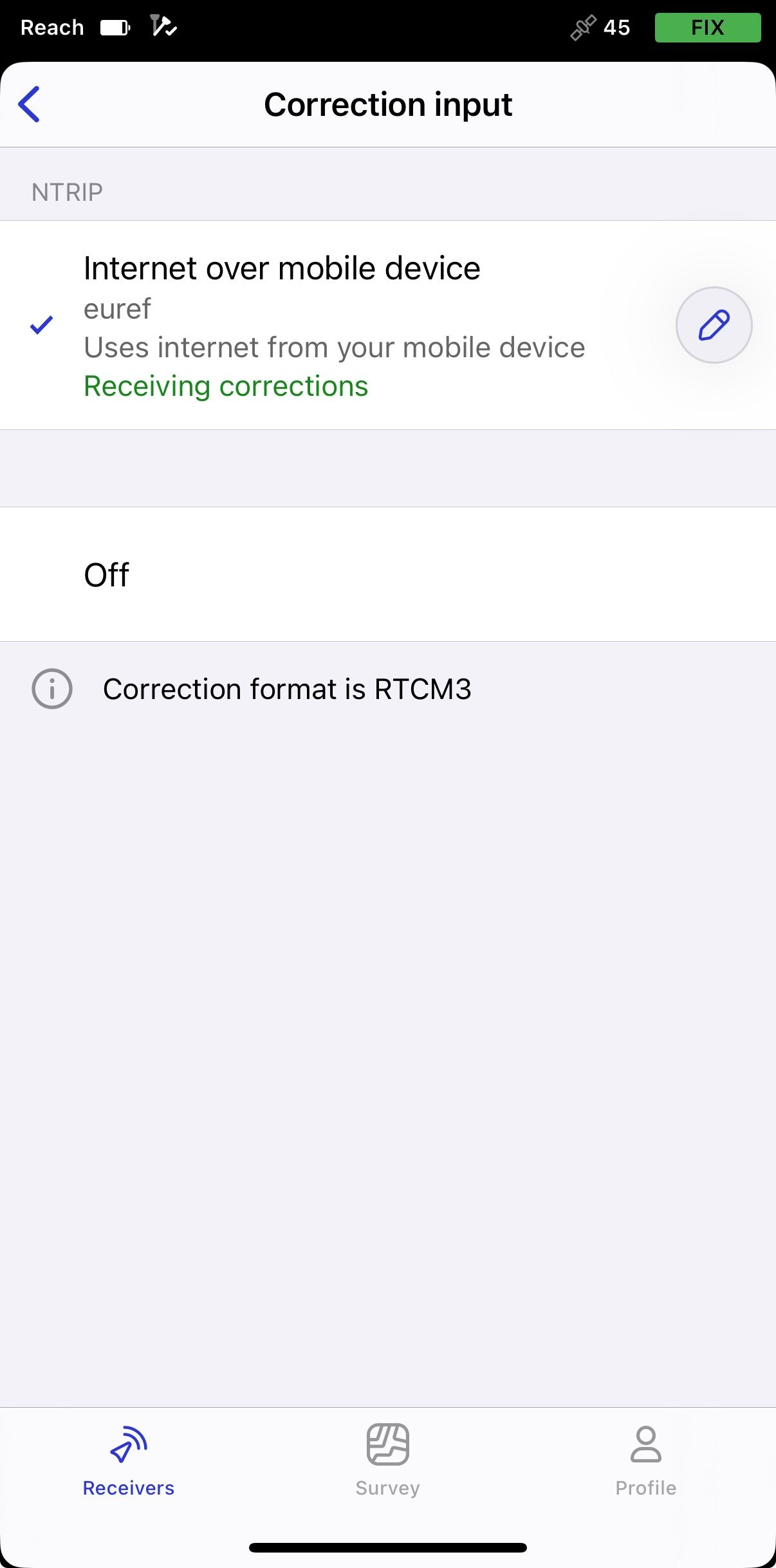
Go to the Correction input tab and tap Internet over mobile device.
noteOn Android, this option has been renamed to NTRIP via mobile device. This now also includes dynamic statuses with setup hints to help you configure the correction input. On iOS, these improvements will be available in upcoming releases.
-
Tap the Edit button to configure receiving corrections from the NTRIP base.
noteTo start receiving corrections, make sure that your receiver has satellite visibility.
Enabling tilt compensation
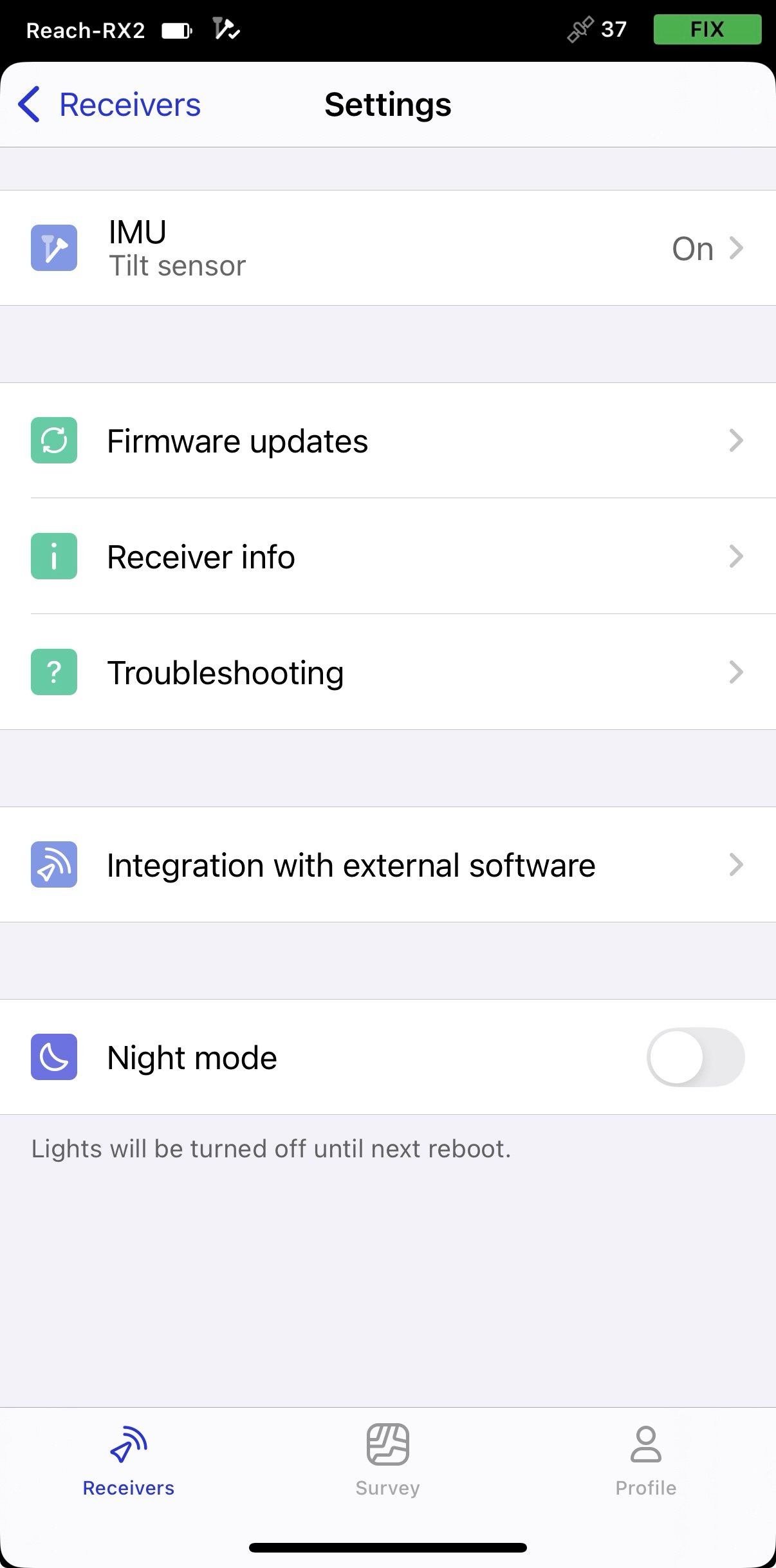
Reach RX2 supports IMU-based tilt compensation, allowing you to collect and stake out points even when the survey pole is tilted. The software calculates the tilt angle and distance to determine the pole tip position on the ground. To enable tilt compensation, follow the How to enable tilt compensation guide.
Setting up NMEA stream in Emlid Flow
By default, Reach RX2 automatically streams the standard NMEA messages set. In this case, you need to set up your Reach receiver’s antenna height in your third-party software.
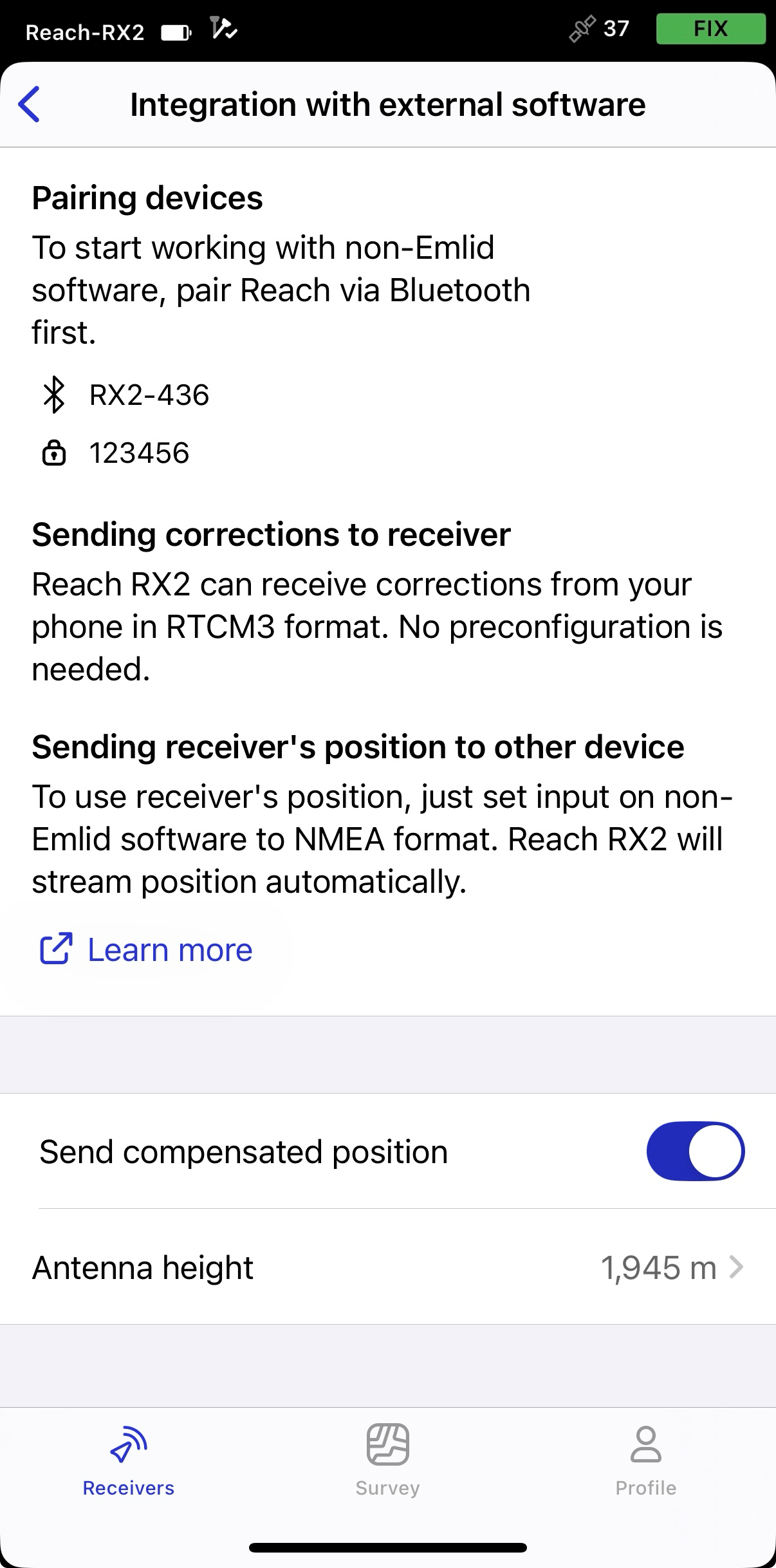
If you want to stream a compensated position of your Reach receiver, you need to enable it in Emlid Flow. In this case, the antenna height is included in the output, so you don’t need to set it up in your third-party app. To set up compensated NMEA messages, do as follows:
- In Emlid Flow, open Settings and go to Integration with external software.
- Turn on the toggle to enable streaming compensated position.
-
Set the antenna height. You only need to enter the pole height. Emlid Flow automatically applies the antenna phase center offset and adjusts the measurements accordingly.
tipIf you use a quick release, turn on the toggle to include its height in the antenna height calculation.
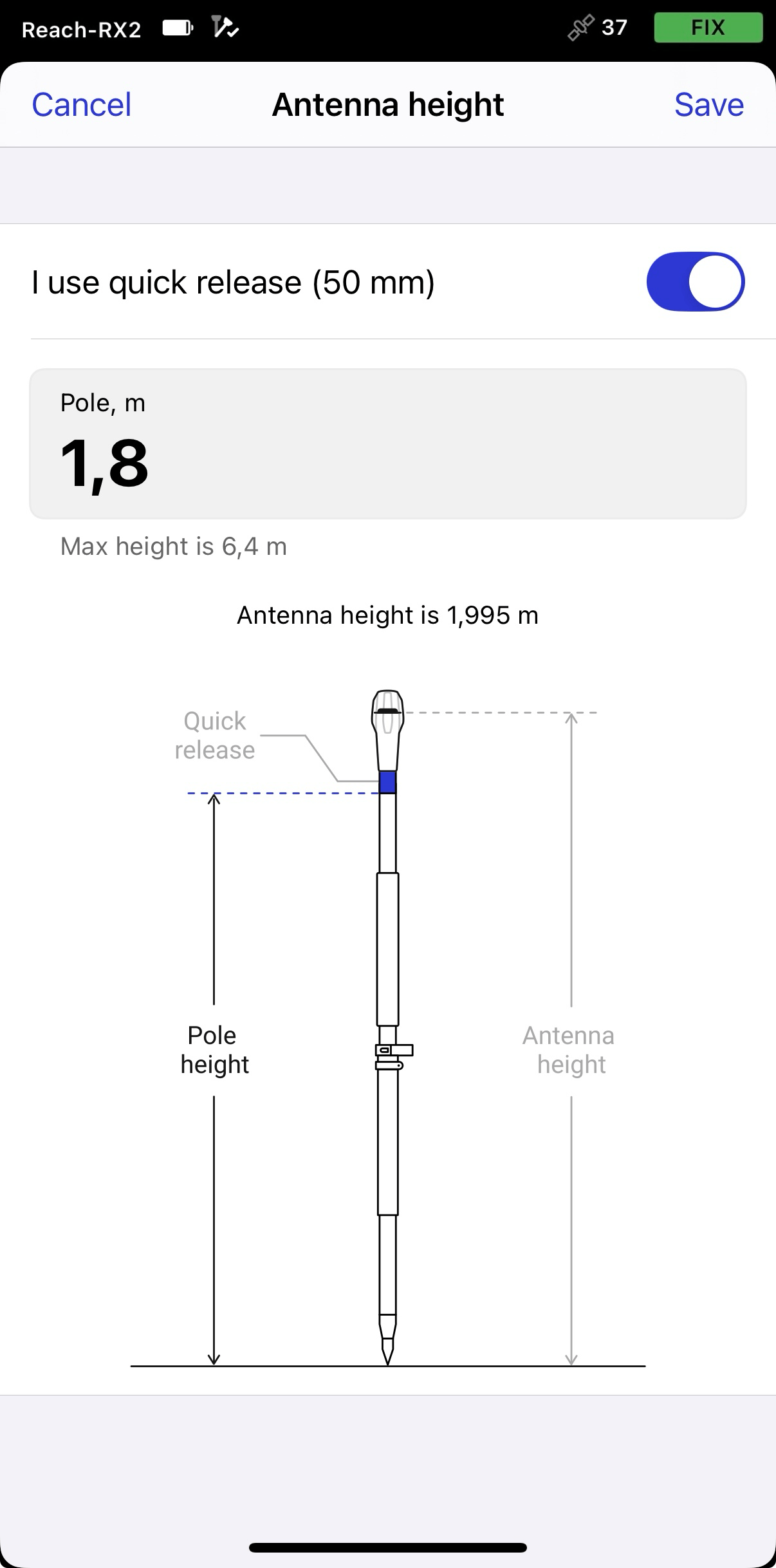
When sending compensated NMEA messages, set the antenna height only in Emlid Flow. Setting it in third-party apps as well may cause discrepancies.
Creating new project and instrument connection profile
-
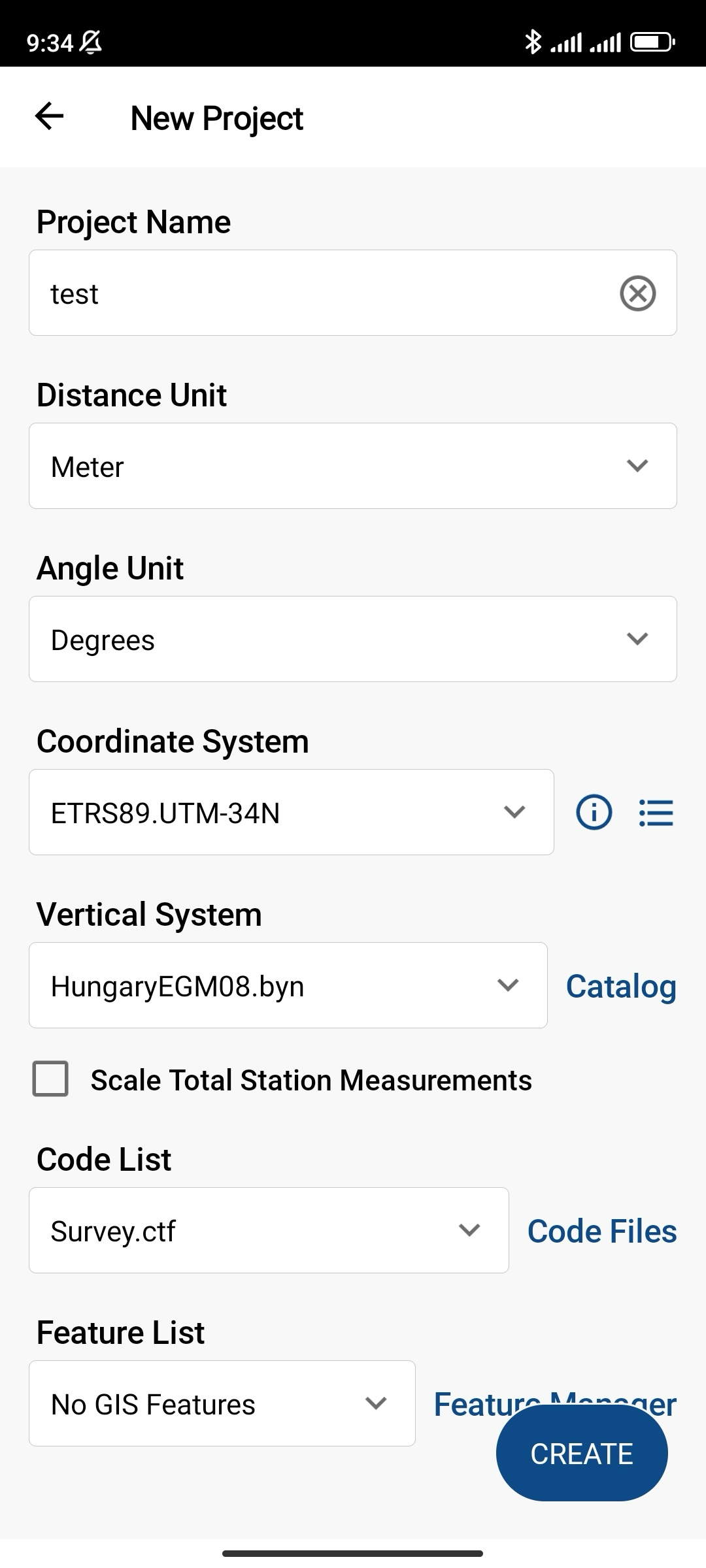
Open the FieldGenius app, create a new project and fill in all the fields. Tap Create.
noteMake sure that you configured proper units and coordinate system at this step.
-
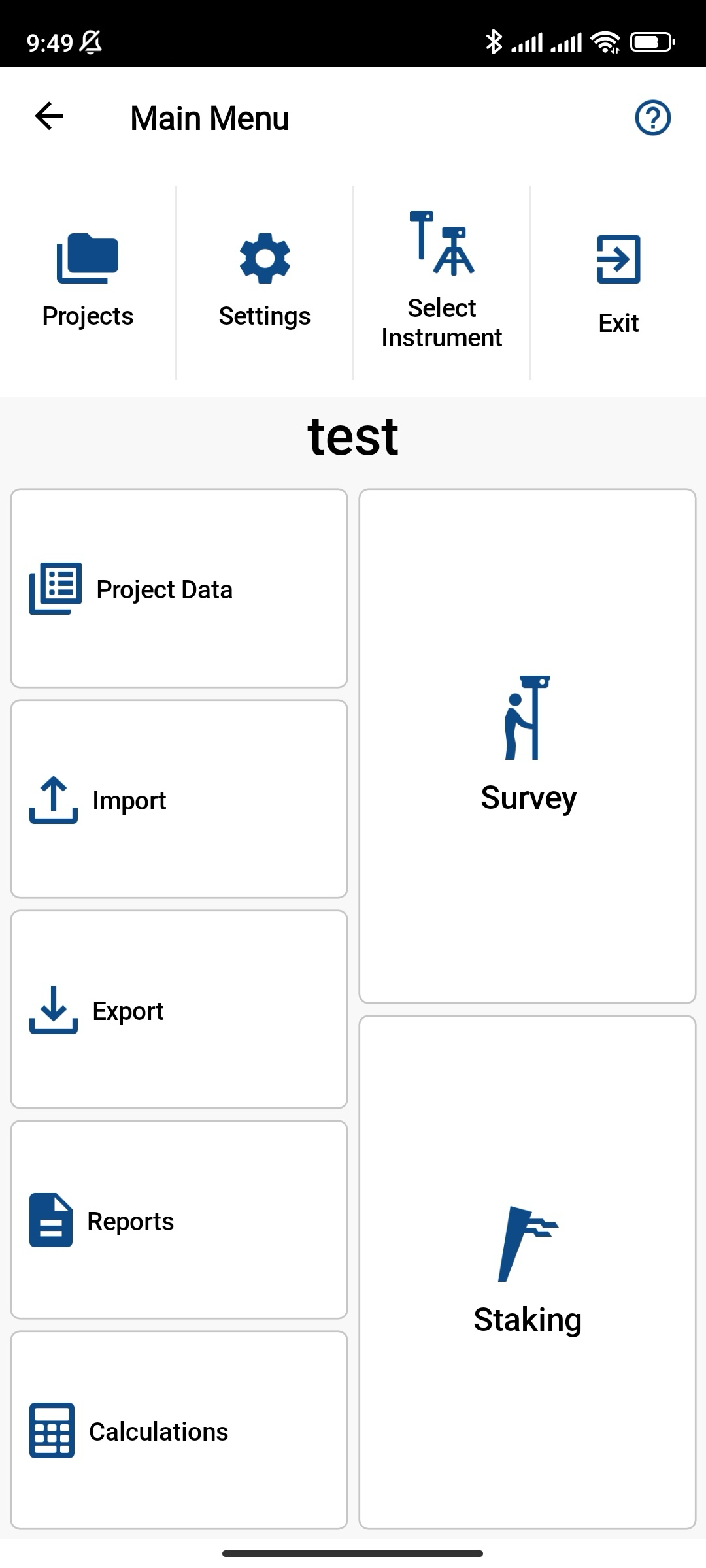
To create your GNSS rover profile, tap Select Instrument.
-
On the Instrument Profile screen, tap Add profile.
-
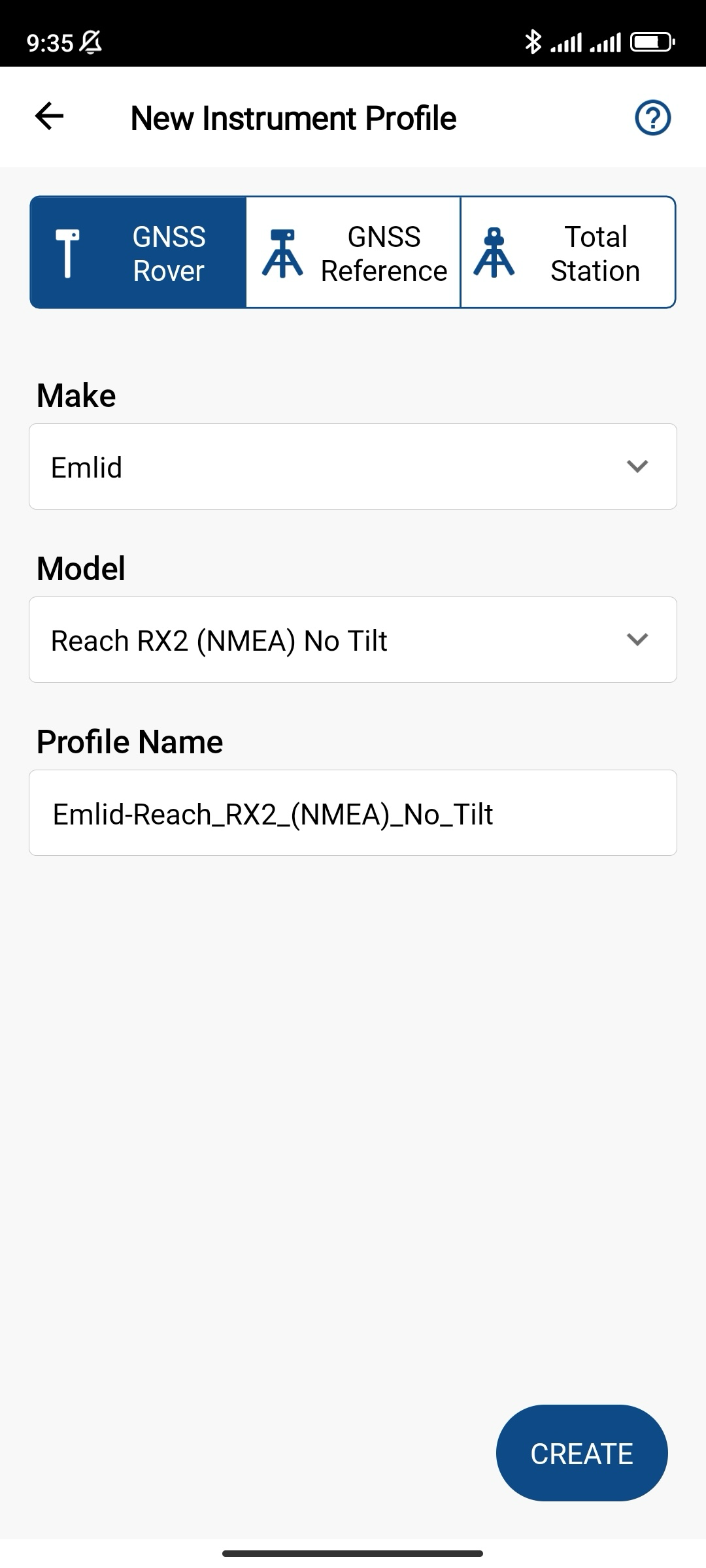
Fill in the required fields as follows:
- Select Emlid for Make.
- Leave Reach RX2 for Model.
- Specify the profile name.
-
Tap Create.
Configuring communication between MicroSurvey FieldGenius and Reach RX2
Once you have created the project and configured the instrument connection profile, you can set up communication between FieldGenius and Reach RX2 via Bluetooth as follows:
-
Tap SET UP COMMUNICATION.
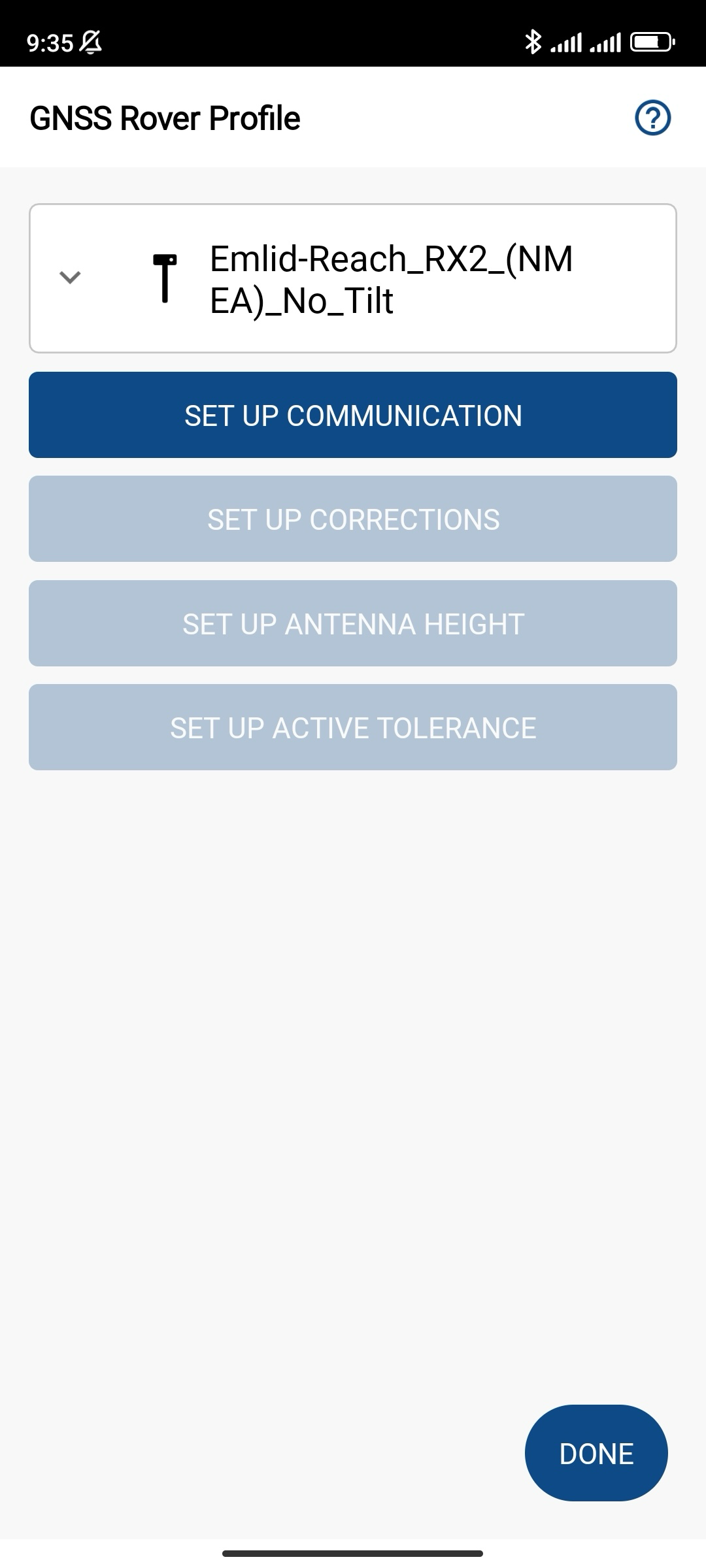
-
Set Connection type to Bluetooth and tap Search to find you Reach RX2.
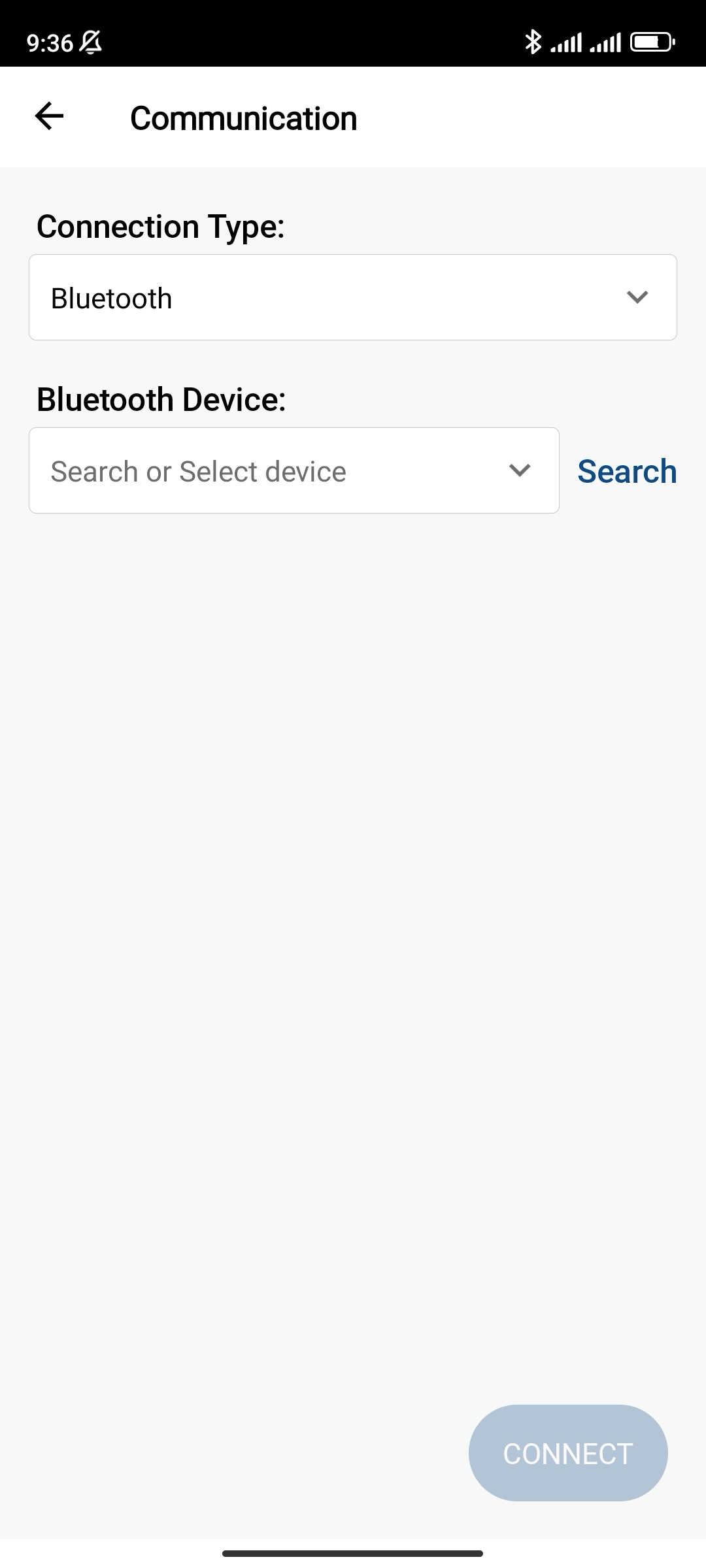
-
Choose your Reach RX2 and tap Connect.
tipMake sure that you enabled Bluetooth on your Android device. If the receiver still does not appear on the list of devices, tap Refresh list.
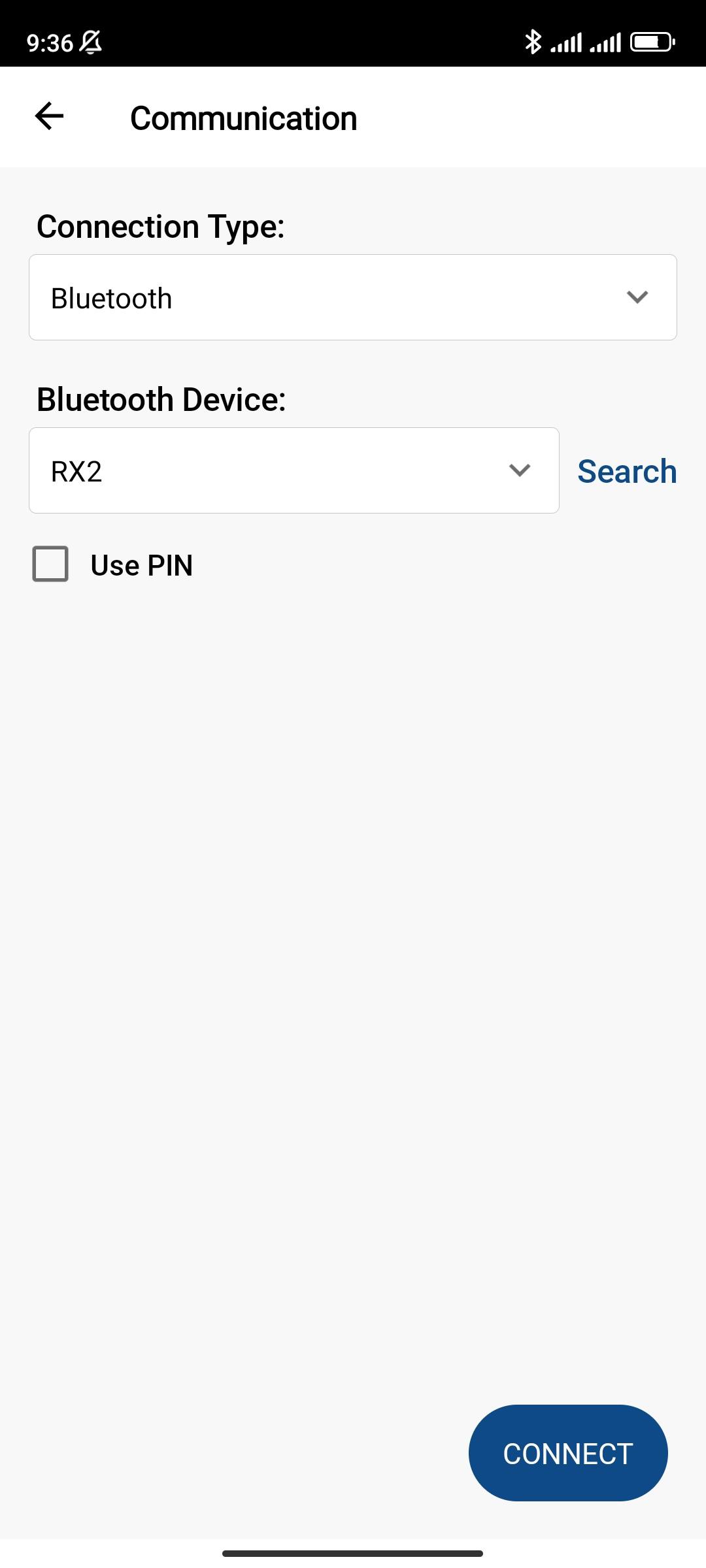
Once you successfully connect to your Reach RX2, you will be able to set up your Reach RX2 to receive RTK corrections.
Configuring FieldGenius to receive corrections
Configure corrections in FieldGenius only if they are not already configured in Emlid Flow.
Once you have configured communication between FieldGenius and Reach RX2, you need to set up receiving RTK corrections. Follow the steps below:
-
Tap SET UP CORRECTIONS.
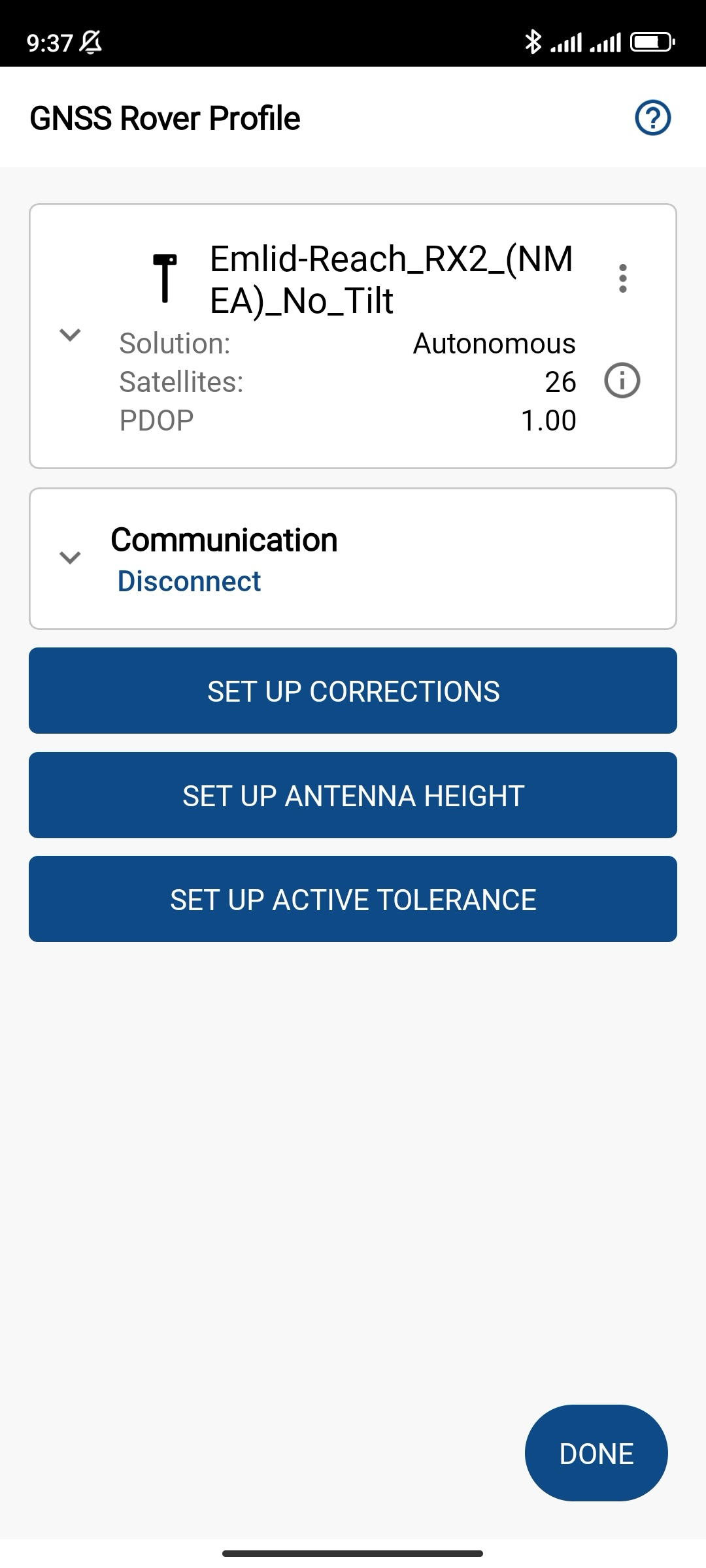
-
To obtain corrections from a caster over an internet connection, choose RTK via Internet and tap Set up Internet.
noteMake sure your device is connected to the Internet.
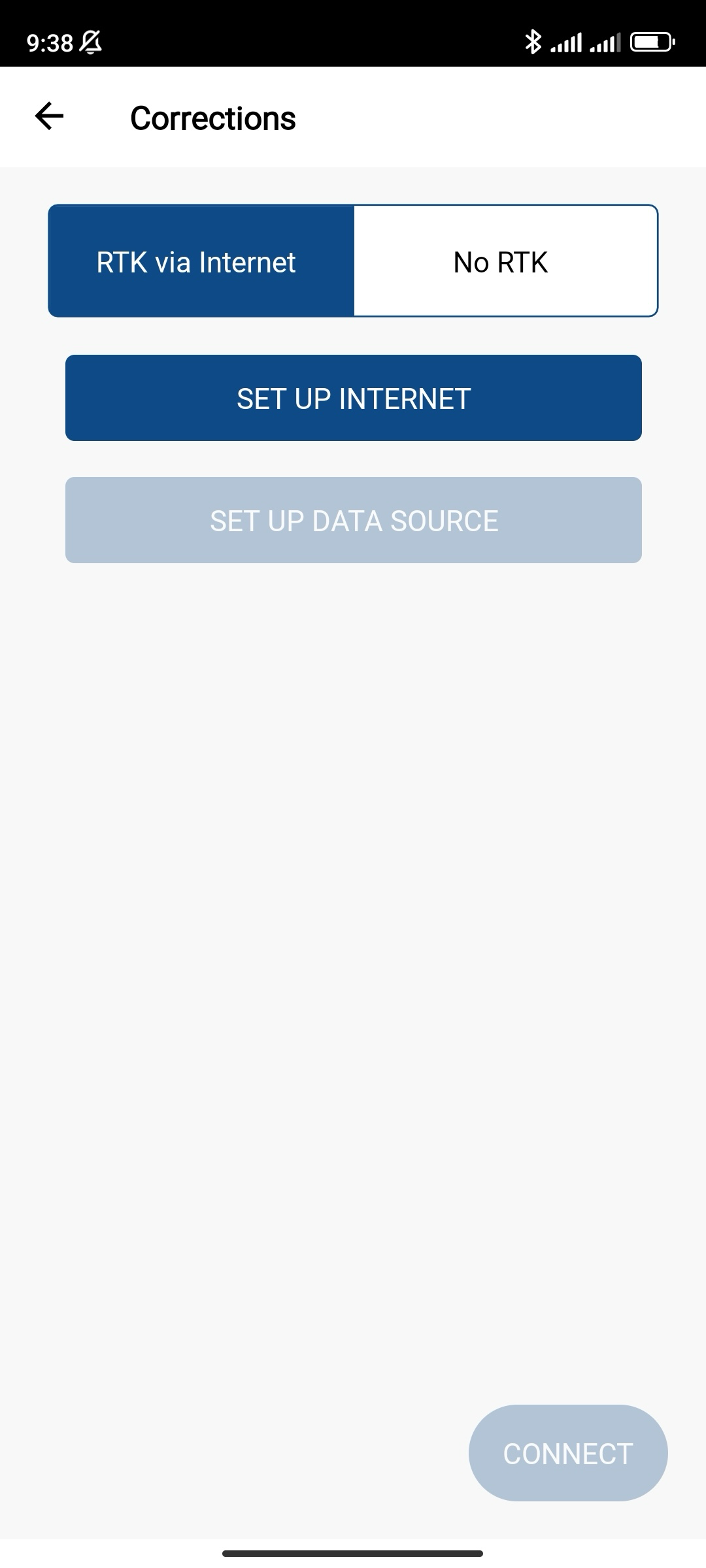
-
Choose Data collector as a communication type and wait until the Internet status becomes ‘Connected’.
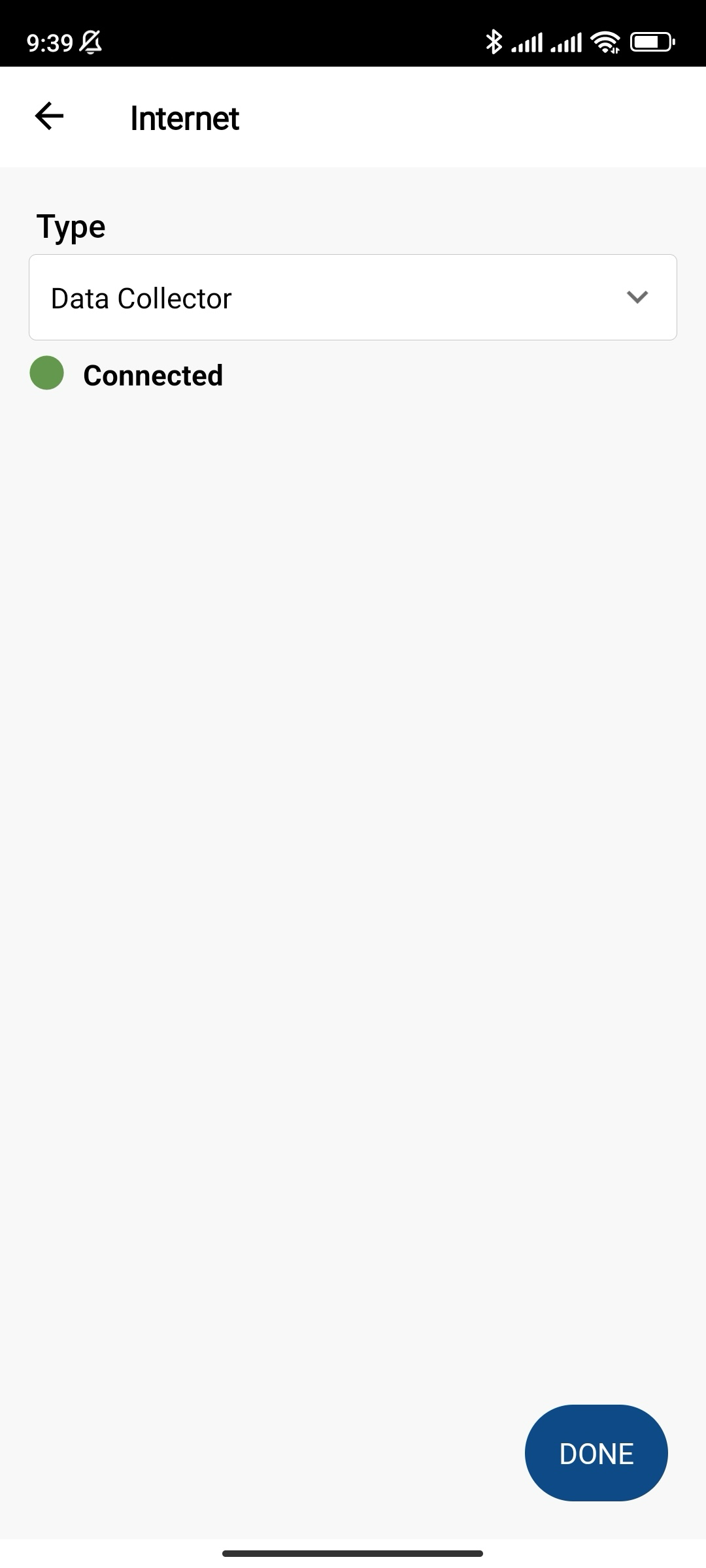
-
Tap SET UP DATA SOURCE and add a new correction source. Fill in the information from your NTRIP provider and tap Done.
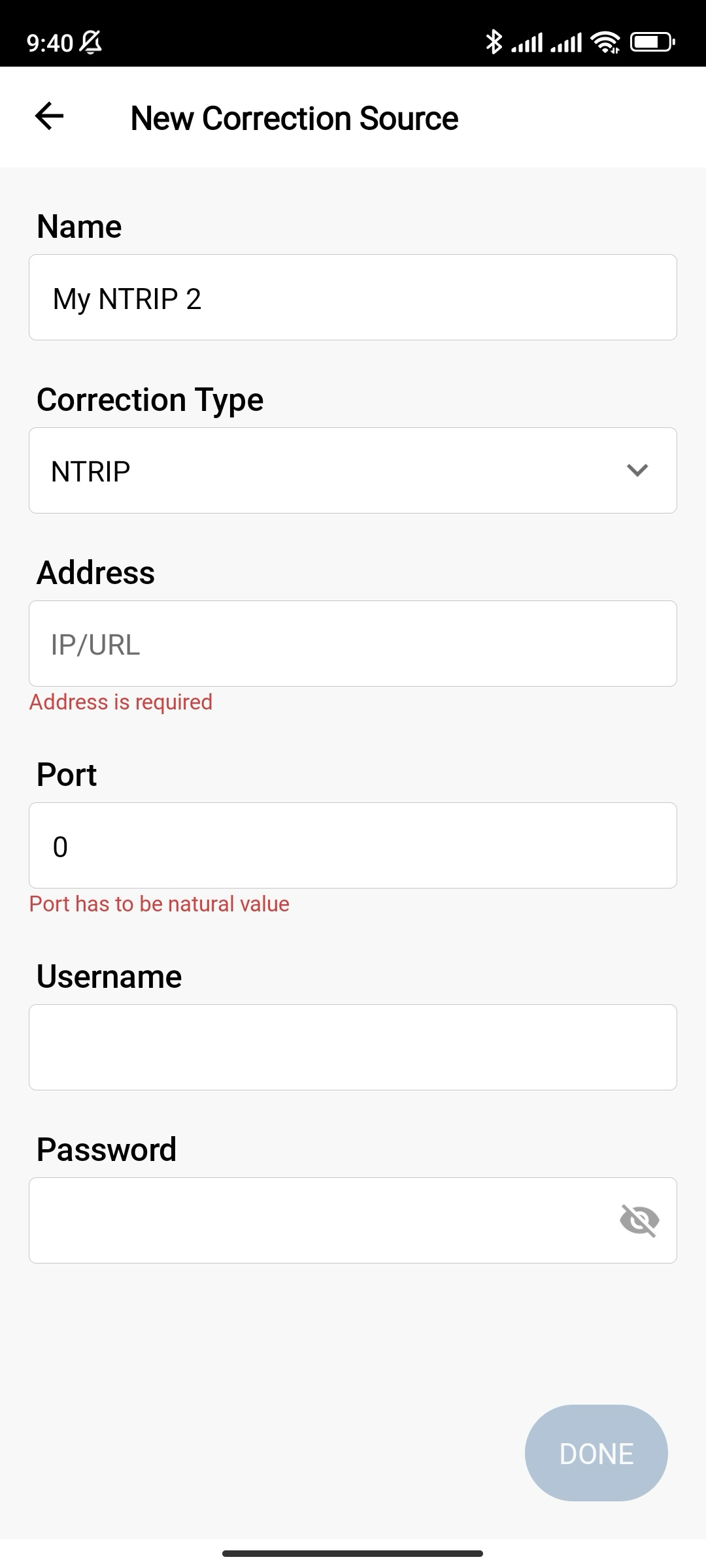
-
Tap Connect and wait until the port is configured and choose the required mount point. Tap Select.
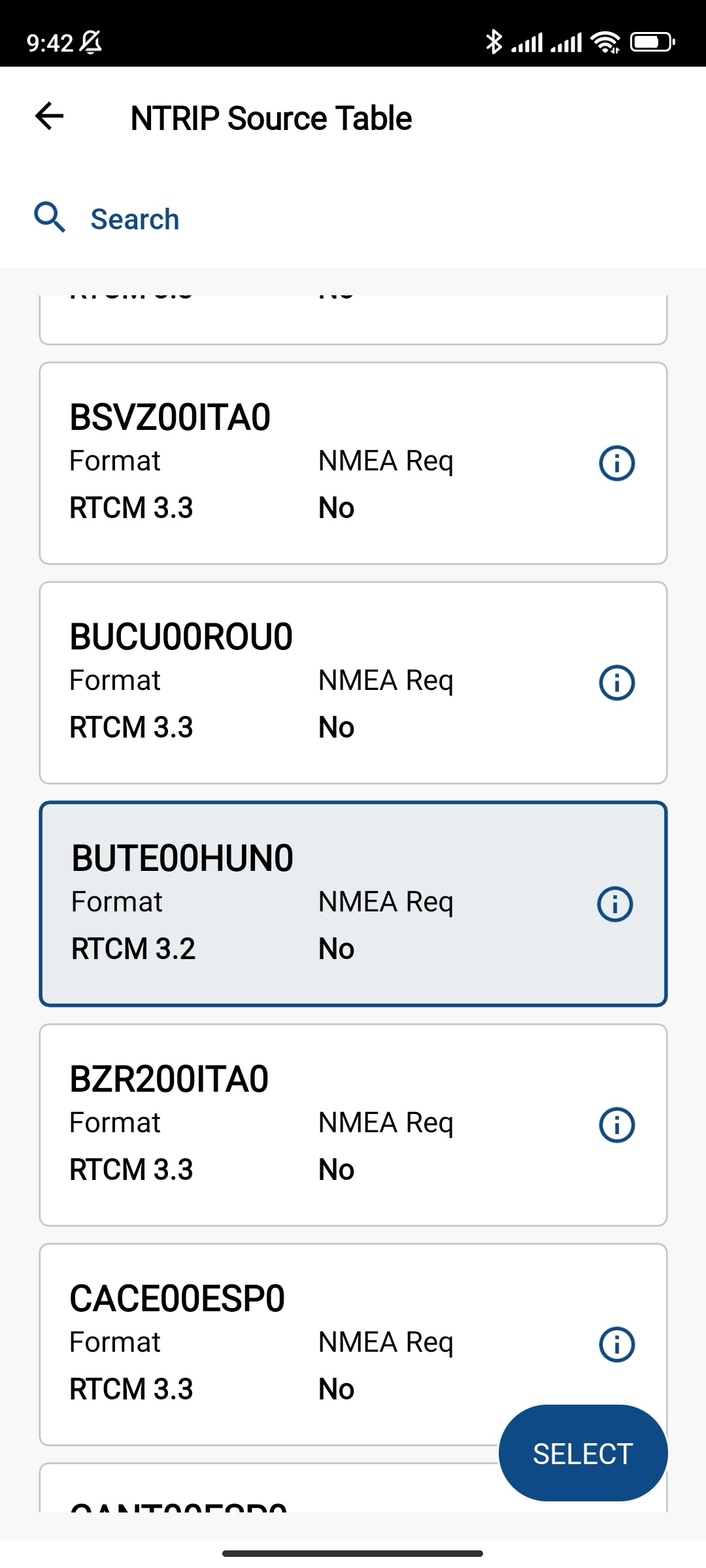
-
Check settings in the Correction Format and NMEA Required fields and confirm the selected mount point. Wait until the port is configured.
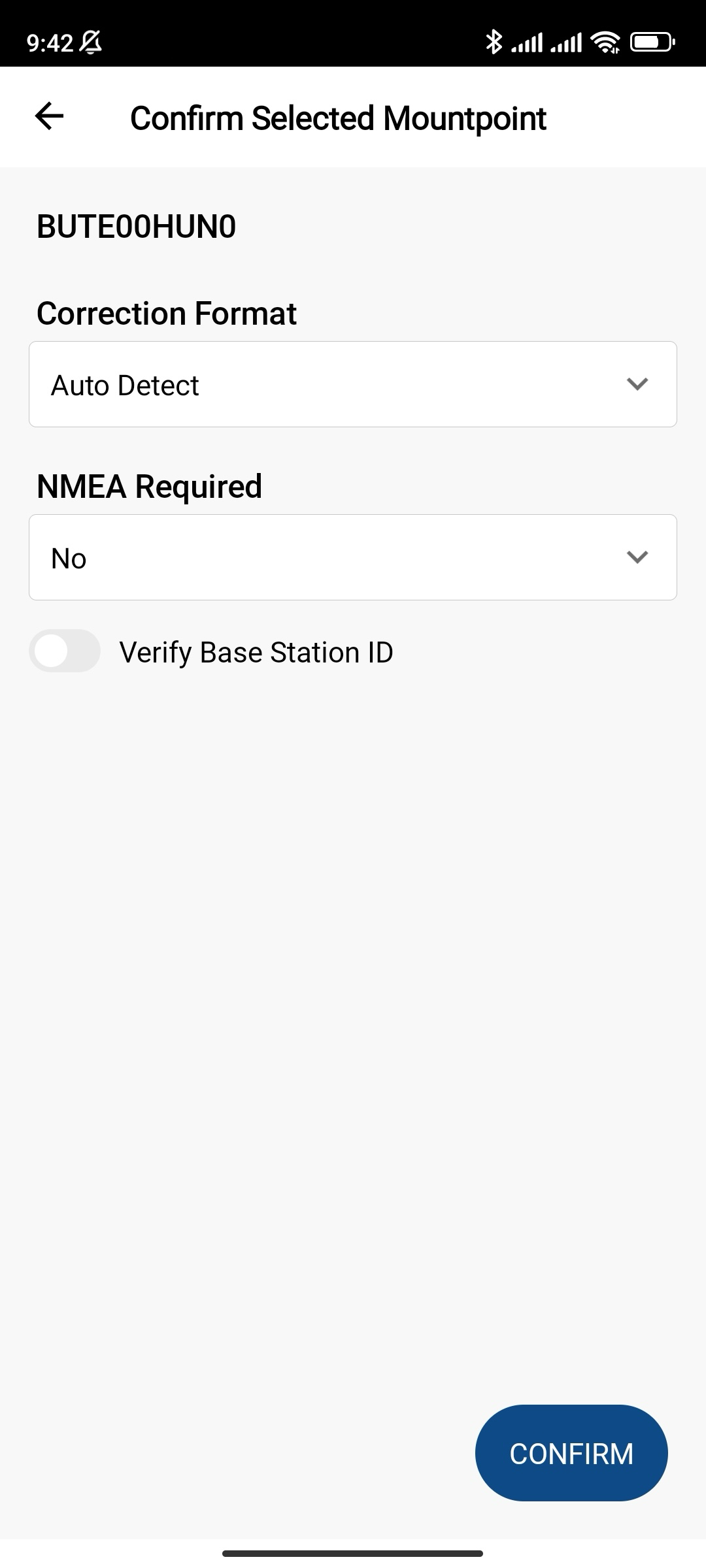
tipMake sure that your Reach RX2 is receiving corrections. Check the Corrections field in FieldGenius and check the Status LED on the receiver—it should be solid green.
-
caution
This step is only required when you don’t stream compensated NMEA position.
Set up the antenna height and tap OK.
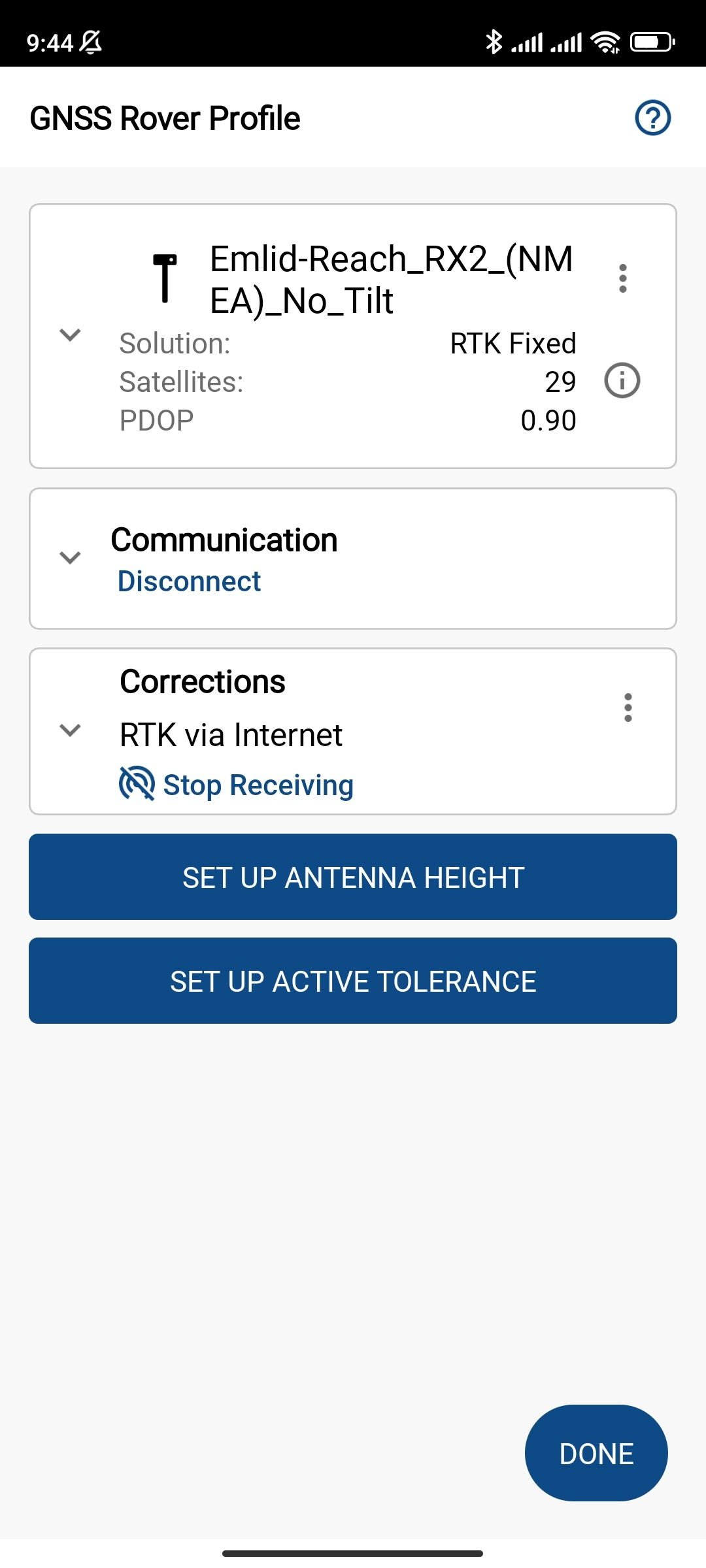
-
Set up active tolerances and tap OK.
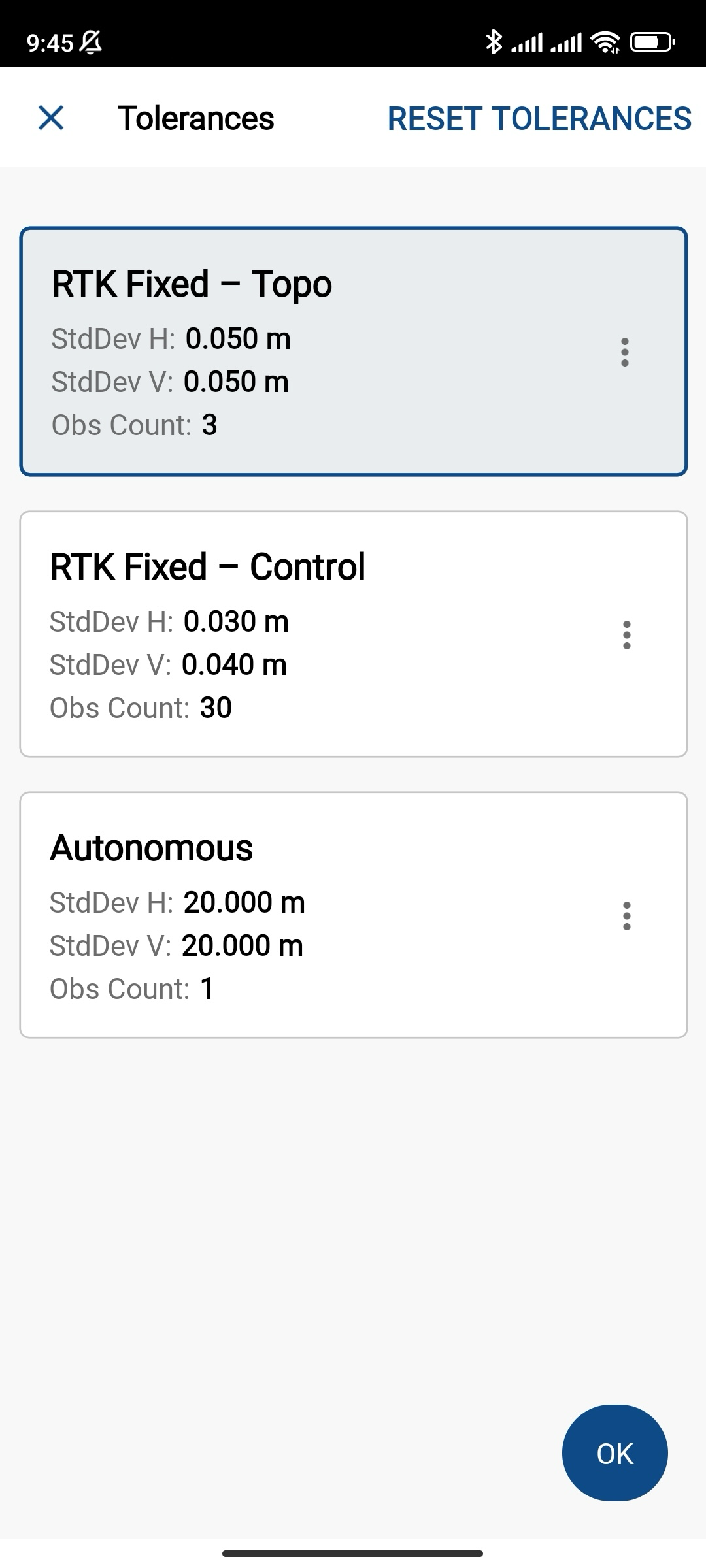
Once you have configured active tolerances, you’re all ready for surveying!