Add WMS layers to project
Unlock the full set of features for topo, set-out, and as-built surveys
This guide explains how to add WMS layers from the WMS layers library to your project in Emlid Flow and Emlid Flow 360.
Overview
Web Map Service (WMS) layers let you display maps from external sources as background layers in your survey projects.
Once you've created a WMS layer library in Emlid Flow 360, you can use it to add background maps to your survey projects for additional visual context.
The library is linked to your Emlid account, so you can add layers when setting up a project in Emlid Flow 360 and access them later in Emlid Flow. You can also add layers directly to an existing project in Emlid Flow.
Learn more about creating a WMS layers library in Emlid Flow 360 in the Create WMS layers library guide.
To get access to projects with added layers from the WMS layers library in Emlid Flow, you should log into the same Emlid account you use in Emlid Flow 360. Learn more in Working with map layers.
Workflow
Add layers from library to project
- Emlid Flow 360
- Emlid Flow
To add layers to your project from the WMS layers library in Emlid Flow 360, follow the steps below:
-
Go to flow360.emlid.com and sign in using your Emlid account.
-
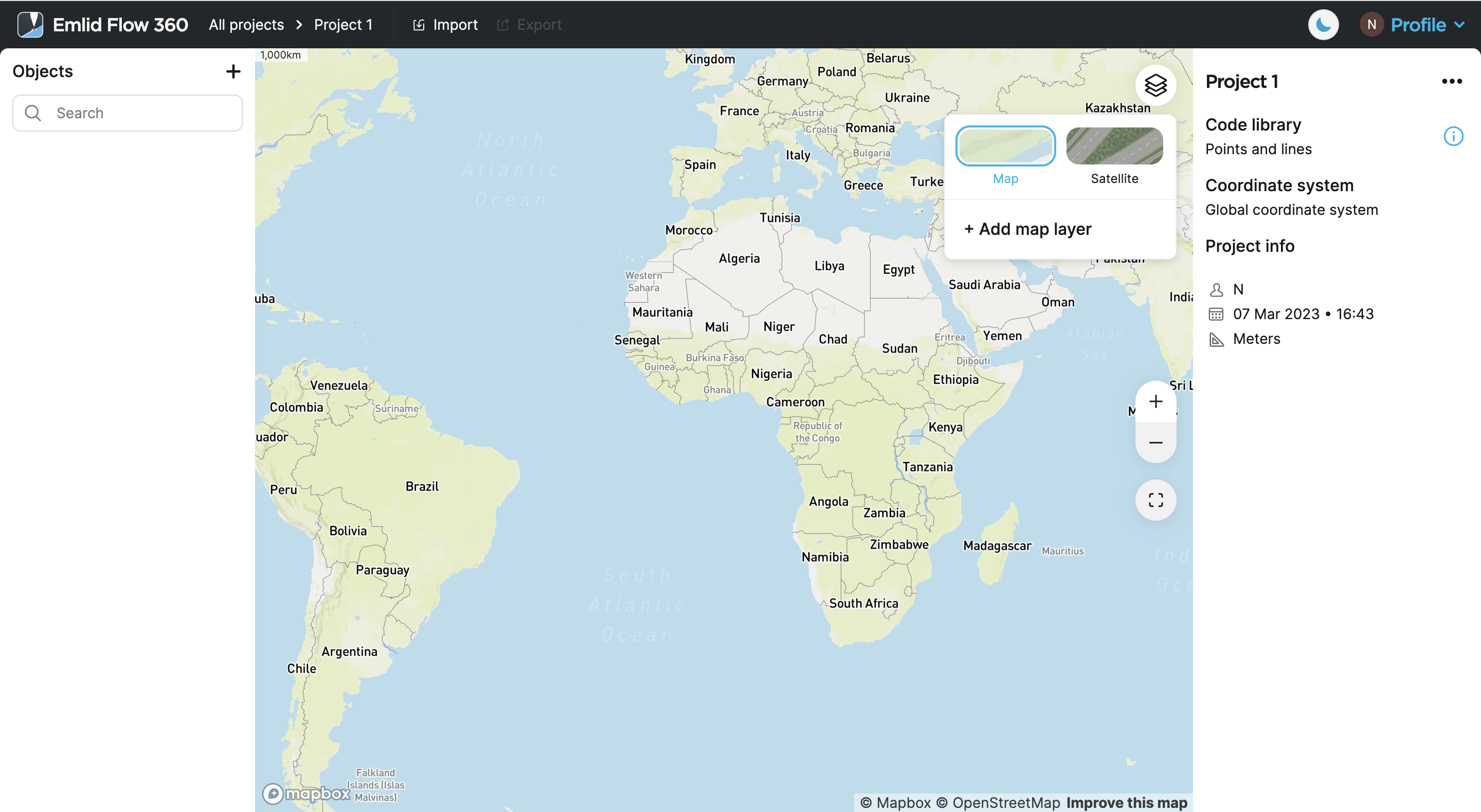
Open your project and click the Map layers button.
-
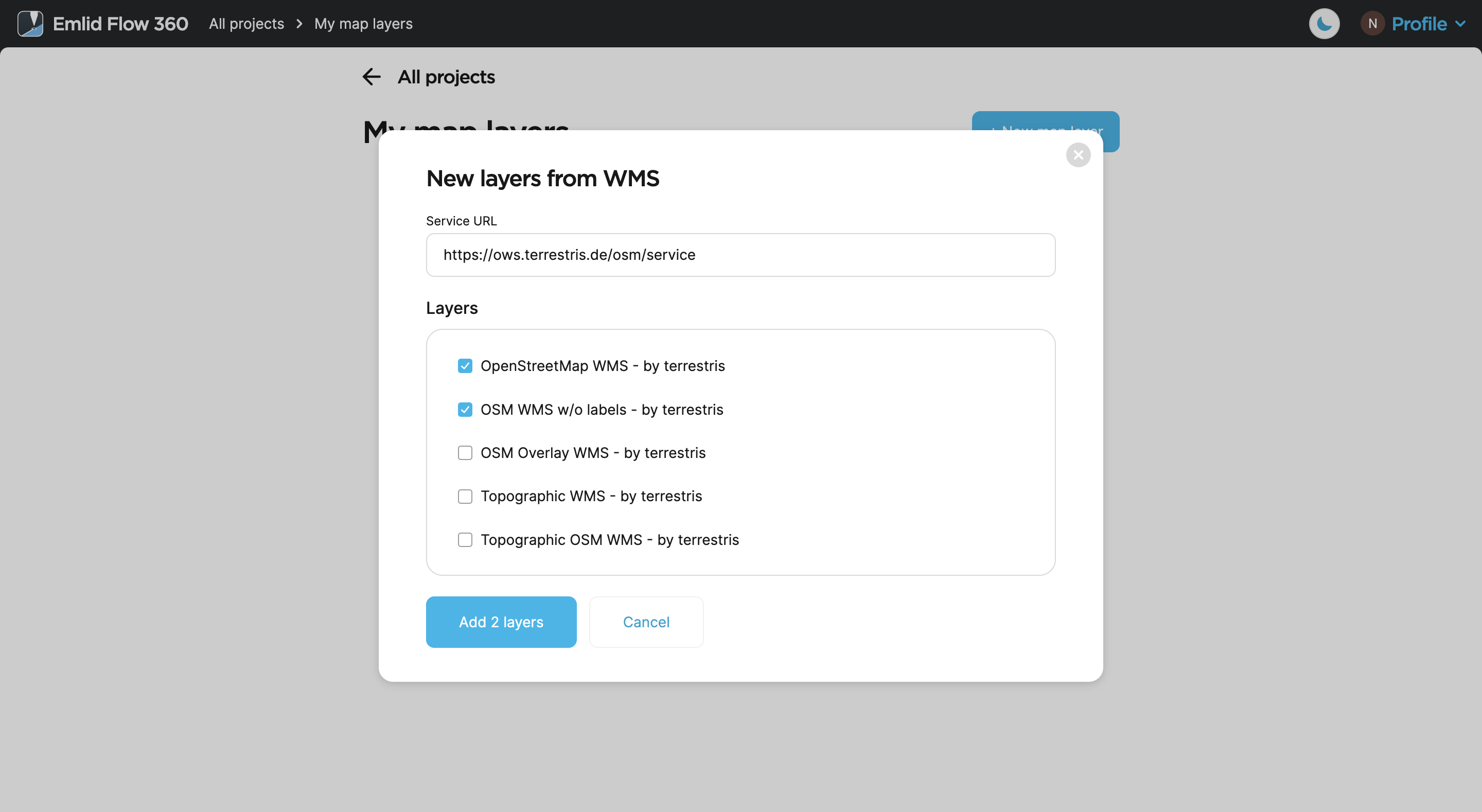
Click Add map layer and select the required layers.
noteYou can also add new layers right in the project. Click New map layer.
-
Click Add to project.
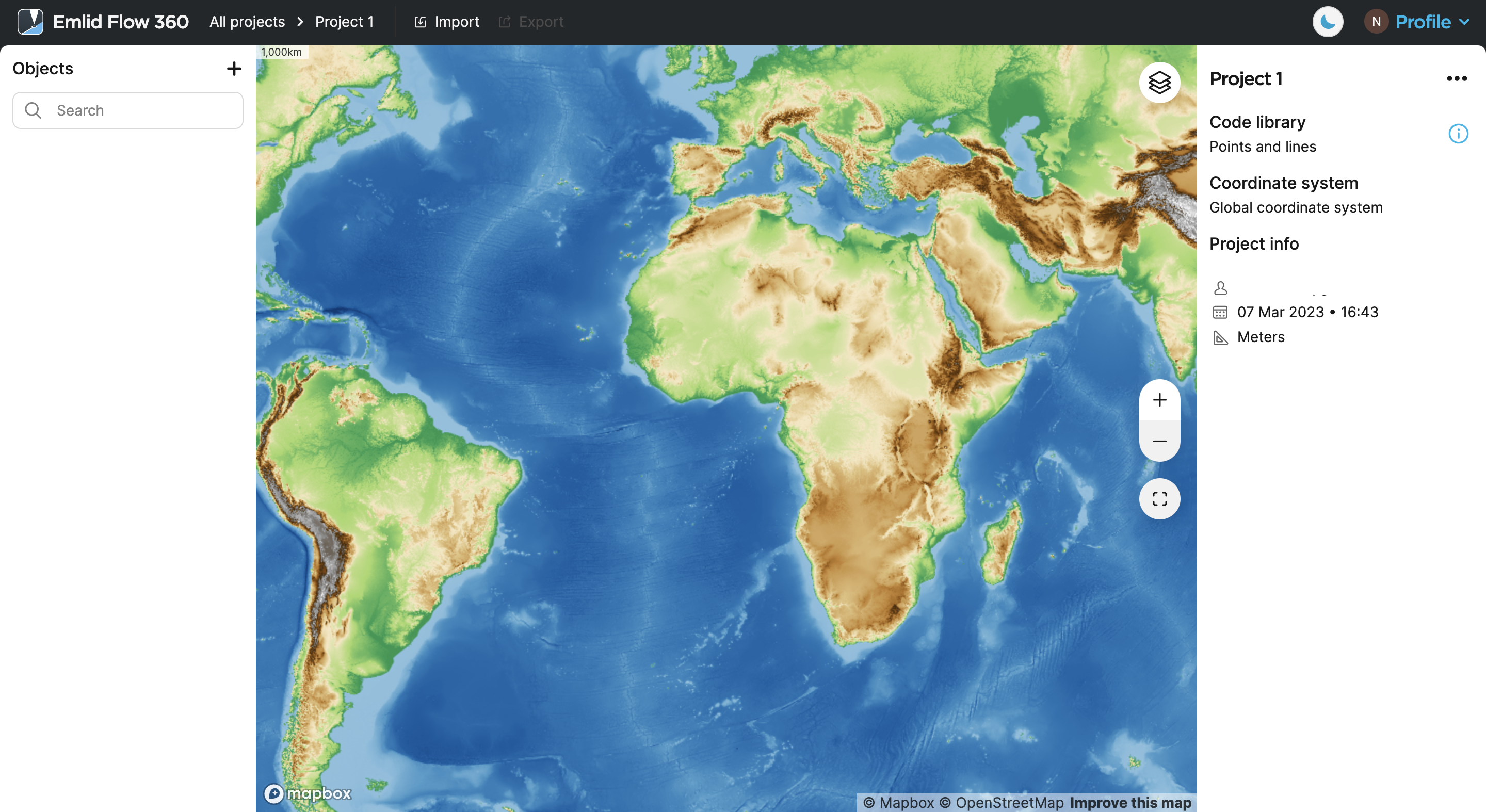
Once the layers are added to your project, you can start working with them both in Emlid Flow 360 and Emlid Flow.
When you add a new map layer to the project, it appears at the top of the list and has an opacity of 100% by default. The app adds it to the map preview automatically. You can change the order and the layers’ opacity under the Map layers button, and change the default map view by clicking Save new default or Reset in the upper left part of the map. Look for a more detailed description in the Create or Import Project guide.
Click the Map layers button to switch between vector and satellite map types, reorder layers using the drag-and-drop feature, and change their visibility and opacity on the map by clicking the eye icon near the layer and name of the layer correspondingly.
Learn more about accessing projects with added layers in Emlid Flow in Working with map layers.
To add existing layers to your project from the WMS layers library in Emlid Flow, follow the steps below:
-
Open Emlid Flow and sign in using your Emlid account.
-
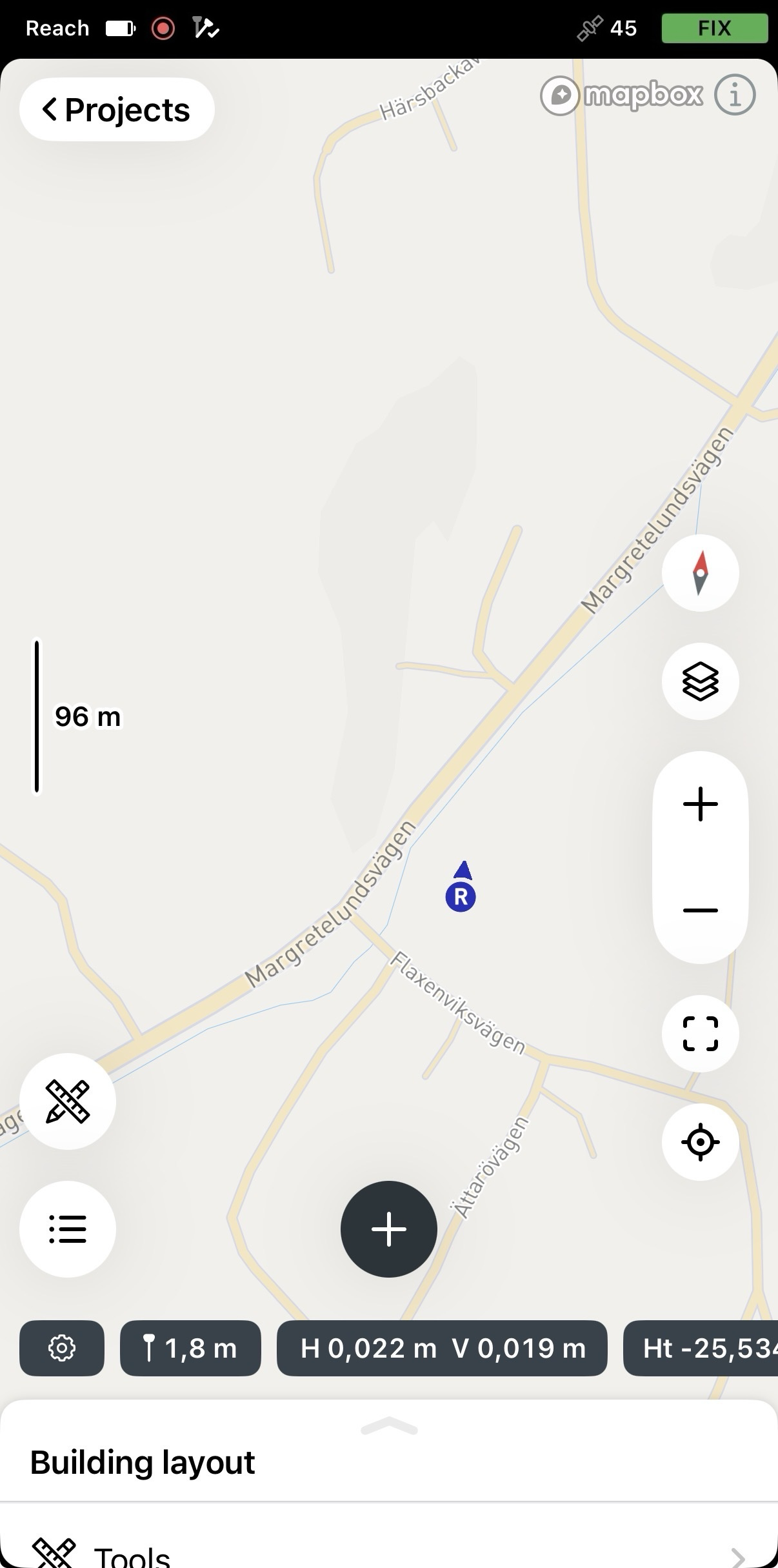
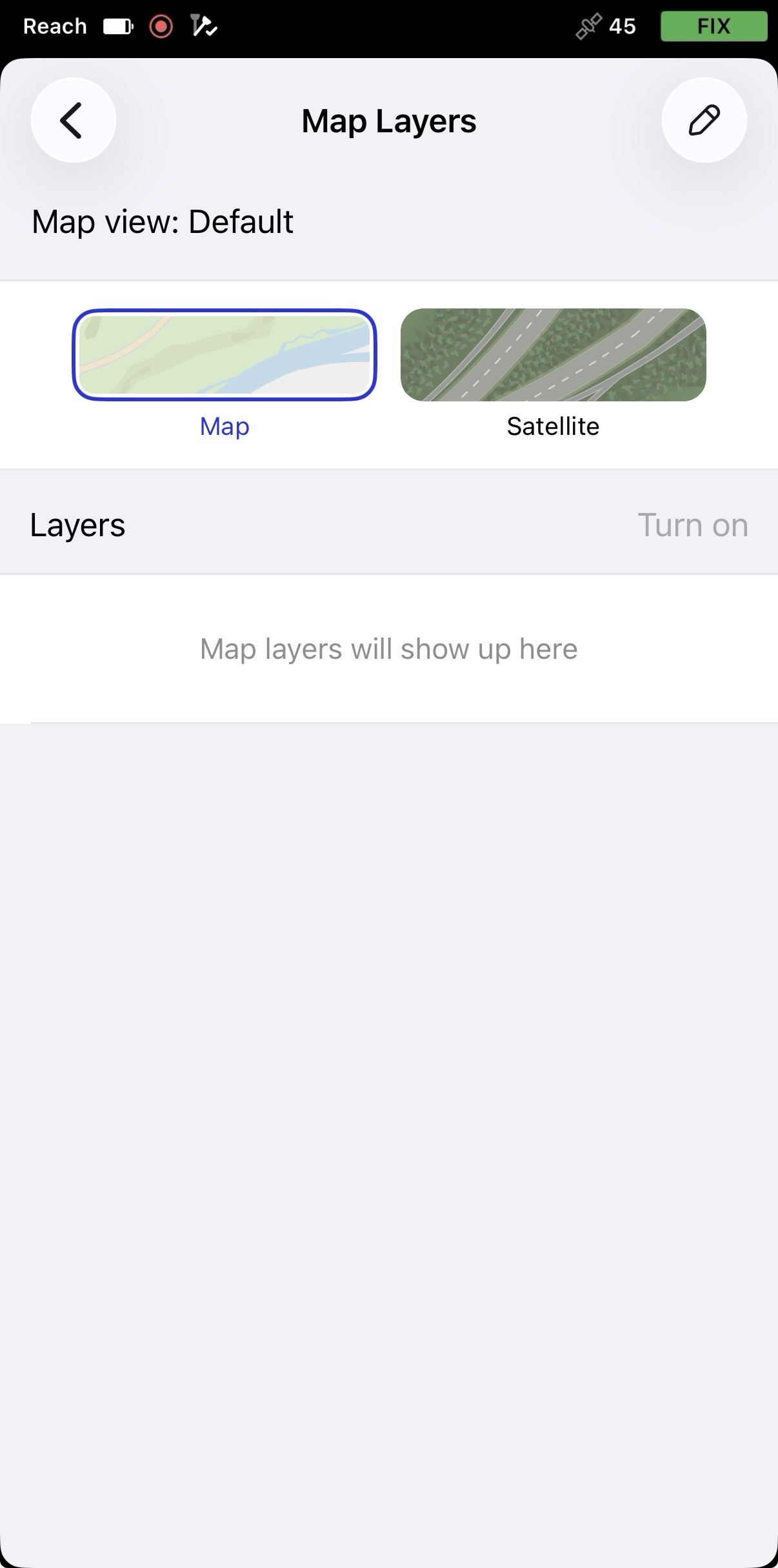
Open your project and tap the Map layers button.
-
Tap the pencil icon to add layers to your project.
-
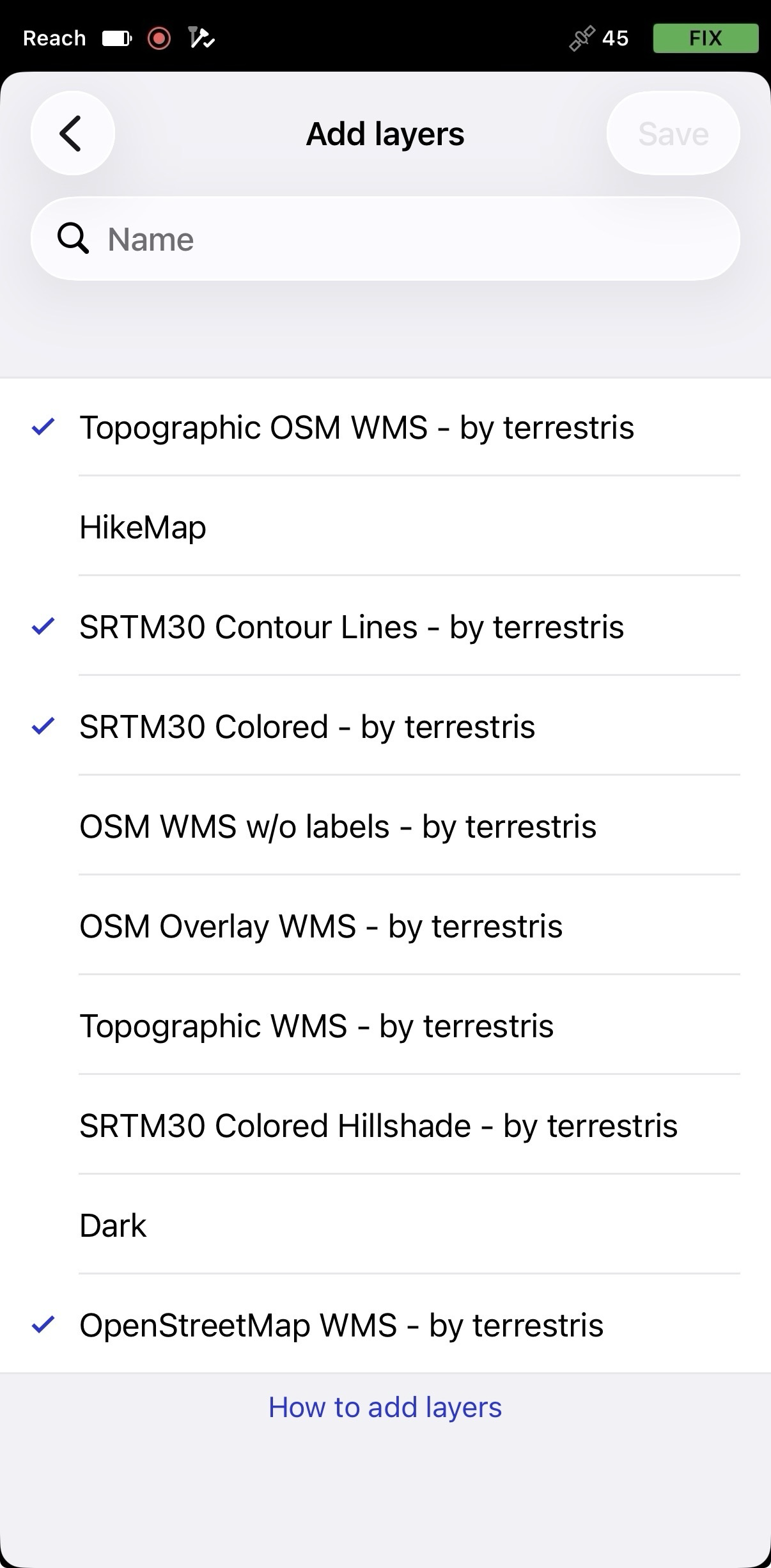
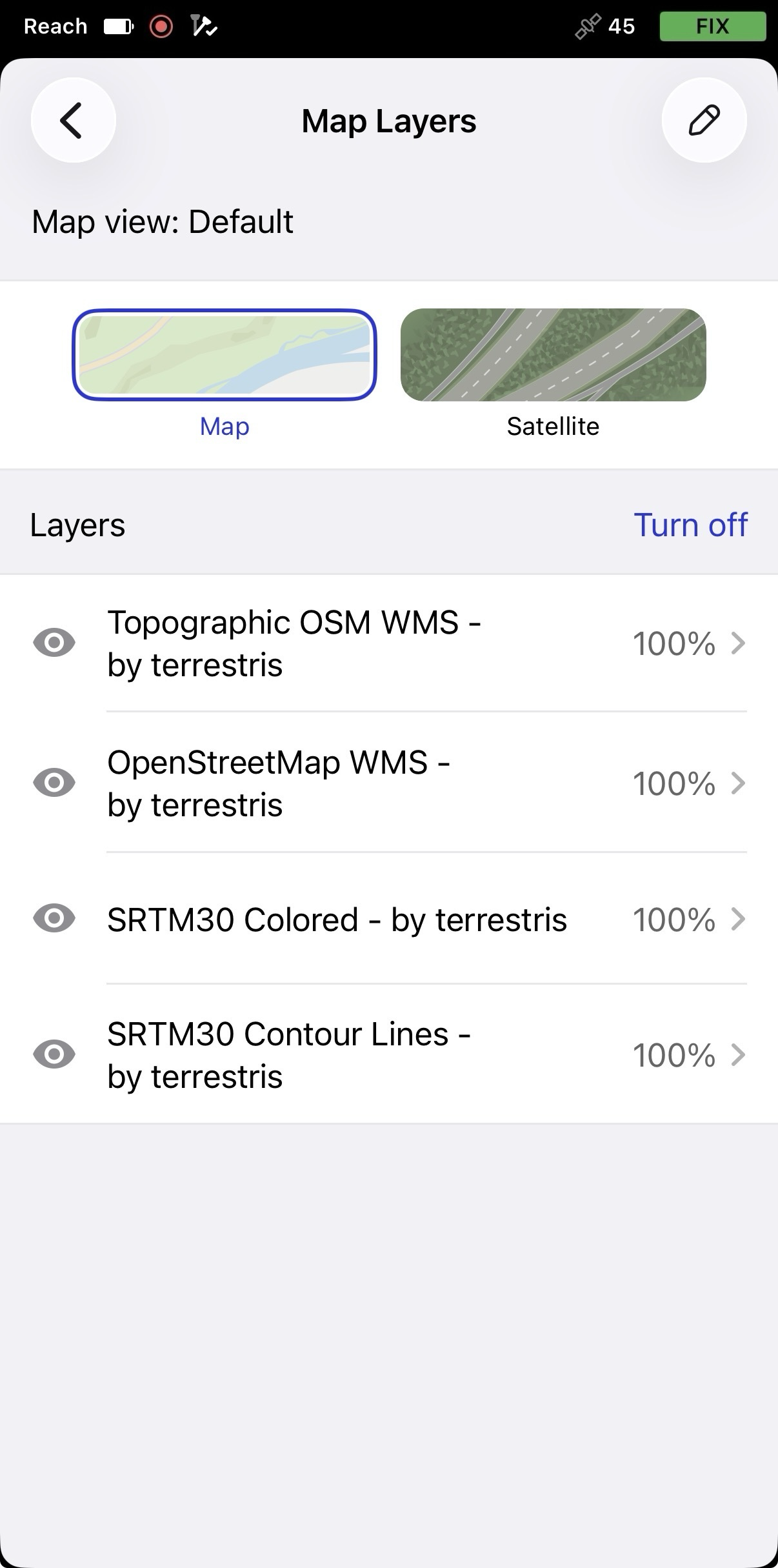
Select the required layer and tap Save. The added layers will appear on the Map layers screen.
-
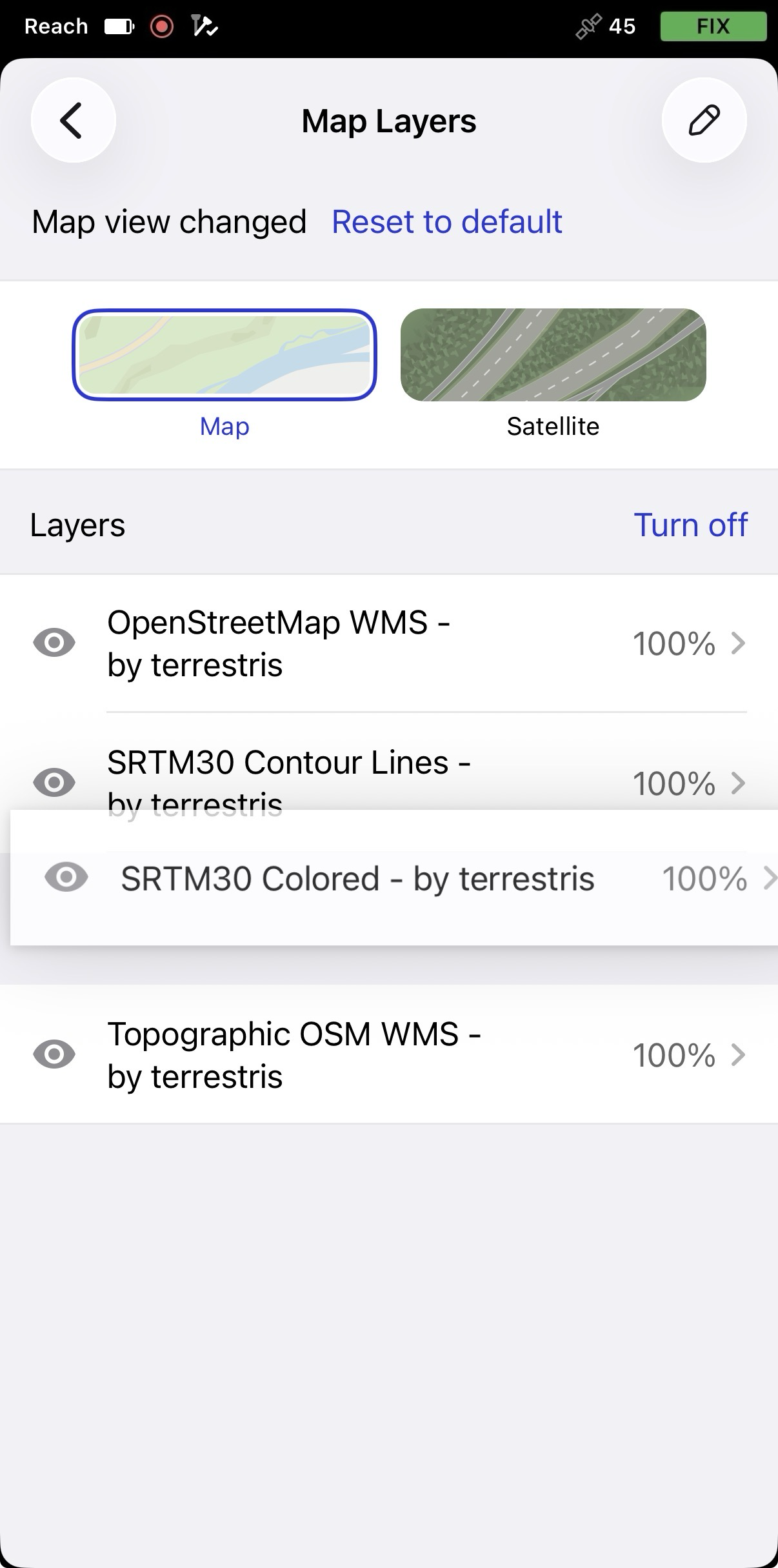
When you add a new map layer to the project, it appears at the top of the list and has an opacity of 100% by default. The app adds it to the map preview automatically. You can change the layers’ opacity here. These changes affect only how the layers appear in Emlid Flow. To restore the default opacity, tap Reset to default on the Map layers tab.
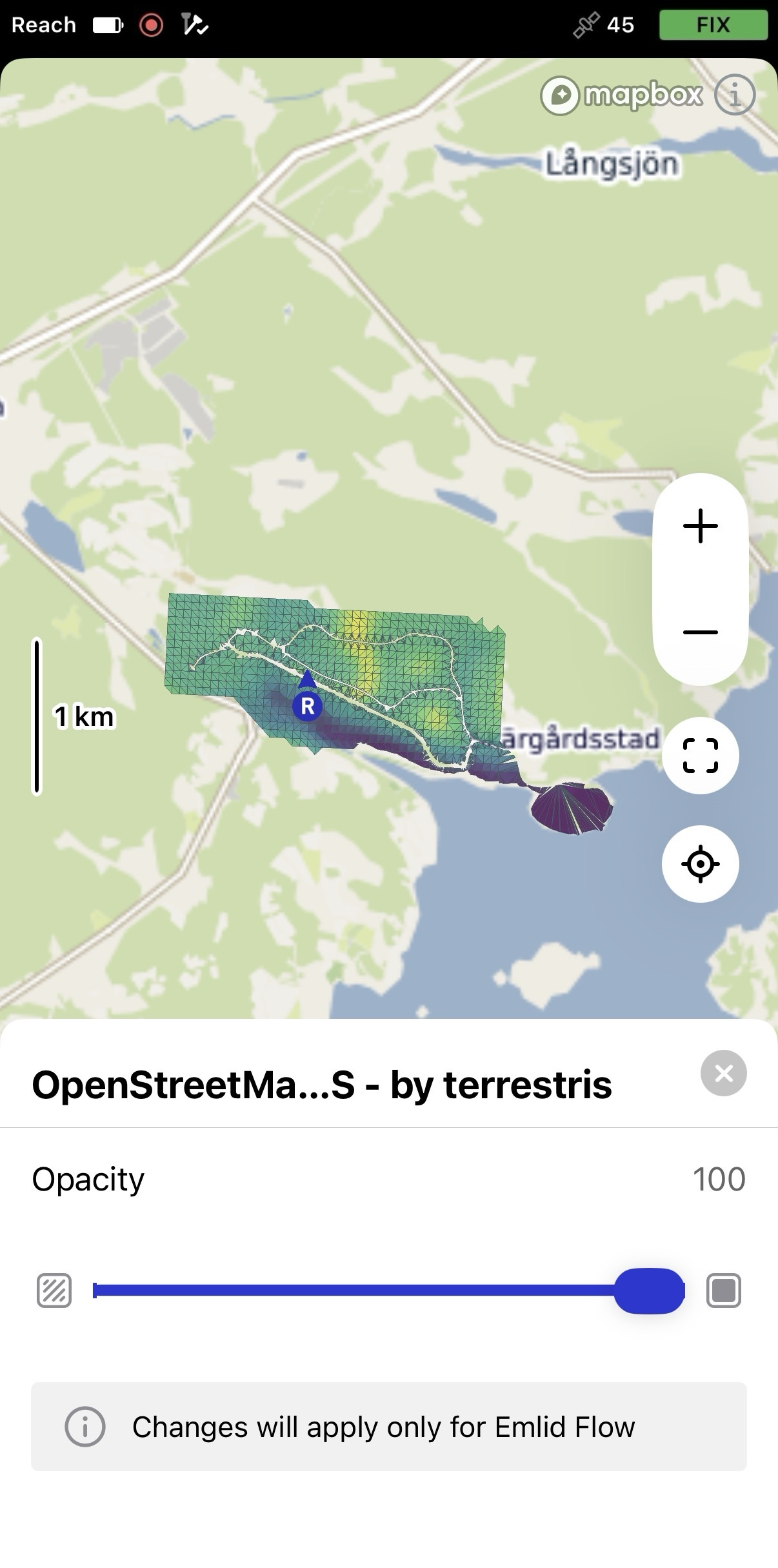
Tap the Map layers button to switch between vector and satellite map types, reorder layers using the drag-and-drop feature, and change their visibility and opacity on the map by clicking the eye icon near the layer and name of the layer correspondingly. These changes affect only how the layers appear on the map. To restore the default settings, tap Reset to default. Learn more about default settings in the Work with defaults guide.
Remove layers from project
The layer will be removed only from the project. You can add it again by clicking the Map layers button and Add map layer.
- Emlid Flow 360
- Emlid Flow
You can delete WMS layers from your project in Emlid Flow 360 as follows:
-
Go to flow360.emlid.com and sign in using your Emlid account.
-
In Emlid Flow 360, open your project and click the Map layers button.
-
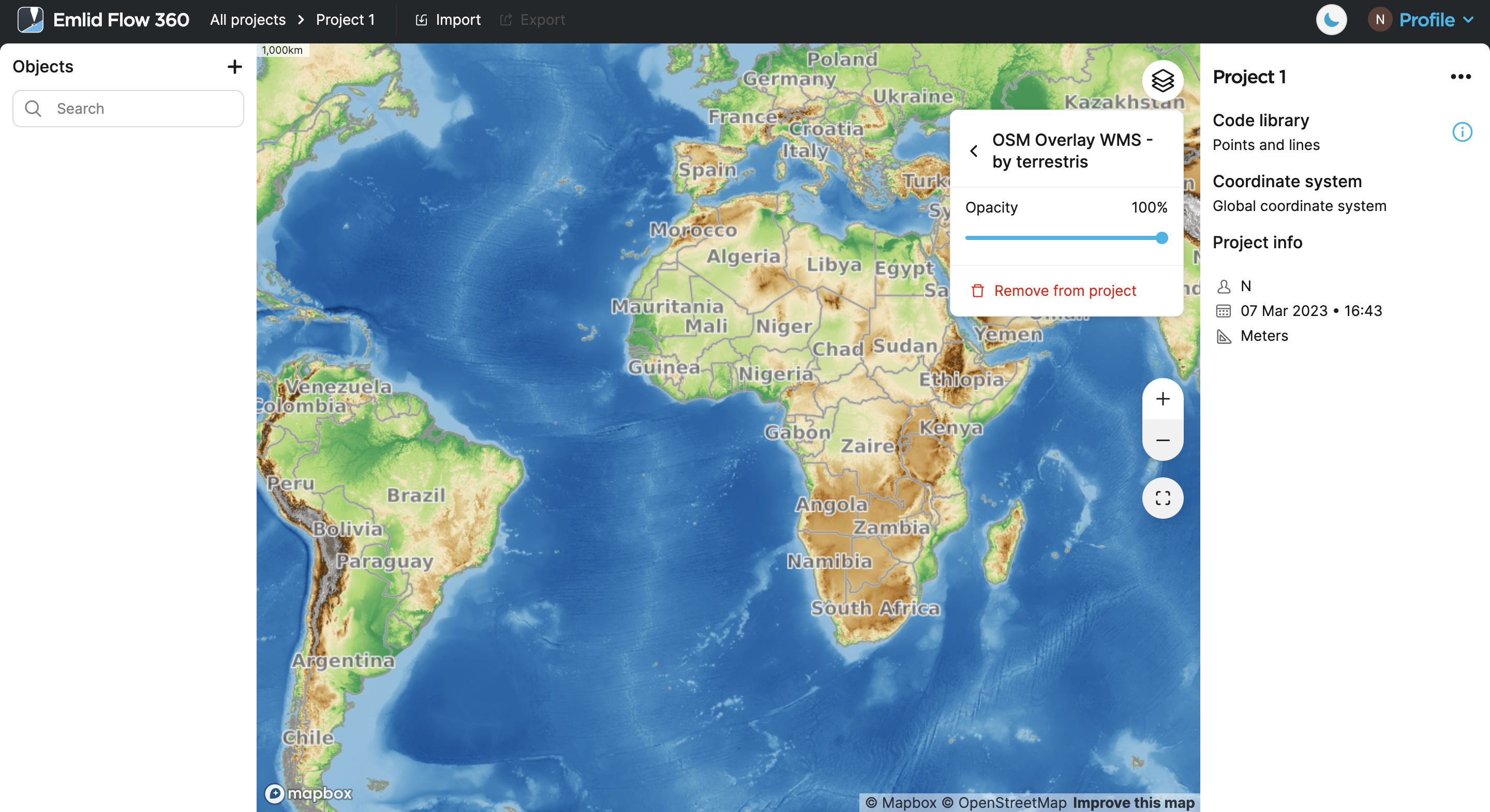
Click on the layer you want to delete.
-
Click Remove from project and then click Delete.
Now the layer has been removed from your project in Emlid Flow 360.
You can remove WMS layers from your project in Emlid Flow as follows:
-
Open Emlid Flow and sign in using your Emlid account.
-
Open your project and tap the Map layers button.
-
Tap the pencil icon to manage the layers.
-
Uncheck the layer you want to remove from your project, and tap Save.
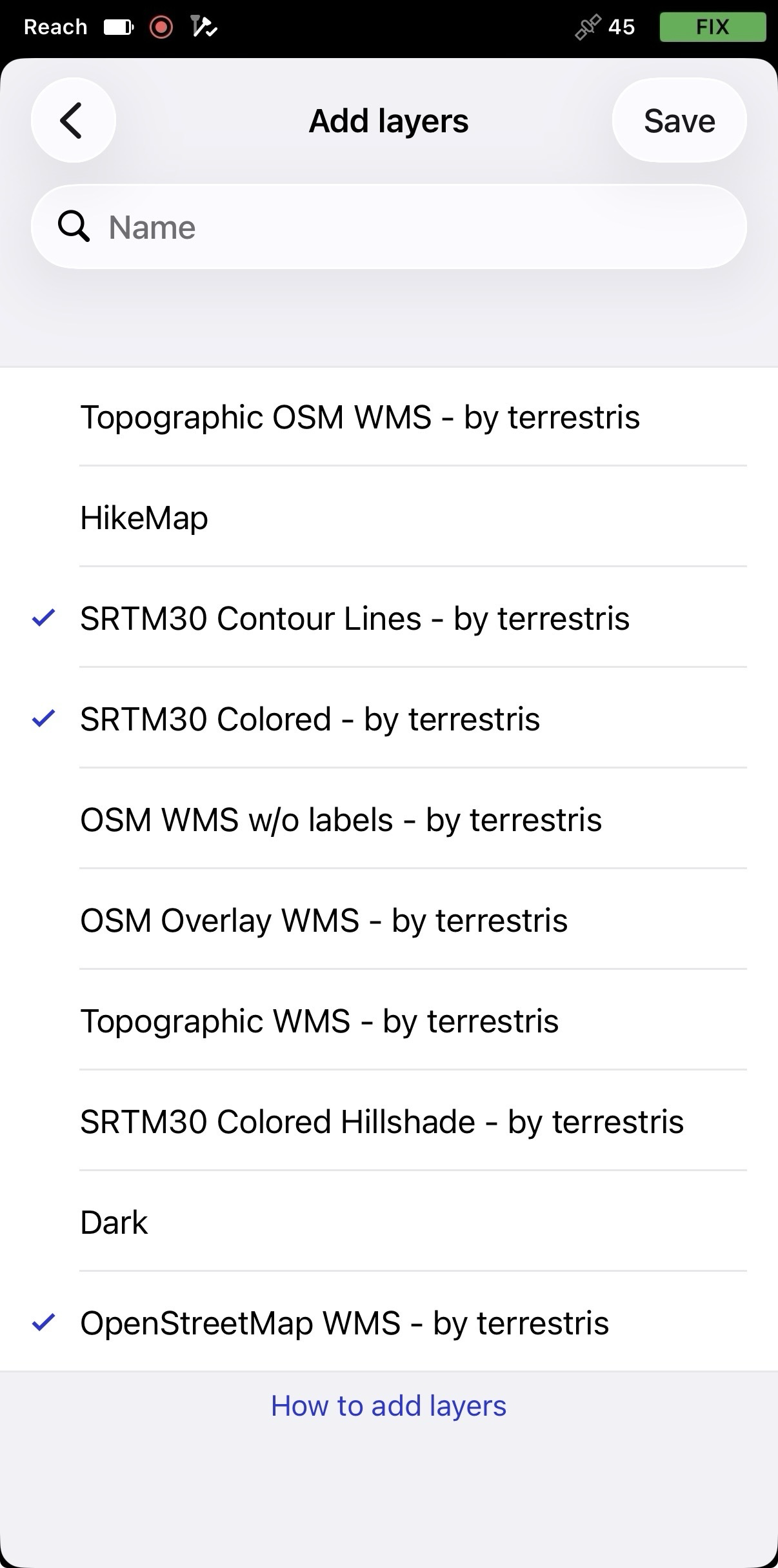
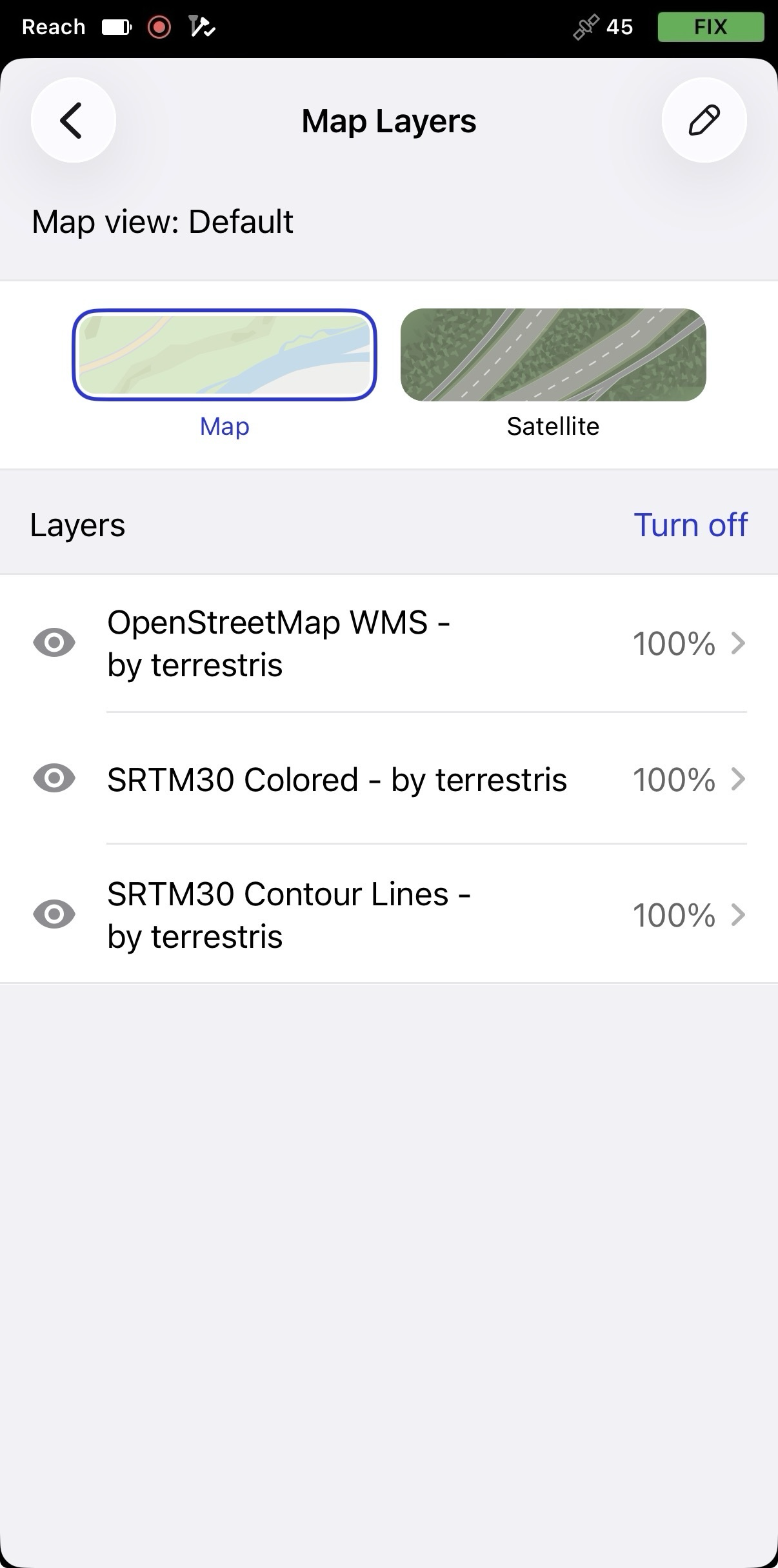
Now the layer has been removed from your project in Emlid Flow.