Team management
This guide explains how to manage team members in your workspace.
Overview
Team member management in Emlid Flow 360 allows you to control who has access to your workspace and shared project resources. You can add new members to collaborate, remove users who no longer need access, and resend invitations when needed. Managing team membership ensures that only authorized users can view, edit, or contribute to shared projects, NTRIP profiles, localisation settings, and other workspace assets.
With these tools, you can maintain a secure, organized, and scalable workspace that supports efficient collaboration across your survey or mapping team.
Inviting team members
To add team members to your workspace, do as follows:
Ensure the added team member has an Emlid account. They can create it themselves, or you can create one and share the credentials.
-
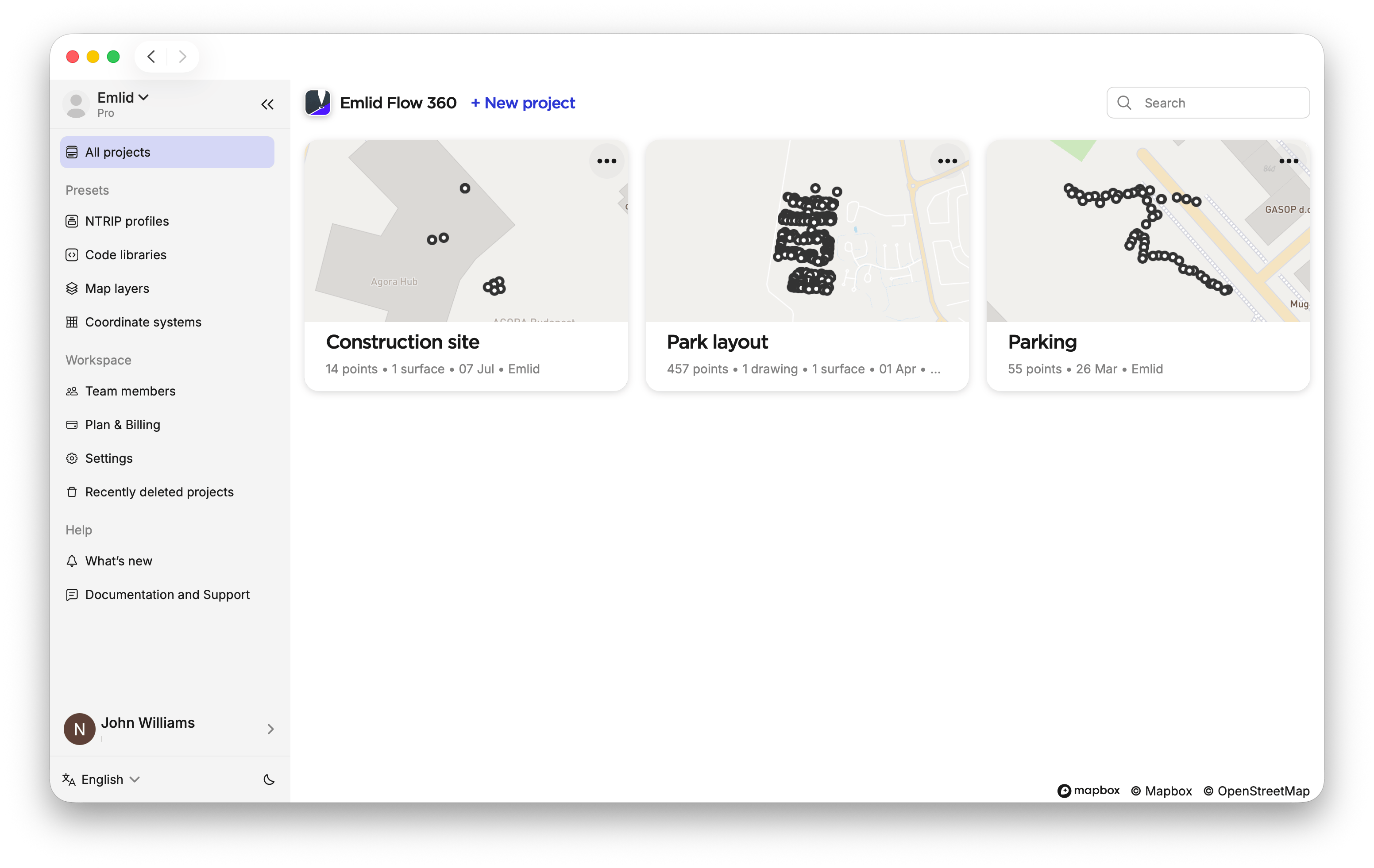
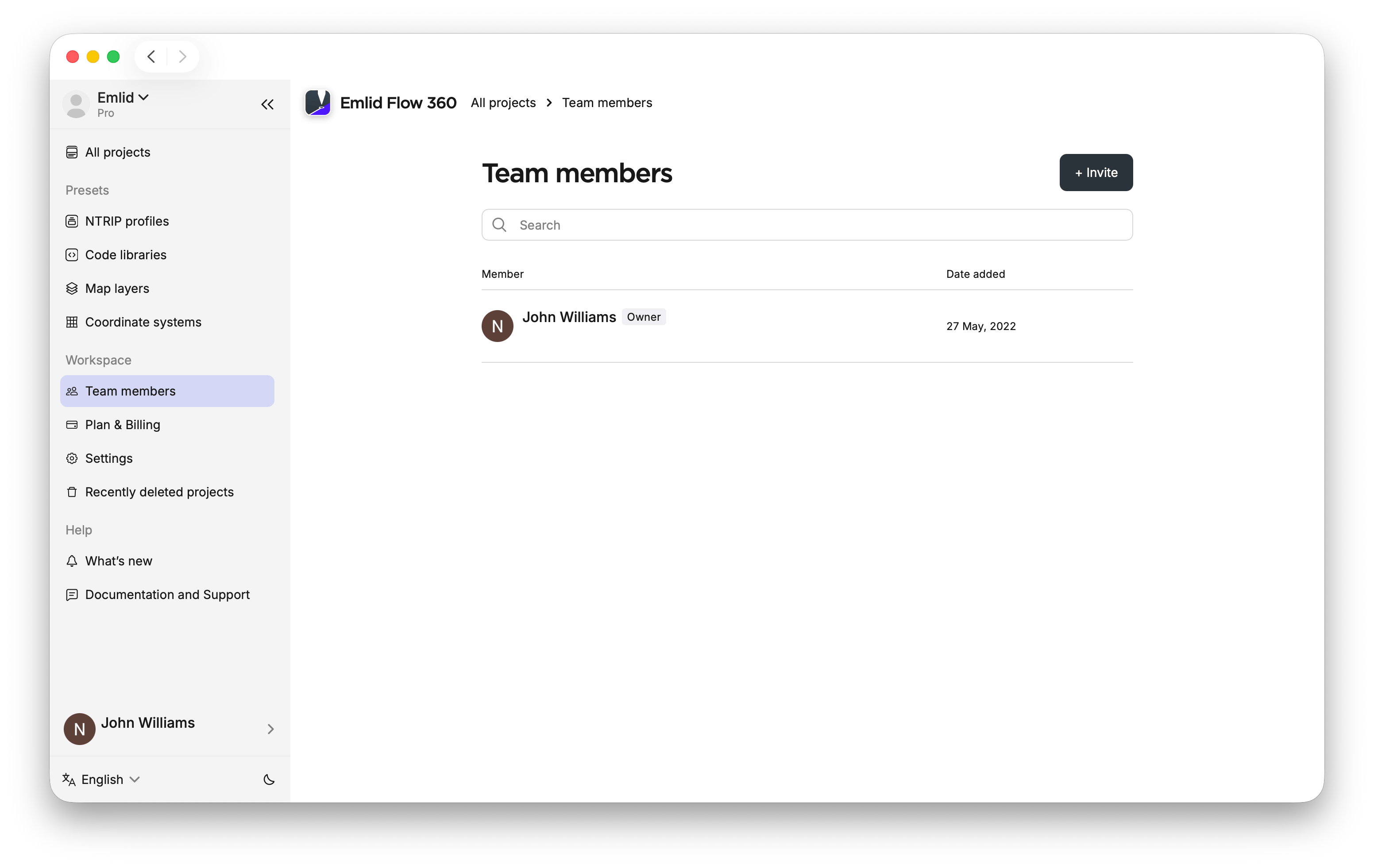
In Emlid Flow 360, open the menu on the left and click Team members.
-
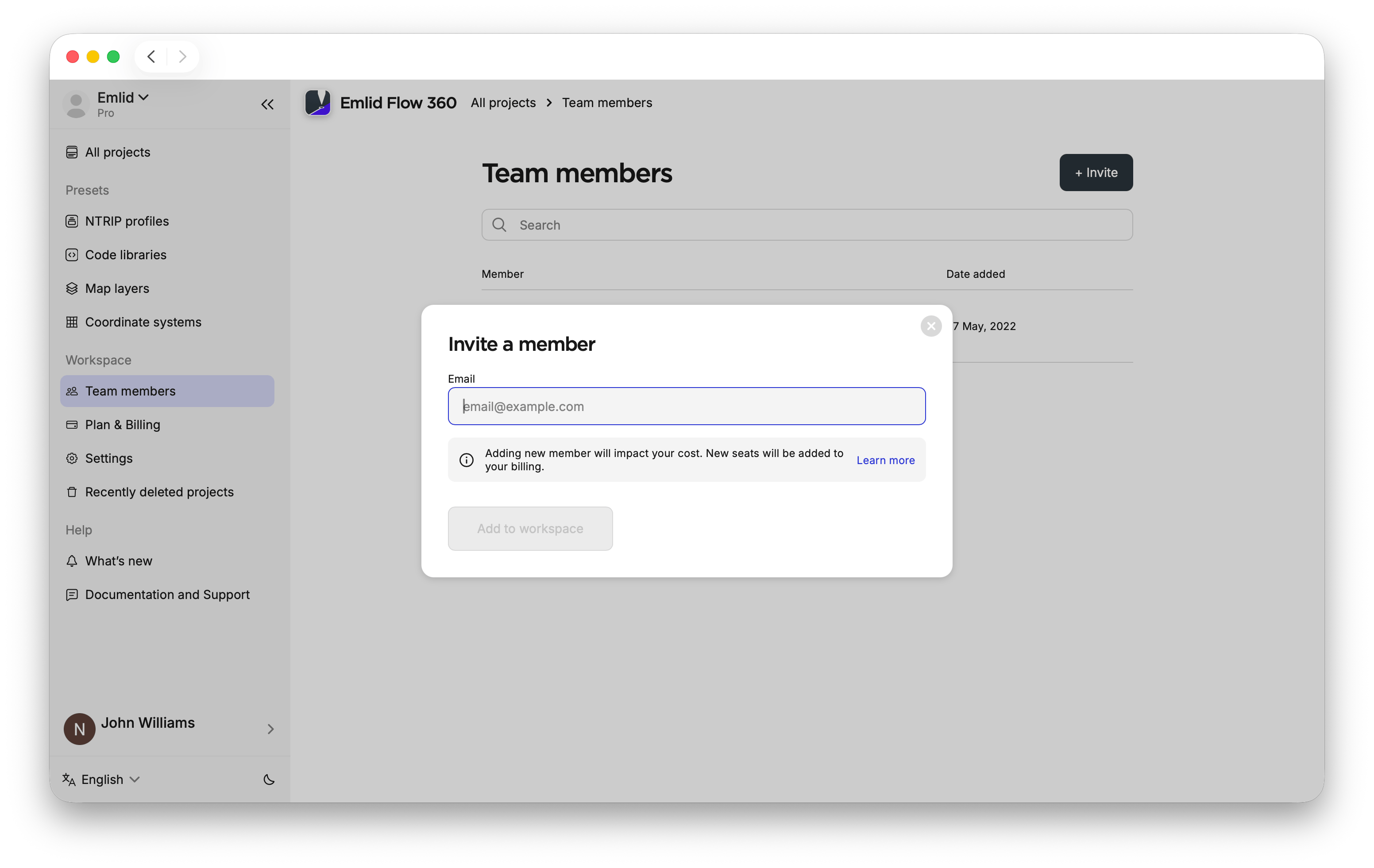
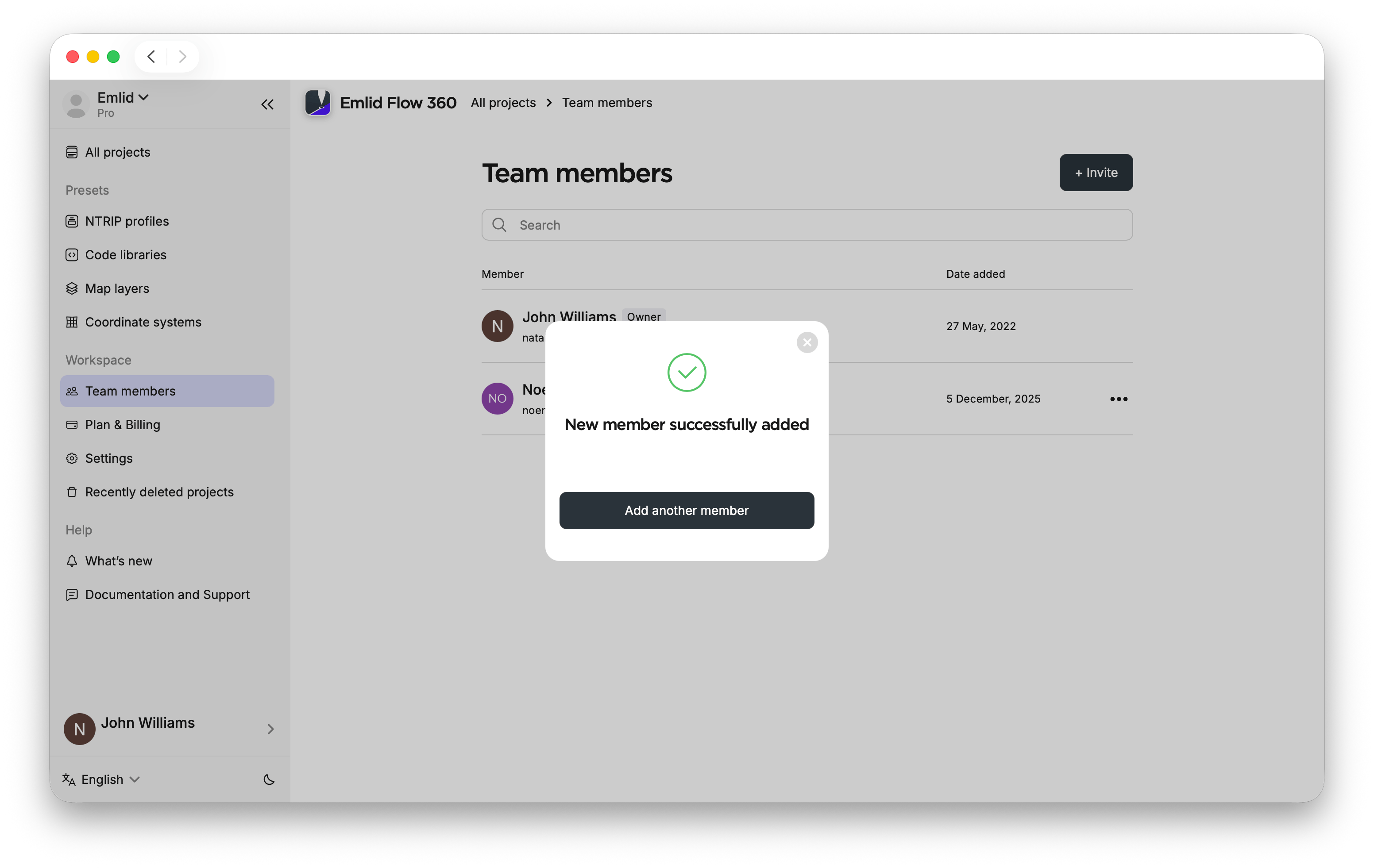
Click Invite member and enter the member’s email address. Click Add another member to add more people. Close the dialog when finished. The added person will receive an email invitation.
noteAdding members affects your subscription billing. Refer to the Billing guide for details.
-
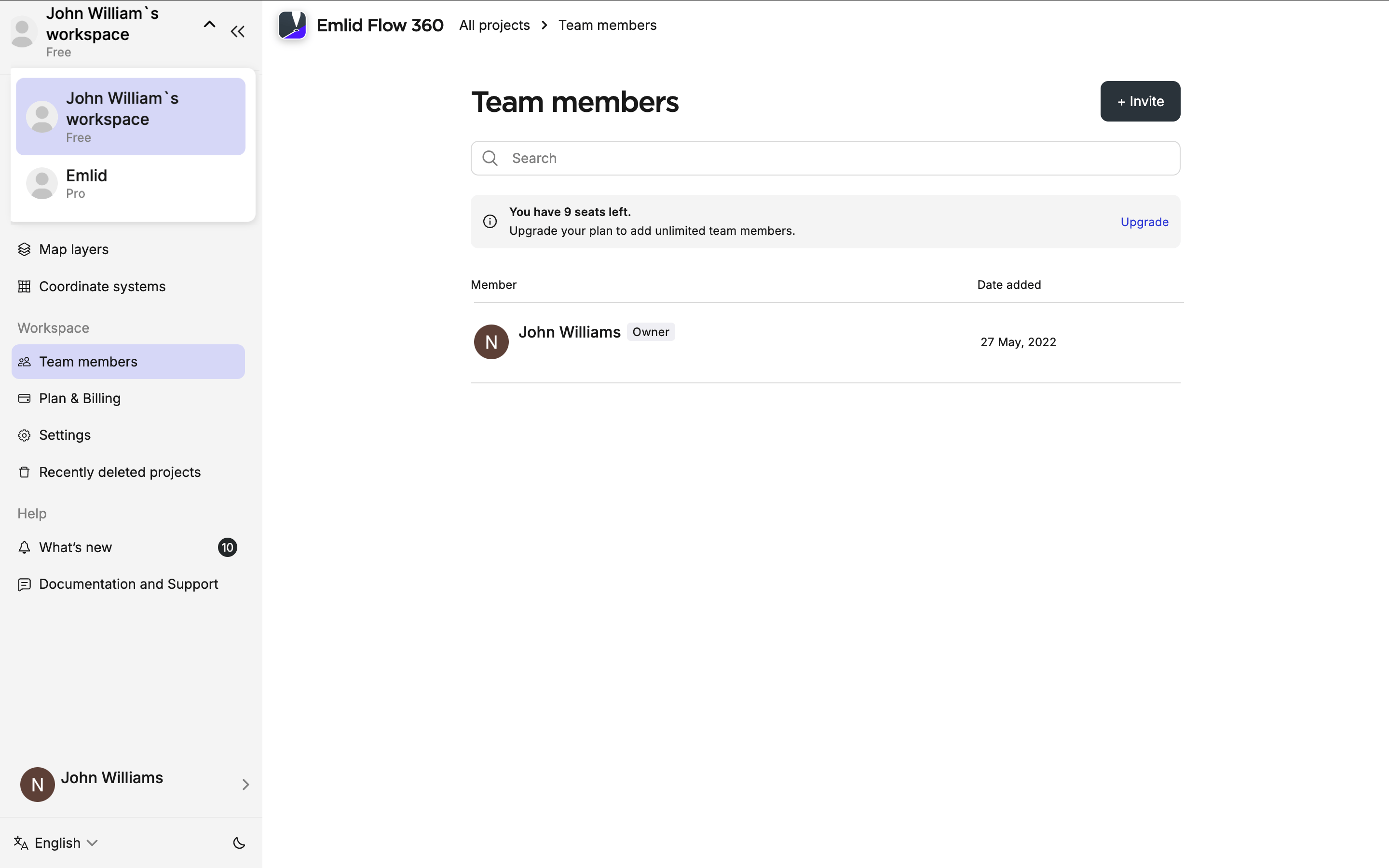
Ask the added team member to switch to your workspace:
- In Emlid Flow, go to the Profile tab and click the workspace name in the top-left corner. You will see the dropdown with all the available workspaces. Choose the workspace from the dropdown.

- In Emlid Flow 360, click the workspace name in the top-left corner. Choose the workspace from the dropdown.
Removing team members
If a member no longer needs access to the workspace, you can remove them as follows:
-
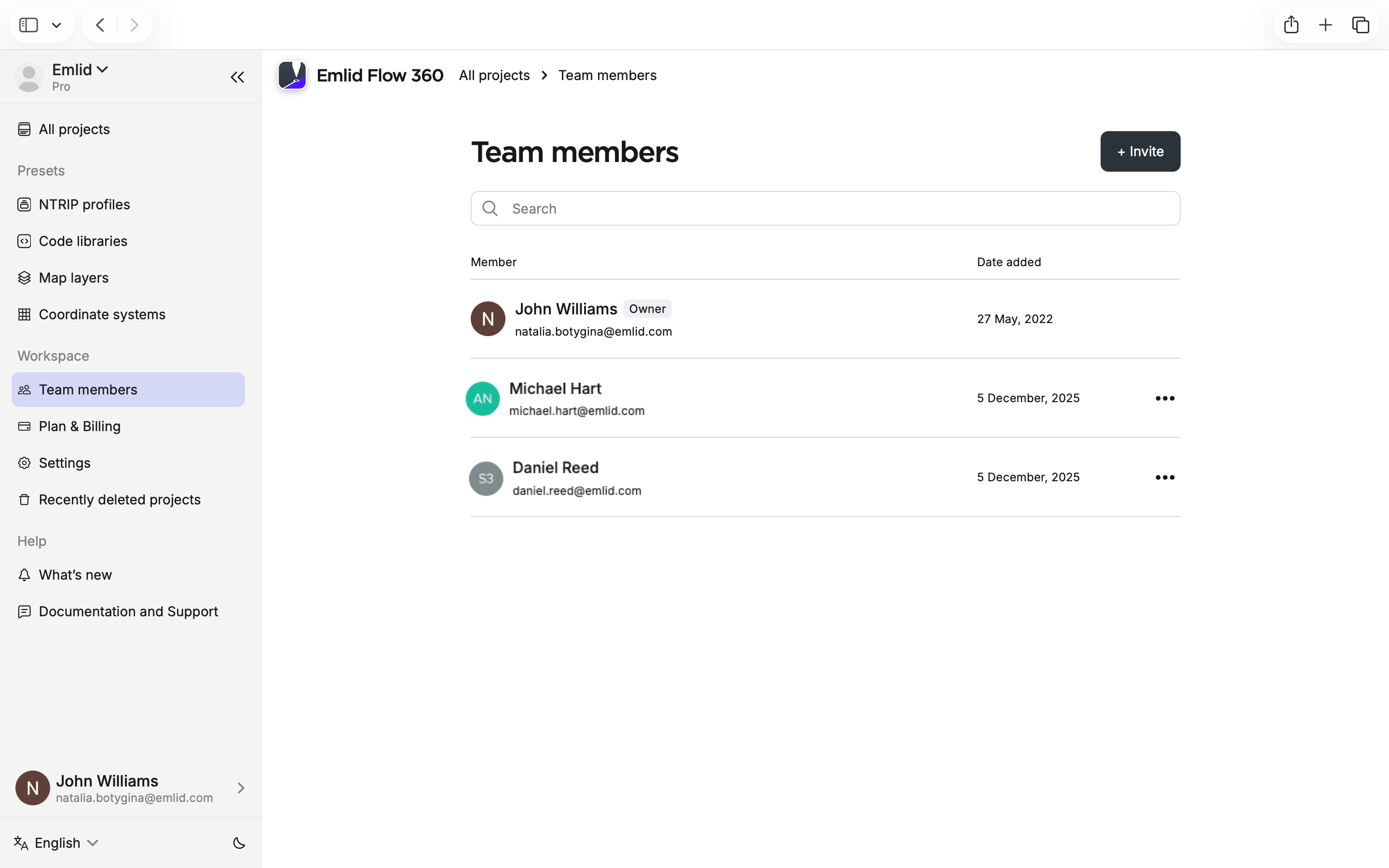
In Emlid Flow 360, open the menu on the left and click Team members.
-
Find the user you want to remove and click the three dots next to the team member's name. Then click Deactivate and confirm the deletion.

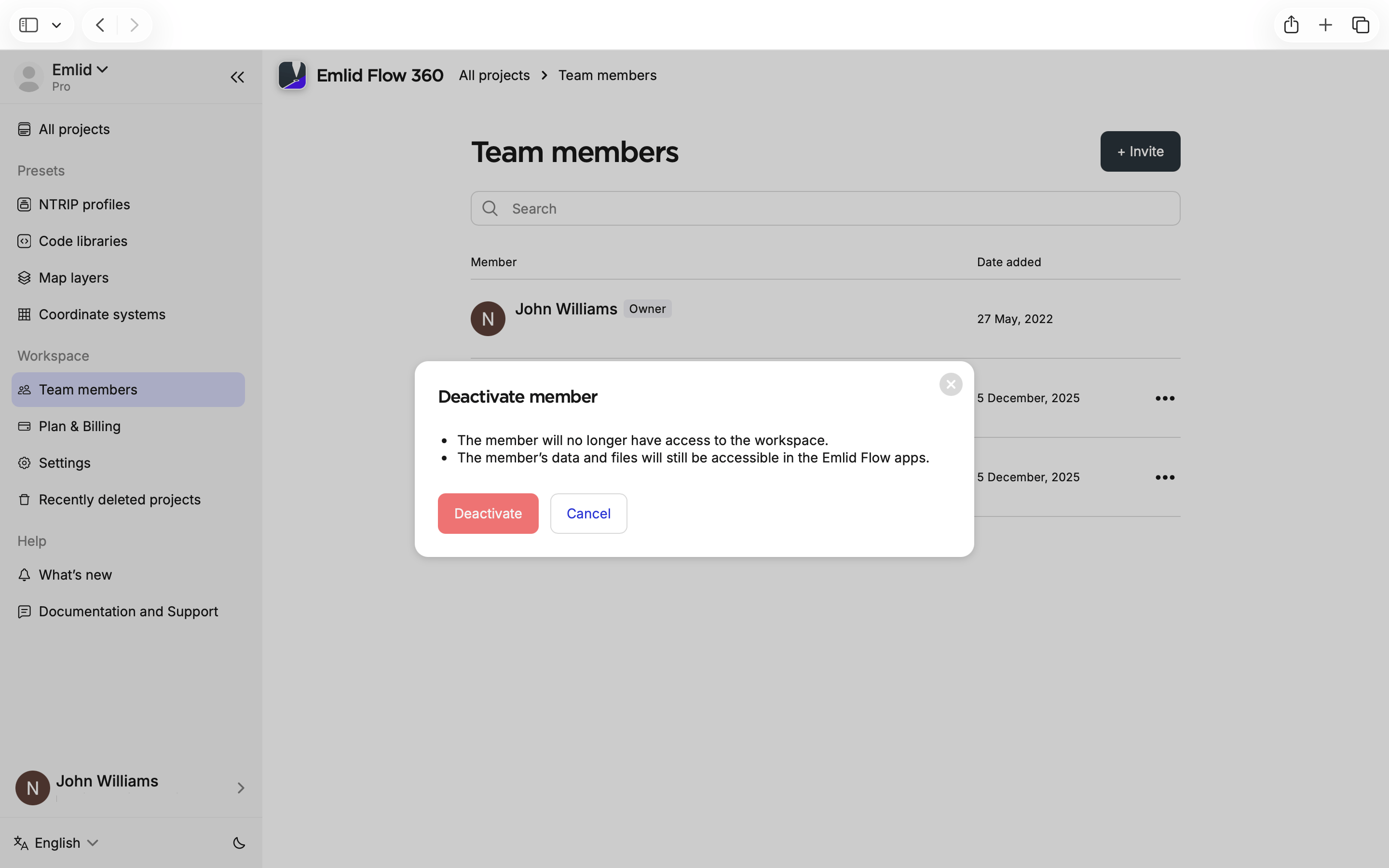
After removal, the user will immediately lose access to your workspace and all shared projects and receive an email notification. However, their account remains listed under Deactivated members, so you can add them when needed again.
Re-adding team members
If you want to add a team member who was previously removed, you can do this as follows:
-
In Emlid Flow 360, open the menu on the left and click Team members.

-
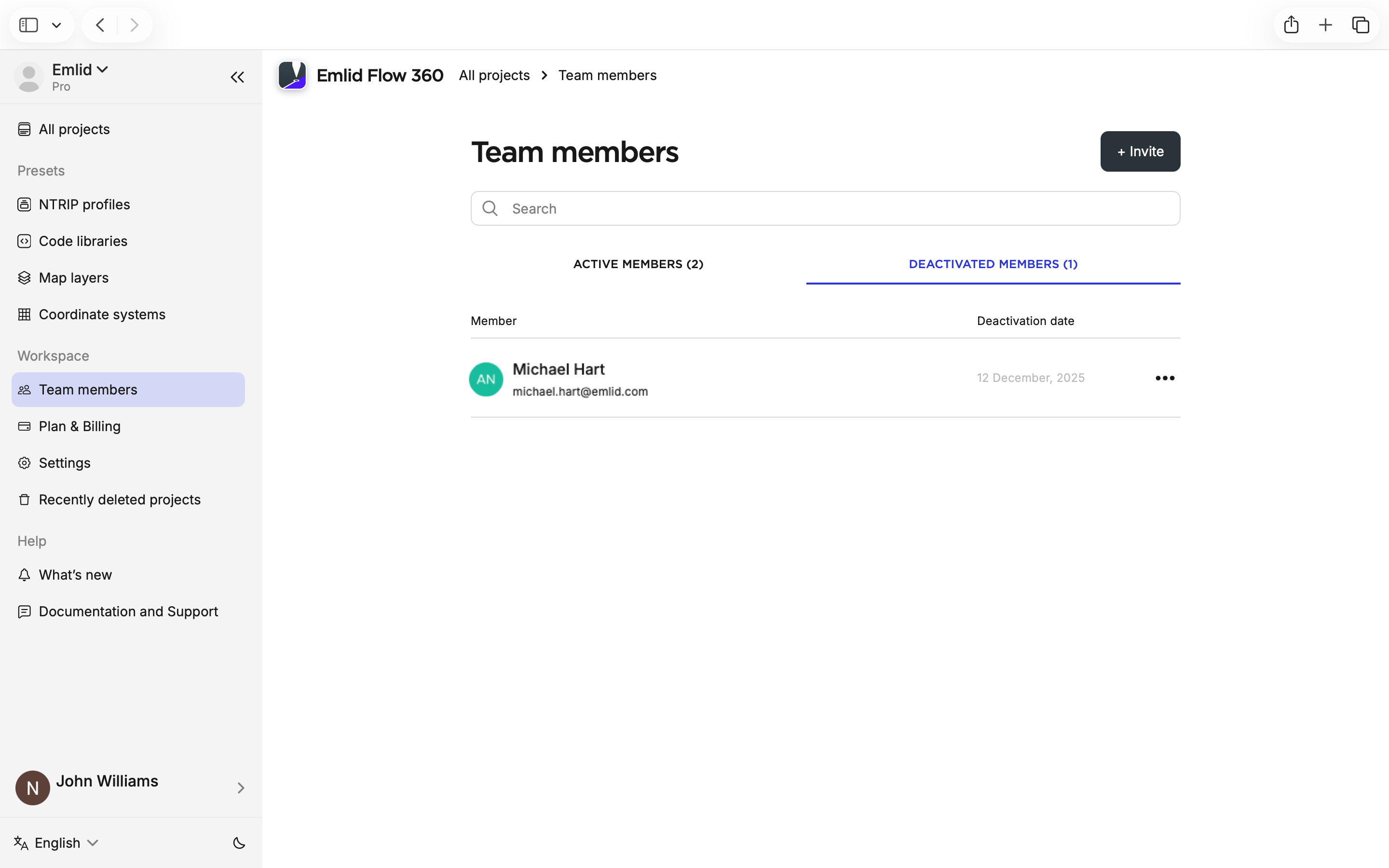
On the screen that appears, click Deactivated members.
-
Click the three dots next to the deactivated team member’s name and reactivate them.
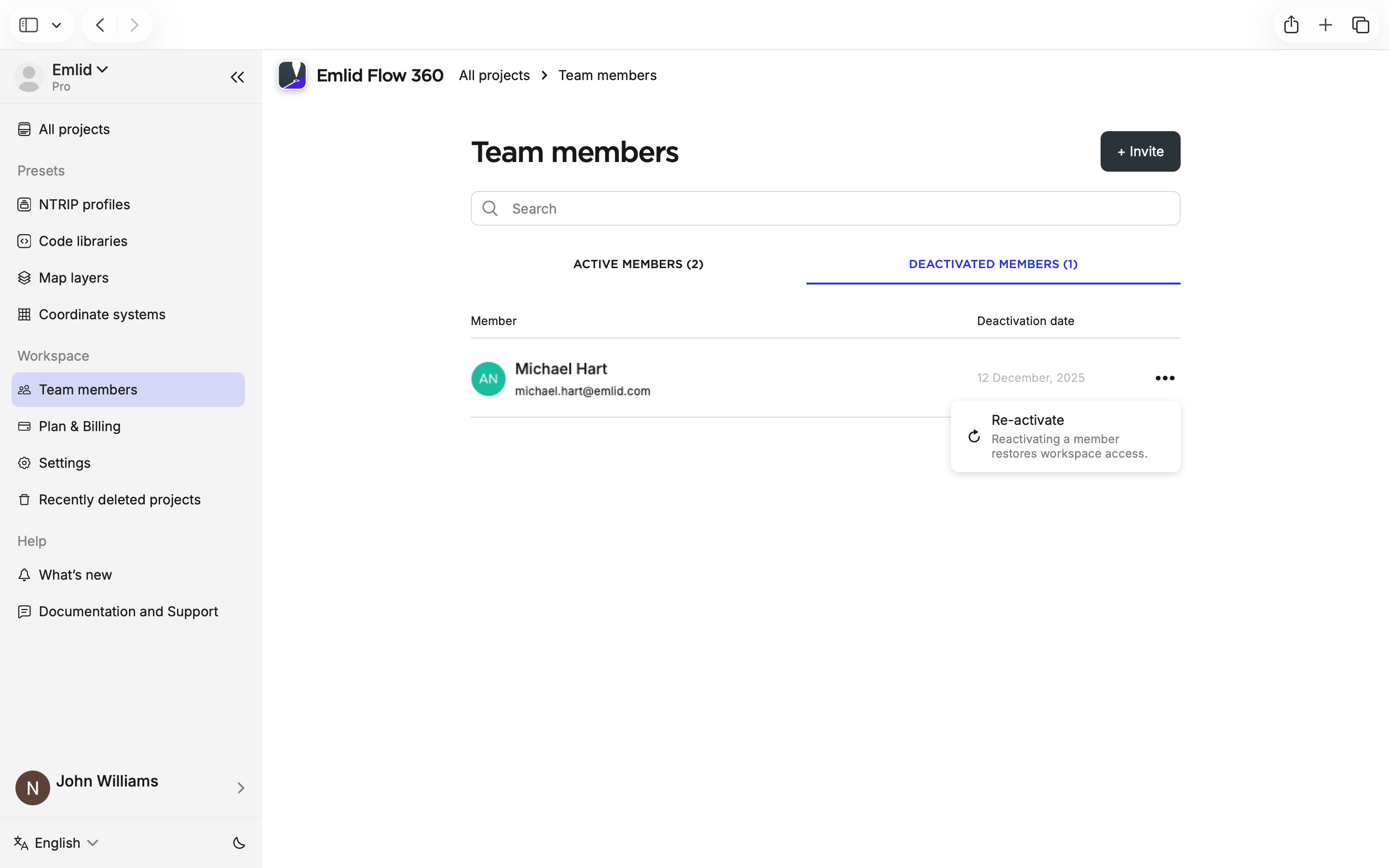
A confirmation message will appear, and the user will receive an email invitation to regain access to the workspace.