Höhenmessung
Verbessern Sie Ihre Vermessungserfahrung mit Kodierung, Liniengrafik, Hintergrundkarten, Lokalisierung, Oberflächen und CAD-Zeichnungen
In dieser Anleitung wird erläutert, wie Sie die aktuelle Geländehöhe ermitteln und ein Gebiet mithilfe der Funktion „Höhenabsteckung“ in Emlid Flow auf eine bestimmte Höhe planieren können.
Übersicht
Bei Bauprojekten muss ein Gelände auf eine bestimmte Zielhöhe innerhalb einer zulässigen Toleranz planiert werden. Die Zielhöhe ist die gewünschte Höhe des fertigen Bodens im Verhältnis zum vertikalen Bezugssystem des Projekts. Die Toleranz legt fest, um wie viel die tatsächliche Geländehöhe vom Sollwert abweichen darf, um noch als planmäßig zu gelten.
Mit der Funktion „Höhenabsteckung“ in Emlid Flow können Sie die Bodenhöhe überprüfen, indem Sie die Zielhöhe und die Toleranz eingeben. Während Sie sich in dem Bereich bewegen, zeigen die Abtrag-/Auffüllanzeige und die Farbdarstellung an, ob der Boden innerhalb der Toleranz liegt und wie viel Material hinzugefügt oder entfernt werden muss.
Verwenden Sie diesen Workflow für die folgenden Aufgaben:
- Bei der Planierung legen Sie anhand des Wertes für „Abtrag/Aufschüttung“ fest, ob Material abgetragen oder aufgeschüttet werden muss, um die Zielhöhe zu erreichen.
- Nach dem Planieren sollten Sie den Bereich überprüfen, um sicherzustellen, dass der Untergrund innerhalb der vorgeschriebenen Toleranz liegt, und Stellen zu identifizieren, an denen Nachbesserungen erforderlich sind.
Arbeitsablauf
So überprüfen Sie, ob der Bereich die erforderliche Höhe aufweist:
-
Öffnen Sie die Emlid Flow App und stellen Sie eine Verbindung zu Ihrem Reach her.
-
Gehen Sie auf die Registerkarte Vermessung und öffnen oder importieren Sie ein Projekt.
tipWie Sie ein Projekt importieren können, erfahren Sie in der Anleitung Projekt erstellen oder importieren.
-
Stellen Sie die Stabhöhe ein. Standardmäßig ist dieser Parameter auf 1,8 m eingestellt.
noteWenn Sie mit Reach RS4 / RS4 Pro oder Reach RX2 arbeiten, aktivieren Sie den Schnellverschluss, falls Sie einen verwenden.
-
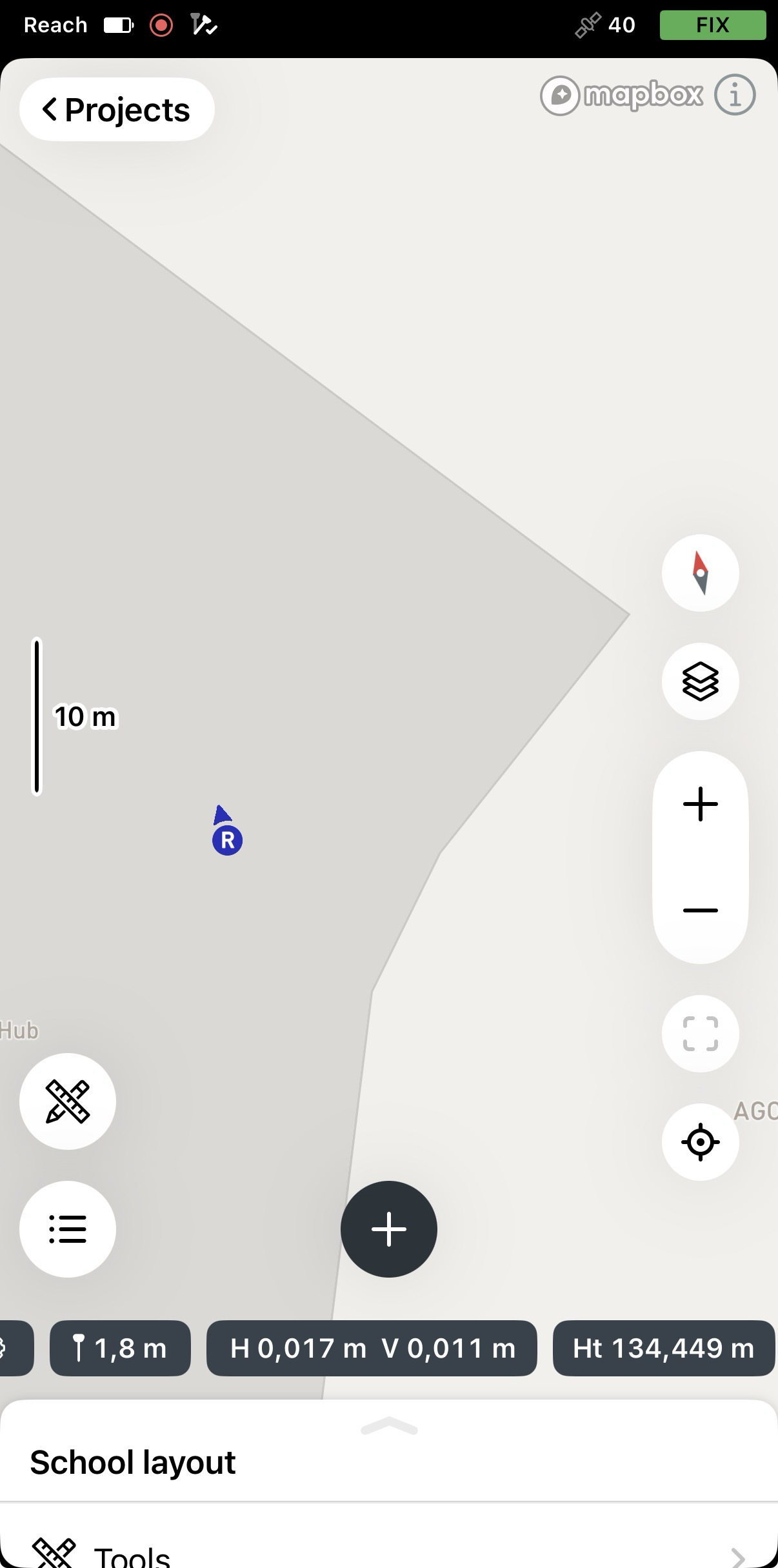
Tippen Sie auf dem Bildschirm Survey (Vermessung) unten im Statusfeld auf den Höhenwert.
-
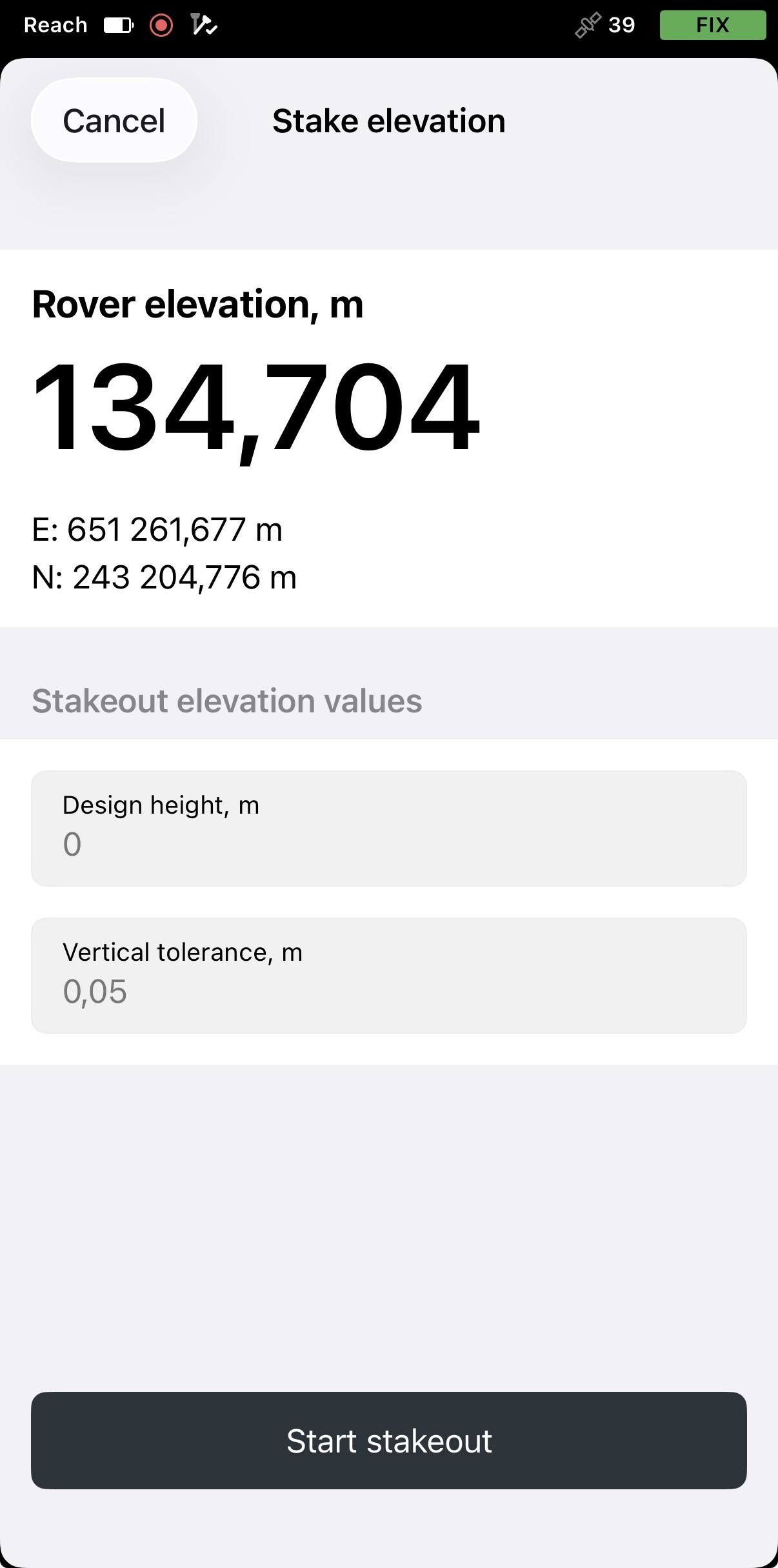
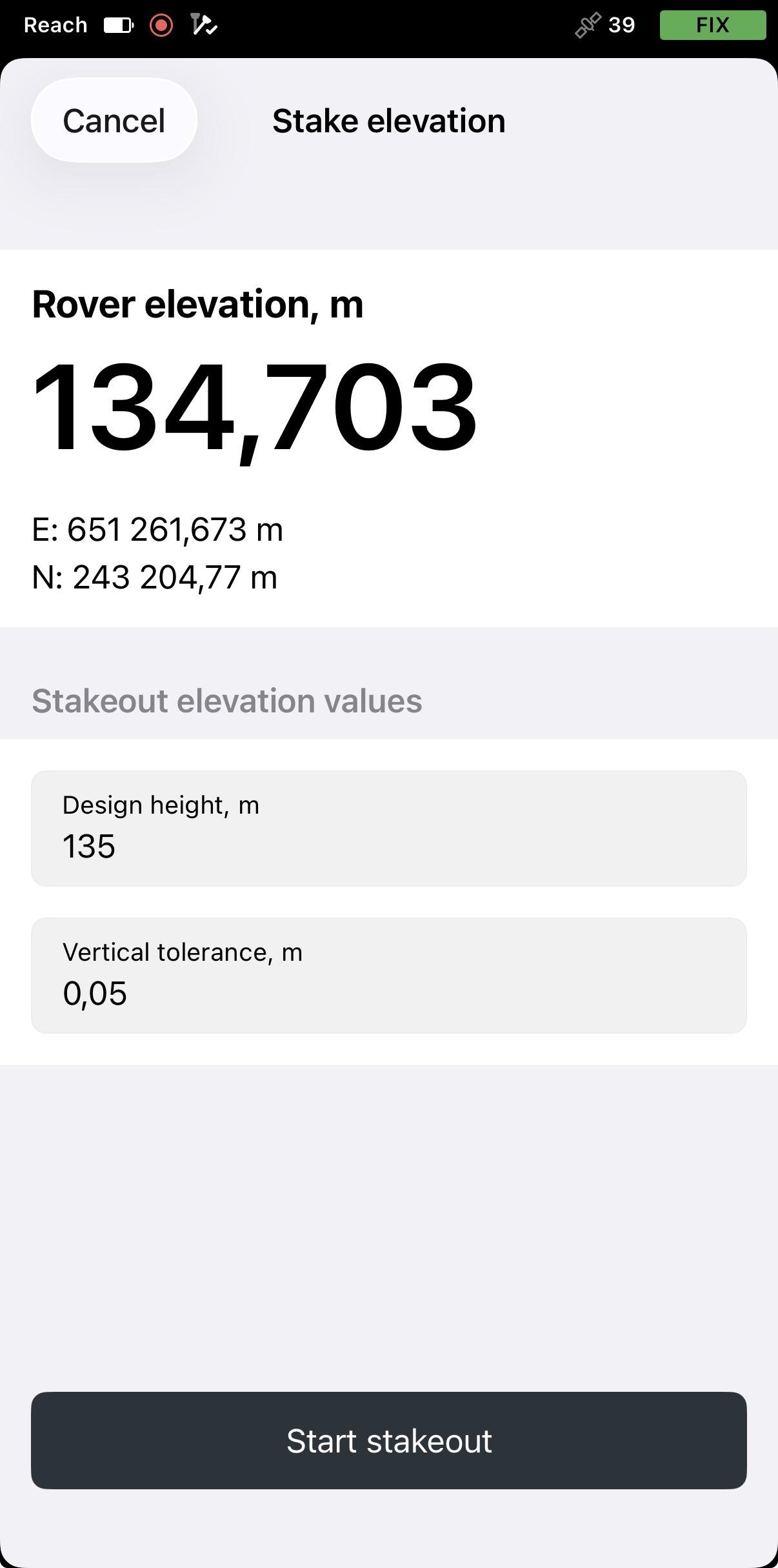
Geben Sie die Planungshöhe ein, um die Zielhöhe festzulegen, und stellen Sie die vertikale Toleranz entsprechend Ihren Projektanforderungen ein. Tippen Sie anschließend auf Start stakeout (Absteckung starten).
-
Bewegen Sie sich durch den Bereich und beachten Sie die farbcodierte Anzeige für Abtrag und Aufschüttung: Rot bedeutet Abtrag, Grau bedeutet Aufschüttung und Grün bedeutet, dass Sie innerhalb der festgelegten Toleranz liegen. Wenn Sie eine Stelle finden, die außerhalb der Toleranz liegt, markieren Sie diese auf dem Boden und fügen Sie nach Bedarf Material hinzu oder entfernen Sie es.
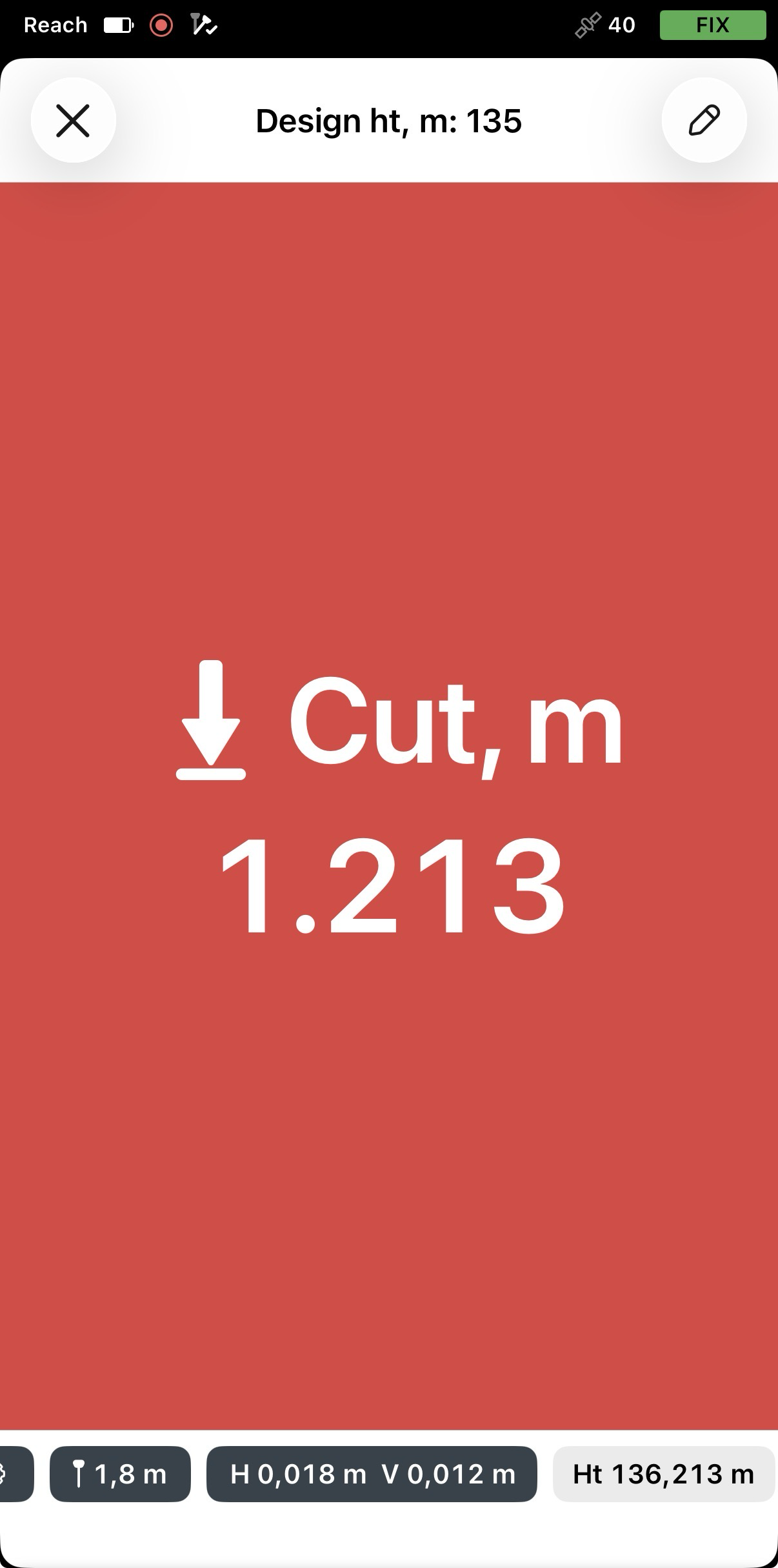
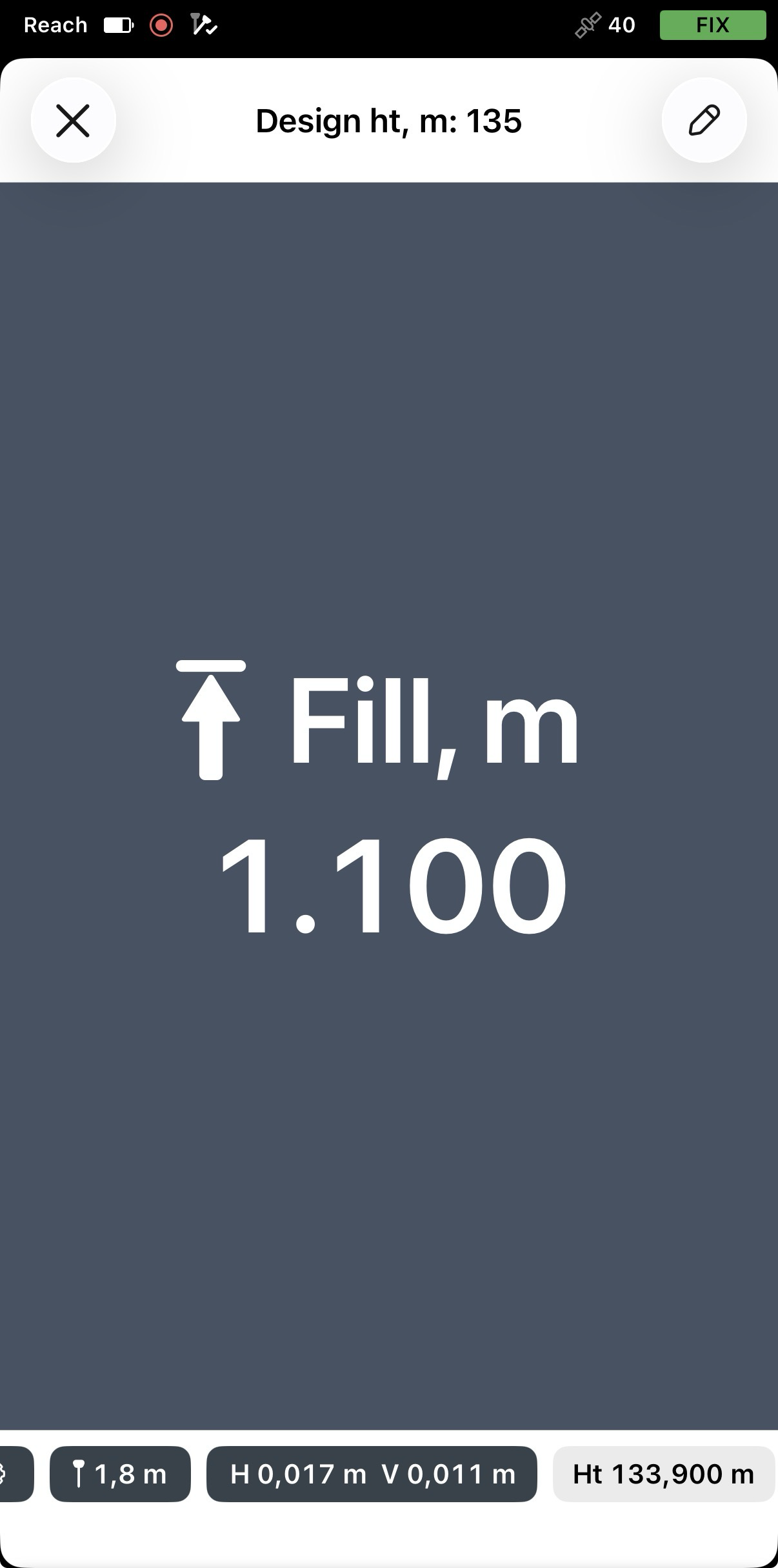
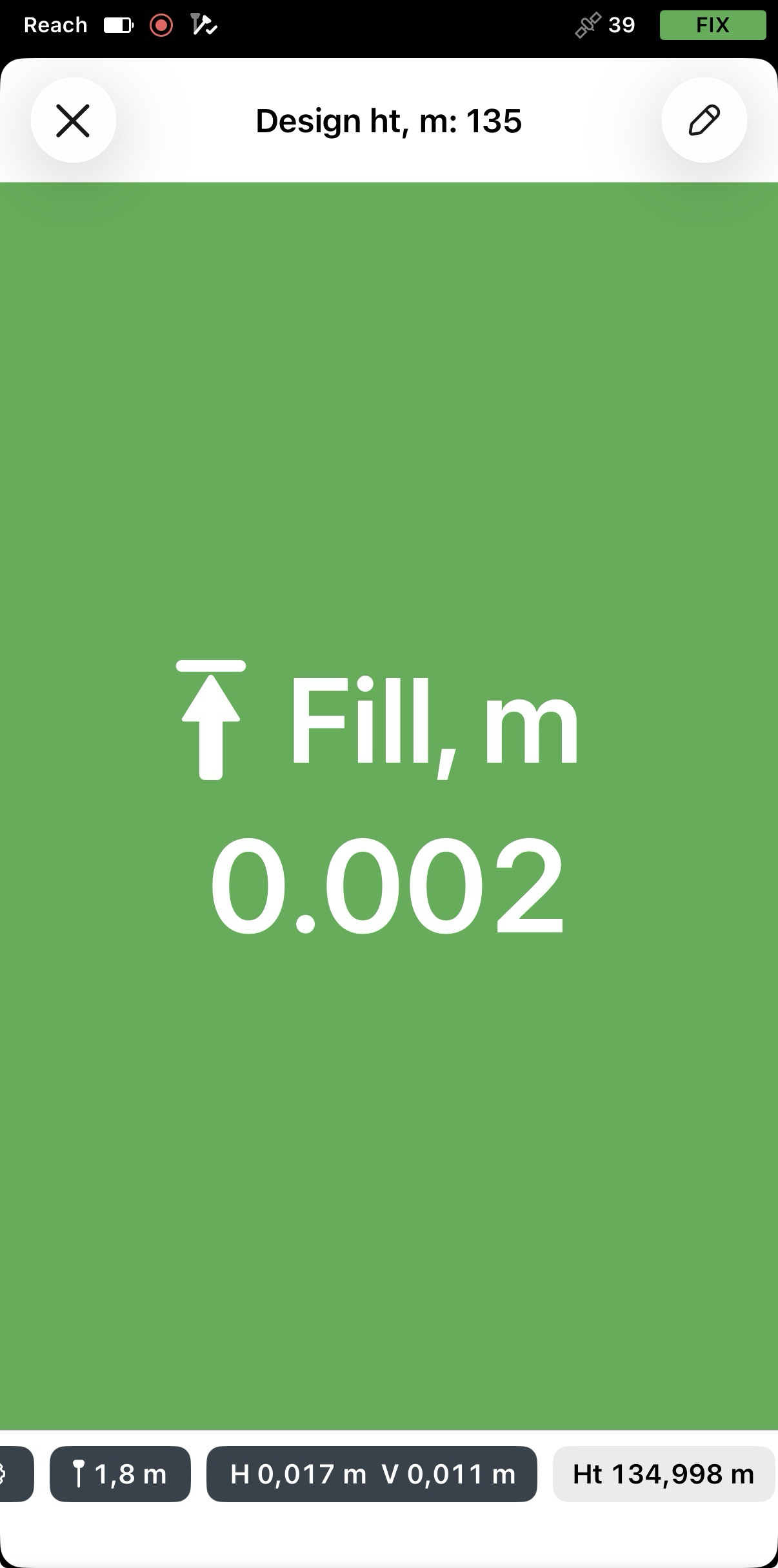
Wenn Sie die Konstruktionshöhe oder die vertikalen Toleranzwerte während der Arbeit ändern möchten, tippen Sie auf die Schaltfläche Edit (Bearbeiten) in der oberen rechten Ecke und passen Sie die Werte nach Bedarf an.
Sie können nun überprüfen, ob die Fläche die geforderte Neigung aufweist, und gegebenenfalls Stellen identifizieren, die angepasst werden müssen.