Getting Reach coordinates on Android devices via Bluetooth
This guide describes how to stream position in the NMEA format from Reach RX to third-party data collection and GIS apps on Android devices.
Overview
The mock location feature on Android devices allows using an external GNSS receiver as if it was a device’s built-in GPS receiver. This way, you can stream position in the NMEA format from Reach RX to GIS apps on Android devices.
Below are some survey and GIS apps that can be used with Reach RX:
- Mobile Topographer Pro
- PointMan
- Mapit GIS
- LandStar
- Autocad360
- QField
In most cases, you can configure a correction stream from an NTRIP service in the Emlid Flow app and transmit the corrected position to a third-party GIS or data collection application on Android. If the third-party app does not allow adding an external GNSS receiver and only accepts the phone’s internal location, refer to the Configuring mock location on Android device using Lefebure NTRIP Client section below. It explains how to integrate using the Lefebure NTRIP Client app to provide corrected positioning data.
To output a centimeter-precise position, Reach RX should be in RTK mode. You can do the following:
-
Use an NTRIP service as a source of positioning corrections for the Reach rover.
Reach RX uses Bluetooth and streams its position in the NMEA format by default. You only need to pair it with your Android device.
Streaming orthometric height
This section is optional and only required if you want to collect and display orthometric height values.
Construction, utility, and municipal projects require orthometric height rather than ellipsoidal height because it is referenced to mean sea level and represents real-world elevation used in engineering and infrastructure workflows.
GNSS receivers calculate ellipsoidal height relative to an ellipsoid, which is a simplified mathematical model of the Earth. However, engineering workflows use elevation relative to mean sea level. To convert GNSS measurements into orthometric height, the receiver applies a geoid model, which approximates mean sea level and defines the difference between the ellipsoid and the geoid at a given location.
To provide mean sea level elevation, Emlid Flow applies the selected geoid model to GNSS height measurements. You only need to enable streaming to send corrected elevations to your third-party app.
To stream orthometric height to a third-party application, follow the steps below:
-
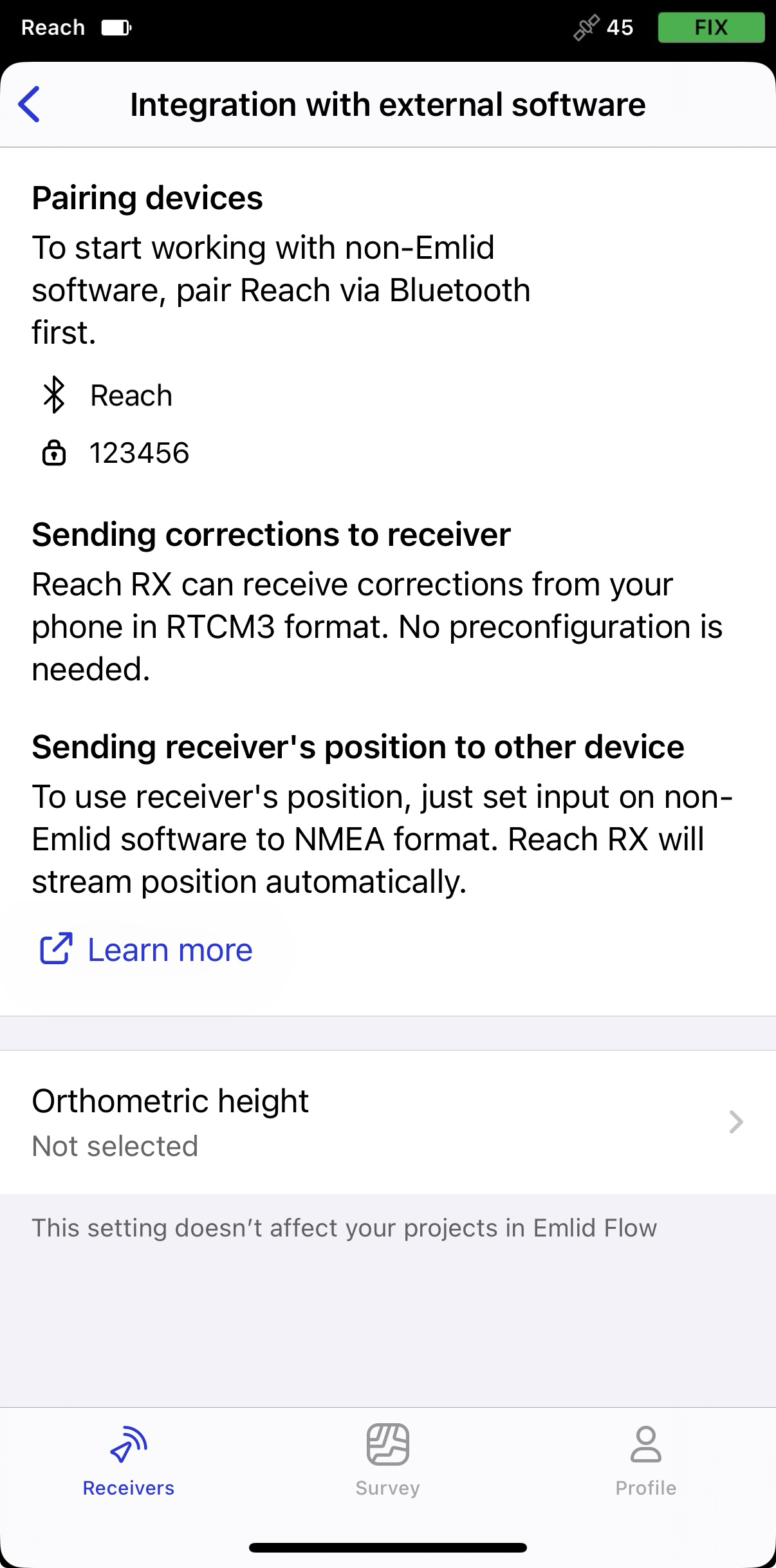
In Emlid Flow, go to the Integration with external devices tab.
-
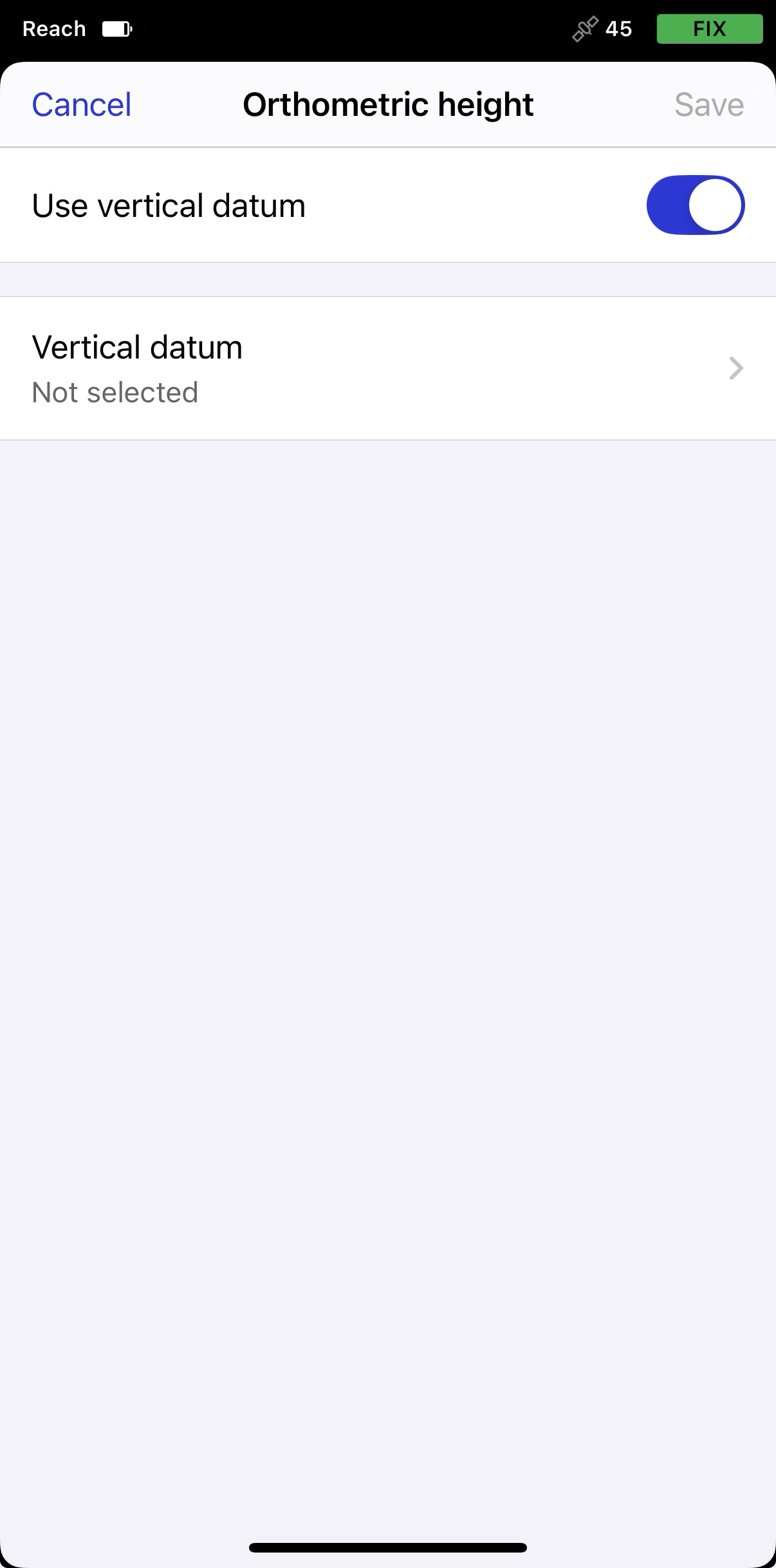
Tap Orthometric height and turn on the toggle to use vertical datum.
-
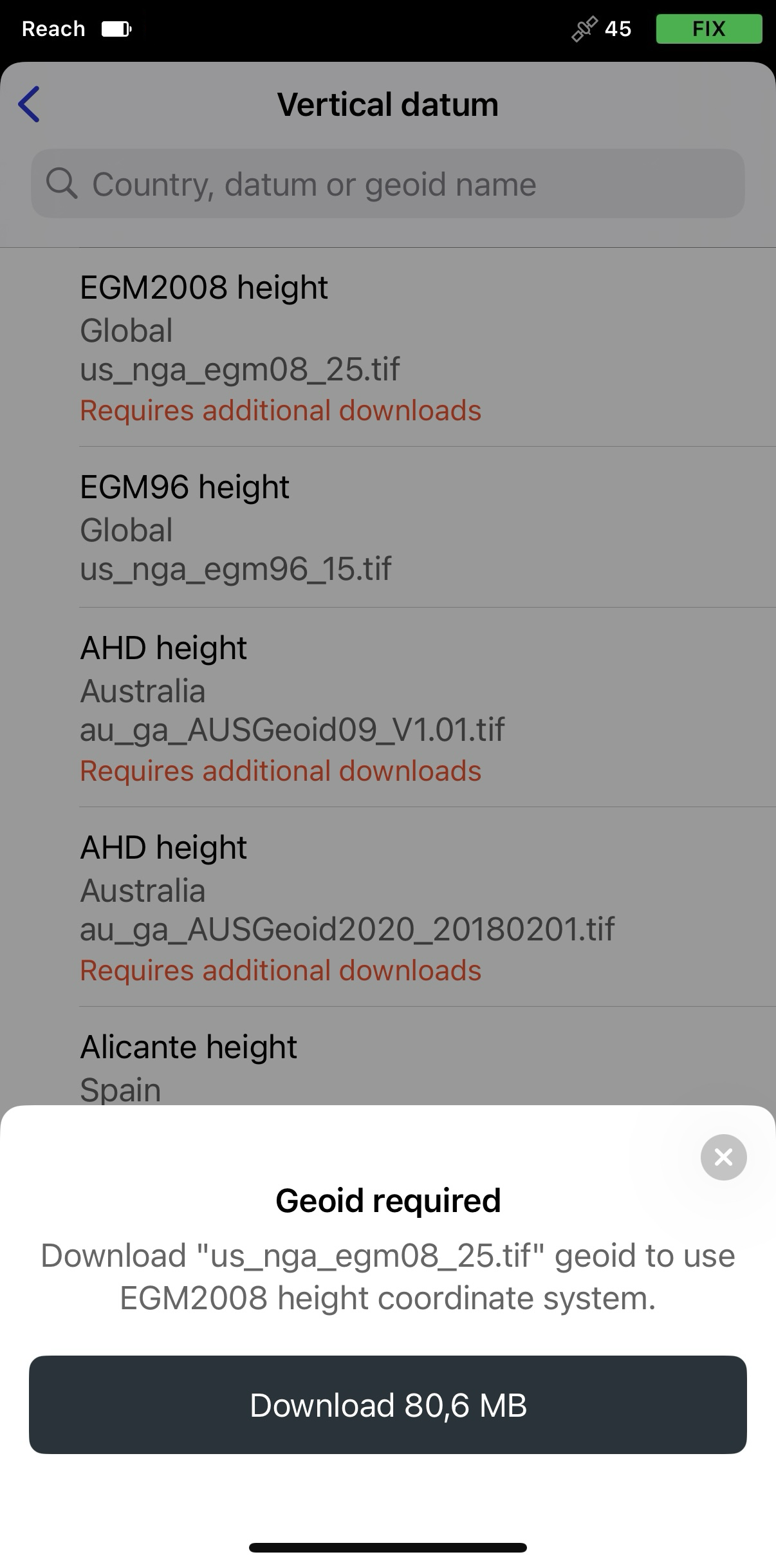
Tap Vertical datum, then select the geoid for your location. If needed, download the geoid by tapping Download.
-
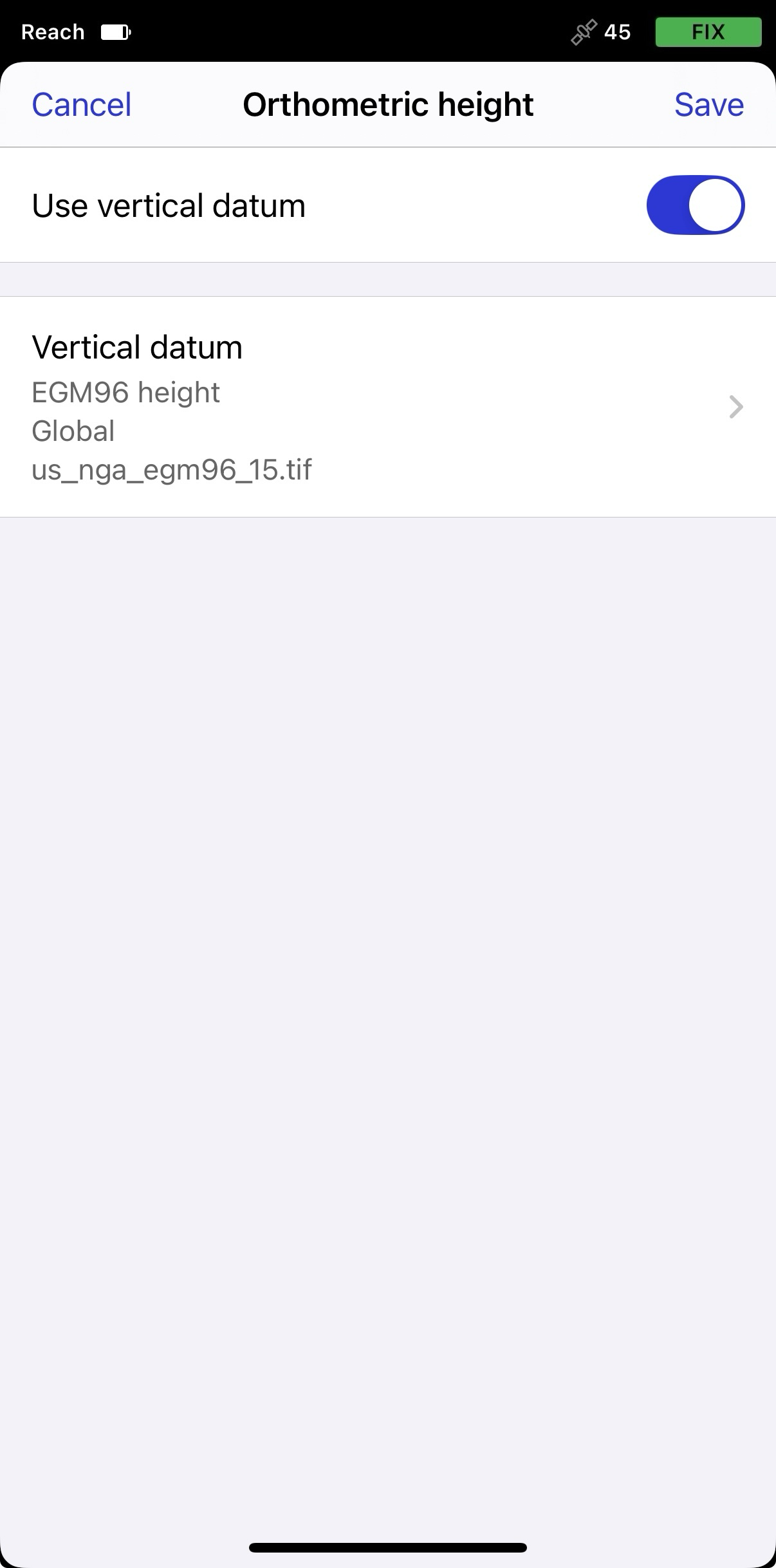
Tap Save.
Orthometric height output requires the app to remain active in the background. If the app is force-closed or geoid correction updates are interrupted for more than 10 seconds, the altitude accuracy is marked as invalid (999m).
Before proceeding, verify that your third-party app supports orthometric height values, or check whether any additional setup is required beforehand.
Now, Reach RX outputs NMEA with the correct orthometric height, which will be included in the NMEA GGA.
Pairing Android device
To pair your Reach RX with an Android device, follow the steps below:
-
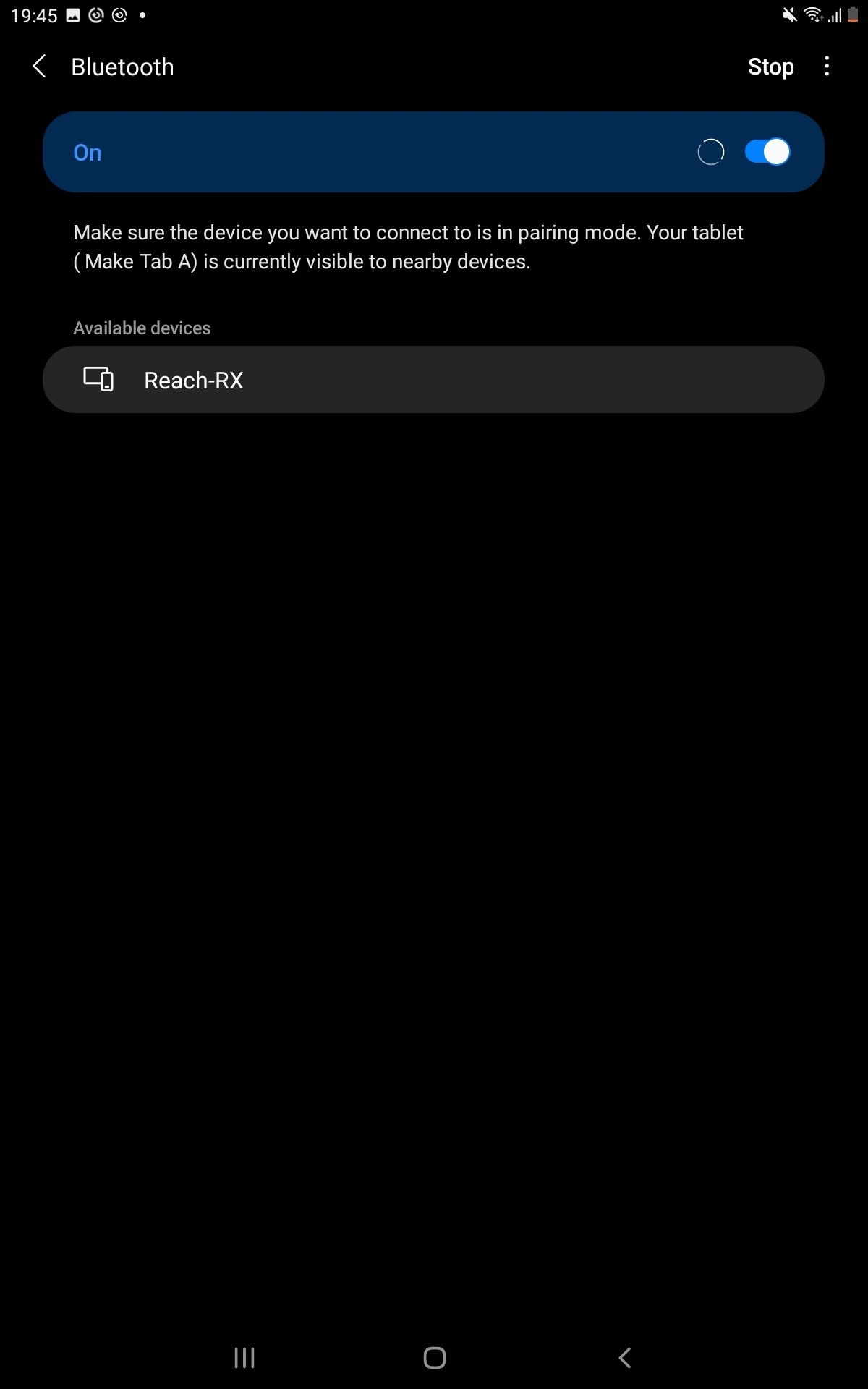
Navigate to the Bluetooth configuration screen on your Android device and enable Bluetooth.
-
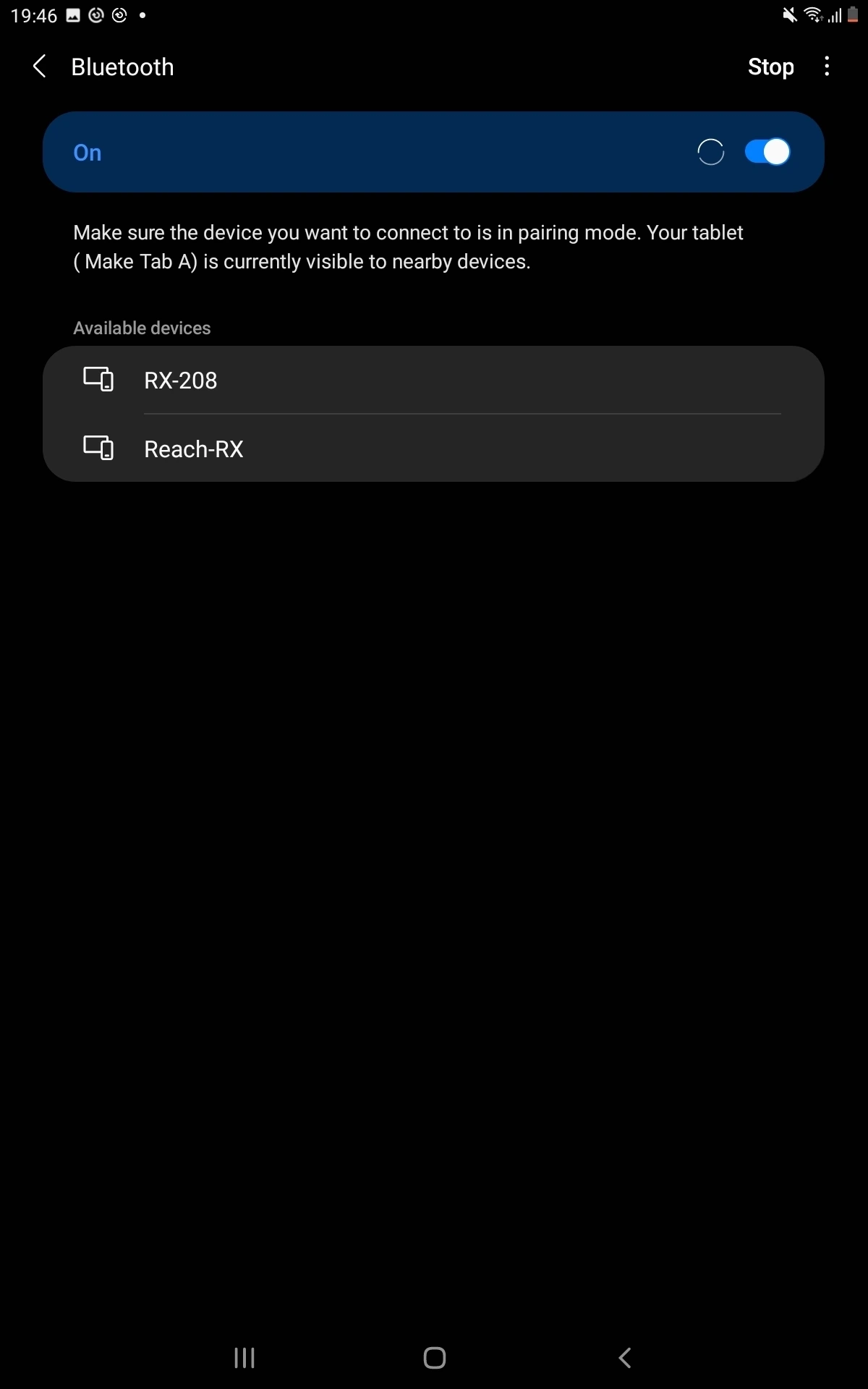
Wait for your Reach RX to be listed as an available device.
tipKeep Reach within a few meters from the device.
-
Tap the name of your Reach in the list of available devices on the Android device.
noteIf your device requires a PIN code, enter 123456.
-
Pair Reach with the Android device.
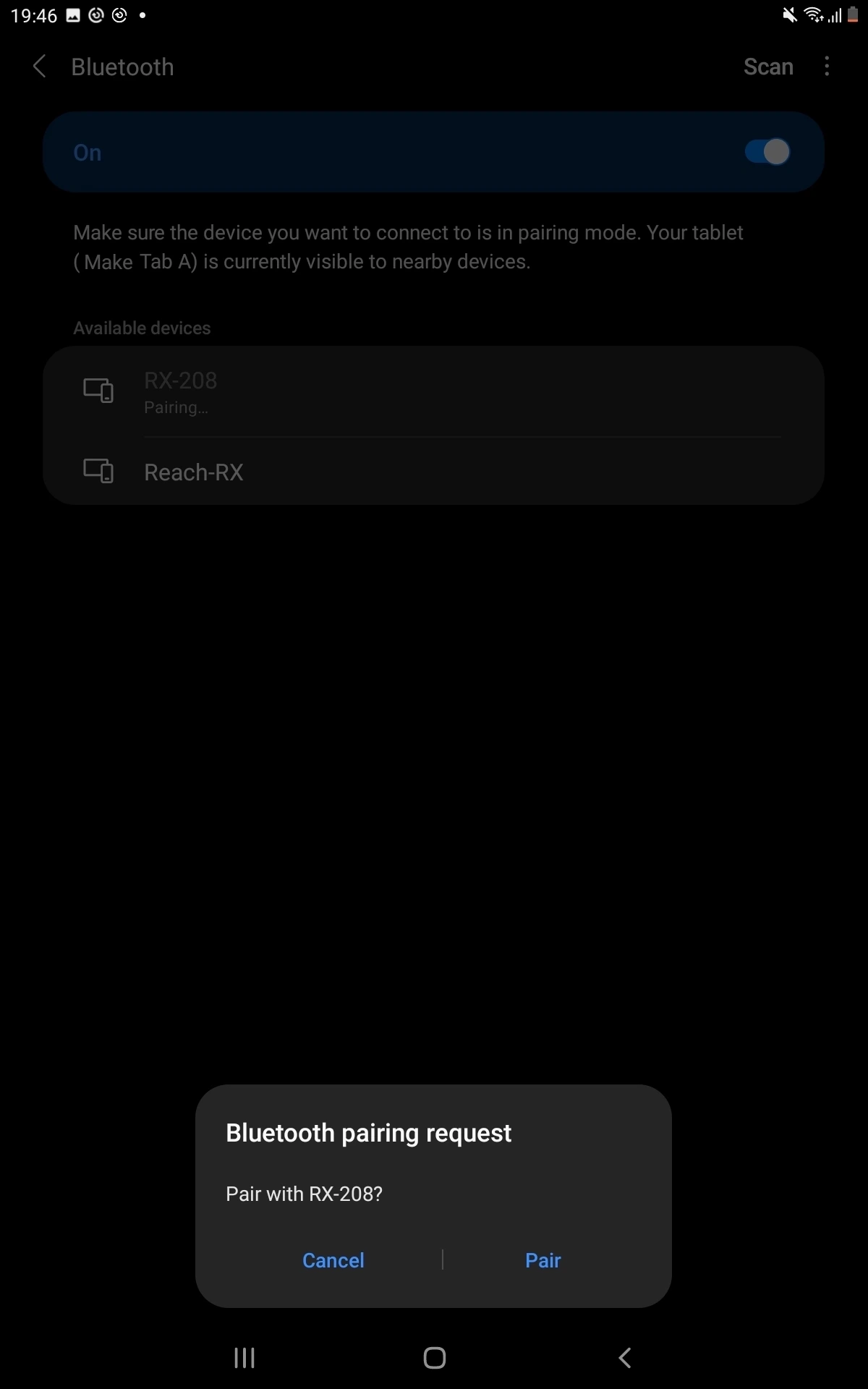
Now you can start receiving the precise position in your third-party data collection or GIS app. If your app does not support external GNSS receivers and relies only on the phone’s internal GPS for location data, you can integrate using the Lefebure NTRIP client app. Follow the steps in the section below.
Configuring mock location on Android device using Lefebure NTRIP Client
Follow the steps in this section only if your third-party application does not support external GNSS receivers and relies only on the phone’s internal GPS for location data.
Lefebure NTRIP Client allows the data collection and GIS apps on Android devices to use precise coordinates from Reach. Besides being an NTRIP client, it allows inputting NMEA data via Bluetooth and substituting your device's built-in GPS receiver with an external location provider.
To configure the mock location on the Android device, follow the steps below:
-
Download and install the Lefebure NTRIP Client app on your Android device.
-
Open Developer Options on your Android device.
tipTo learn more about accessing Developer Options on your device, check your Android device’s instructions.
cautionIt is recommended to switch off the power-saving mode on your device, as it may limit background data usage for the Lefebure NTRIP client app.
-
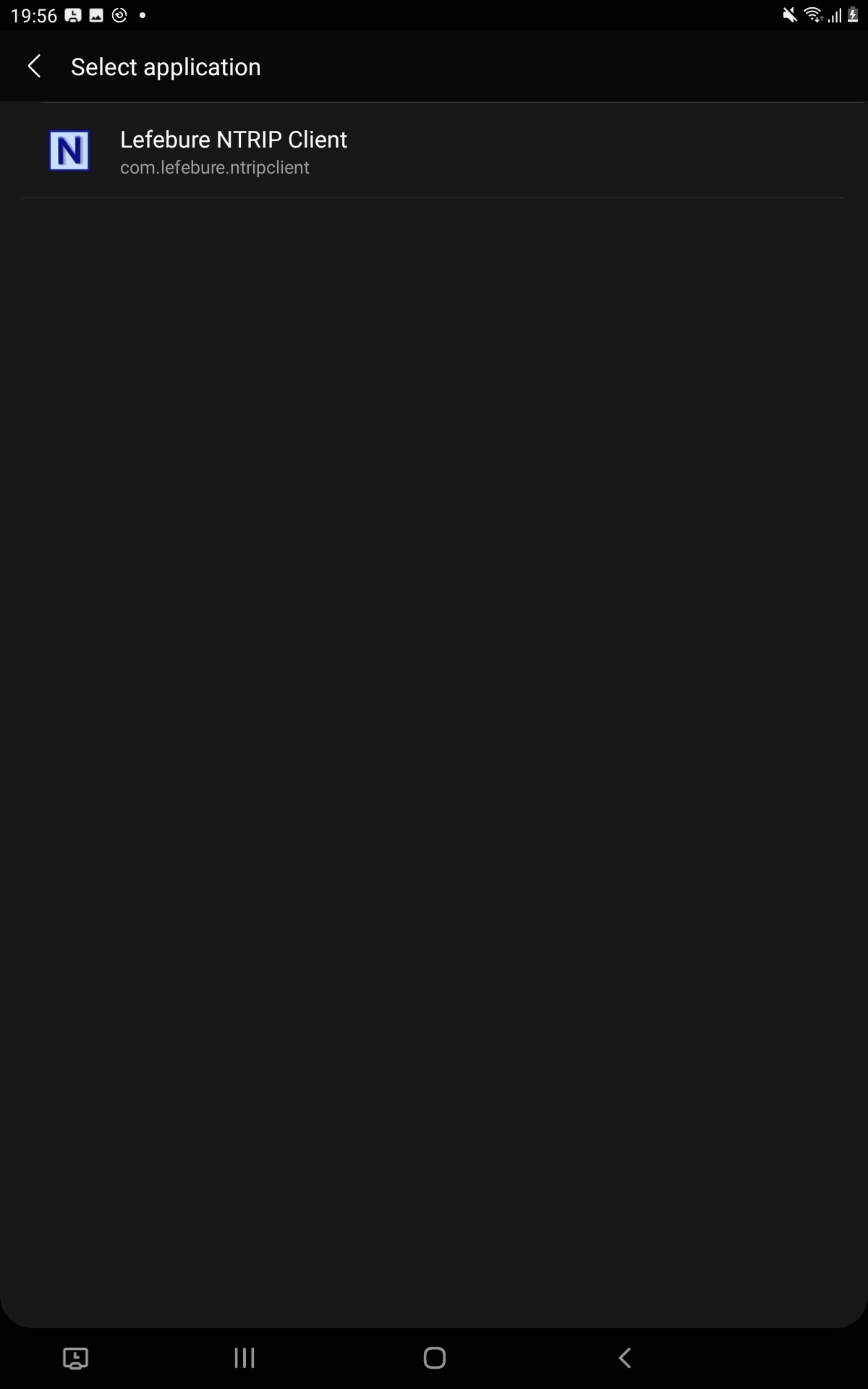
In the Select mock location app field, choose Lefebure NTRIP Client.
-
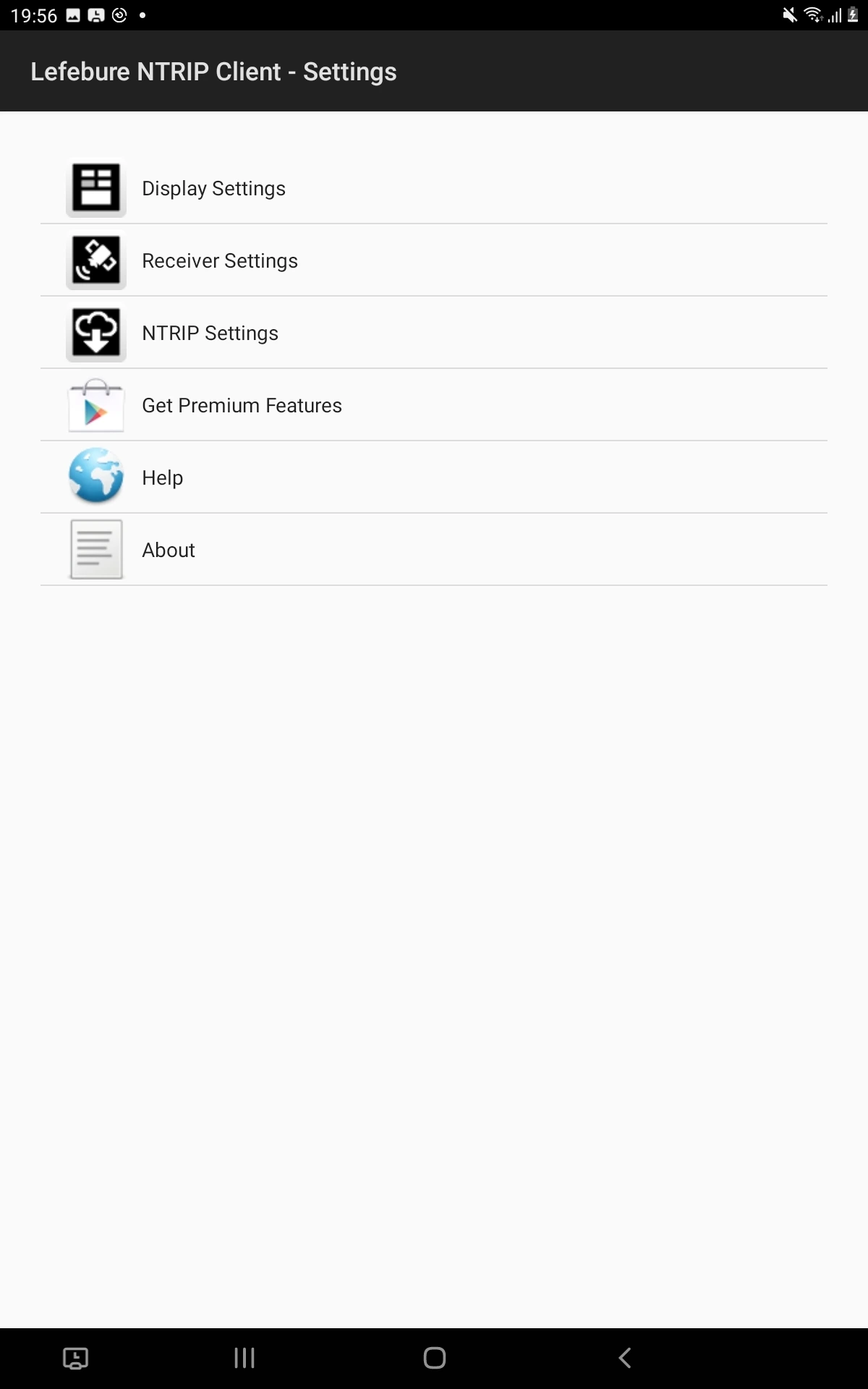
Launch the Lefebure NTRIP Client app and tap the Settings icon.
-
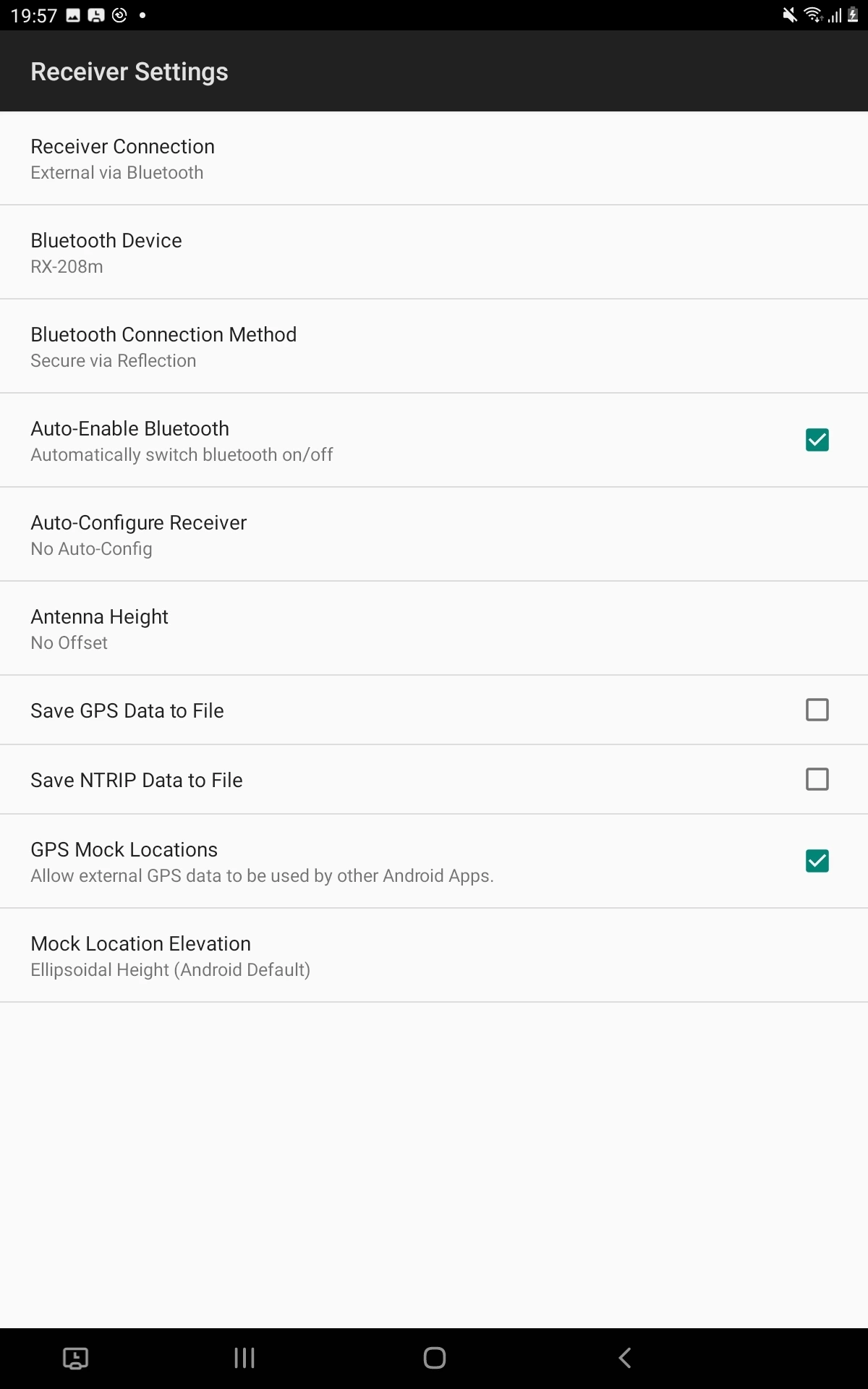
Go to Receiver Settings. Configure the following:
- Receiver Connection: External via Bluetooth.
- Bluetooth device: Reach, your device is paired with.
- Bluetooth Connection Method: Secure via Reflection.
- Enable GPS Mock Locations.
-
Go back to the main screen and tap the Connect button.
-
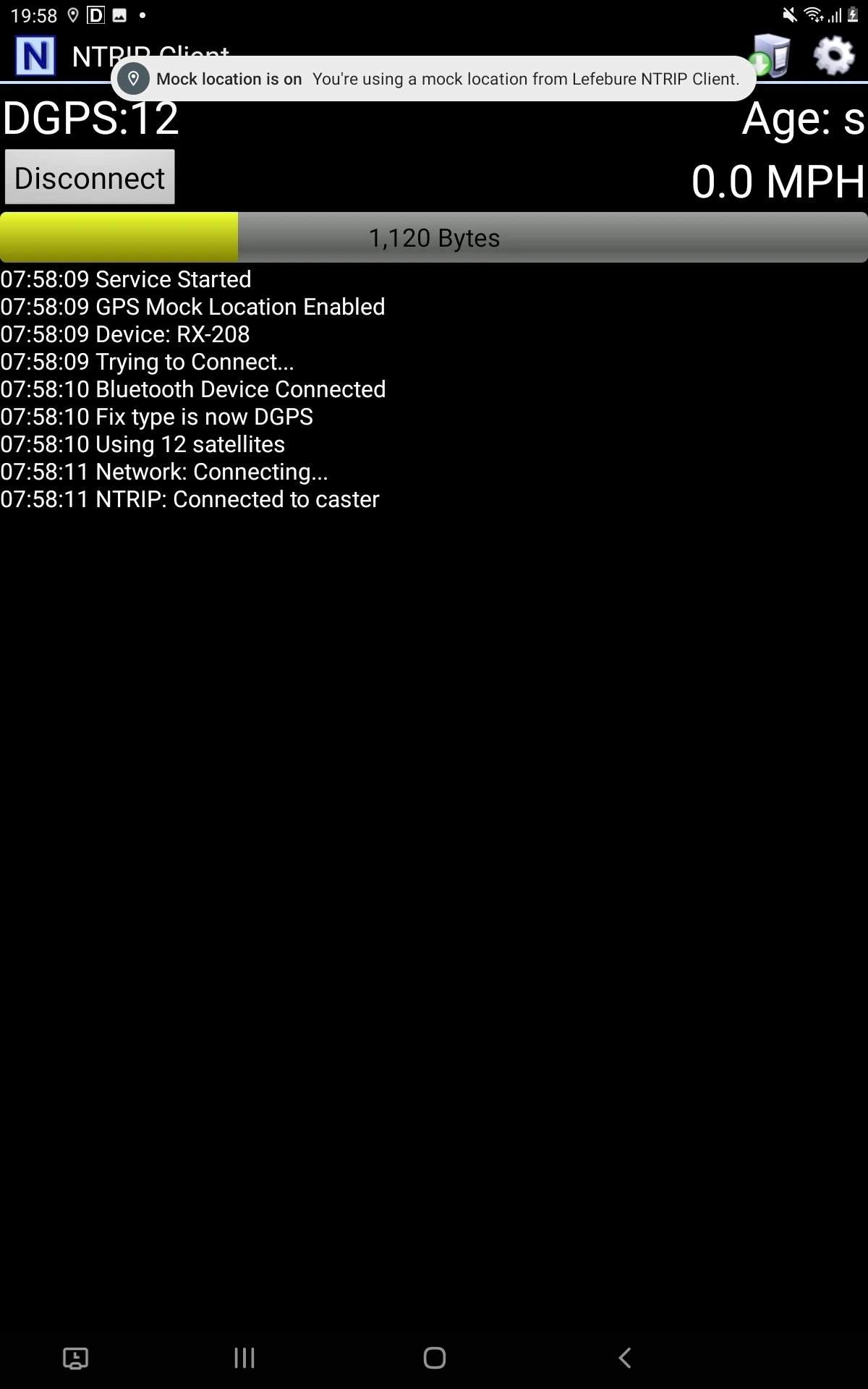
Check that you’re receiving corrections.
If you want to configure your Reach RX to receive corrections from an NTRIP service in the Lefebure NTRIP Client app, follow the steps below:
-
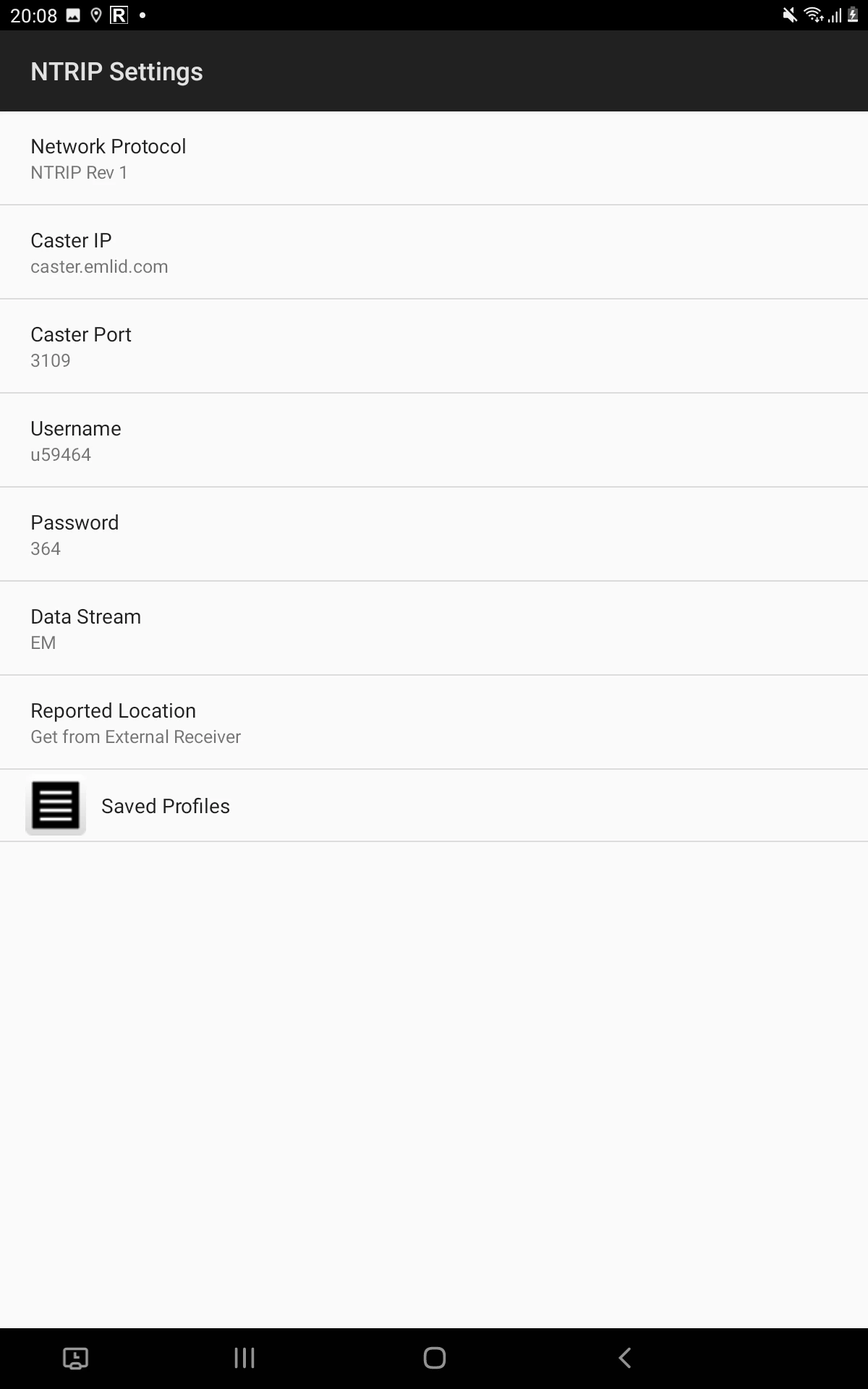
In Lefebure NTRIP Client, go to NTRIP Settings and fill in the information from your NTRIP provider.
-
Save the settings.
-
Go back to the main screen and tap the Connect button.
-
Check that you’re receiving corrections.
tipCheck the log messages to make sure that corrections are coming and information about satellites is updated.
From this moment, all data collection and GIS apps that use location services installed on your device will automatically have access to the positional data streamed from Reach.