Microsurvey FieldGenius setup guide
In this tutorial, you will find the information on how to set up a data collector running FieldGenius with Reach via Bluetooth. A step-by-step guide can be also found on the MicroSurvey knowledge base.
If you use FieldGenius for Android, please refer to the Bluetooth output and Android mock location guide.
Configuring Bluetooth connection
-
Open Emlid Flow and connect to your Reach.
-
Go to Settings and tap Bluetooth.
-
Enable Bluetooth by tapping the Turn on Bluetooth button.
-
Tap Discoverability and turn on the Discoverability option. Tap Save to apply changes.
-
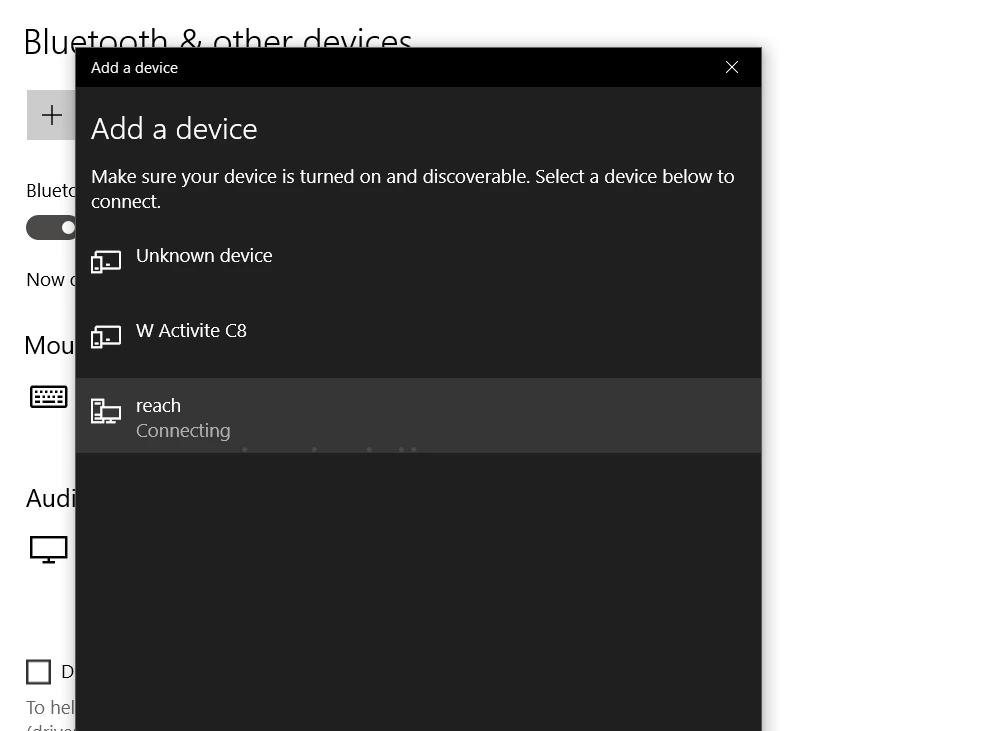
In Windows, go to Bluetooth settings and select Add a Bluetooth Device. Select Reach from the list of discovered devices and confirm the connection.
-
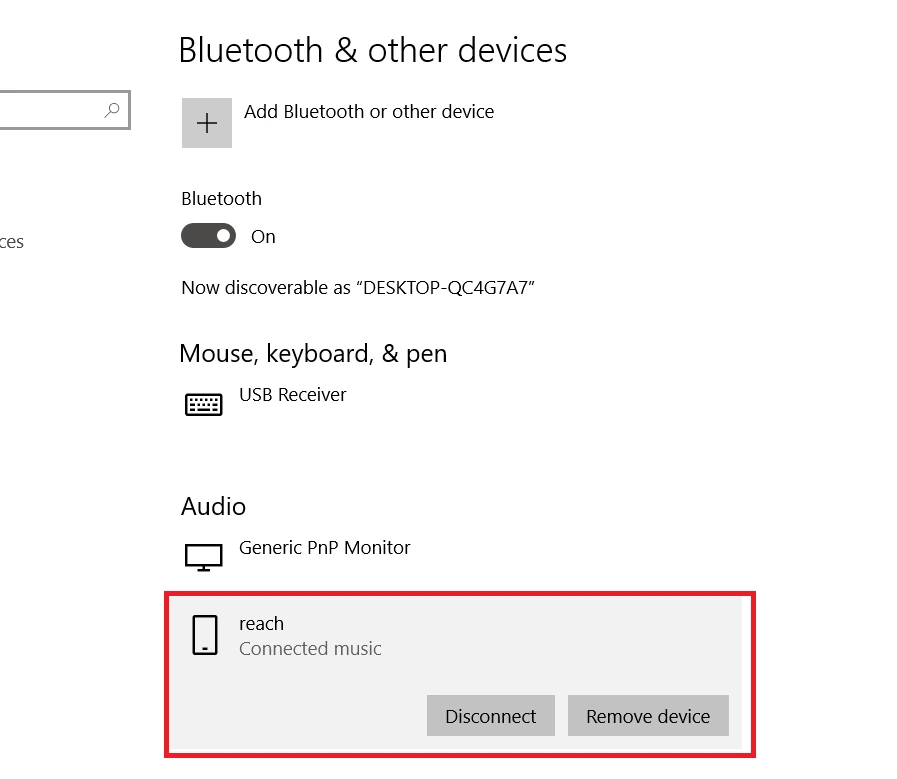
When pairing is completed you will see the Windows device is listed in the Emlid Flow app. The Reach device will be listed as a device in Windows.
Configuring Emlid Flow
After successful Bluetooth pairing you should configure BT position streaming and correction input if needed.
Position streaming
Set up position streaming as follows:
-
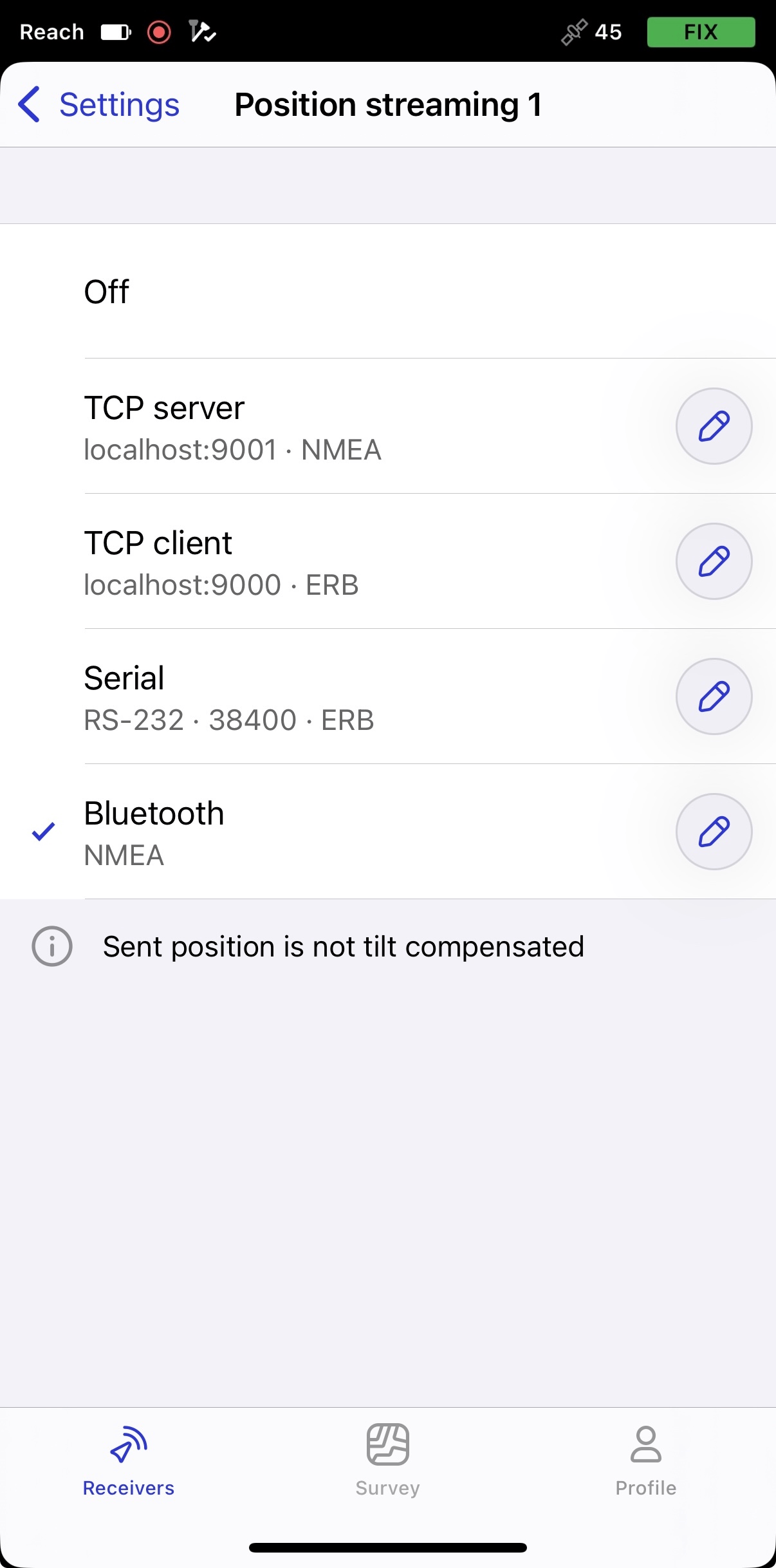
Go to Settings and tap Position streaming 1.
-
Choose Bluetooth.
-
To configure position streaming, tap the Edit button in the Bluetooth cell.
-
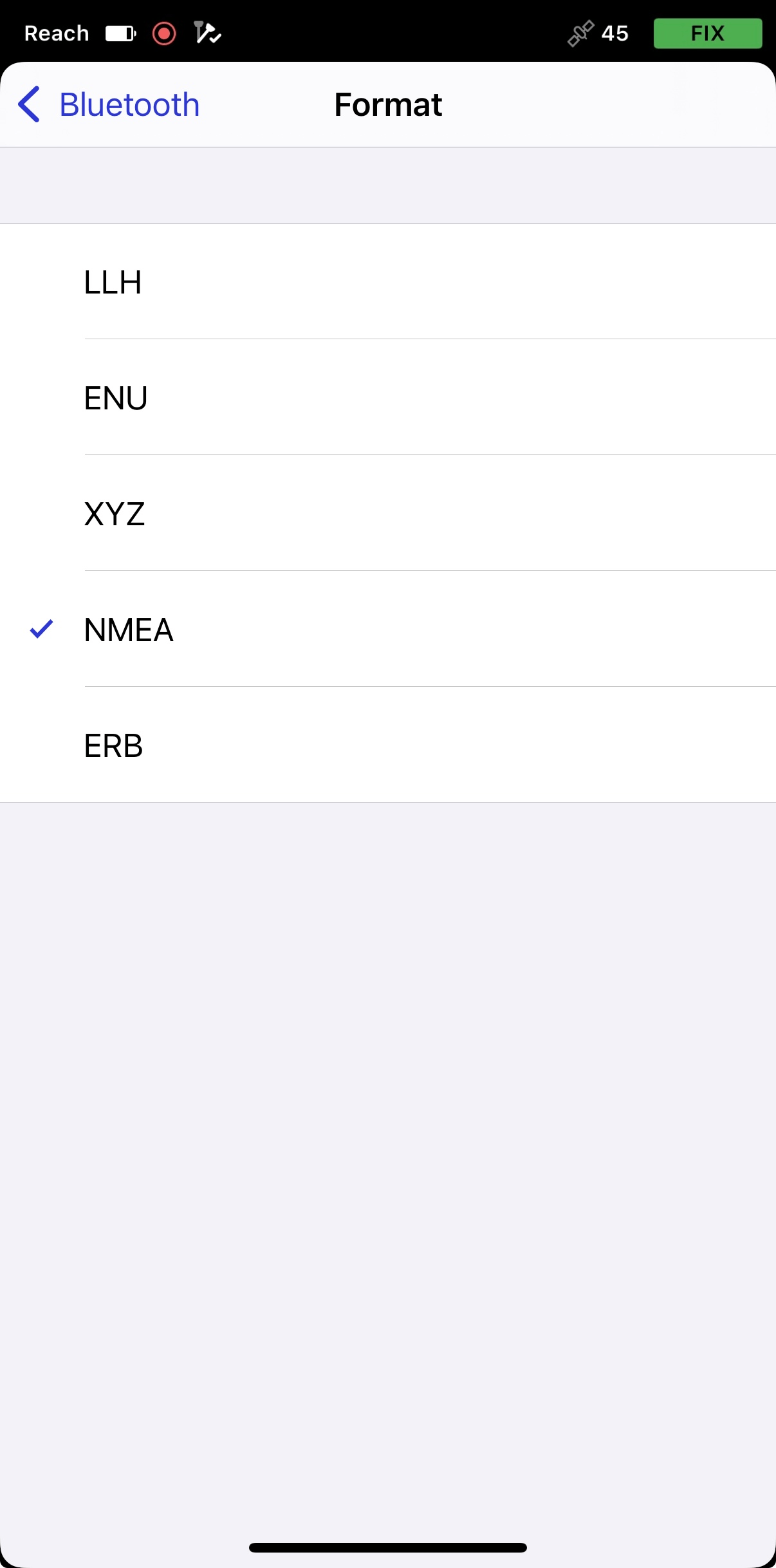
Tap Format and choose NMEA. Apply changes.
Correction input
To send the corrections from your controller via Bluetooth, do the following:
-
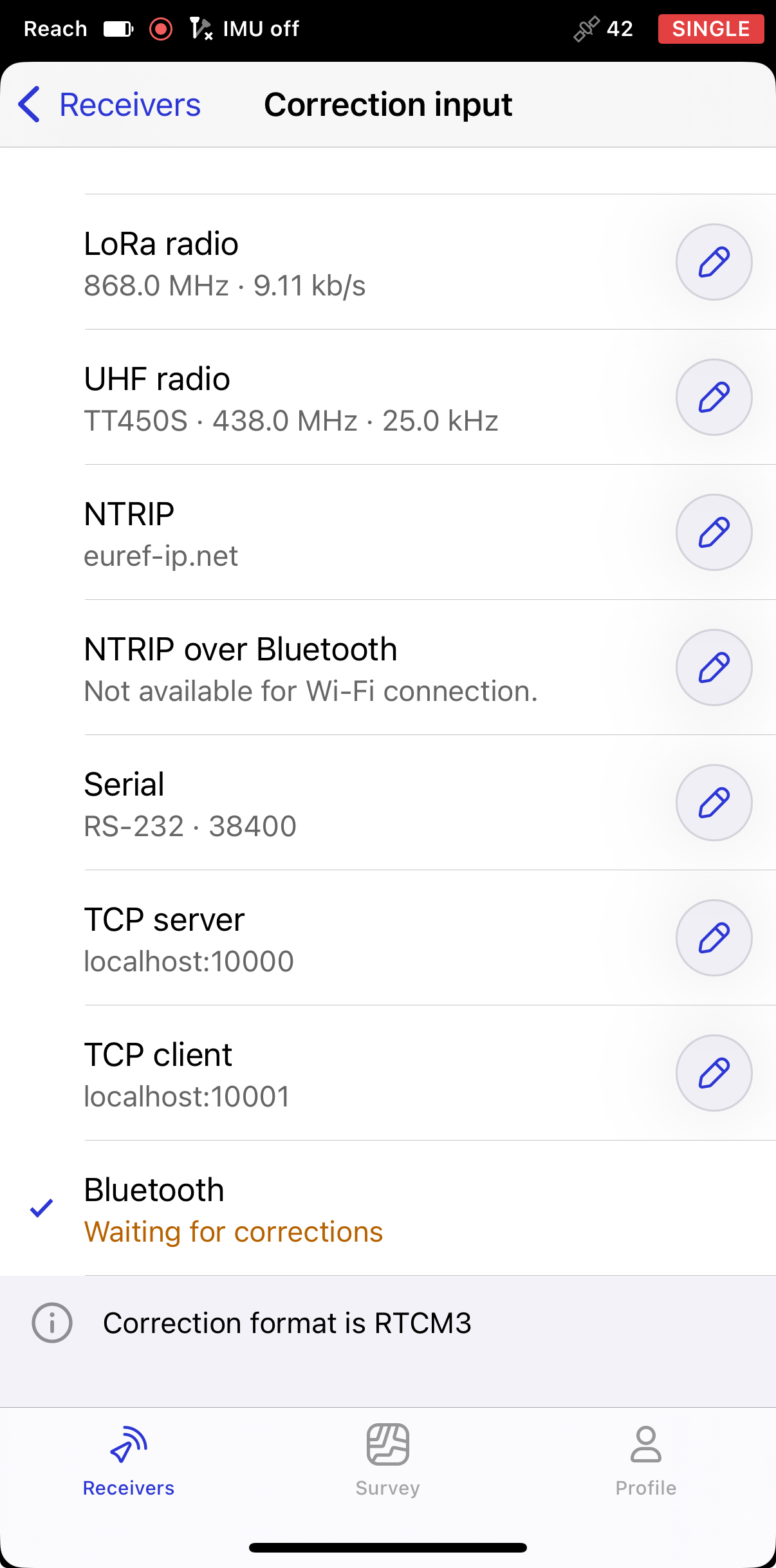
Go to the Receivers screen and tap Correction input.
-
Choose Bluetooth.
Configuring FieldGenius
Creating a new project and instrument profile
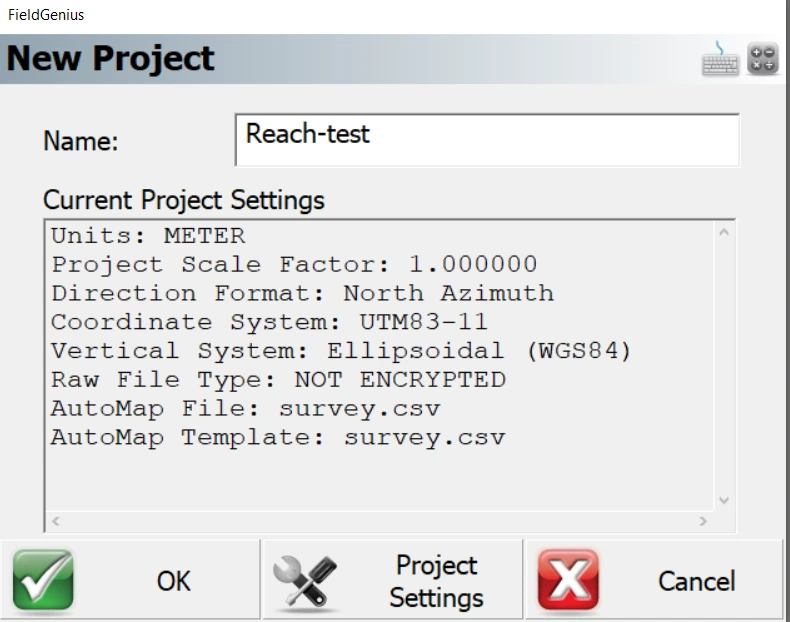
- Launch FieldGenius. It will ask to create a new project. On this step, you can go to Project Settings to configure the units and coordinate system. Click OK to proceed.
-
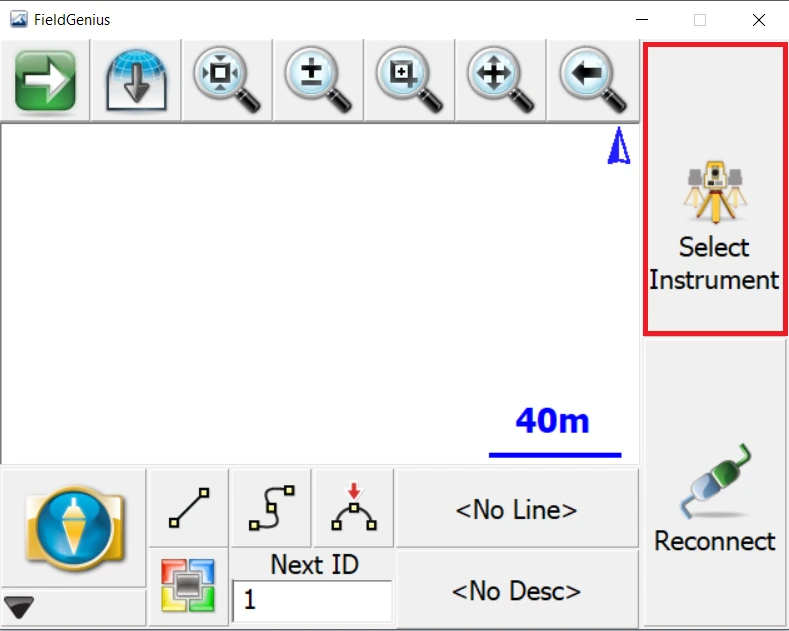
You will see the FieldGenius interface. Choose Select Instrument.
-
Choose the GNSS Rover instrument type and add a new instrument profile.
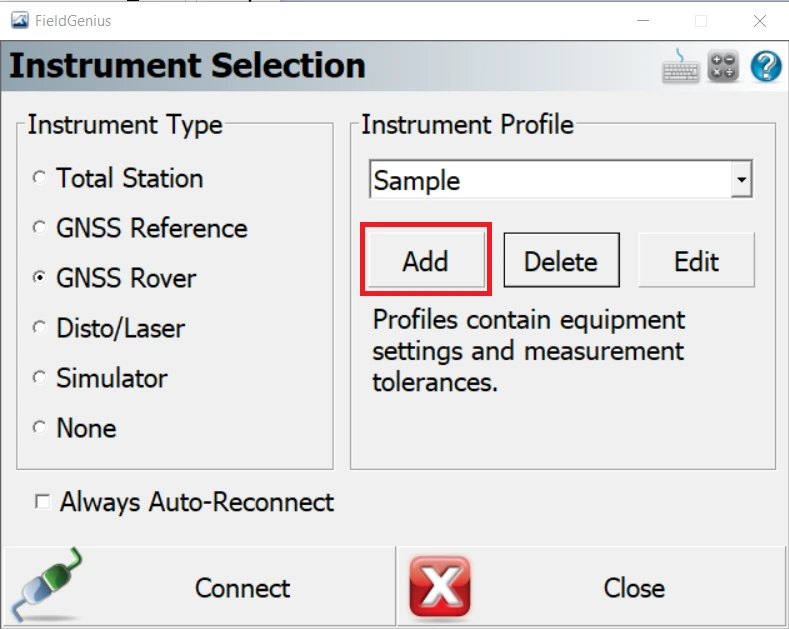
-
Set the Reach profile name and click Save.
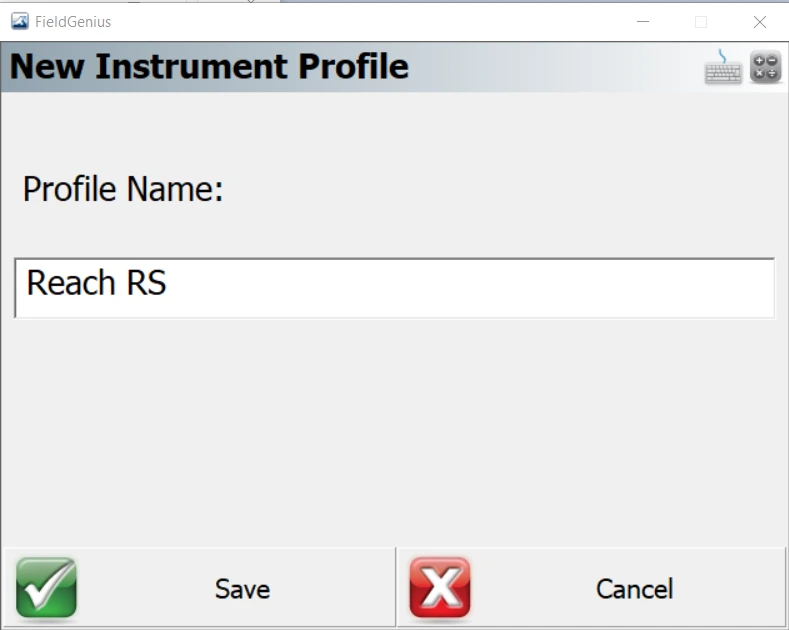
Configuring the communication between FieldGenius and Reach
-
Pick the Edit option to configure the receiver parameters.
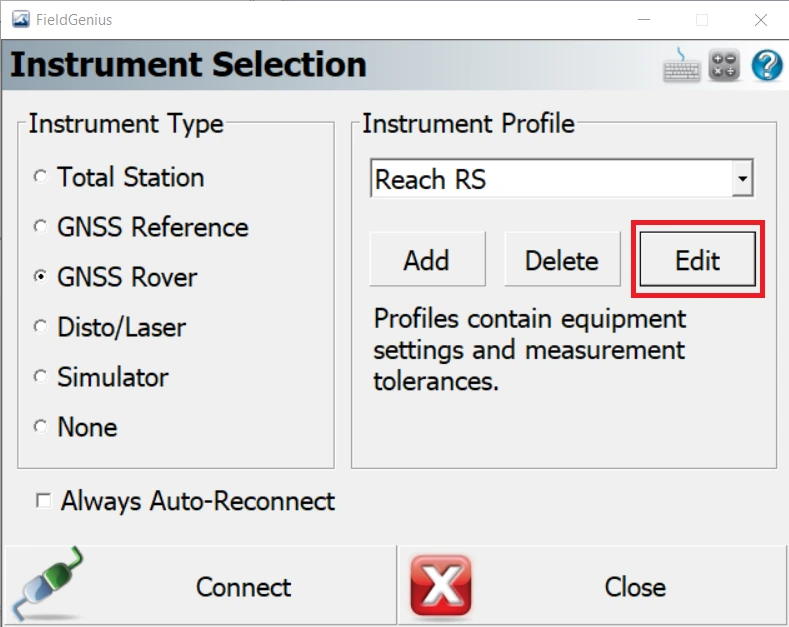
-
Select Model and Communication.
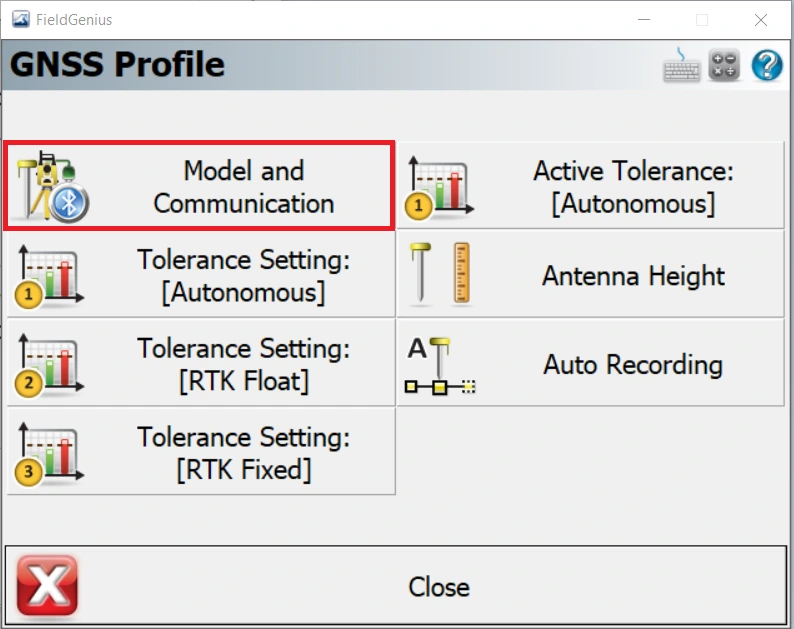
-
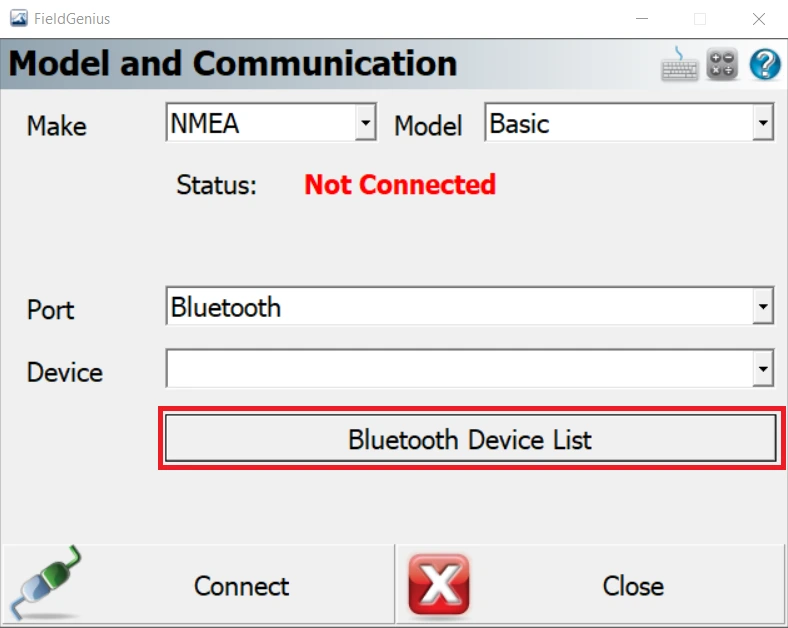
Select NMEA from the Make list and Basic Model. Click on Bluetooth Device List.
-
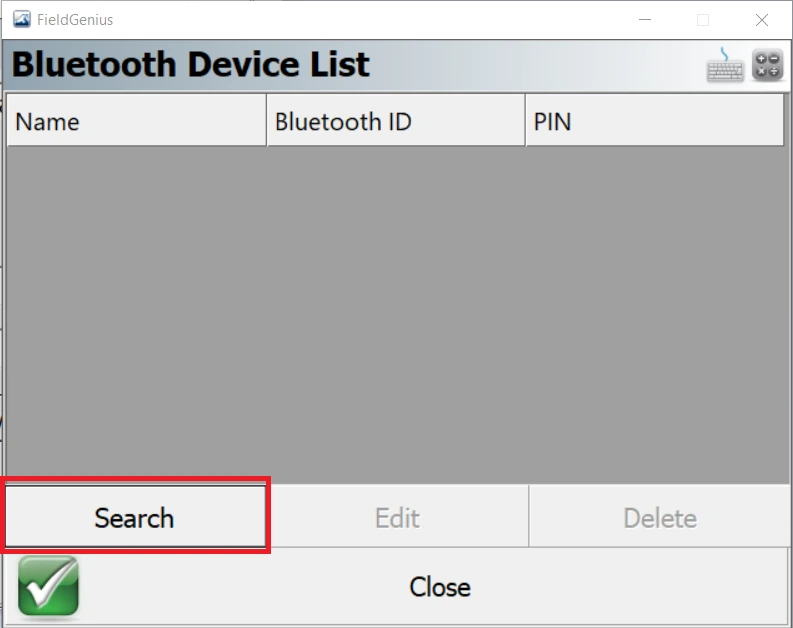
Click Search in Bluetooth Device List.
-
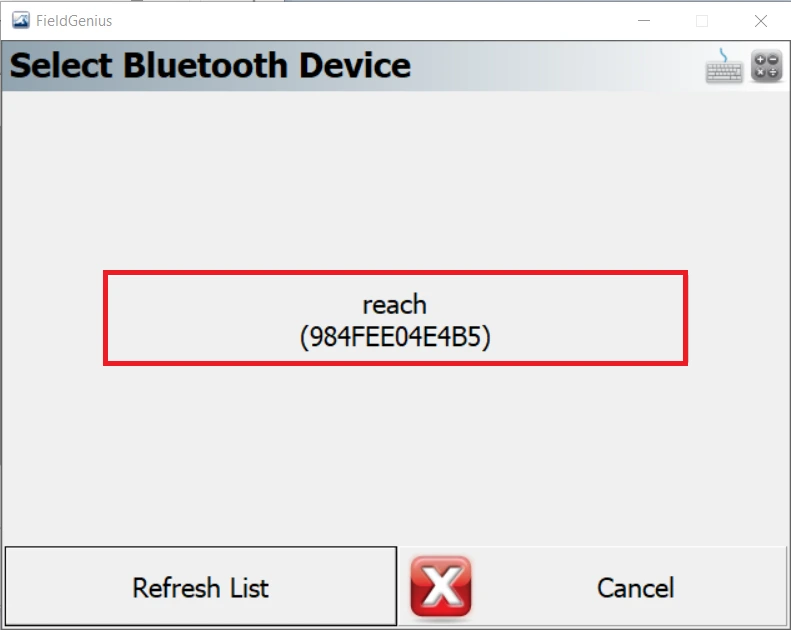
Select the Reach device.
-
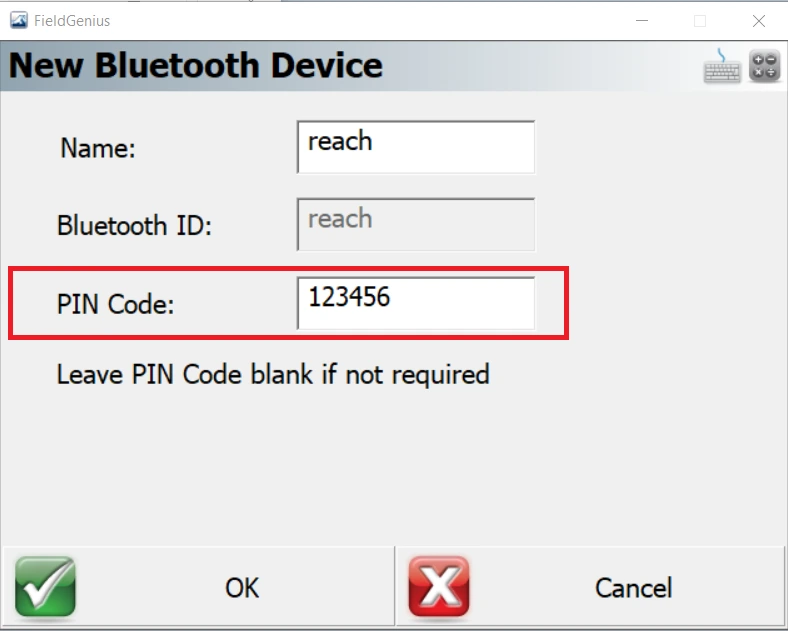
Enter the default PIN Code (it is "123456" for Reach) and press OK.
-
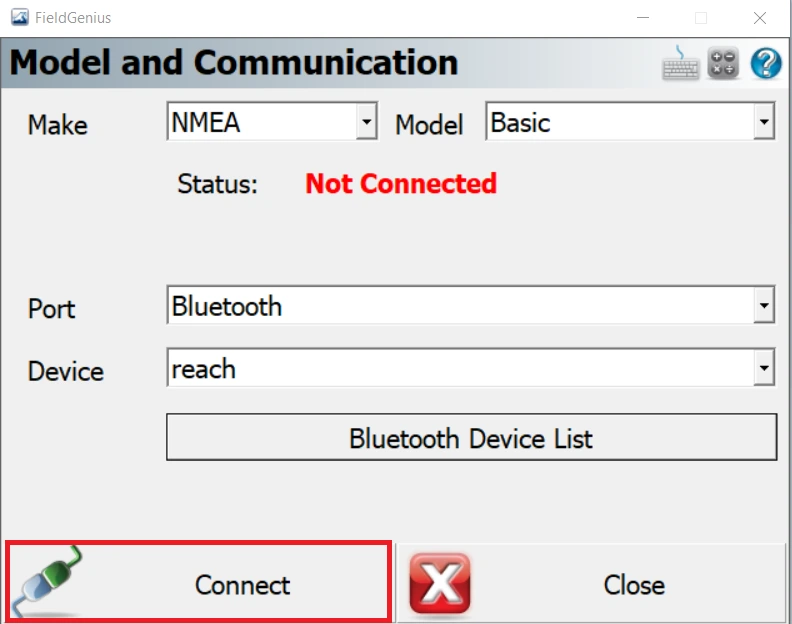
After adding the Reach device in Bluetooth Device List, return to Model and Communication settings and click Connect.
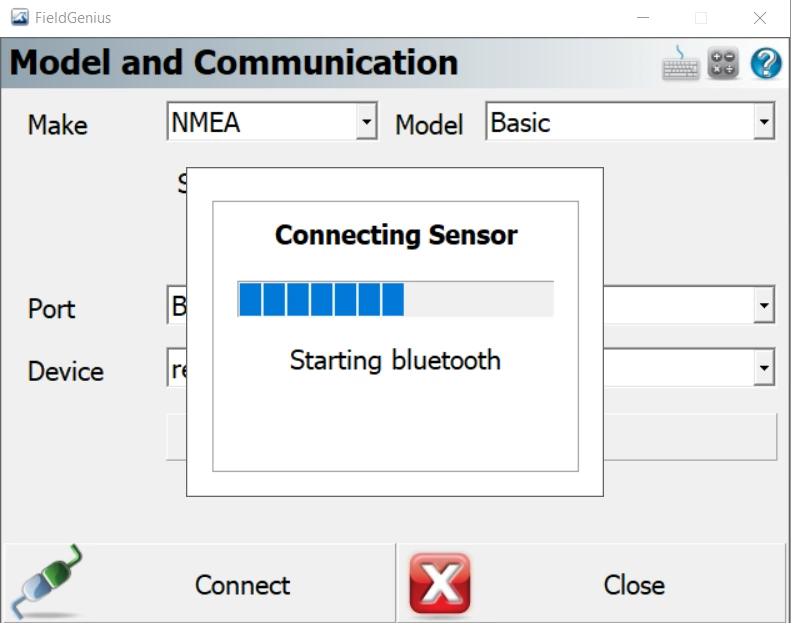
You will see a progress dialog.
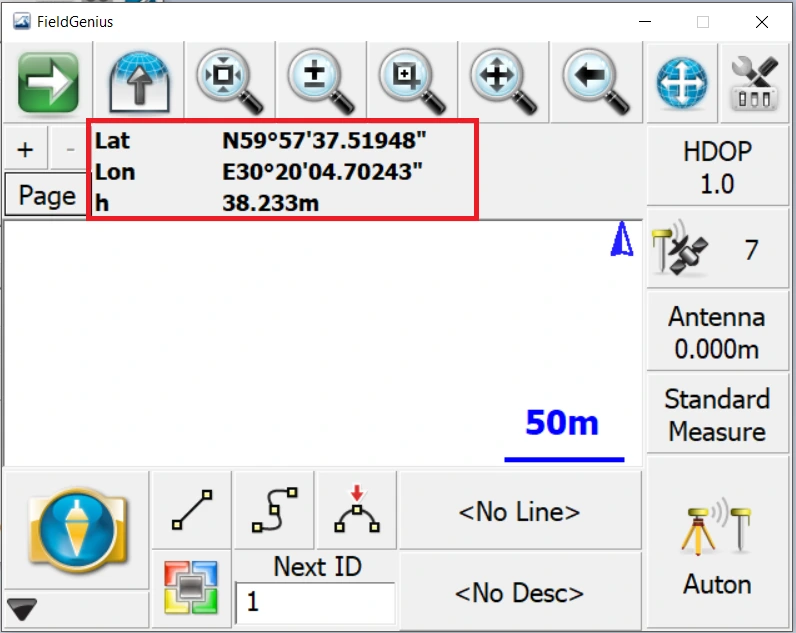
If the connection is successful, the position will be displayed with a number of satellites and PDOP.
Configure FieldGenius to receive RTK corrections from a NTRIP caster
-
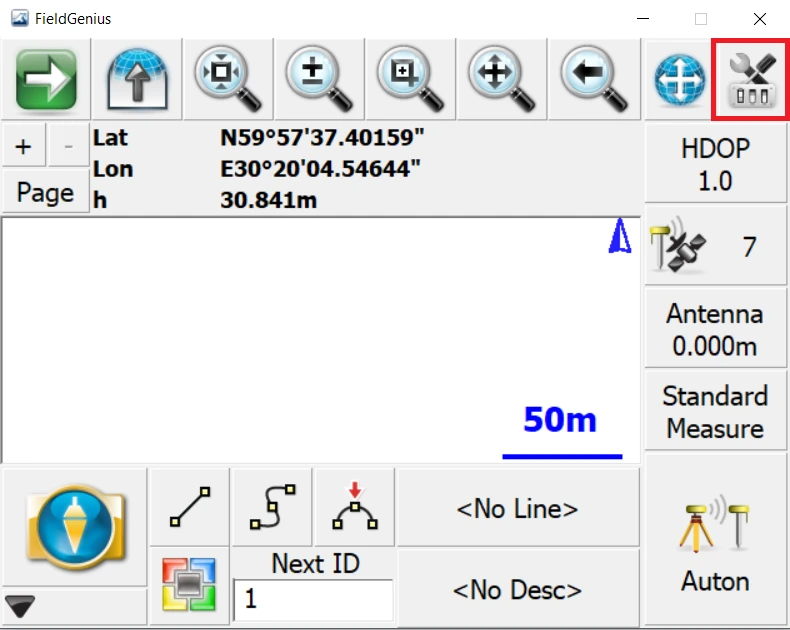
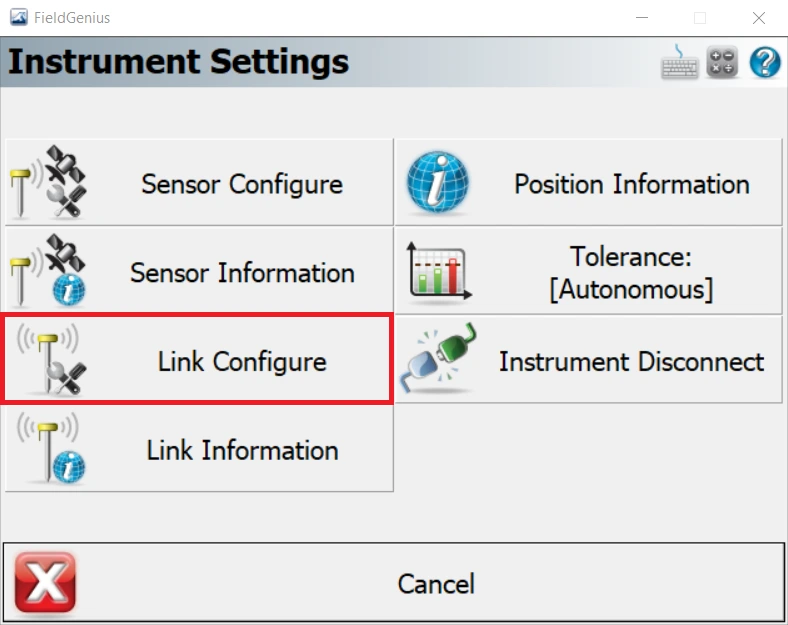
Go to Instrument Settings.
-
Choose Link Configure.
-
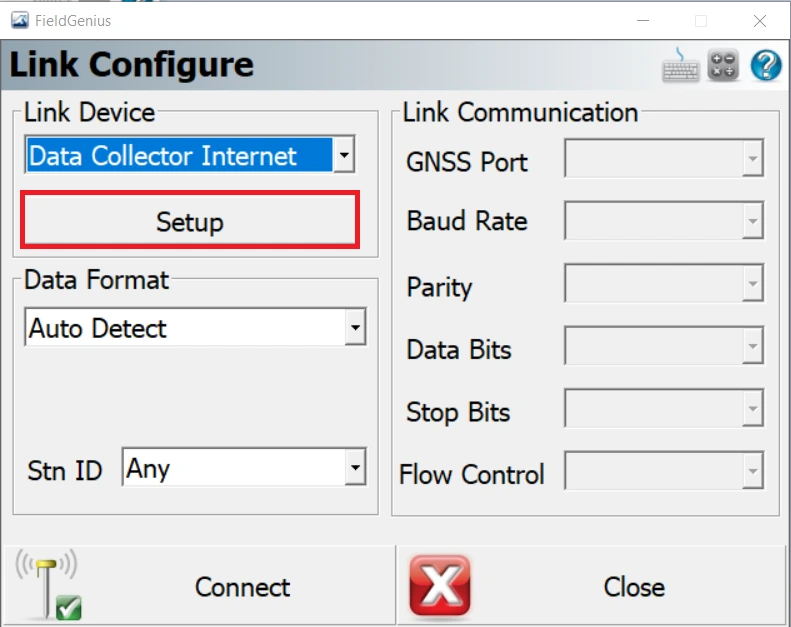
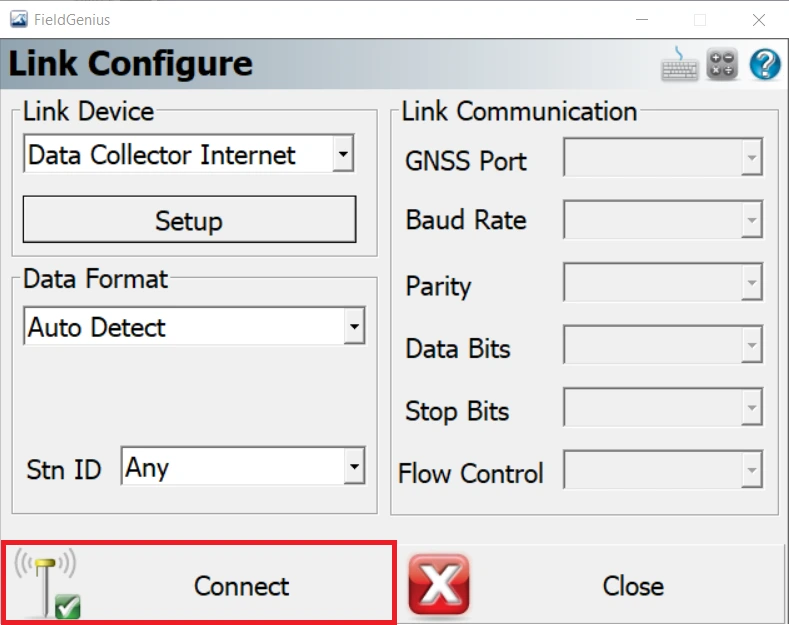
Pick Data Collector Internet in Link Device and click Setup.
-
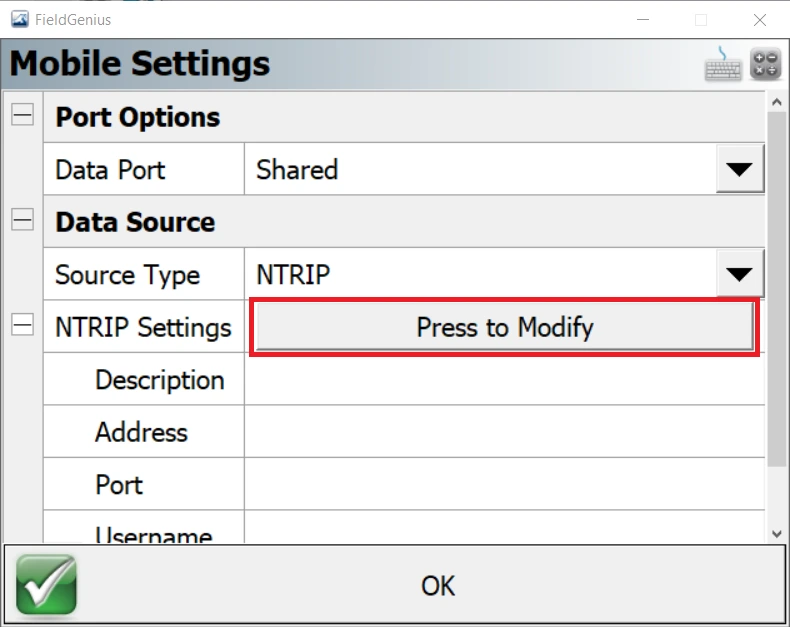
In the dialog window click Press to Modify.
-
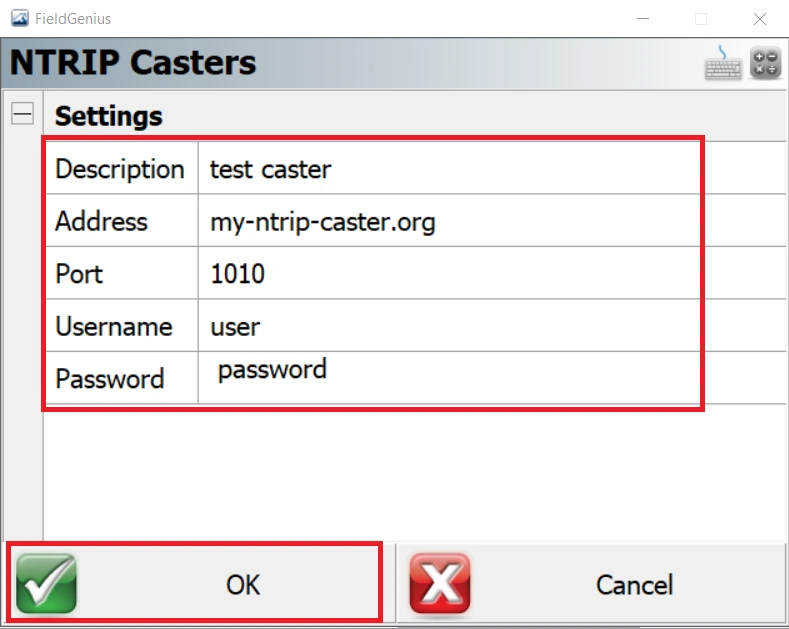
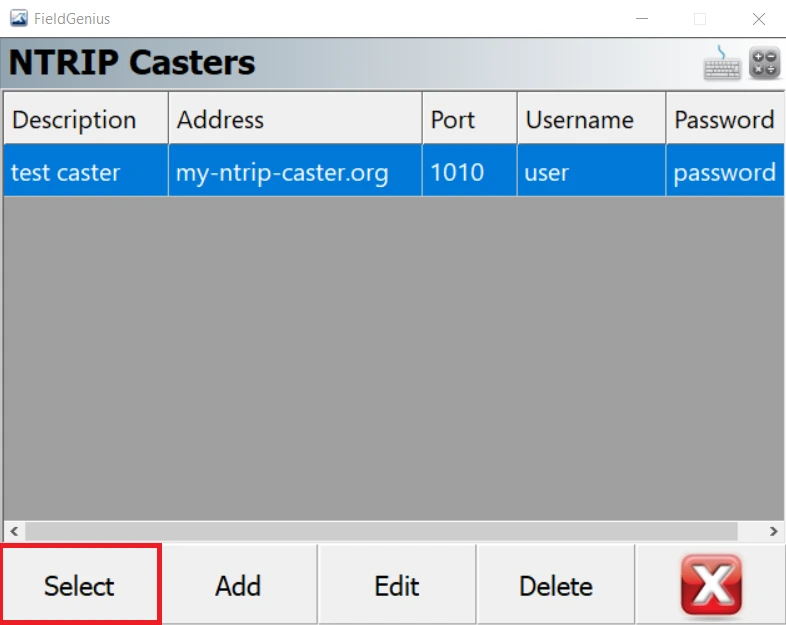
Click Add in the NTRIP Casters dialog and enter NTRIP caster details. Press OK.
-
Select the created caster.
-
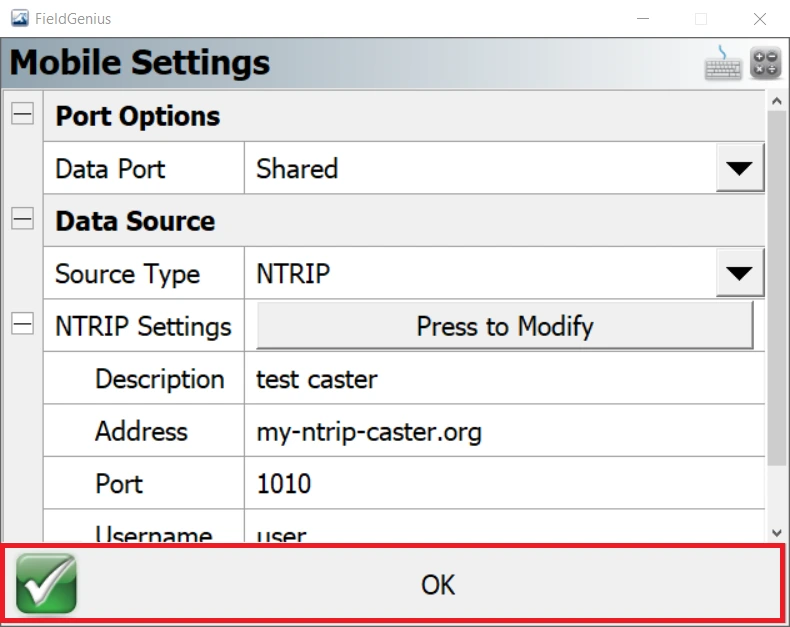
Click OK to finish the setup.
-
In the Link Configure dialog Click Connect.
-
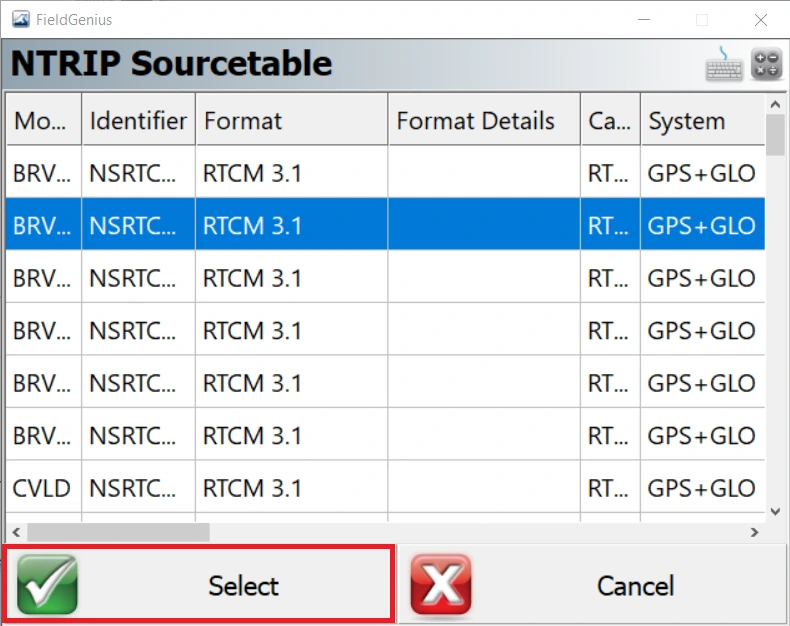
Once connected to the Internet, request the sourcetable and choose a mountpoint.
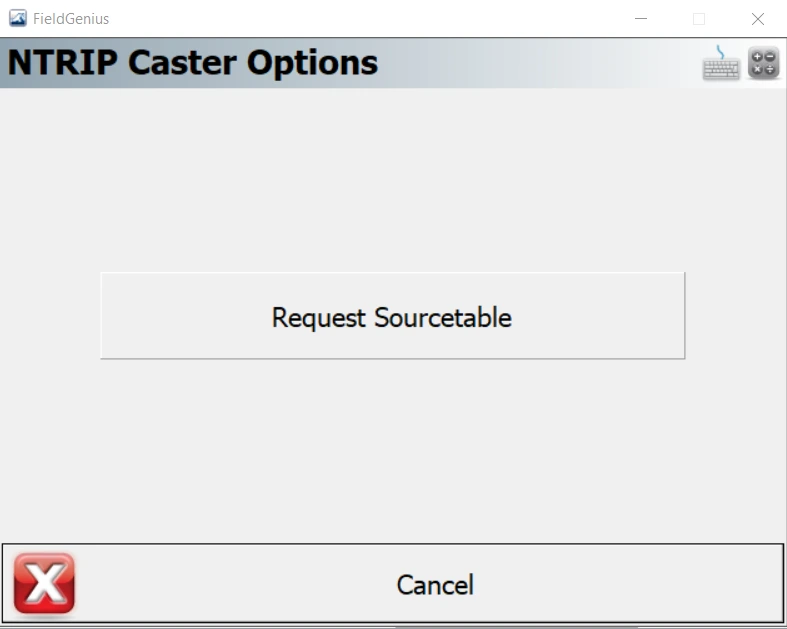
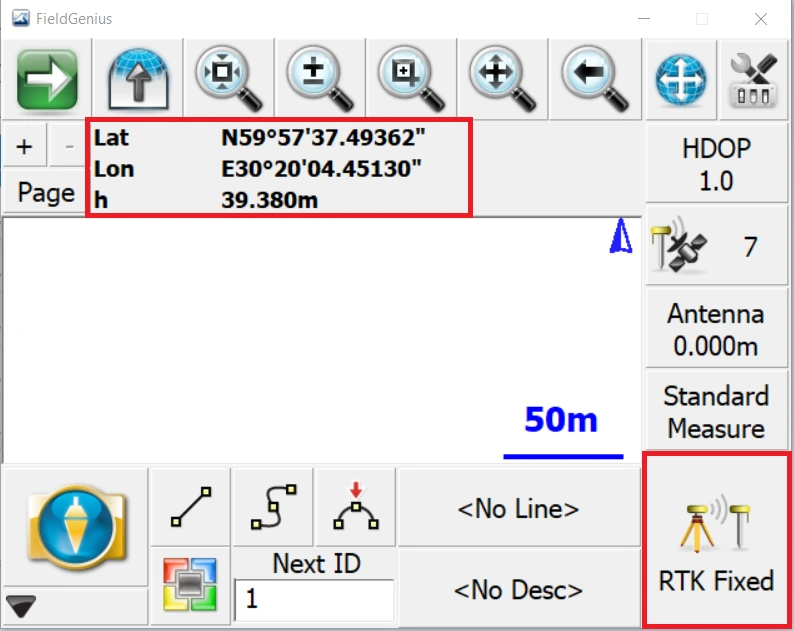
In a moment you will see the solution status in the FieldGenius interface.
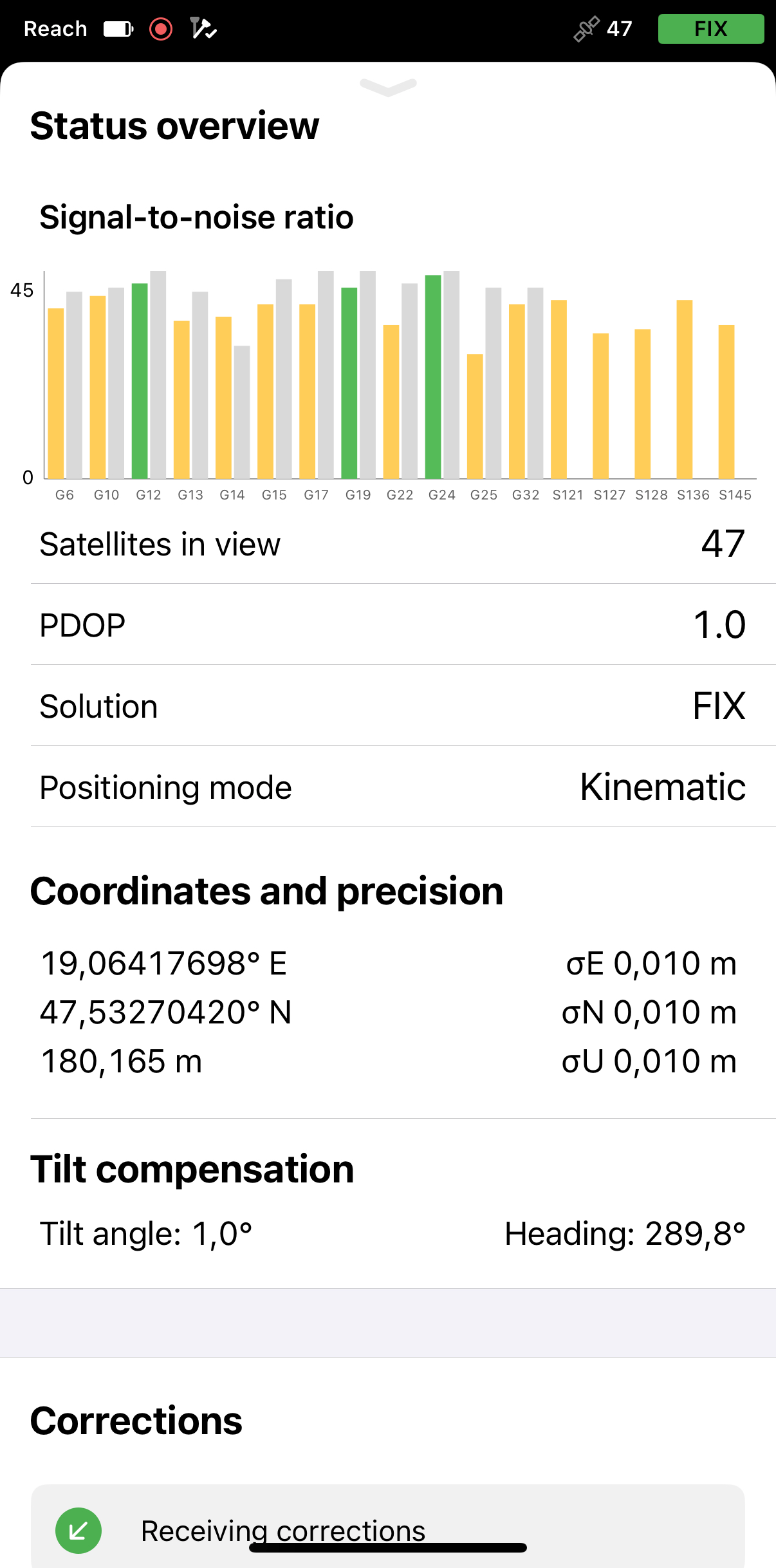
You can also go to Emlid Flow to check the solution status.