Integración de Reach RS3 con Mergin Maps para Android
Este tutorial proporciona instrucciones paso a paso sobre cómo integrar su Reach RS3 con Mergin Maps para Android a través de Bluetooth.
Resumen
Mergin Maps es una aplicación móvil para dispositivos Android que permite recolectar, compartir y publicar geodatos y colaborar con equipos mediante sincronización instantánea con QGIS.
Para integrar el Reach RS3 con Mergin Maps a través de Bluetooth, necesitará lo siguiente:
- Reach RS3
- Un dispositivo con Android
- Aplicación móvil Mergin Maps instalada en su dispositivo Android
- Cuenta de Mergin Maps
Flujo de trabajo
Para integrar el Reach RS3 con Mergin Maps siga los pasos que se indican a continuación.
Acceder a Reach con Emlid Flow
Puede conectarse a su Reach de dos formas:
- Utilizando la opción de conexión BLE. Utilizando la opción de conexión BLE. Este es el método de conexión recomendado. Es especialmente útil cuando se trabaja con correcciones de un proveedor NTRIP. En esta configuración, el receptor utiliza la conexión a internet del dispositivo móvil, por lo que solo hay que seleccionar la opción NTRIP sobre BLE al configurar la entrada de corrección del receptor.
- Utilizando la opción de conexión Wi-Fi. En este caso, su dispositivo y Reach deben estar en la misma red Wi-Fi.
Para conectarse a su Reach, siga los pasos que se indican a continuación:
- Bluetooth connection
- Hotspot connection
-
Active Bluetooth en su smartphone o tableta.
-
Abra Emlid Flow. Cuando se le solicite, pulse Configure access (Configurar acceso) y permita los permisos de ubicación. Esto es necesario para el funcionamiento completo del receptor.
Reach da prioridad a la conexión actual cuando se utiliza BLE, independientemente del tipo:
- Si Reach está conectado mediante Bluetooth Classic a un software de terceros, desconéctelo antes de utilizar BLE en Emlid Flow.
- Si hay otro dispositivo conectado a Reach, desconéctelo antes de volver a conectarlo mediante BLE en Emlid Flow.
Una vez concedidos los permisos, su receptor aparecerá en la lista. La aplicación se conectará a él automáticamente.
-
Vaya a Configuración de Wi-Fi en su dispositivo.
-
Conéctese al punto de acceso del Reach. Aparece como reach:XX:XX.
-
Introduzca la contraseña de la red. La contraseña por defecto es emlidreach. Si ya la ha cambiado, introduzca su contraseña personalizada.
notePara restablecer la contraseña predeterminada de Wi-Fi, emlidreach, debe reprogramar el receptor. Tenga en cuenta que al actualizar el firmware se borran todos los registros almacenados en el receptor y se restablecen todos los ajustes a sus valores predeterminados.
-
Abra Emlid Flow y conéctese a su Reach.
Para obtener más información sobre la conexión a su dispositivo Reach, consulte la guía Conexión a Reach. El método recomendado es la conexión Bluetooth.
El nombre de Reach aparece justo encima de su MAC. En esta guía, hemos utilizado la unidad denominada Reach.
Configurar correcciones en Emlid Flow
Consulte las siguientes guías para configurar la recepción de correcciones en su rover Reach RS3:
- Cómo configurar RTK por el servicio NTRIP
- Cómo trabajar con una base de terceros por radio UHF
- Cómo configurar RTK por radio LoRa
Configurar la conexión Bluetooth en Emlid Flow
Active la capacidad de descubrimiento del Bluetooth para que otros dispositivos puedan encontrar el suyo. Para ello, siga los pasos que se indican a continuación:
-
Vaya a Settings (Configuración) en Emlid Flow y pulse Bluetooth.
-
Pulse Capacidad de descubrimiento y active la opción Capacidad de descubrimiento. Pulse Guardar para aplicar los cambios.
Activar la compensación de inclinación
Reach RS3 es compatible con la compensación de inclinación basada en IMU, lo que le permite recopilar y replantear puntos aunque el poste topográfico esté inclinado. El software calcula el ángulo de inclinación y la distancia para determinar la posición de la punta del poste en el suelo. Para activar la compensación de inclinación, siga la guía Cómo activar la compensación de inclinación.
Configurar el flujo NMEA en Emlid Flow
Para enviar datos de posición a aplicaciones externas, configure la transmisión de posición en formato NMEA como se indica a continuación:
-
En Emlid Flow, vaya a Settings (Configuración).
-
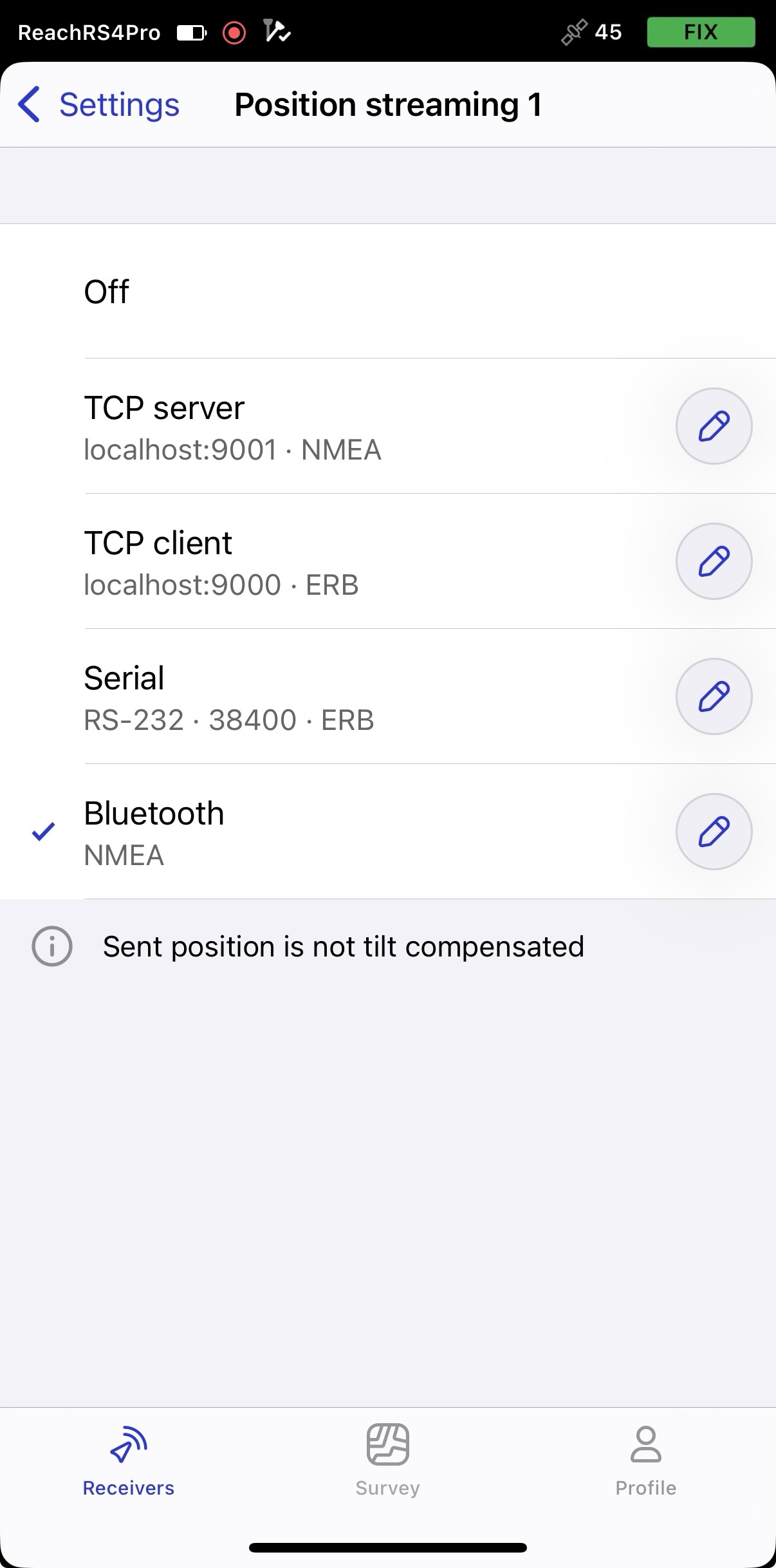
Pulse Posición streaming 1 (Transmisión de posición) y seleccione Bluetooth.
-
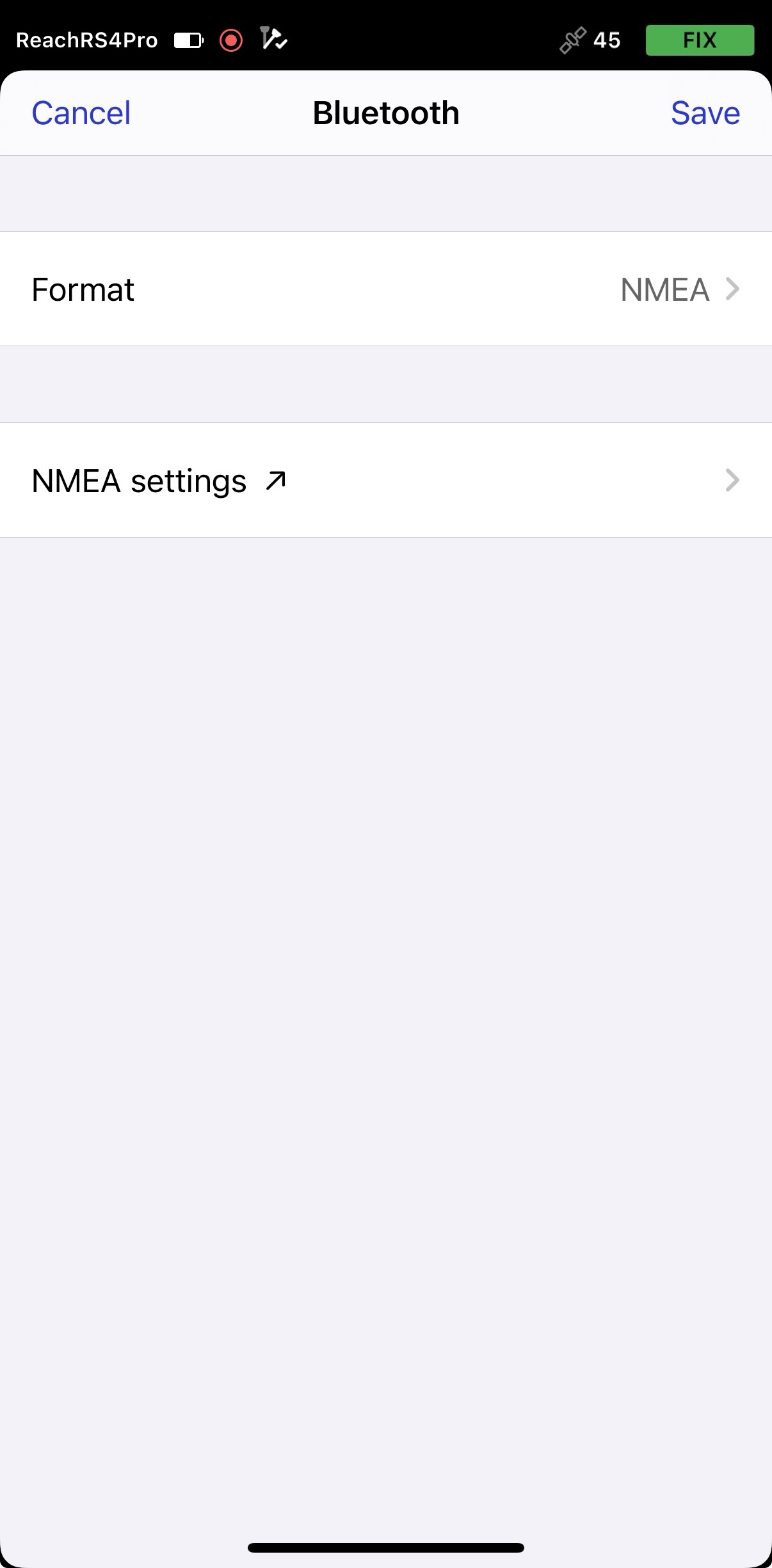
Para configurar la transmisión de posición, pulse el botón Editar en la celda Bluetooth.
noteCuando se conecte a su Reach mediante Bluetooth, Emlid Flow le pedirá que se conecte al punto de acceso de Reach para acceder a los ajustes de configuración de la transmisión.
-
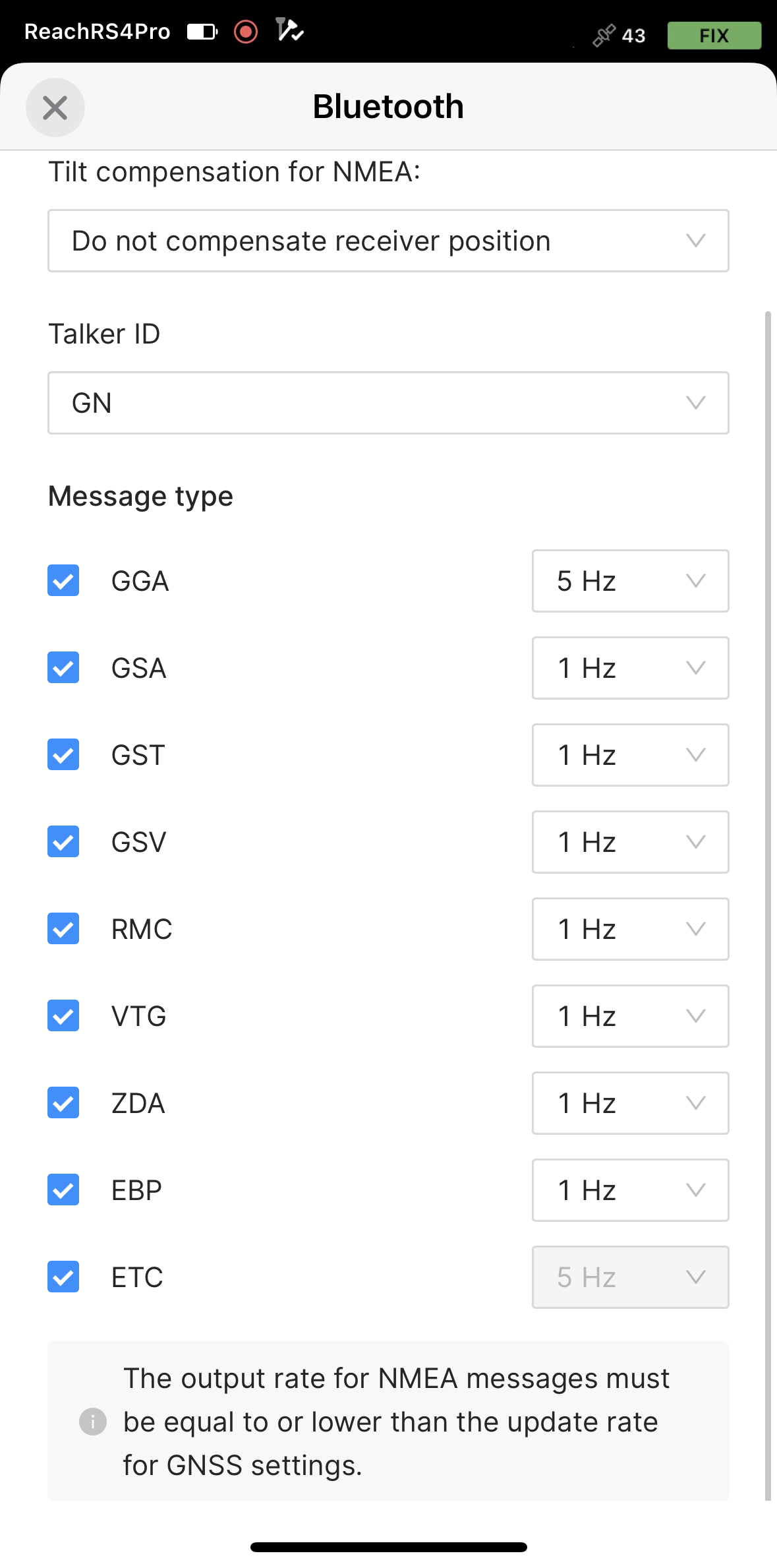
Pulse Formato y elija NMEA.
-
Aplique los cambios necesarios.
-
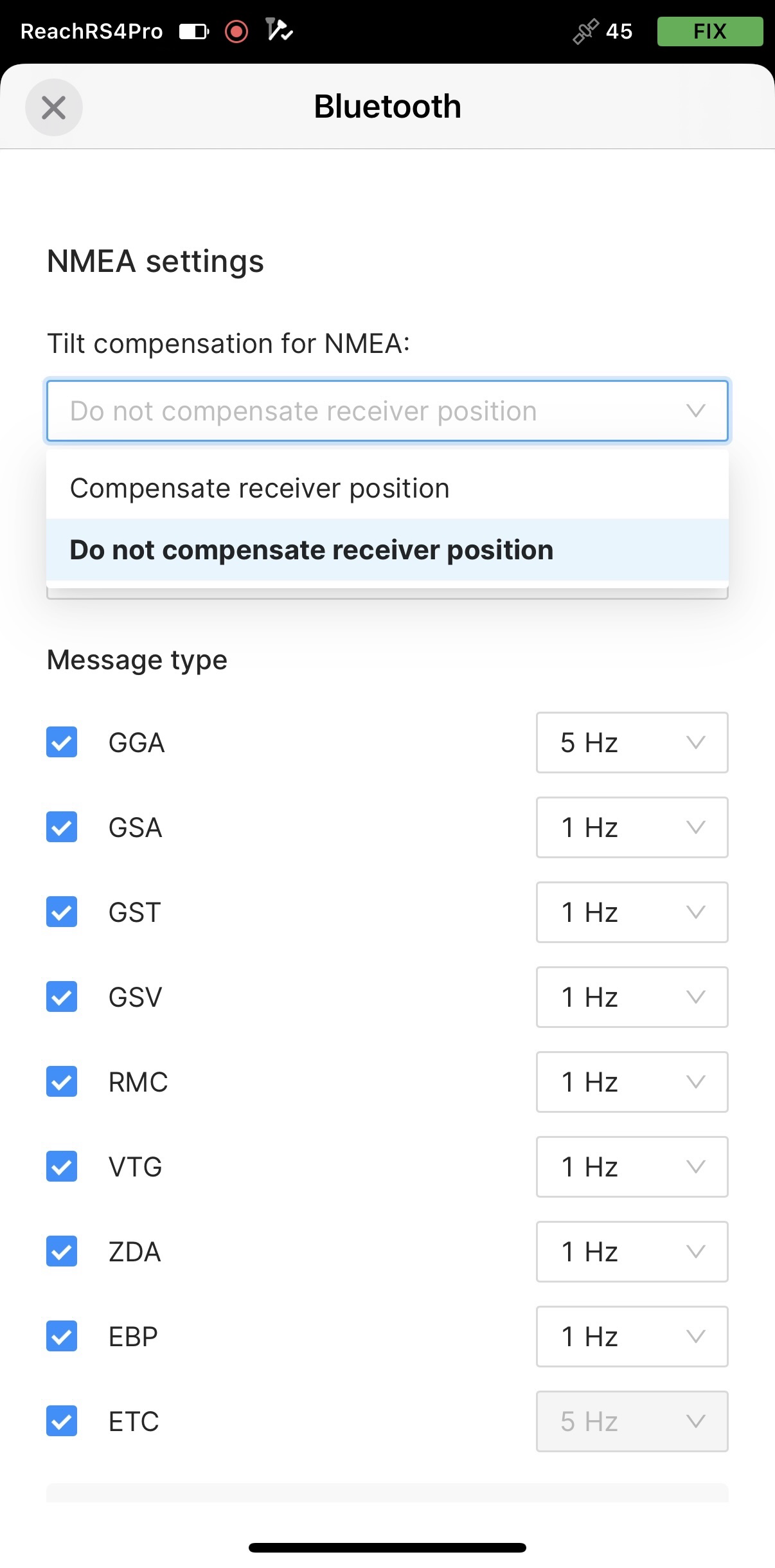
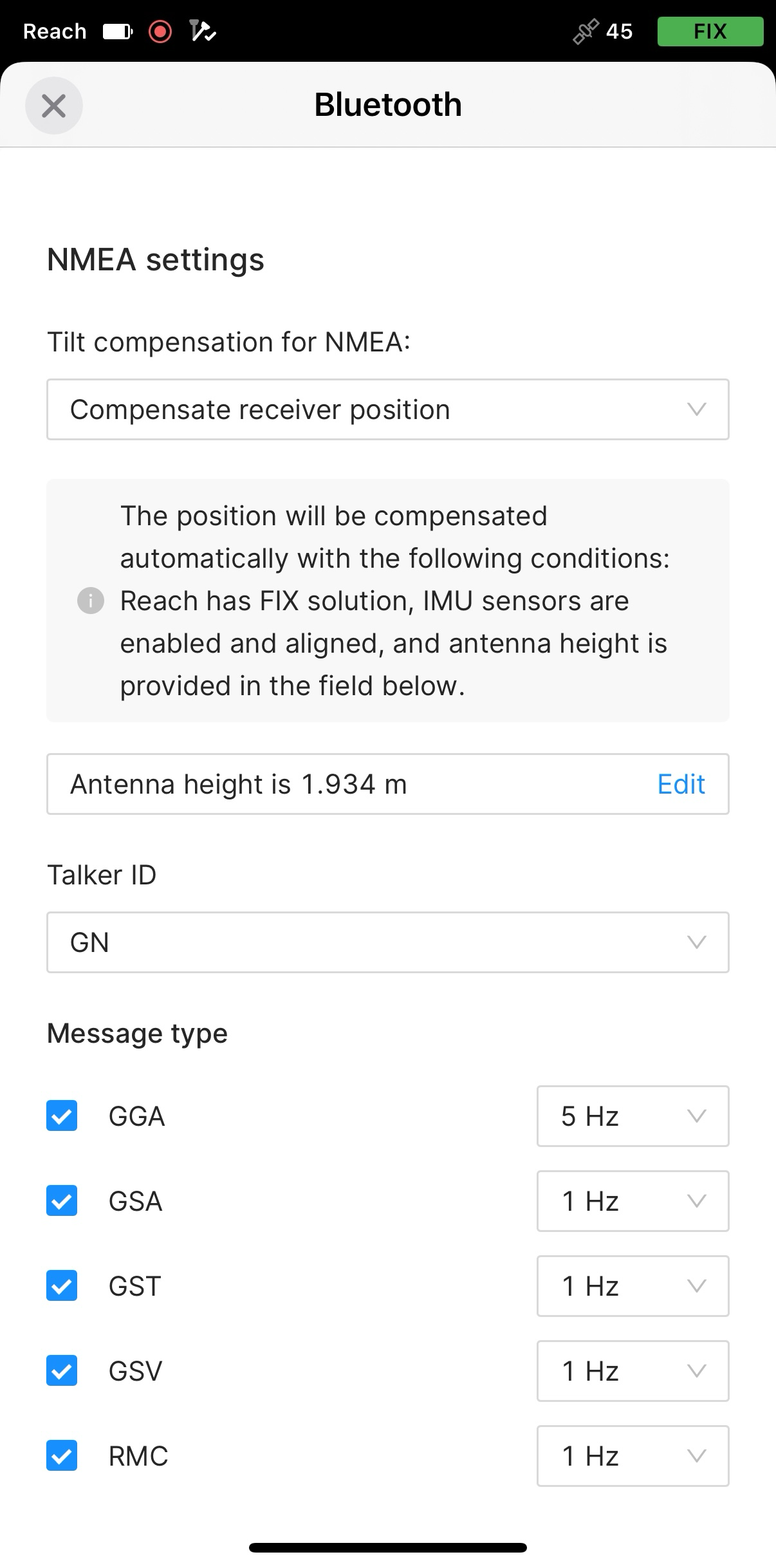
Para enviar mensajes NMEA compensados, debe activarlo en Emlid Flow.
-
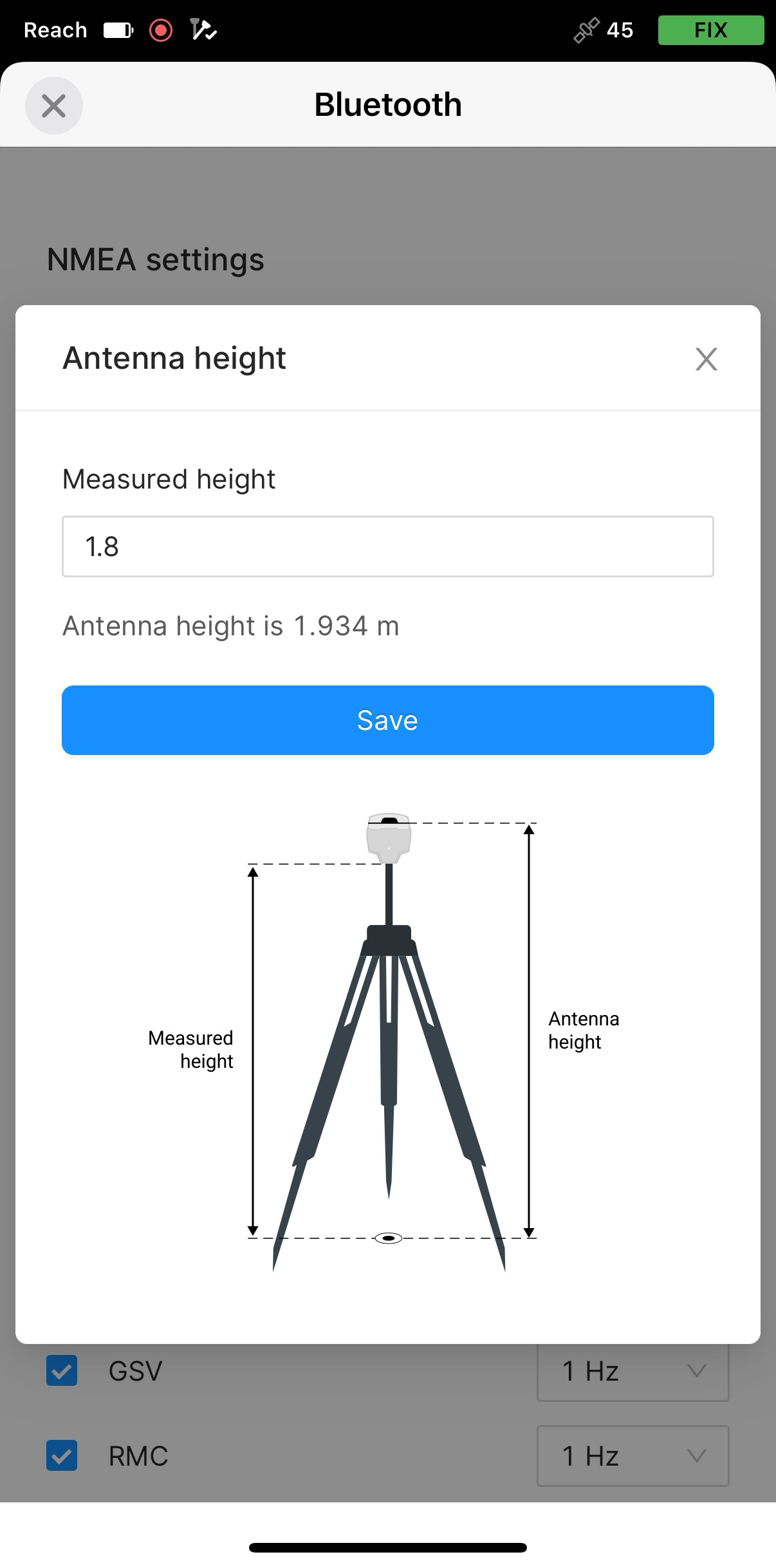
Ajuste la altura de la antena. Solo tiene que introducir la altura del poste. Emlid Flow aplica automáticamente el desplazamiento del centro de fase de la antena y ajusta las mediciones en consecuencia.
cautionCuando envíe mensajes NMEA compensados, ajuste la altura de la antena solo en Emlid Flow. Configurarlo también en aplicaciones de terceros puede causar discrepancias.
Ahora puede empezar a recibir la posición corregida en un SIG de terceros o en una aplicación de recolección de datos.
Emparejar Reach RS3 y el dispositivo Android
Para encontrar el Reach RS3 en la lista de dispositivos de Mergin Maps, tiene que emparejarlo con el dispositivo Android de la siguiente manera:
-
Vaya a la pantalla de configuración de Bluetooth en su dispositivo Android y active Bluetooth.
-
Espere a que el Reach RS3 aparezca como dispositivo disponible.
tipMantenga Reach a pocos metros del dispositivo.
-
Toque el nombre de su Reach en la lista de dispositivos disponibles en el dispositivo Android.
noteSi su dispositivo requiere un código PIN, introduzca 123456.
-
Empareje Reach con el dispositivo Android.
Configurar la comunicación entre Mergin Maps y Reach RS3
Para establecer la comunicación entre Mergin Maps y su receptor, siga los pasos que se indican a continuación:
-
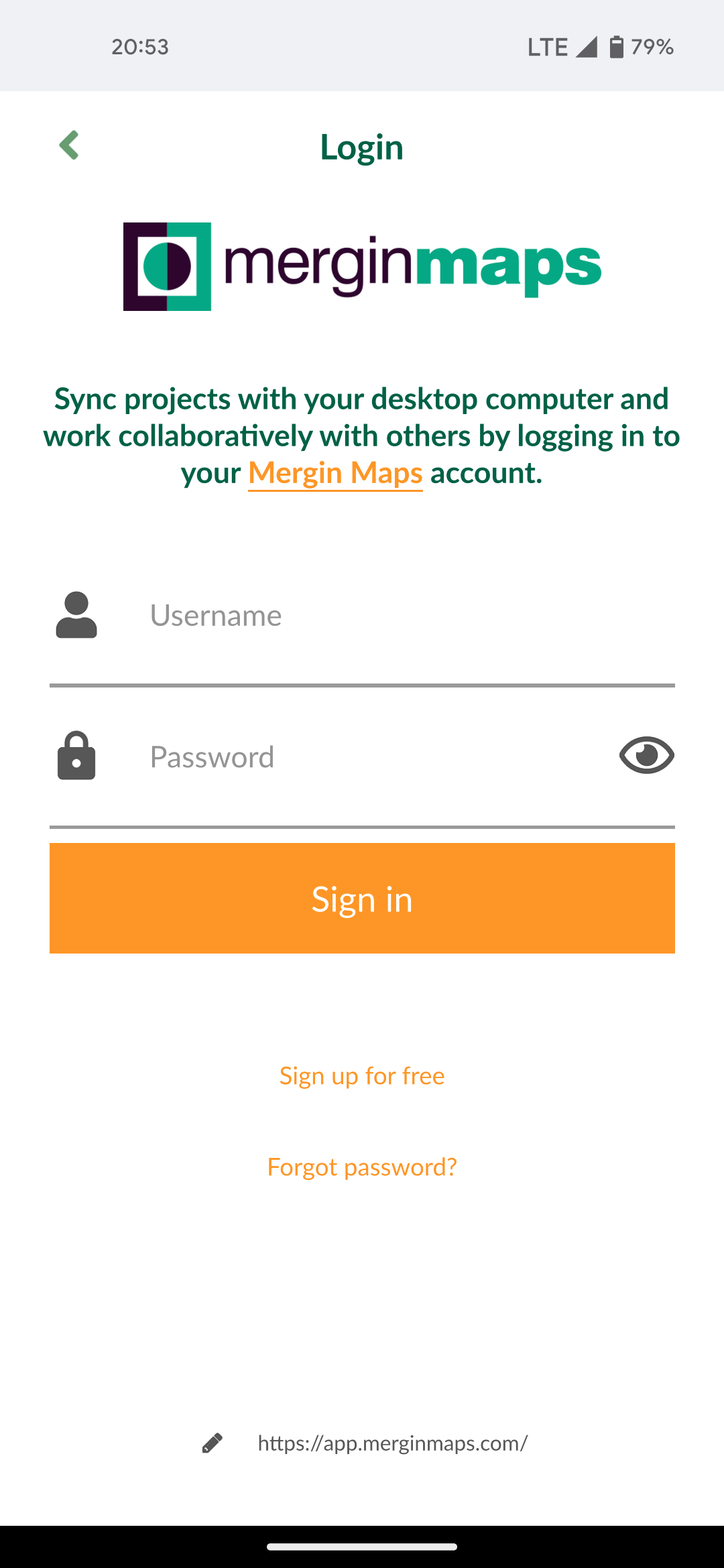
Abra la aplicación Mergin Maps y cree una cuenta si aún no la tiene para acceder a la aplicación.
-
Abra o cree un nuevo proyecto.
-
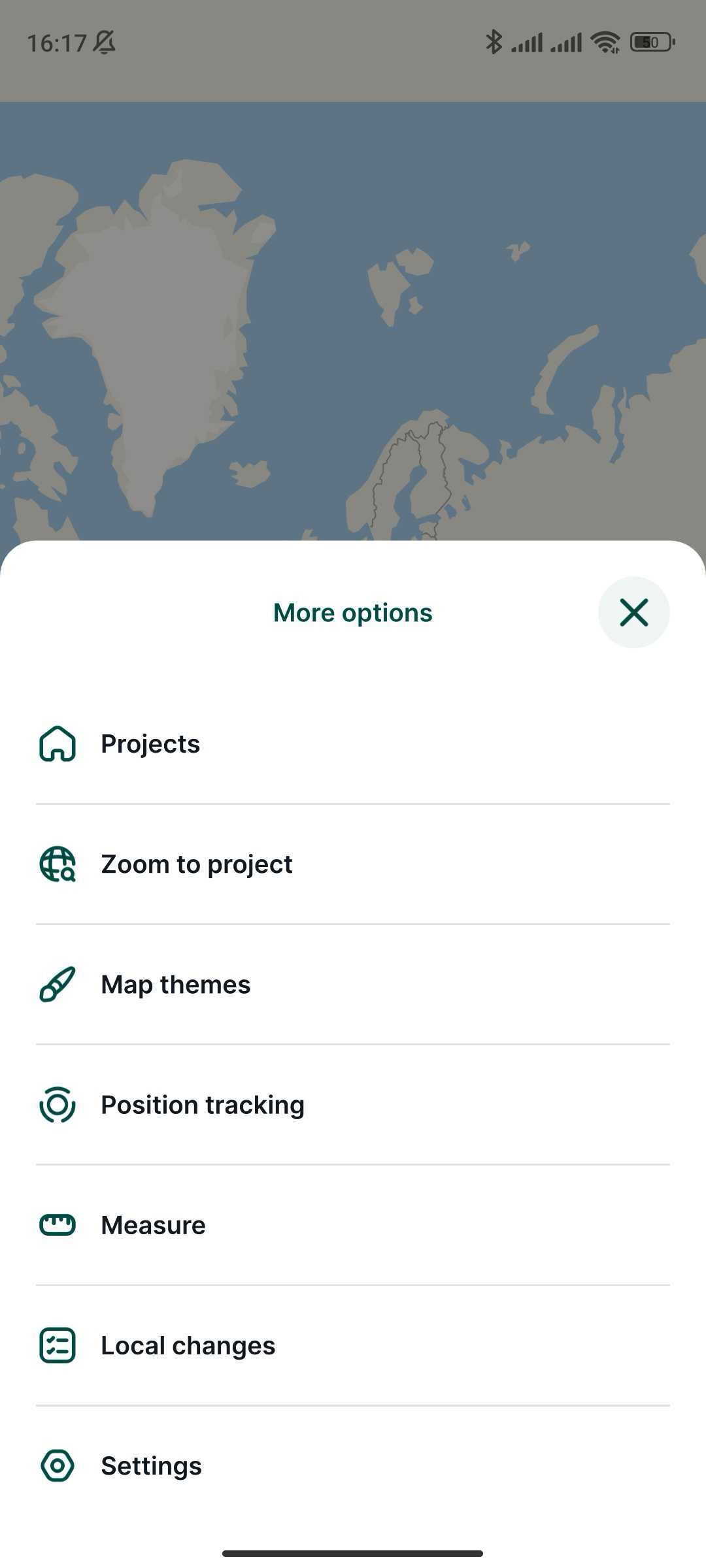
En la pantalla abierta, en la esquina inferior derecha, pulse More (Más) y Settings (Configuración).
-
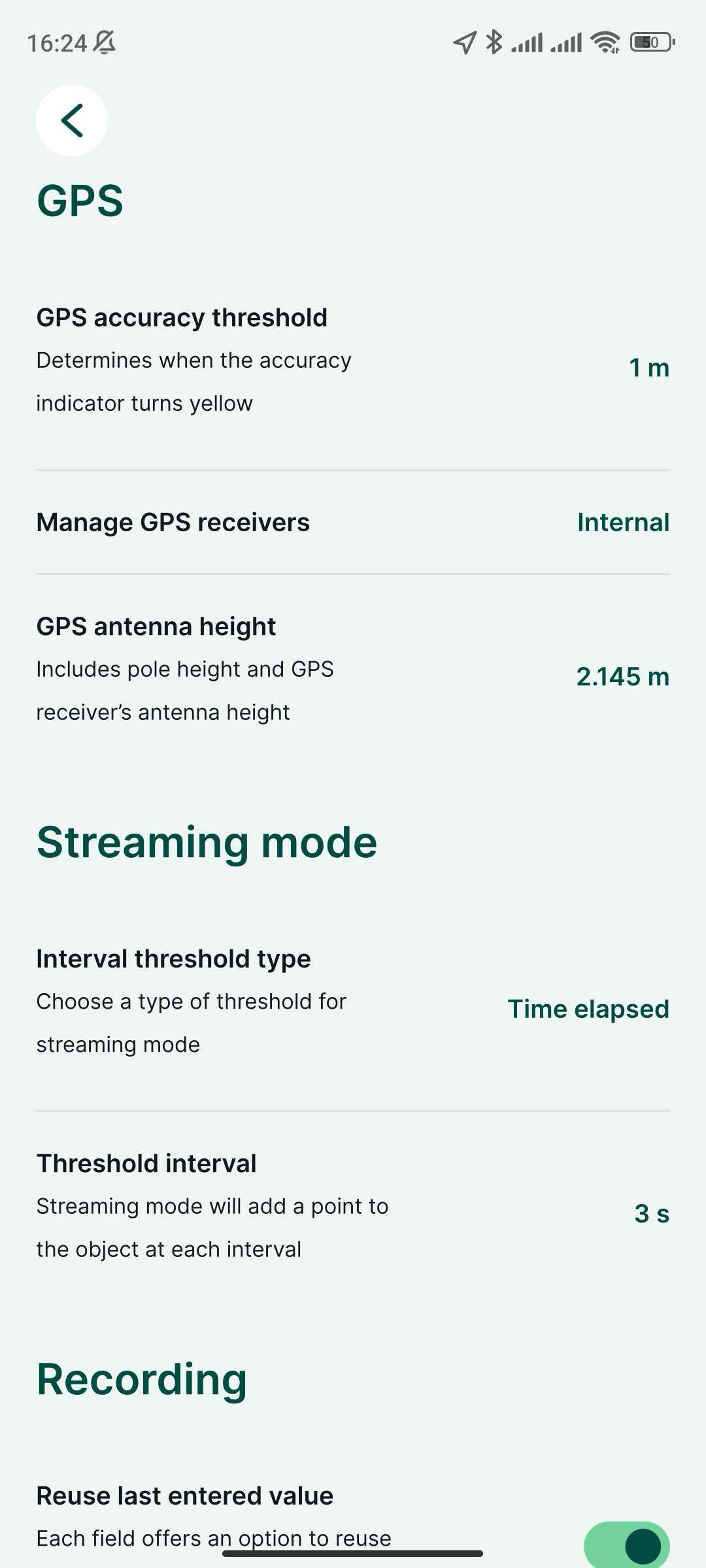
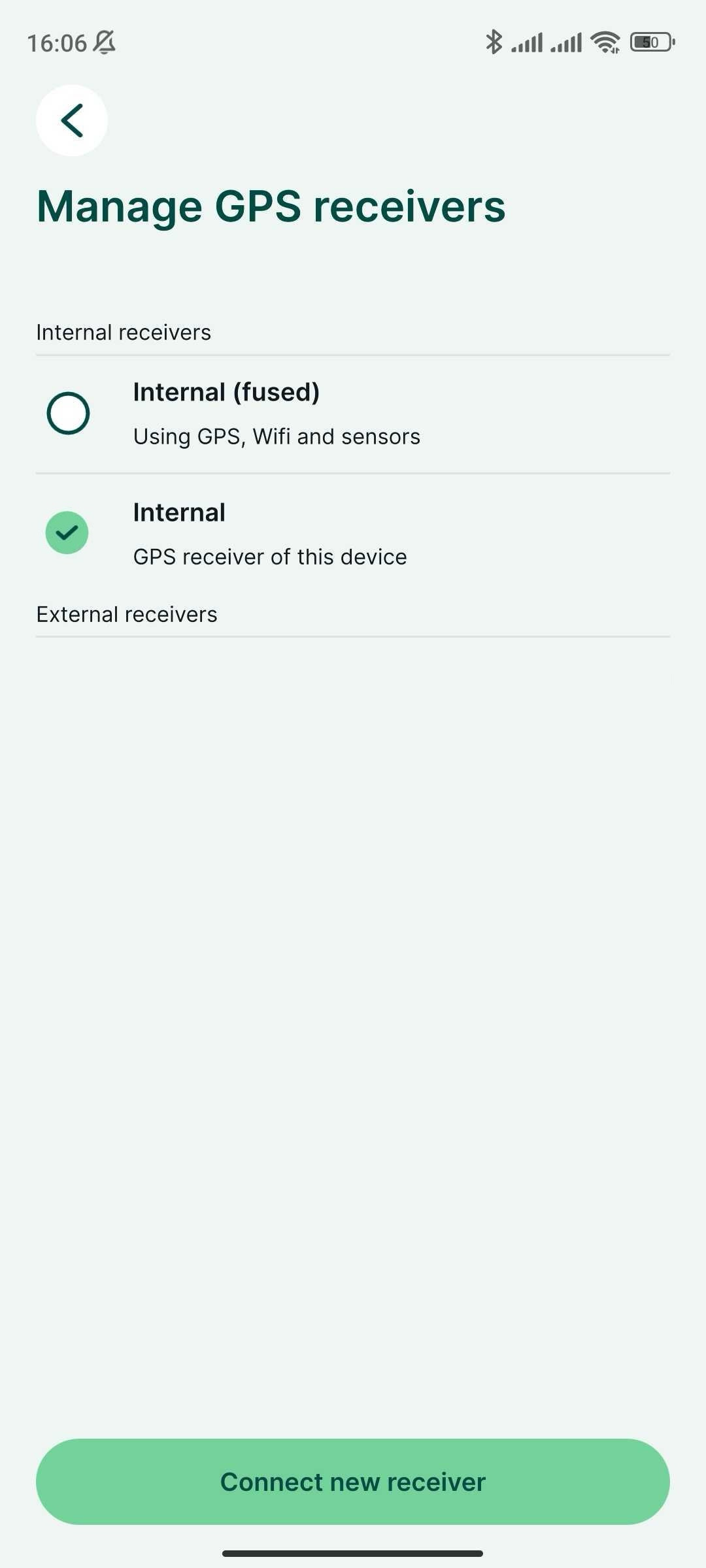
En Settings (Configuración), pulse Manage GPS receivers (Gestionar receptores GPS).
-
Pulse Connect new receiver (Conectar nuevo receptor).
-
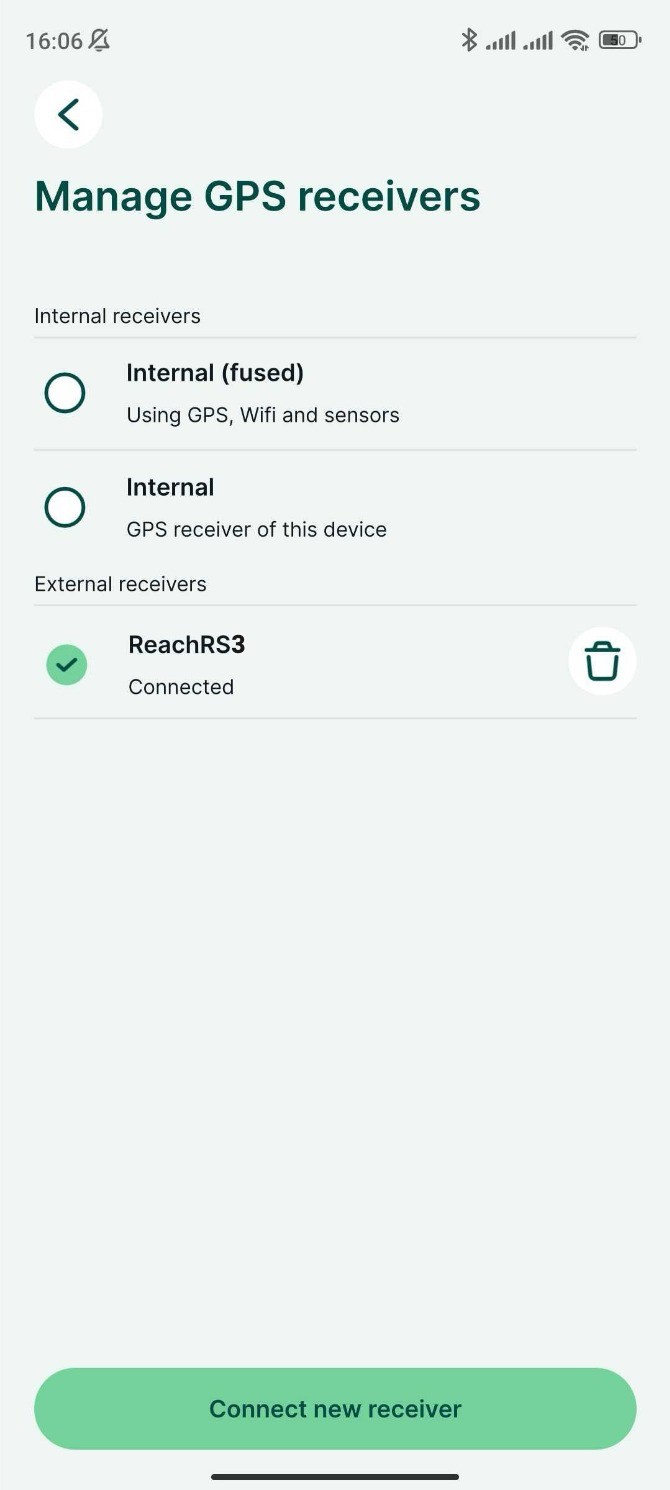
Elija su receptor GPS de la lista de dispositivos Bluetooth y espere a que se conecte.
-
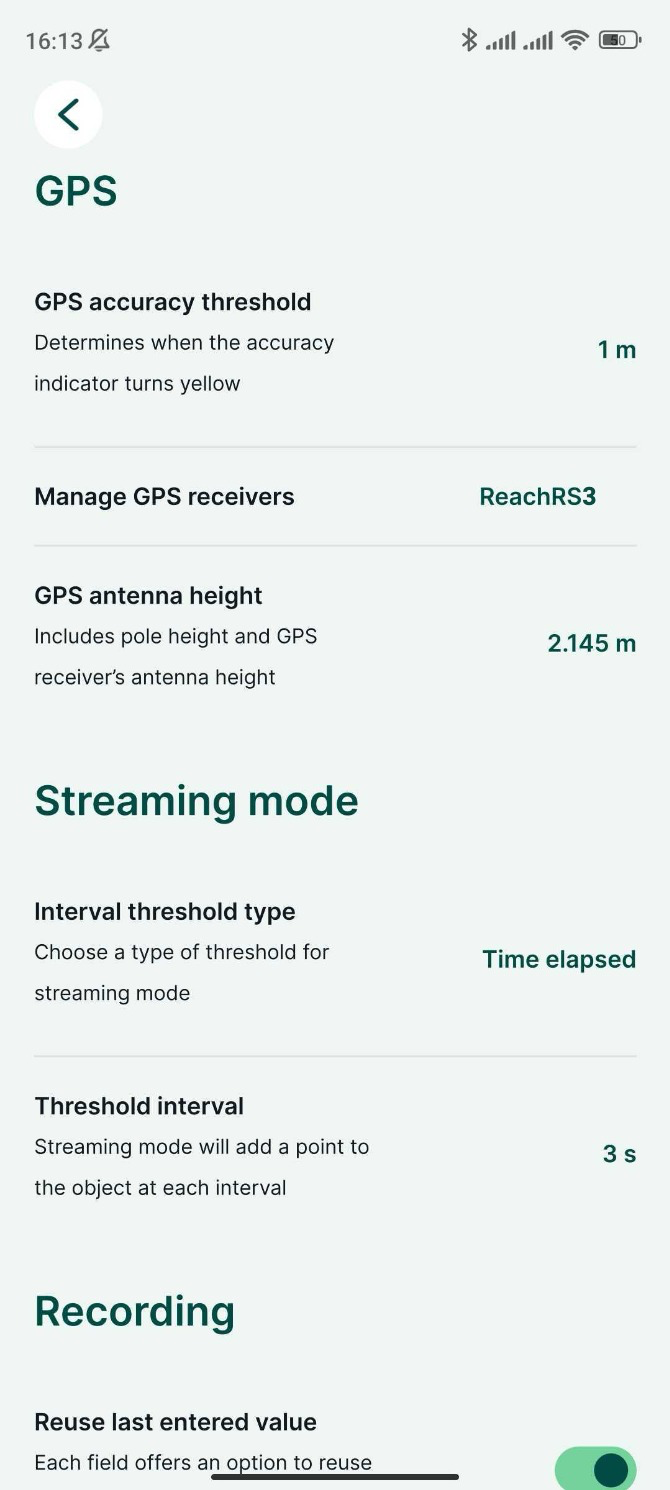
Este paso solo es necesario cuando no se transmite la posición NMEA compensada. Vuelva a Configuración y establezca la altura de la antena. El desplazamiento de la antena no se añade automáticamente en Mergin Maps. El valor que introduzca debe ser la suma de la altura del poste y 134 mm.
-
Vaya a la pestaña GPS y compruebe el estado y la exactitud RTK en el mapa. Para consultar la información detallada del GPS, pulse la pestaña una vez más.
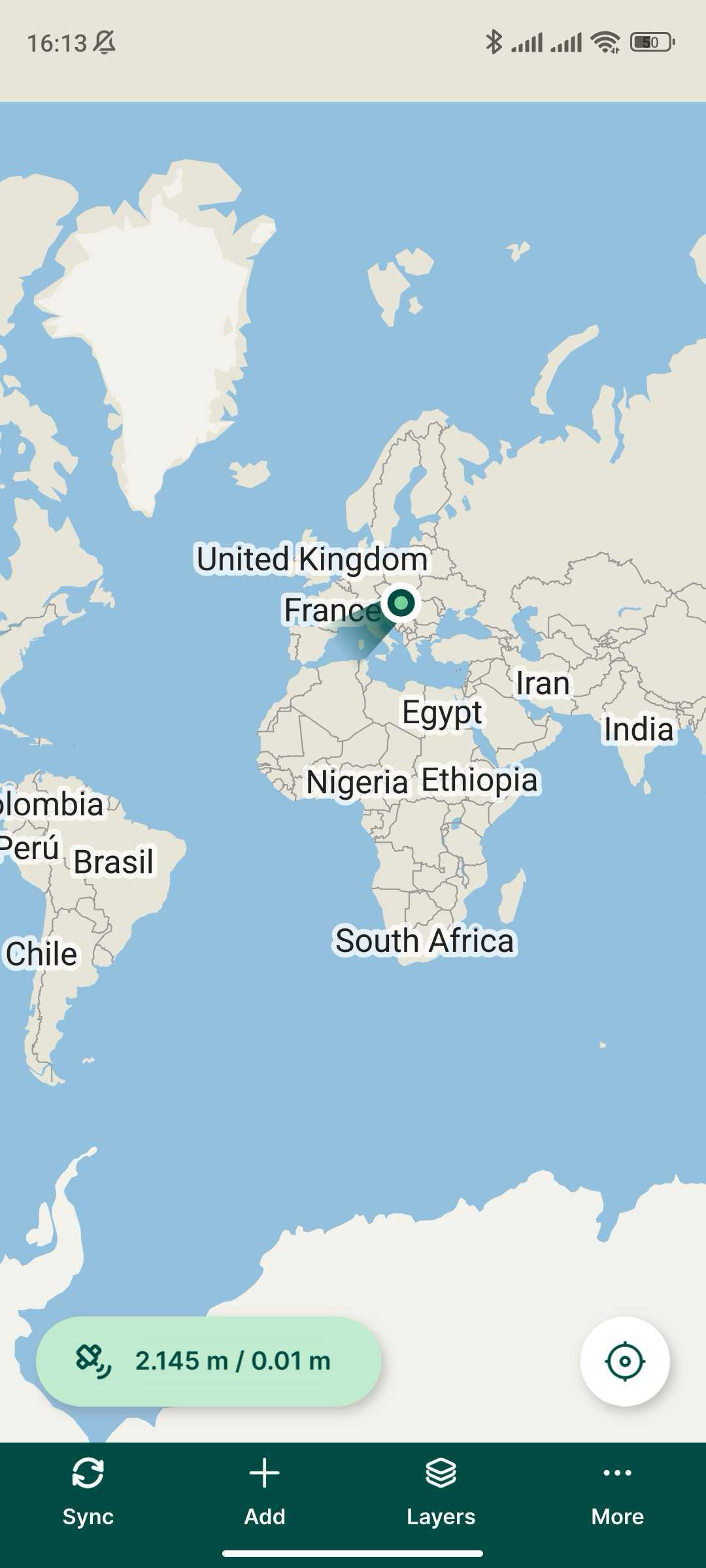
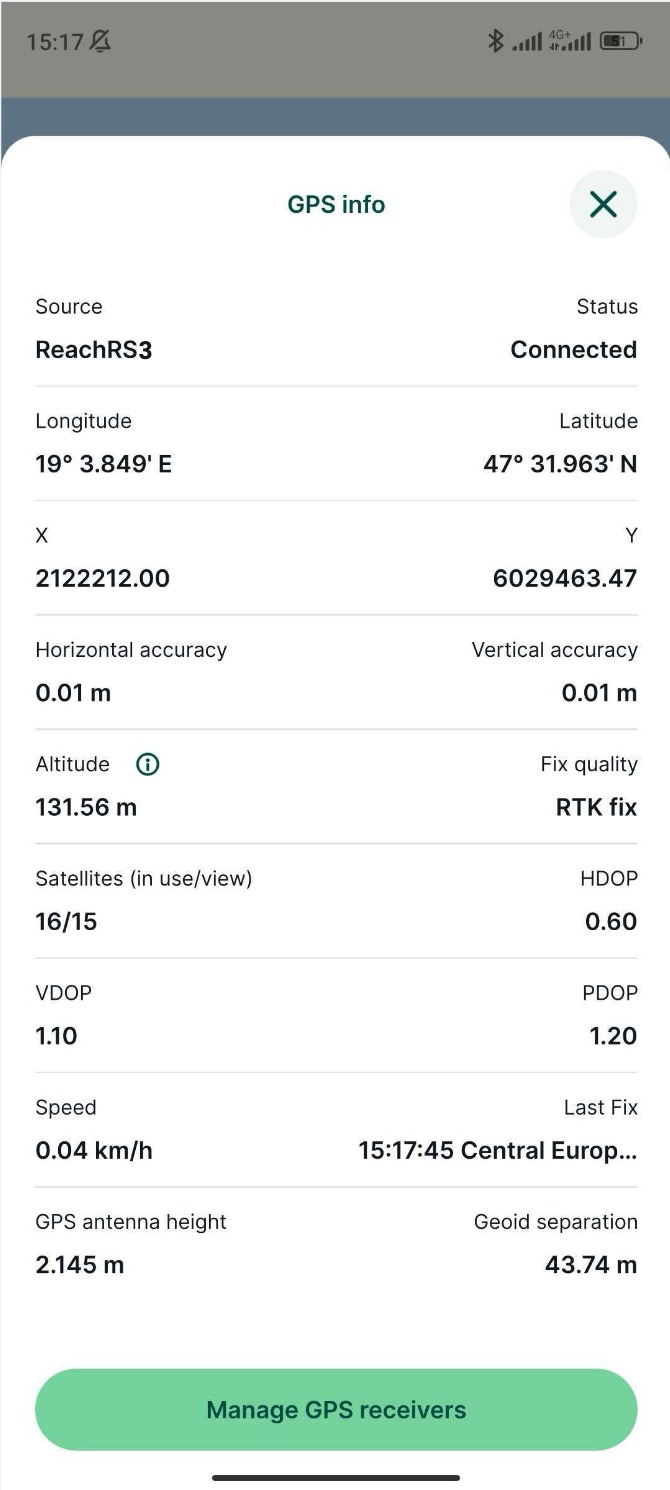
Ya puede empezar a recopilar datos.