Connecting Reach to the Internet via mobile hotspot
This guide shows how to connect Reach to the Internet via your control device's hotspot to update it to the latest firmware or get the corrections from your NTRIP service.
To establish the connection between your mobile device and Reach, follow the steps below:
- Bluetooth connection
- Hotspot connection
Get access to Reach in Emlid Flow
Make sure your Reach receiver is running firmware version 32.2 or later, and that the Emlid Flow app is updated to version 12.2 or newer on both iOS and Android devices.
-
Enable Bluetooth on your smartphone or tablet.
-
Open Emlid Flow. When prompted, tap Configure access and allow both location permissions and precise location. This is required for full receiver functionality.
-
After granting permissions, your receiver will appear in the list. The app will connect to it automatically.
If you have multiple Reach receivers, tap the one you want to connect to and wait for the connection to complete.
Configure Wi-Fi connection settings in Emlid Flow
After connecting to Reach in Emlid Flow, set up the connection to your mobile device hotspot:
-
Enable your personal hotspot on your smartphone or tablet.
-
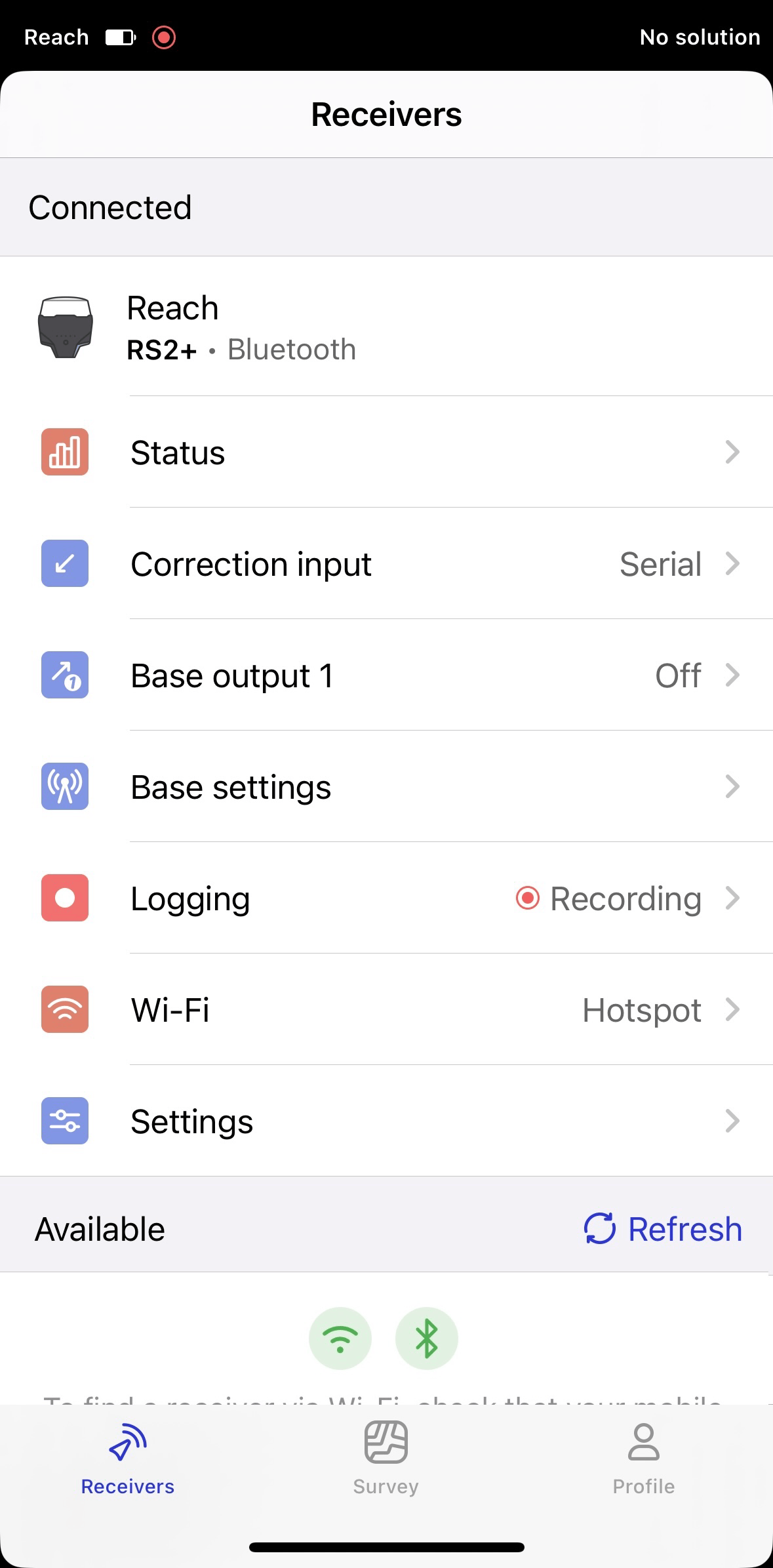
On the Receivers screen, tap Wi-Fi.
-
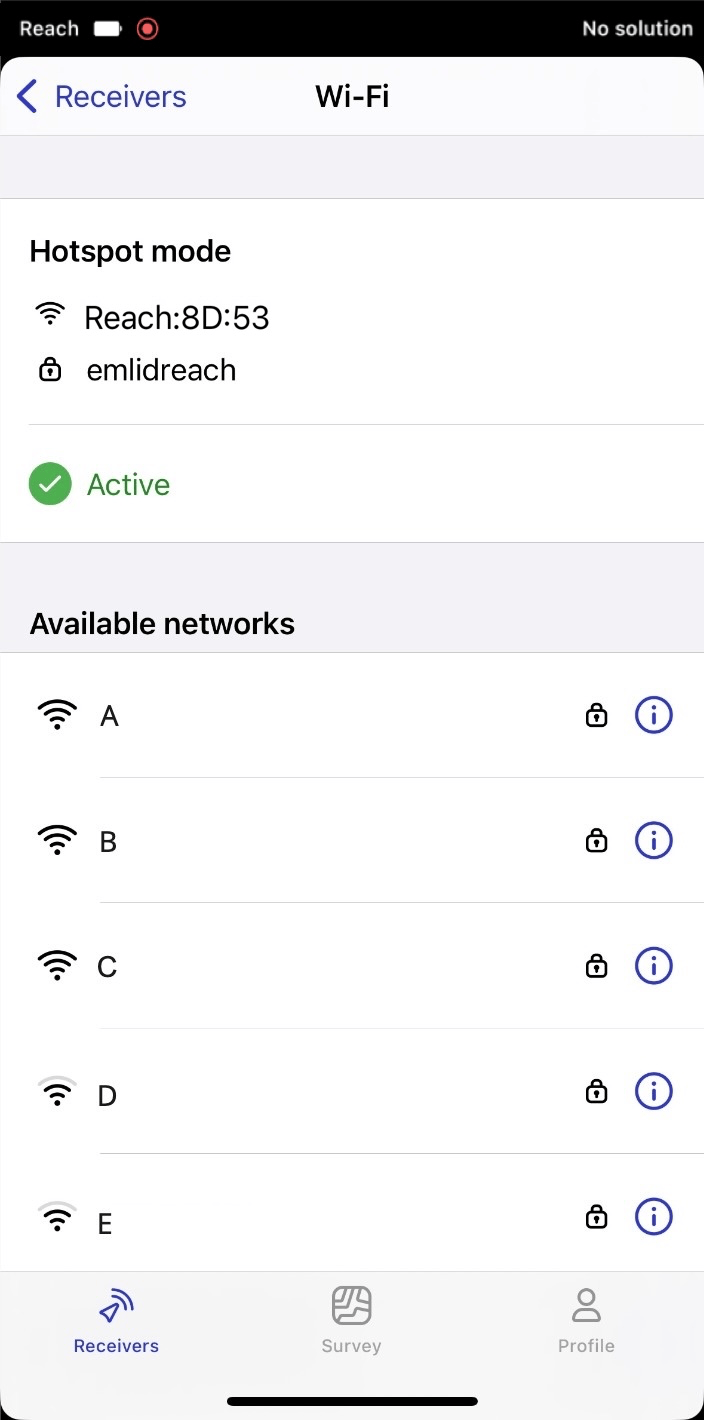
Choose your Wi-Fi network from the list.
-
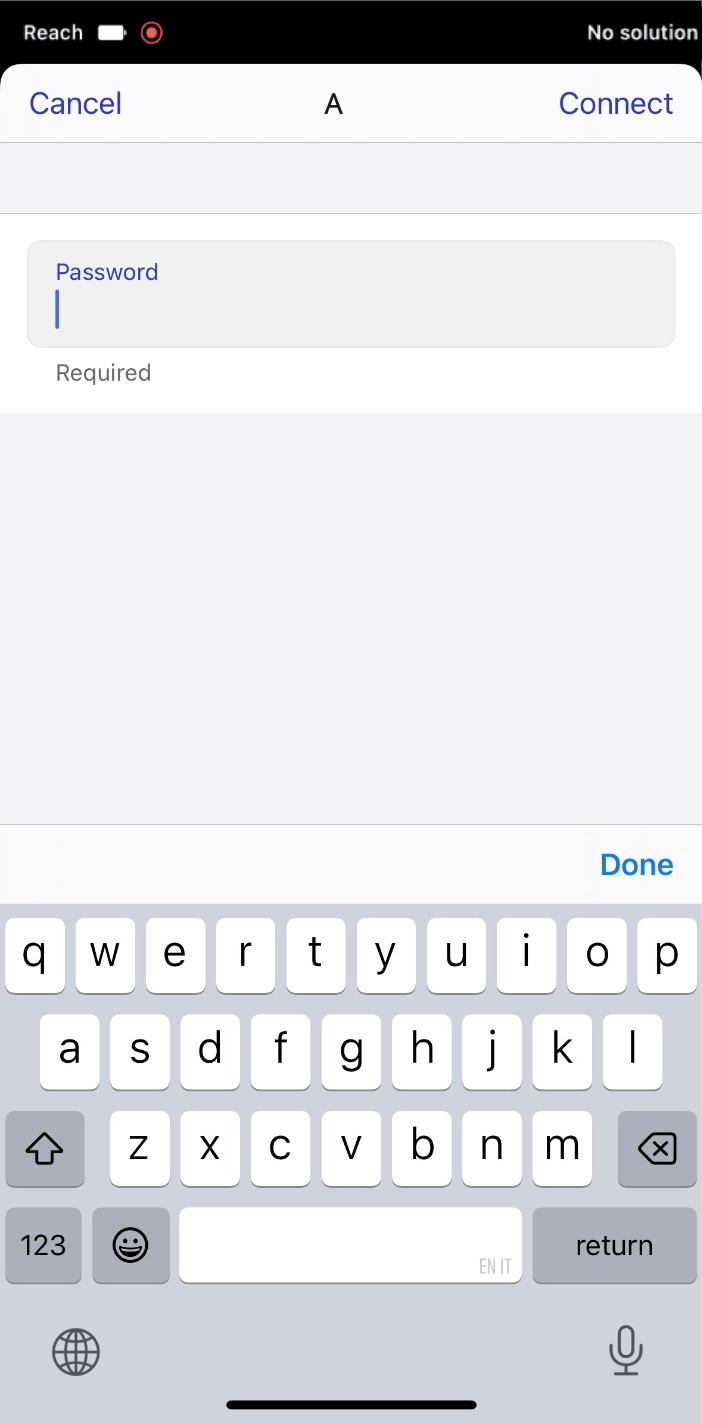
Fill in the password for the selected network.
 note
noteDouble-check if you entered the password correctly.
-
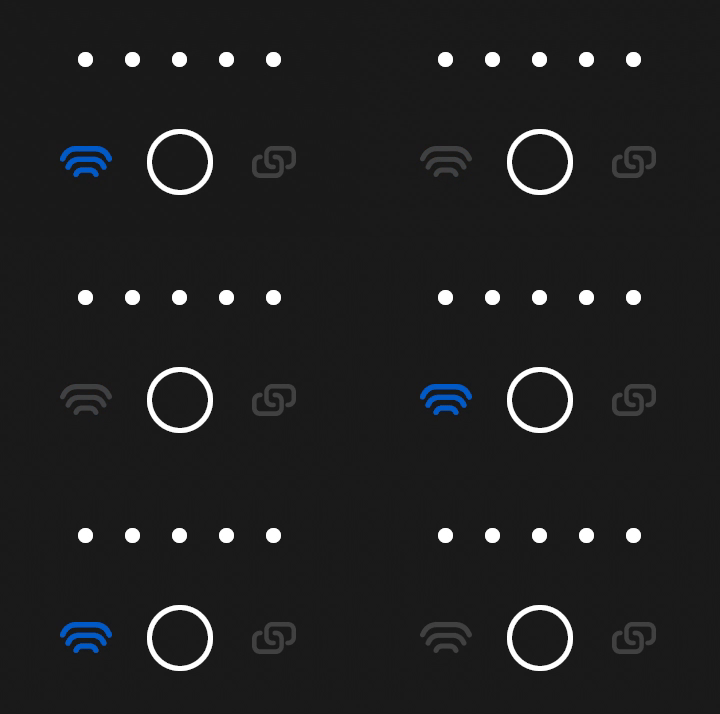
Tap the Connect button. The Network LED will start blinking blue. It means that Reach is trying to connect to your network.
-
Check the connection status after the Network LED stops blinking:
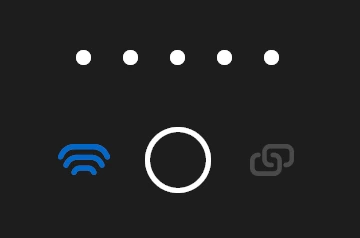
- The Network LED starts blinking slowly. It means that Reach is connected to your Wi-Fi network.
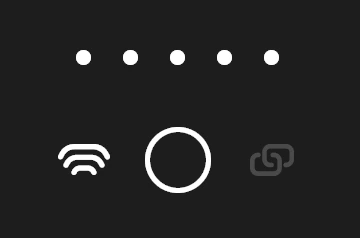
- The Network LED is solid. It means that the connection to your Wi-Fi network failed. Reach returned to the hotspot mode.
 Failed connection
If the connection to your device's hotspot failed, do the following:
- Check the entered password.
- Check that your network is configured correctly.
- Check if your Wi-Fi network uses 2.4 GHz.
- Try connecting to another Wi-Fi network.
Access Reach in your Wi-Fi network
When your Reach is connected to your mobile hotspot, access it following the steps below:
-
Open Emlid Flow.
-
Refresh the list of available devices.
-
Choose Reach from the list.
Now Reach is connected to your mobile hotspot and ready for work.
Get access to Reach in Emlid Flow
Make sure mobile data and battery optimization are turned off before connecting to Reach’s hotspot.
-
Go to Wi-Fi settings on your device.
-
Connect to the Reach hotspot. It appears as reach:XX:XX.
-
Enter the network password. The default password is emlidreach. If you changed it previously, enter your custom password instead.
noteTo restore the default Wi-Fi password, emlidreach, you need to reflash the receiver. Note that reflashing erases all logs stored on the receiver and restores all settings to their default values.
-
Launch the Emlid Flow app.
-
Choose Reach from the list of available devices.
Configure Wi-Fi connection settings in Emlid Flow
After connecting to the Reach hotspot in Emlid Flow, set up the connection to your mobile device hotspot:
Check that your device's mobile hotspot is disabled to ensure a successful connection.
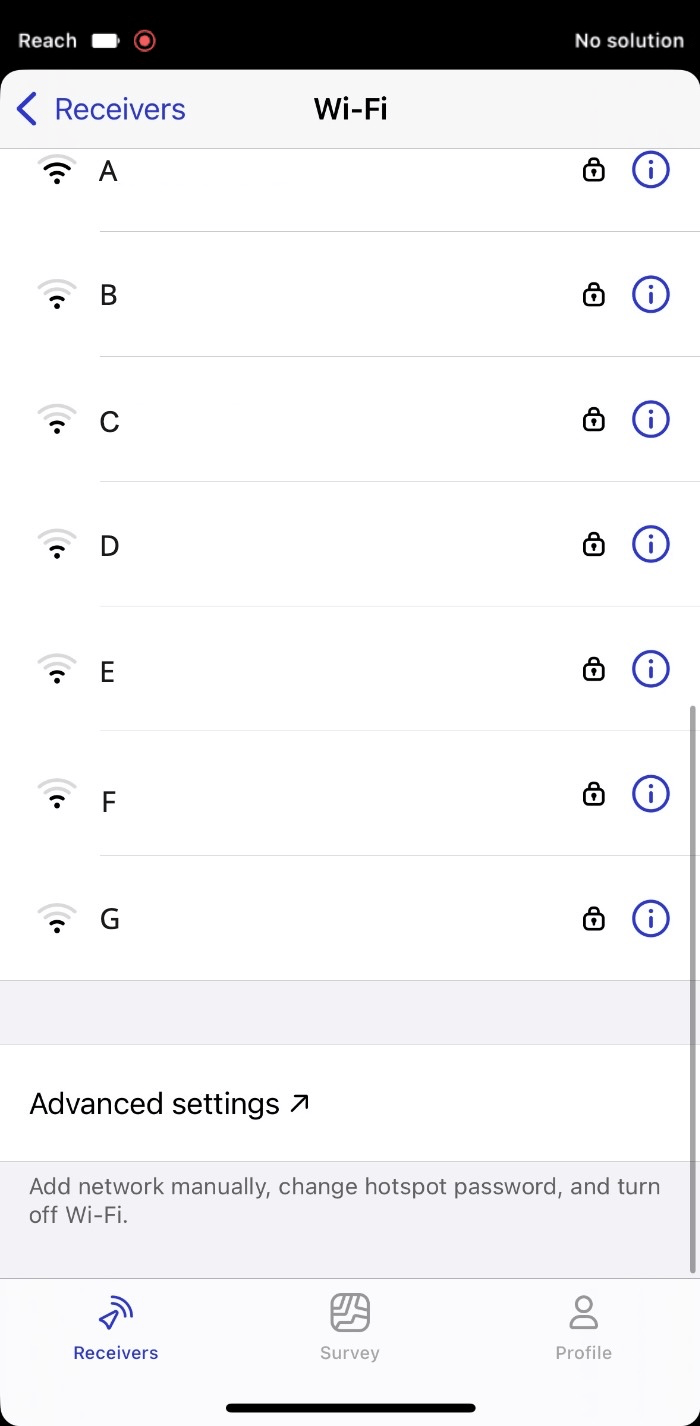
- On the Receivers screen, tap Wi-Fi, then Advanced settings.
-
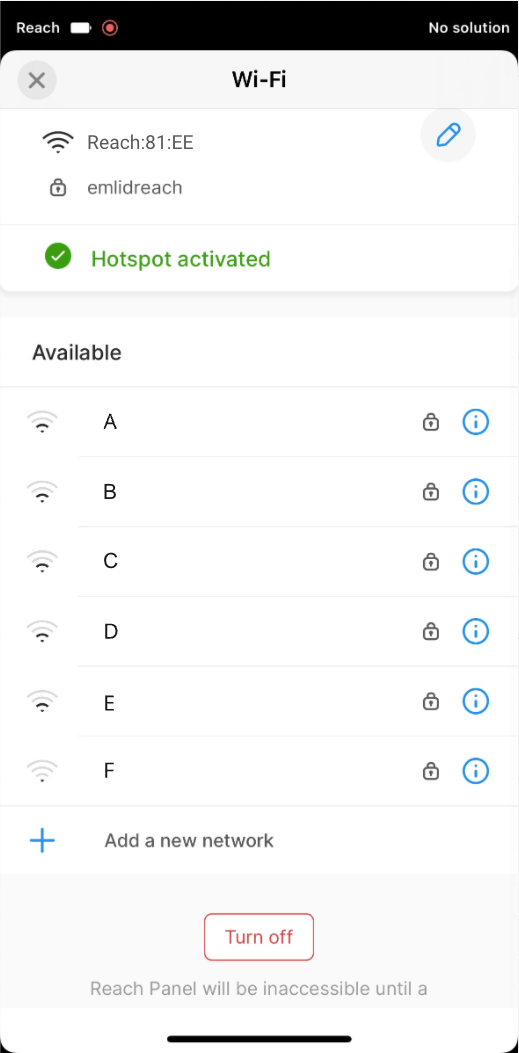
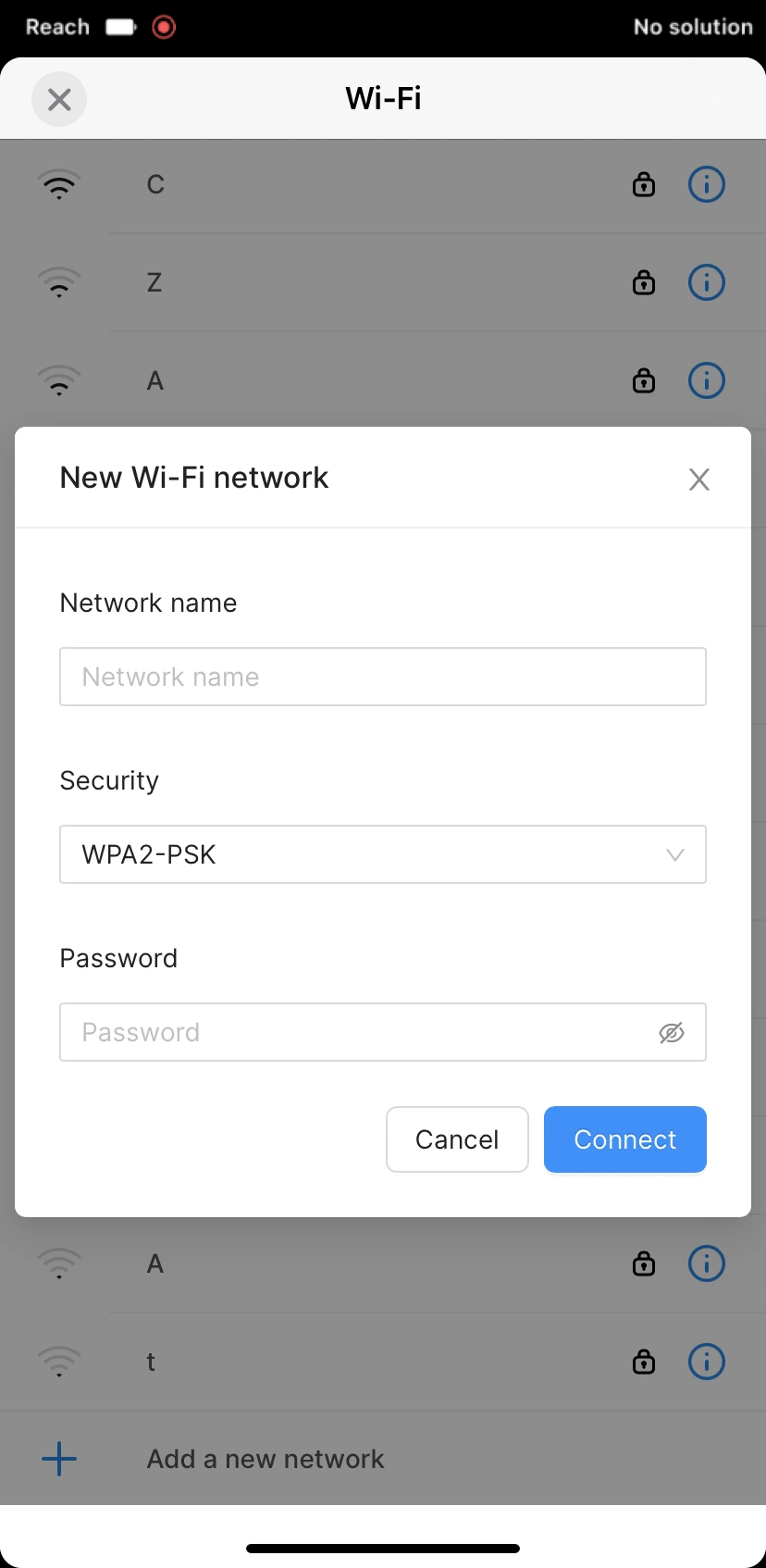
Tap Add a new network. As your device's mobile hotspot has been temporarily disabled, its network is not visible.
cautionMake sure that there are no available saved networks to ensure a successful connection.
-
Fill in the credentials of your device’s hotspot:
- Type the network name
- Choose a security type
- Add a password if you have it
noteDouble-check if you entered the correct password.
-
Tap the Connect button. The Network LED will start blinking—it means that Reach is trying to connect to your device's hotspot.
But since it is off, Reach will start sharing its hotspot again.
-
To detect your device's hotspot and connect to it, you need to reboot Reach. Press the power button for a while to turn your Reach off and then press it again to turn Reach on.
Rebooting Reach using Emlid FlowAlternatively, you can reboot your Reach using Emlid Flow. Connect your device to the Reach hotspot again. Then open Emlid Flow and refresh the list of devices to connect to your Reach. After that, tap the name of your Reach and restart it. Finally, proceed to step 7.
-
Enable the mobile hotspot on your mobile device.
iOS deviceTo ensure a successful connection, pay attention to the following:
- Make sure that your iOS device is not connected to any other Wi-Fi networks. The iOS hotspot may drop once your iOS device finds an available Wi-Fi network and connects to it
- Starting with the iPhone 12 series, enable the Maximize compatibility option on its Personal hotspot page. This will switch its hotspot to 2.4 GHz and ensure connection to Reach
- Keep the Personal Hotspot page on the iOS device open while the Reach is loading
-
When Reach reboots, check the connection status:
iOS deviceIf the connection to the device's hotspot is successful, you will see the blue notification at the top left corner of the screen.
- The Network LED is solid blue: it means that Reach is connected to your mobile hotspot
- The Network LED is solid white: it means that the connection to your mobile hotspot failed and Reach returned to the hotspot mode
Failed connectionIf the connection to your device's hotspot failed, do the following:
- Check the entered password.
- Check that your network is configured correctly.
- Check if your Wi-Fi network uses 2.4 GHz.
- Try connecting to another Wi-Fi network.
Access Reach in your Wi-Fi network
When your Reach is connected to your mobile hotspot, access it following the steps below:
-
Open Emlid Flow.
-
Refresh the list of available devices.
-
Choose Reach from the list.
Now Reach is connected to your mobile hotspot and ready for work.