Connecting Reach to the Internet via Wi-Fi
This guide shows how to connect Reach to the Internet via your local Wi-Fi network to update the device to the latest firmware or get the corrections from your NTRIP service.
Get access to Reach in Emlid Flow
- Bluetooth connection
- Hotspot connection
To establish the connection between your mobile device and Reach via Bluetooth connection, follow the steps below:
Make sure your Reach receiver is running firmware version 32.2 or later, and that the Emlid Flow app is updated to version 12.2 or newer on both iOS and Android devices.
-
Enable Bluetooth on your smartphone or tablet.
-
Open Emlid Flow. When prompted, tap Configure access and allow both location permissions and precise location. This is required for full receiver functionality.
-
After granting permissions, your receiver will appear in the list. The app will connect to it automatically.
If you have multiple Reach receivers, tap the one you want to connect to and wait for the connection to complete.
To establish the connection between your mobile device and Reach, follow the steps below:
Make sure mobile data and battery optimization are turned off before connecting to Reach’s hotspot.
-
Download the app from Google Play or the App Store.
-
Go to Wi-Fi settings on your device.
-
Connect to the Reach hotspot. It appears as reach:XX:XX.
-
Enter the network password. The default password is emlidreach. If you changed it previously, enter your custom password instead.
noteTo restore the default Wi-Fi password, emlidreach, you need to reflash the receiver. Note that reflashing erases all logs stored on the receiver and restores all settings to their default values.
-
Launch the Emlid Flow app.
-
Choose Reach from the list of available devices.
Configure Wi-Fi connection settings in Emlid Flow
Make sure that your Wi-Fi network uses the 2.4 GHz band.
After connecting to the Reach hotspot in Emlid Flow, set up the connection to your local Wi-Fi network:
-
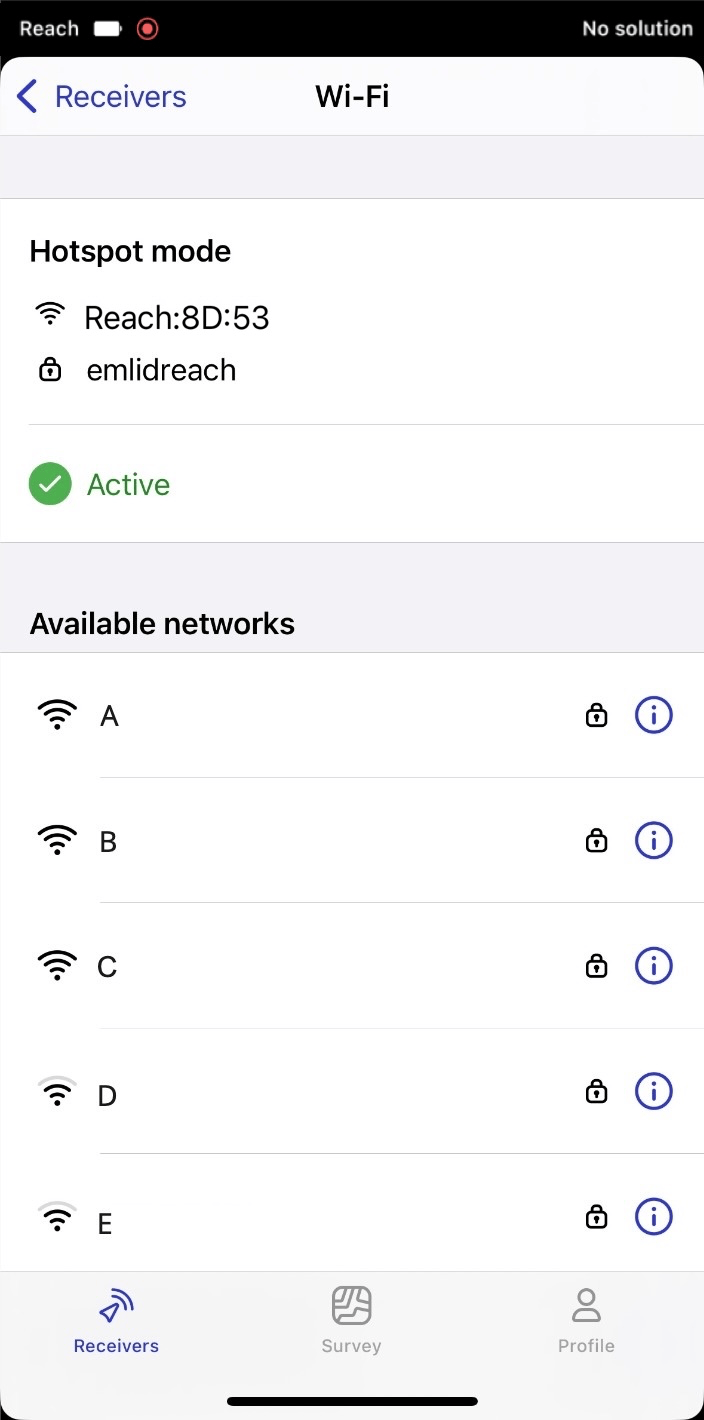
On the Receivers screen, tap Wi-Fi.
-
Choose your Wi-Fi network from the list.
-
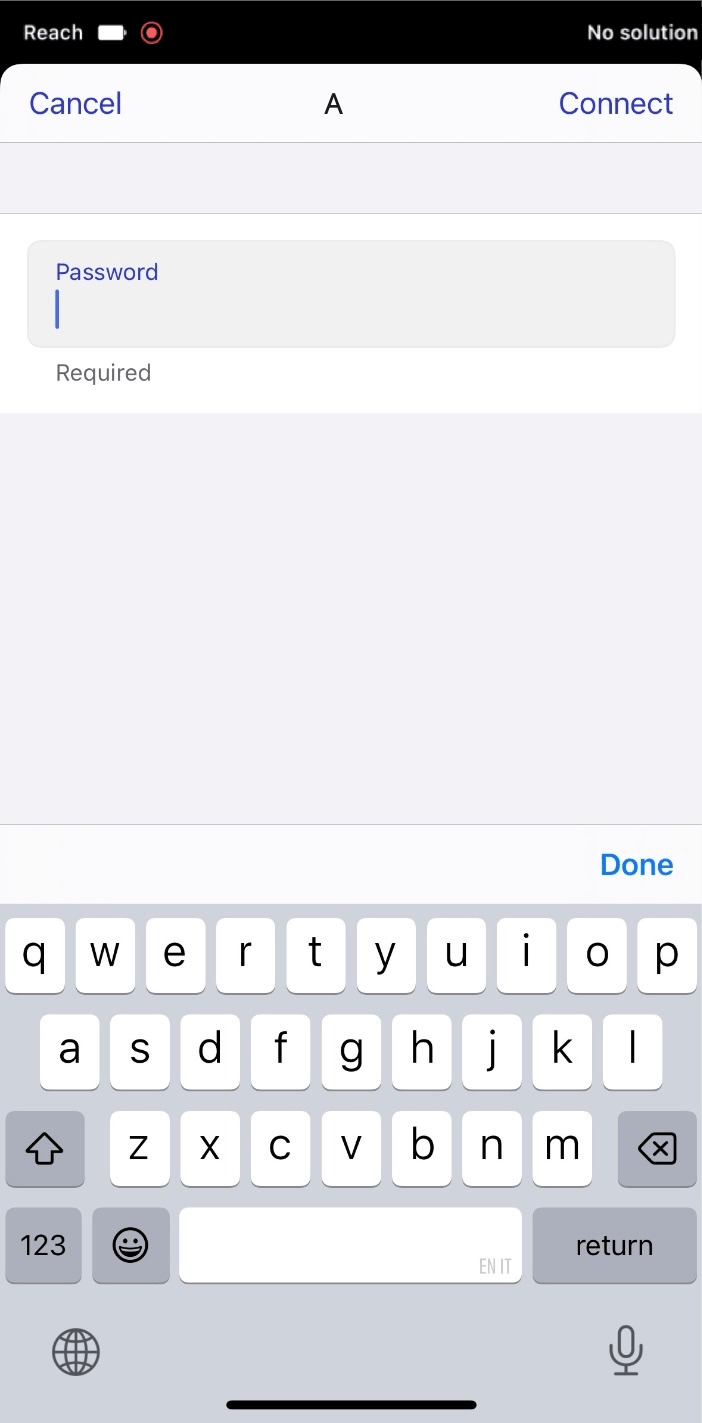
Fill in the password for the selected network.
 note
noteDouble-check if you entered the password correctly.
-
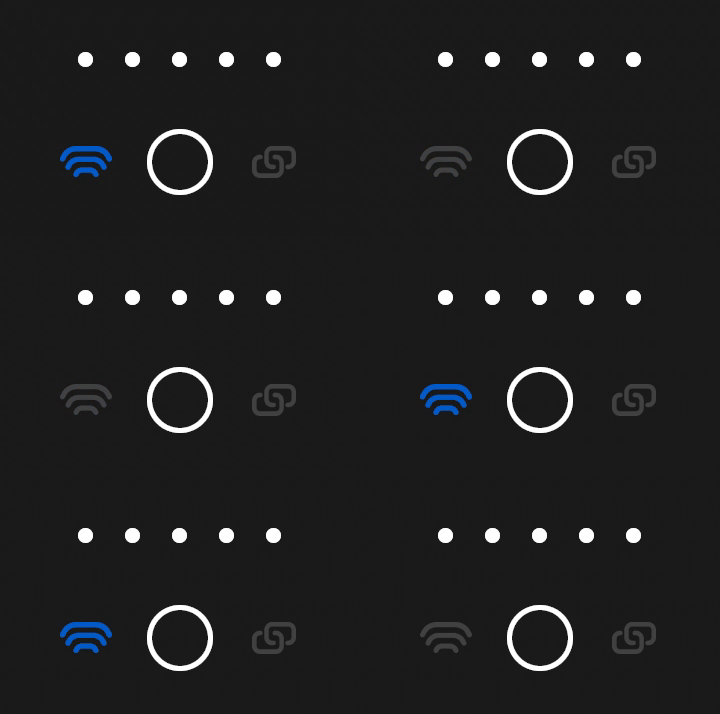
Tap the Connect button. The Network LED will start blinking blue. It means that Reach is trying to connect to your network.
-
Check the connection status after the blue LED stops blinking:
- The Network LED is solid blue. It means that Reach is connected to your Wi-Fi network
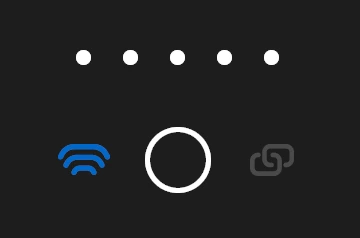
- The Network LED is solid white. It means that the connection to your Wi-Fi network failed. Reach returned to the hotspot mode
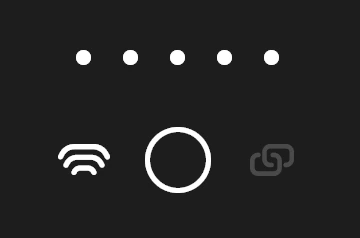 Failed connection
If the connection to your Wi-Fi network failed, do the following:
- Check the entered password.
- Check that your network is configured correctly.
- Check if your network uses the 2.4 GHz band.
- Try connecting to another Wi-Fi network.
Access Reach in your Wi-Fi network
After configuring the Wi-Fi connection settings in Emlid Flow, connect your mobile device to Reach:
-
Connect your smartphone or tablet to the same Wi-Fi network as Reach.
-
Go back to Emlid Flow.
-
Refresh the list of available devices.
-
Choose Reach from the list.
Now Reach is connected to your Wi-Fi network and ready for work.