Como começar
Este guia mostra como usar o Emlid Corrections no Emlid Flow com receptores Reach.
Antes de começar
Para começar a usar o serviço Emlid Corrections, você precisa do seguinte:
-
Modelo compatível do receptor Reach,
-
Aplicativo Emlid Flow instalado,
-
Uma conta no Emlid para ativar a licença e utilizar o Emlid Corrections.
-
Conexão com a Internet para receber correções. Todos os modelos Reach compatíveis podem receber correções Emlid por meio do Emlid Flow via Bluetooth (BLE). Nessa configuração, seu dispositivo móvel fornece a conexão com a internet e deve permanecer conectado ao Reach via Bluetooth. O Reach RS4 e o RS4 Pro também podem usar sua própria conexão de celular para receber as correções da Emlid.
dicaPara saber como receber correções da Emlid usando o modem LTE integrado nos modelos Reach RS4 e RS4 Pro, consulte o guia Como configurar o RTK com correções da Emlid.
Baixando o Emlid Flow
Para gerenciar seu receptor Reach e ter acesso ao serviço, baixe o aplicativo Emlid Flow no seu dispositivo iOS ou Android.

Baixe o Emlid Flow
Alguns dispositivos Android têm a otimização da bateria ativada por padrão. Certifique-se de desativá-lo no Emlid Flow para evitar a desconexão.
Conectando-se ao Reach
Para a maioria dos modelos Reach compatíveis, o recurso “Emlid Corrections” está disponível apenas quando você se conecta ao receptor via Bluetooth (BLE) no Emlid Flow. Os modelos Reach RS4 e RS4 Pro também suportam uma conexão via hotspot quando o receptor obtém acesso à internet por meio de seu modem integrado. Para saber como receber correções da Emlid usando o modem LTE integrado nos modelos Reach RS4 e RS4 Pro, consulte o guia Como configurar o RTK com correções da Emlid.
Para conectar-se ao receptor Reach usando Bluetooth, siga os passos a seguir:
-
Ative o Bluetooth em seu smartphone ou tablet.
-
Abra o aplicativo Emlid Flow. Quando solicitado, faça o seguinte, dependendo da plataforma:
- No iOS, habilite o acesso ao Bluetooth para que o aplicativo possa localizar e se conectar aos receptores Reach. Em seguida, habilite o acesso à rede local para que o dispositivo possa detectar e se conectar aos receptores Reach via Wi-Fi.
- No Android, habilite o acesso ao Bluetooth para que o aplicativo possa localizar e se conectar aos receptores Reach. Em seguida, habilite as notificações para ajudar a manter a conexão e receber correções do receptor.
notaAs permissões necessárias podem variar de acordo com a versão do Android. Os dispositivos que rodam o Android 12 e versões anteriores geralmente exigem menos permissões do que os que rodam o Android 13 e versões posteriores.
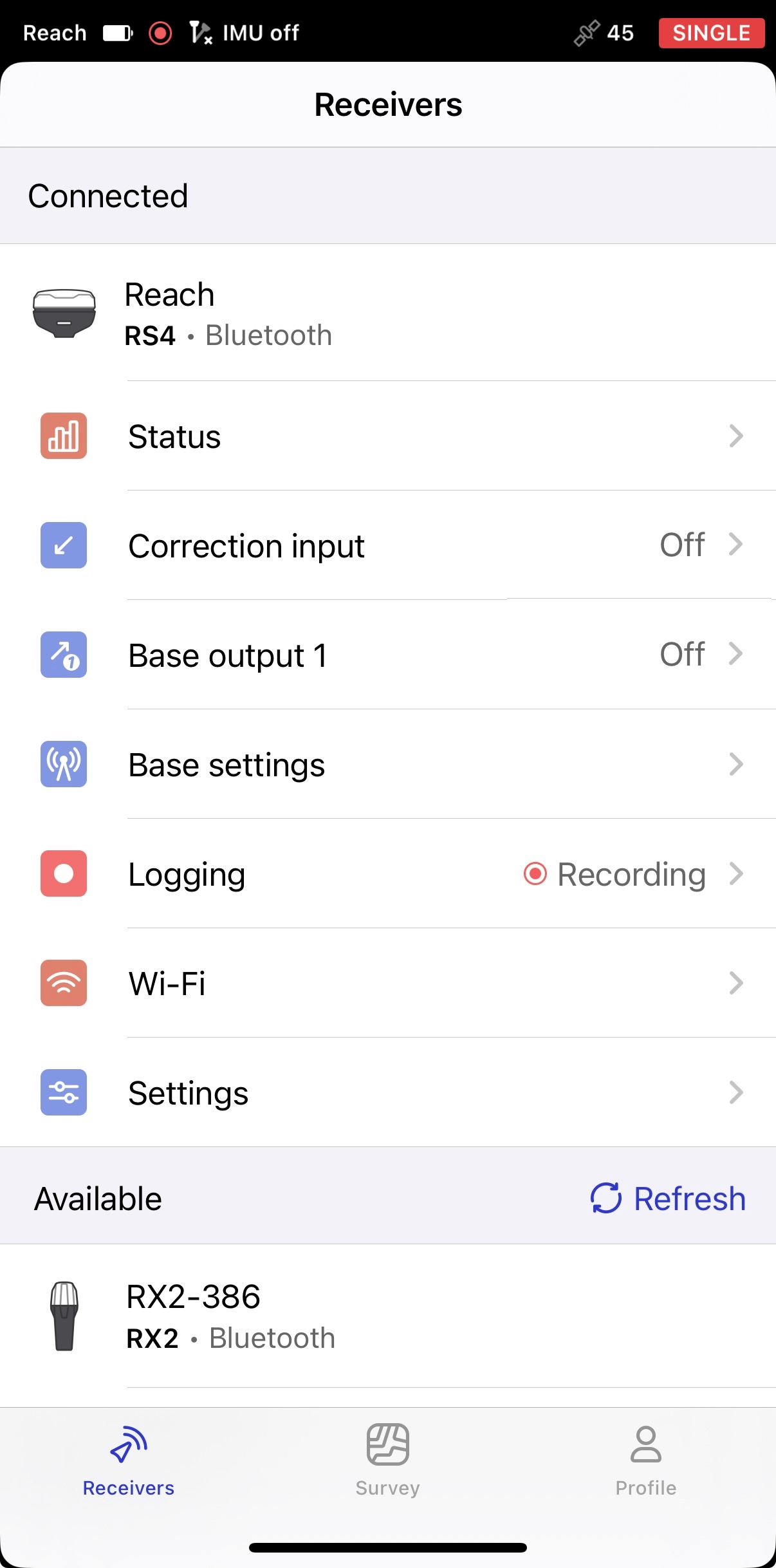
Essas permissões são necessárias para que o receptor funcione plenamente. Depois que você conceder as permissões, o receptor aparecerá na lista e o aplicativo se conectará a ele automaticamente. Se houver vários receptores Reach disponíveis, toque no receptor ao qual deseja se conectar e aguarde até que a conexão seja estabelecida.
-
Depois de conectado, verifique se há atualizações de firmware. Se houver uma atualização disponível, um ponto vermelho aparecerá ao lado da seção Settings (Configurações). Atualize o firmware do receptor.
notaEsta etapa é opcional, mas recomendamos atualizar seu receptor regularmente para garantir a funcionalidade total e o acesso aos recursos mais recentes. Para mais detalhes, consulte o guia “Como atualizar o firmware”.
Agora você pode prosseguir com a criação de uma conta no Emlid.
Criando uma conta Emlid
Uma conta no Emlid permite que você sincronize seus projetos entre o Emlid Flow e o Emlid Flow 360, bem como entre diferentes dispositivos, e salve instantaneamente o andamento do seu levantamento. Para sincronizar projetos, você precisa de uma conta no Emlid e de uma conexão com a internet. Depois que você fizer login, todas as alterações em seus projetos serão sincronizadas em tempo real. Você pode ter acesso a todos os dados do seu projeto, sistemas de coordenadas personalizados, bibliotecas de códigos e perfis NTRIP nos seus dispositivos.
Com uma conta Emlid, você pode acessar nosso fórum da Comunidade e o Emlid Caster.
Para criar uma conta no Emlid, siga as etapas abaixo:
-
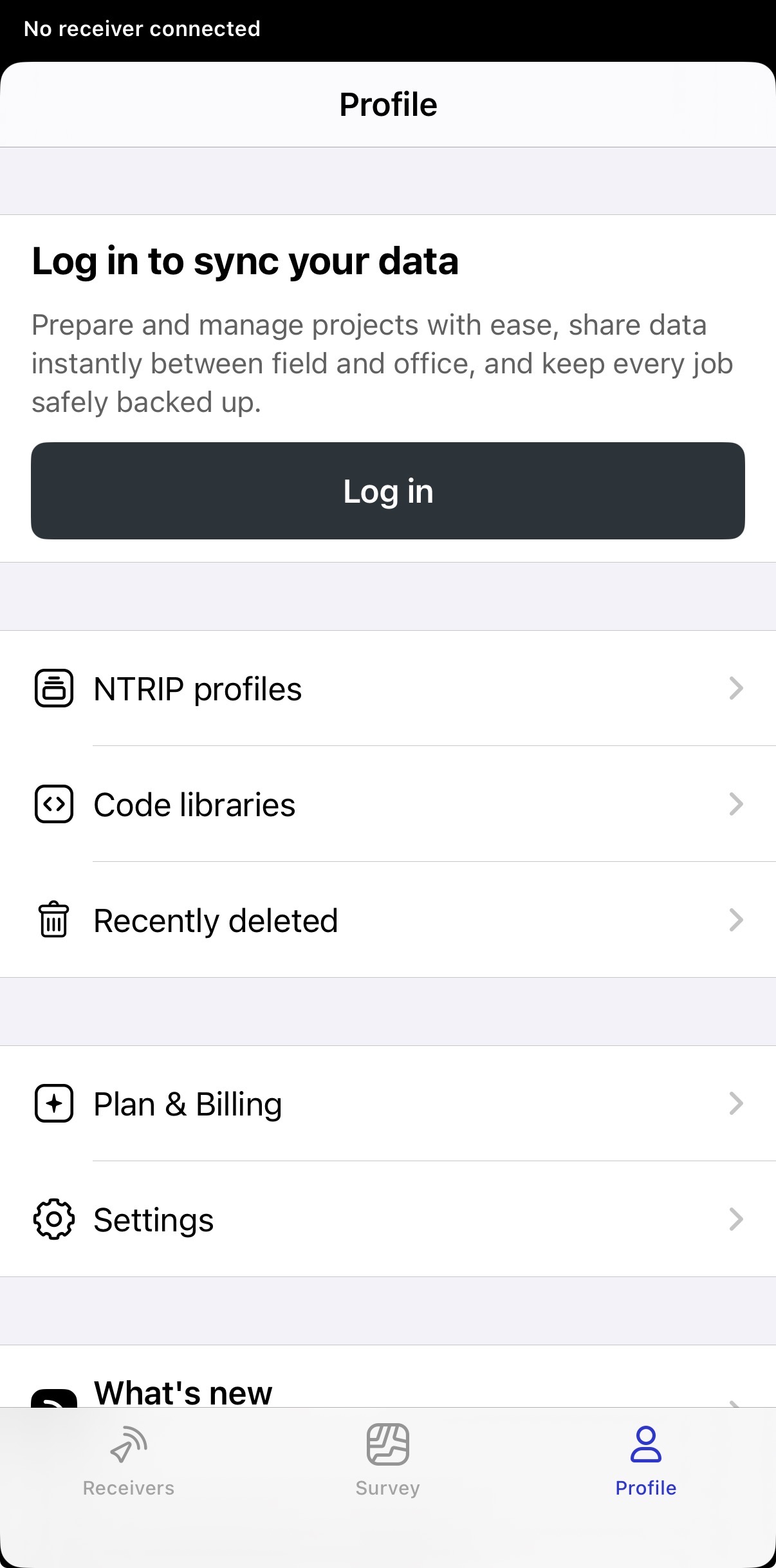
Abra o Emlid Flow e acesse a aba Profile (Perfil).
-
Toque no botão Log in (Entrar). Você será redireccionado para a página de criação da conta Emlid.
-
Para criar uma conta, acesse a aba Sign Up (Cadastre-se).
-
Digite seu e-mail e senha nos campos correspondentes.
-
Toque no botão SIGN-UP (CADASTRE-SE).
-
Verifique o seu endereço de e-mail seguindo as instruções apresentadas na tela.
Depois de criar uma conta no Emlid, você pode ativar seu ano gratuito do Emlid Corrections ou inserir um código de licença.
Ativação do código de licença
Se você comprou um receptor Reach em um pacote que inclui o Emlid Corrections, receberá um código de licença. Ao ativar a licença, a assinatura gratuita de um ano incluída também é aplicada automaticamente ao mesmo receptor. Para ativar o código de licença, faça o seguinte:
-
Abra o Emlid Flow e conecte-se ao seu receptor Reach via BLE.
-
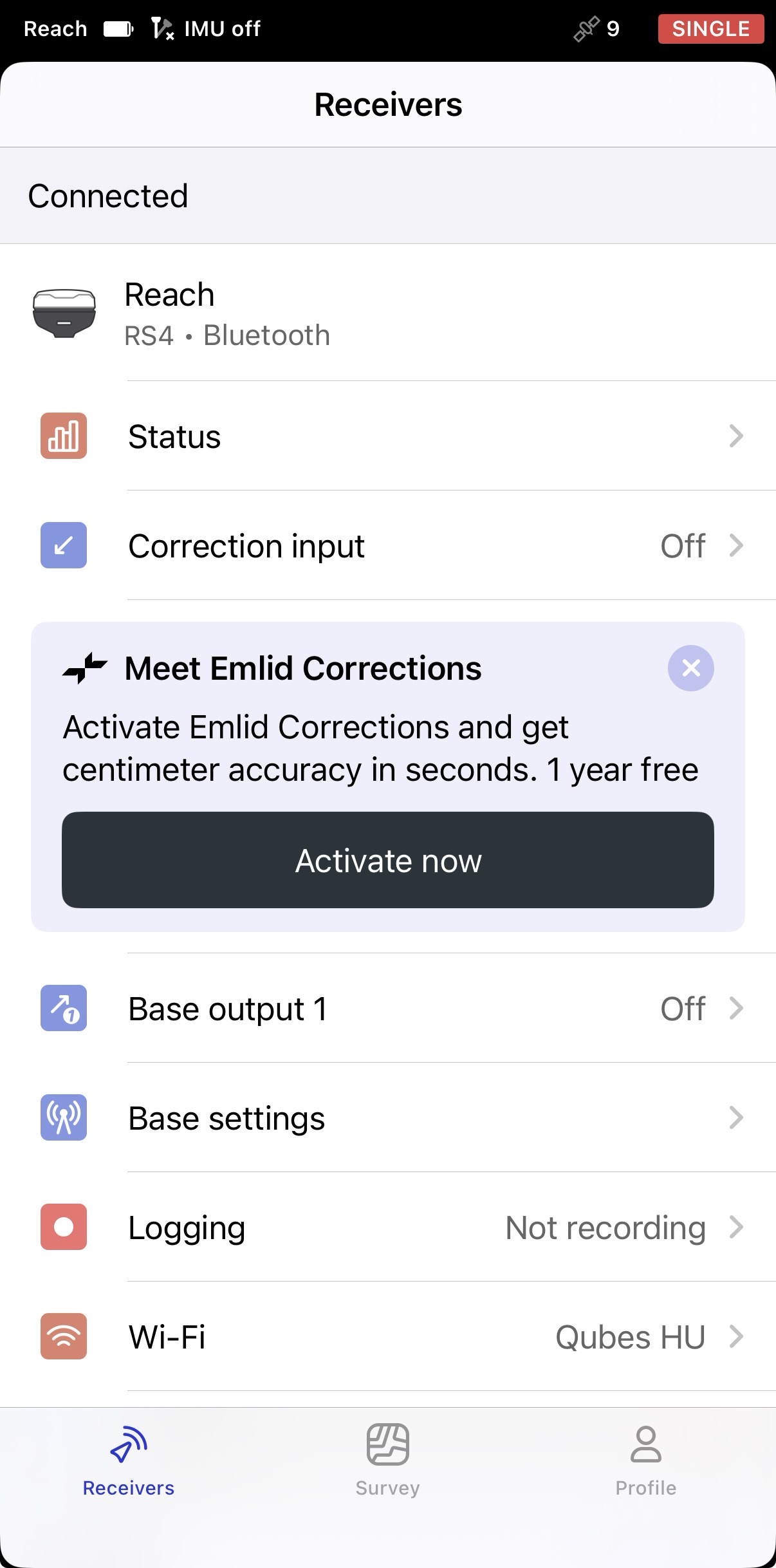
Na tela que aparecer após a conexão, toque em Activate now (Ativar agora) para começar a usar o Emlid Corrections.
-
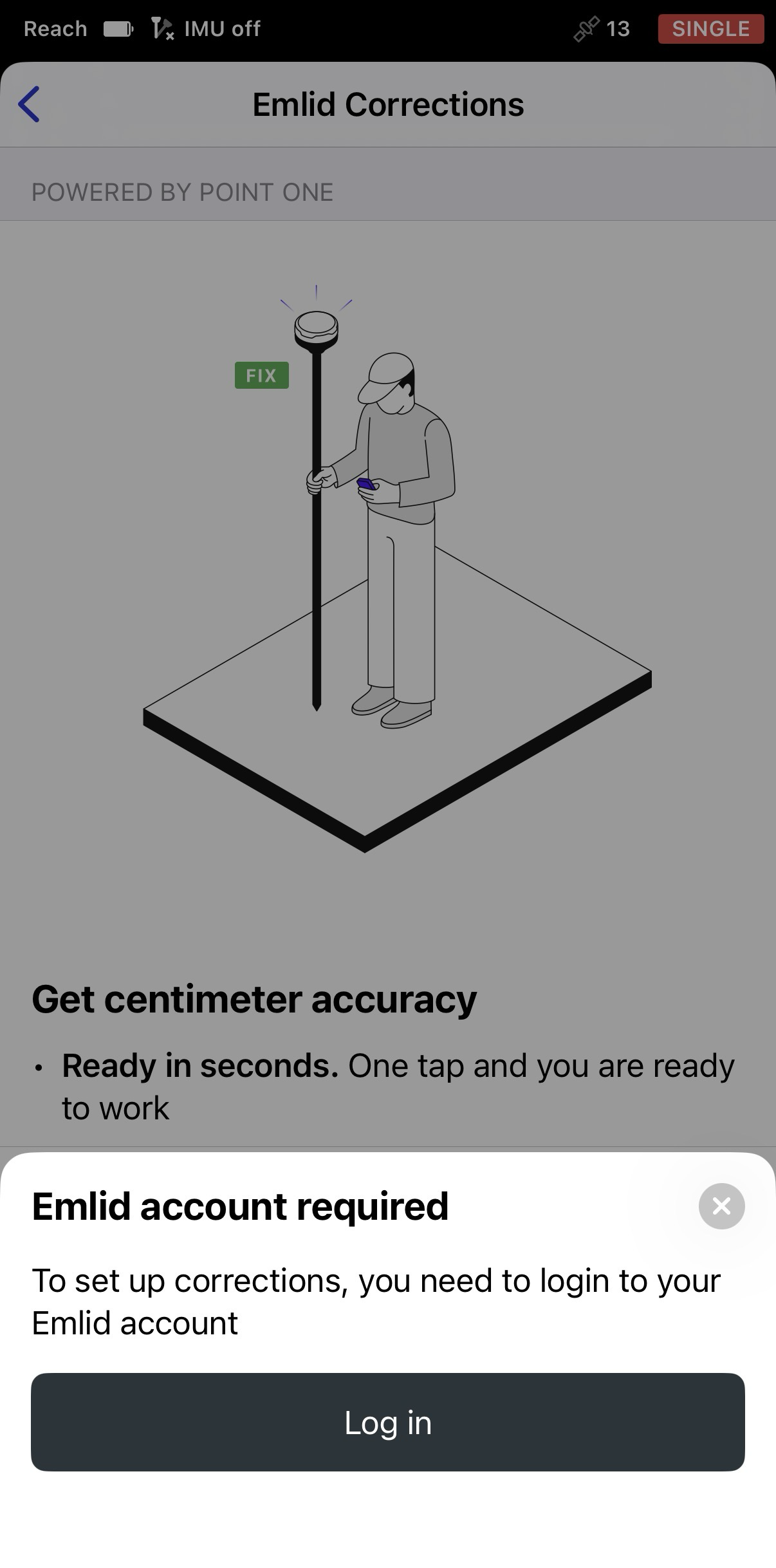
Se você ainda não fez login na sua conta da Emlid, faça login agora.
-
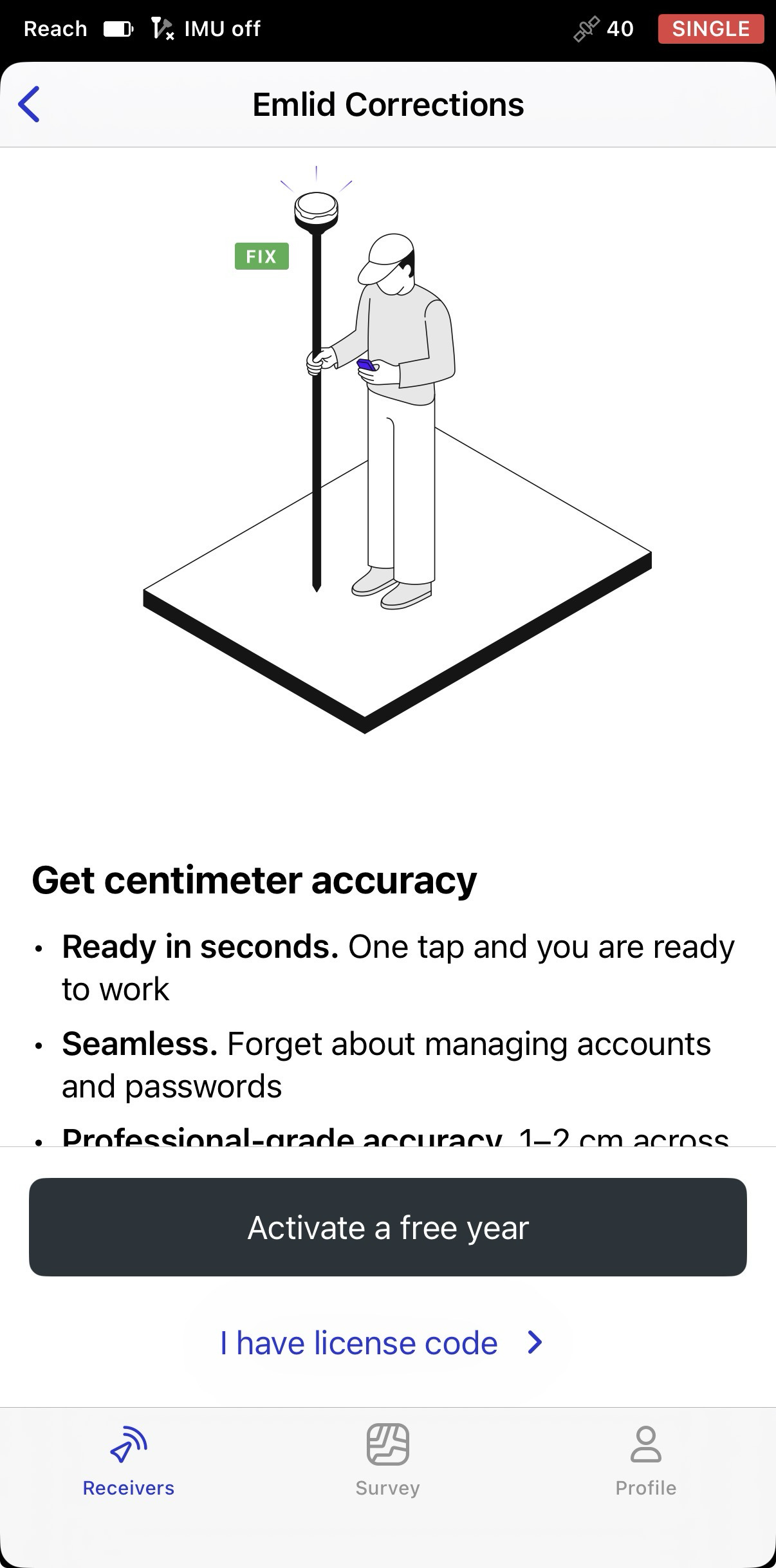
Depois disso, toque em I have a license code (Tenho um código de licença).
-
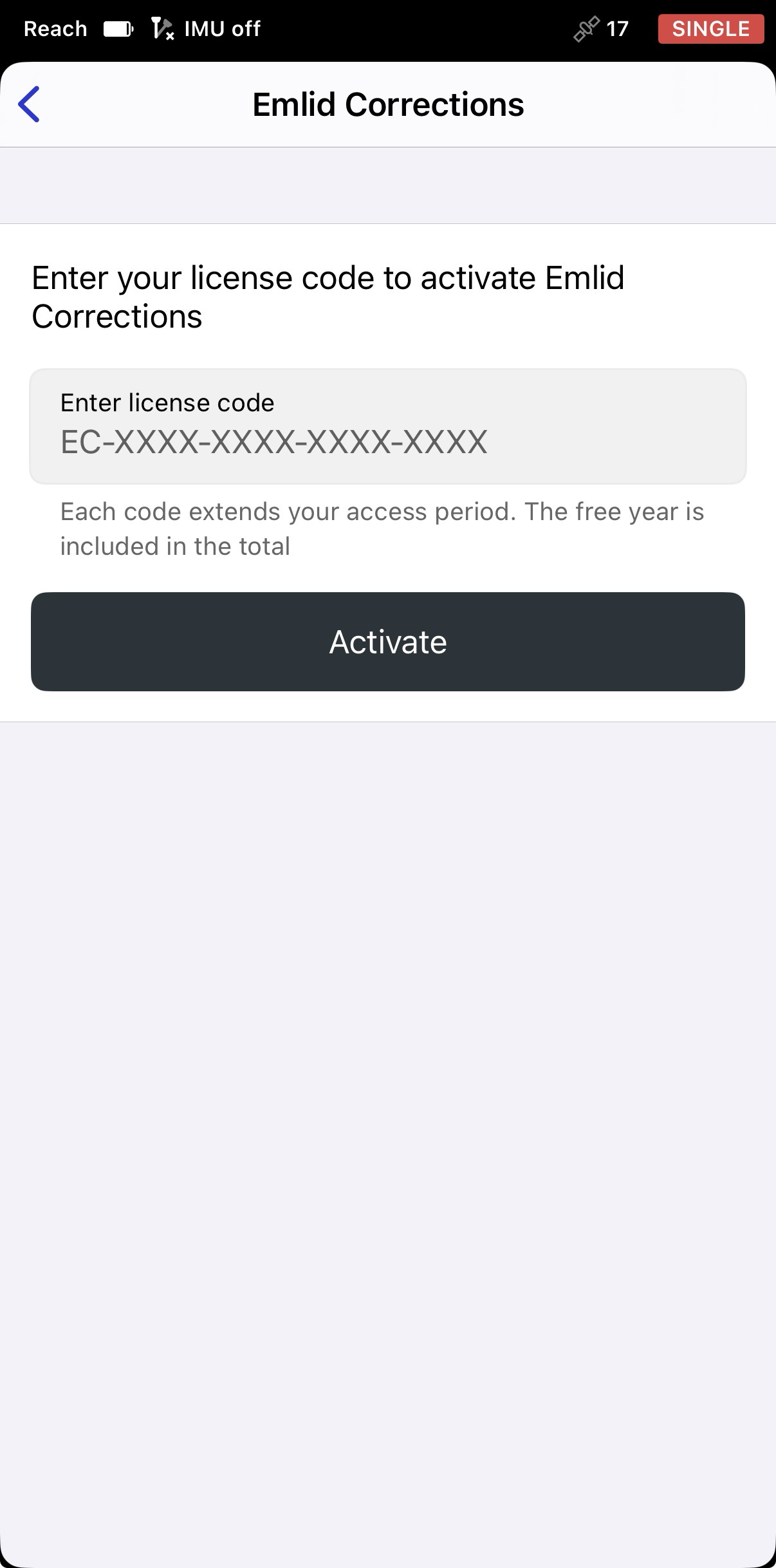
Toque em Enter license code (Inserir código de licença).
-
Digite o código de licença e, em seguida, toque em Activate (Ativar).
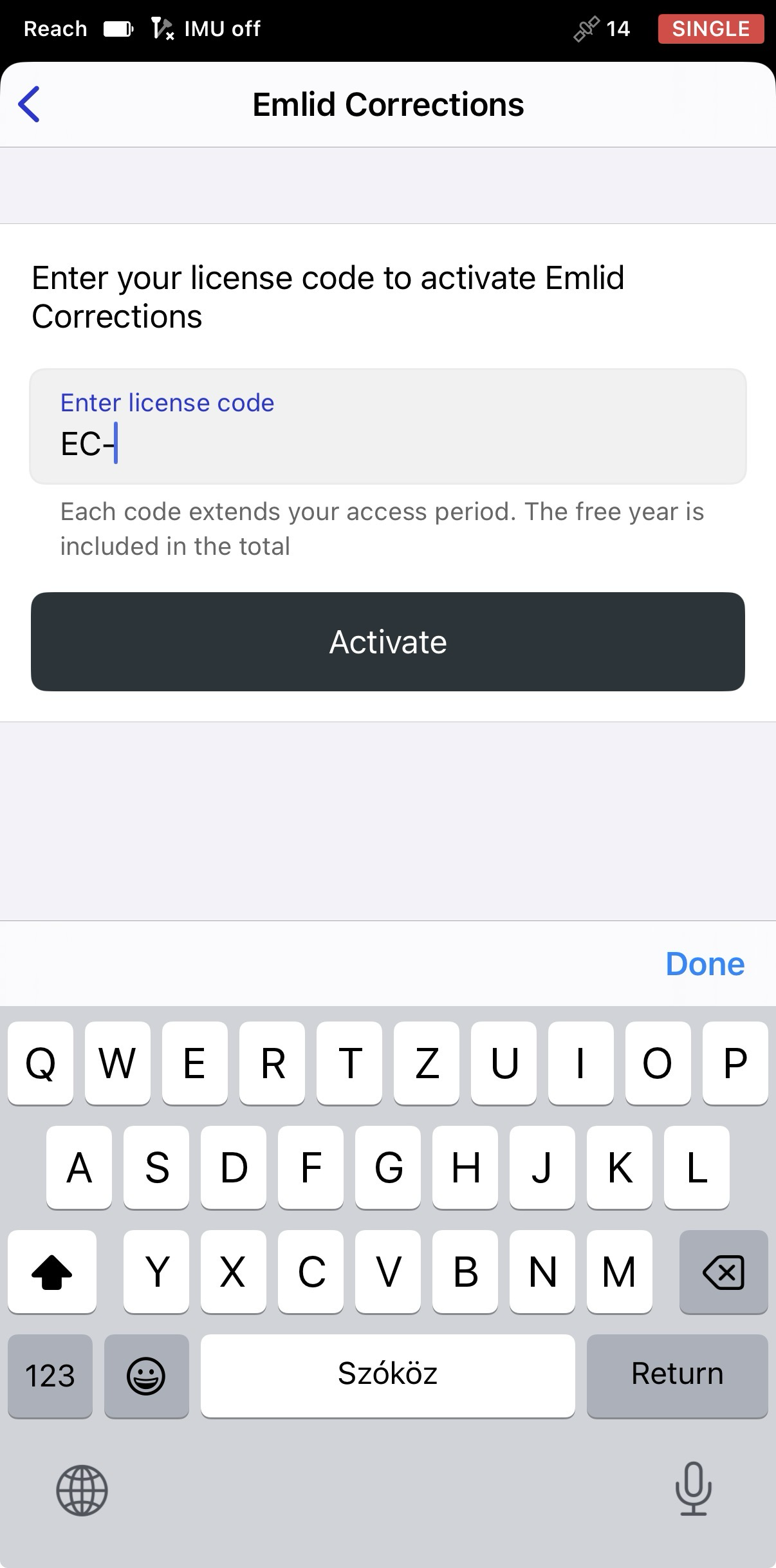
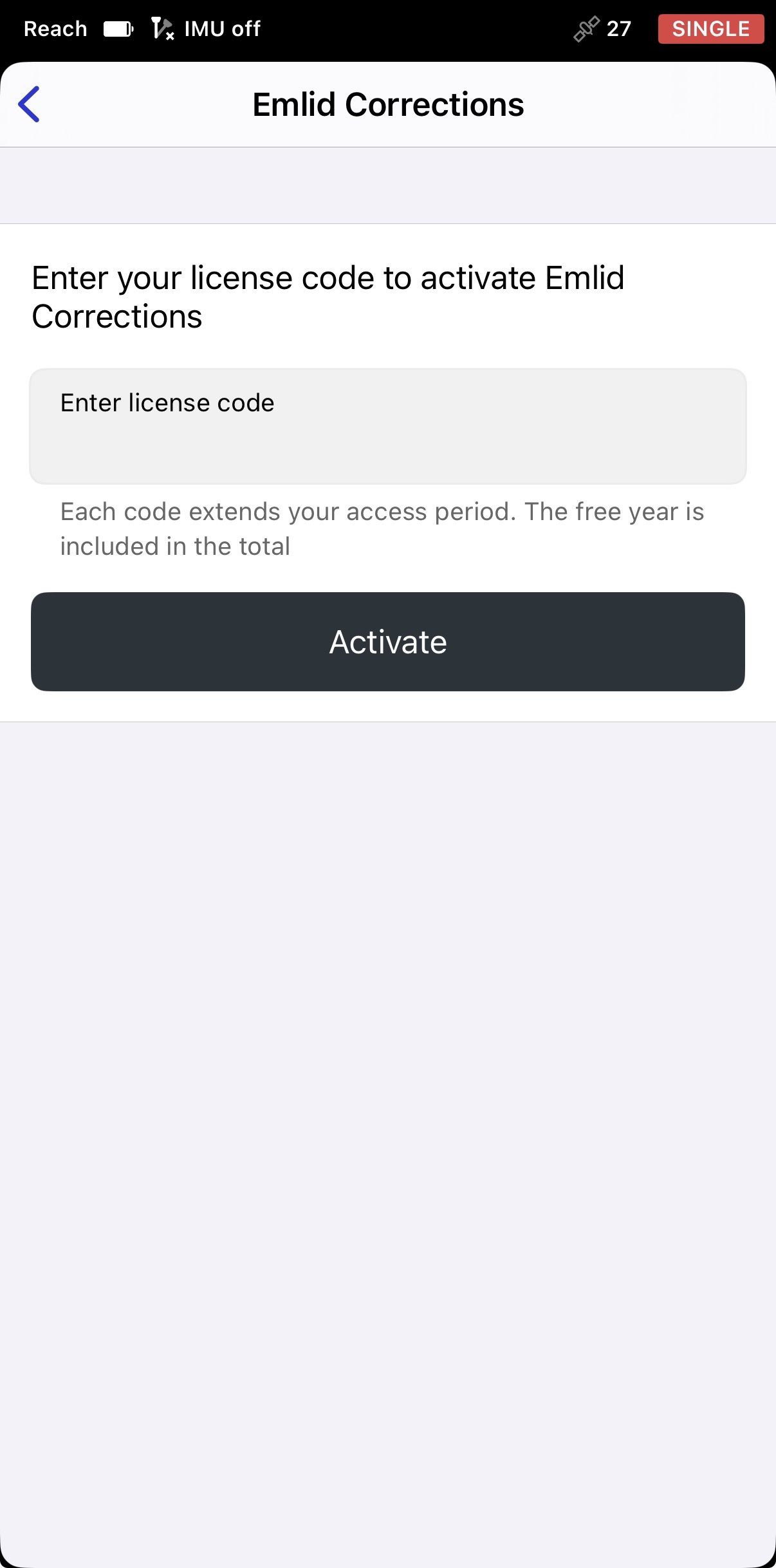
Assim que a ativação estiver concluída, você verá a data de validade da assinatura. A assinatura gratuita de um ano incluída é combinada automaticamente com a assinatura associada ao seu código de licença.
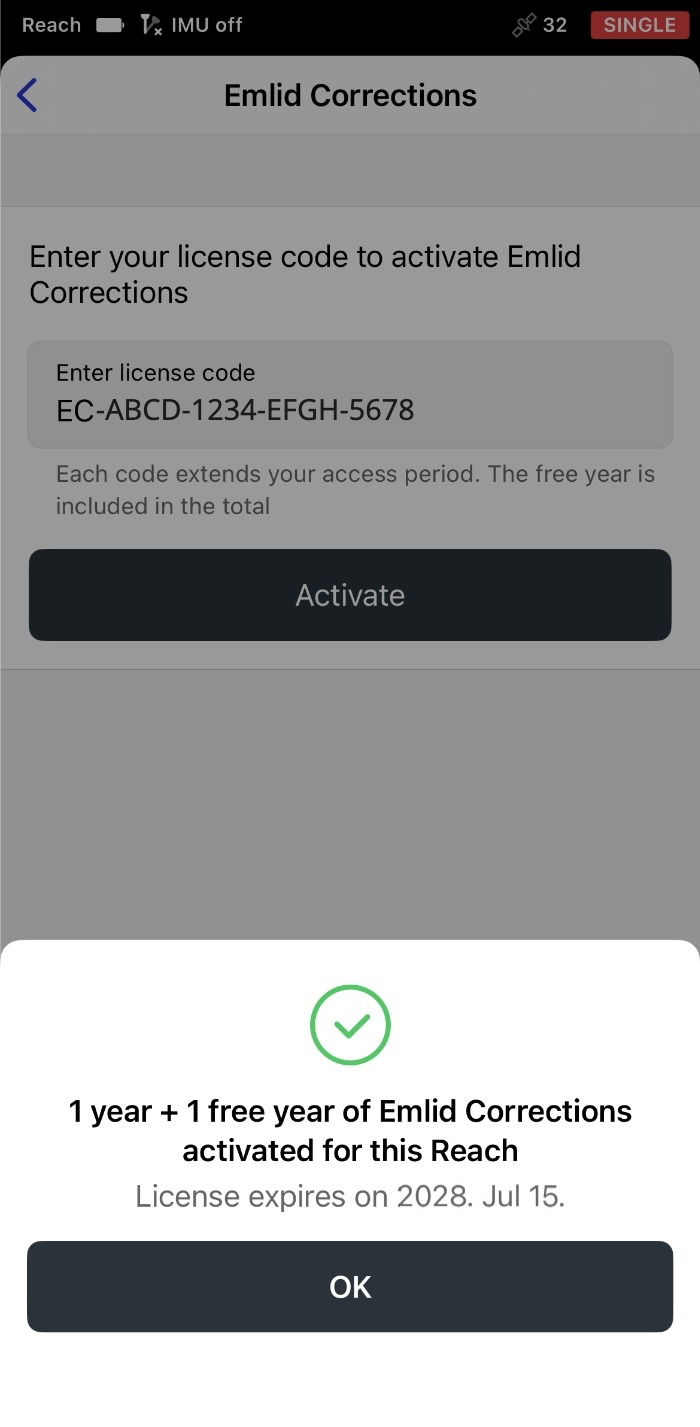
-
Toque em OK. A tela Emlid Corrections agora exibirá as informações sobre os detalhes da sua licença. Para todos os modelos compatíveis, exceto o Reach RS4 e o Reach RS4 Pro, a opção Get corrections via Emlid Flow (Obter correções via Emlid Flow) está selecionada.
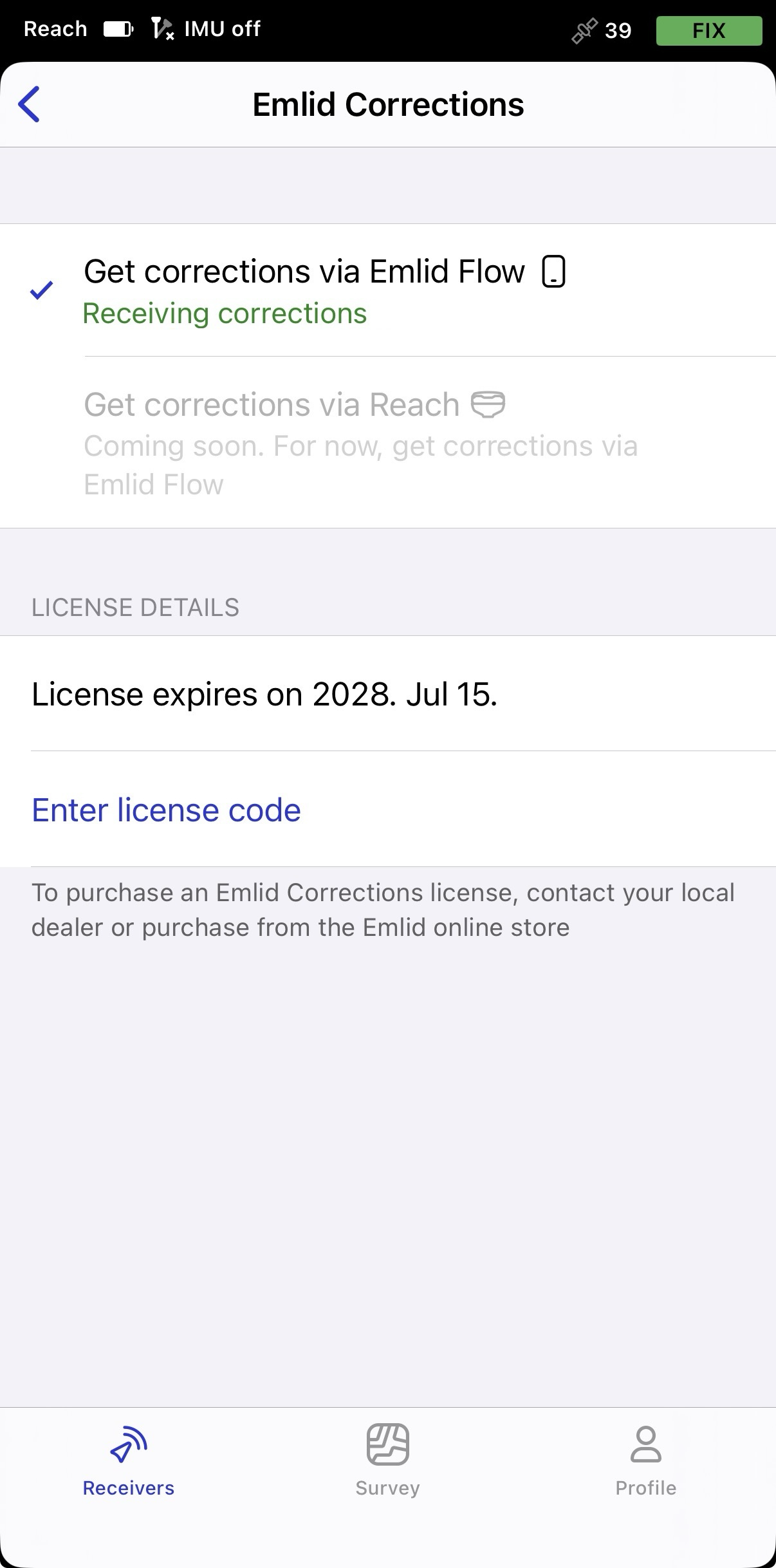
Ao trabalhar com o Reach RS4 ou o Reach RS4 Pro, você verá duas opções. Os métodos de entrega de correções disponíveis dependem da forma como você se conecta ao receptor:
- Quando conectado via Bluetooth, as correções podem ser enviadas tanto pelo Emlid Flow quanto diretamente pelo Reach. Selecione Get corrections via Reach (Receber correções via Reach) para receber correções usando a conexão à Internet do próprio Reach e permitir que o receptor funcione independentemente do seu dispositivo móvel.
- Quando conectado por Wi-Fi, as correções só podem ser enviadas pelo Reach, utilizando a própria conexão à internet do receptor.
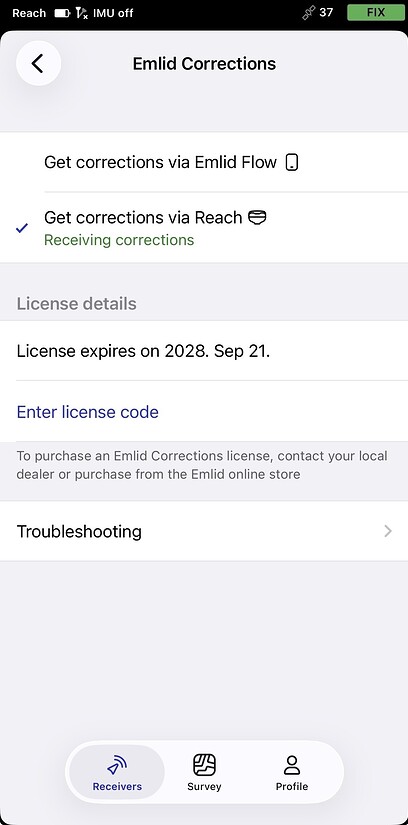
Sua licença já está ativada. Antes de iniciar seu levantamento, siga as recomendações da seção Como garantir que o Reach tenha visão desobstruída do céu abaixo para receber correções e obter uma solução FIX.
Ativação do ano gratuito
Todo receptor Reach compatível inclui uma assinatura gratuita de um ano do Emlid Corrections. Ative-o no Emlid Flow para começar a usar o serviço:
-
Abra o Emlid Flow e conecte-se ao seu receptor Reach via Bluetooth (BLE).
-
Na tela que aparecer após a conexão, toque em Activate now (Ativar agora) para começar a usar o Emlid Corrections. Se você ainda não fez login na sua conta Emlid, faça isso agora.
-
Se você ainda não fez login na sua conta da Emlid, faça login agora.
-
Depois disso, toque em Activate a free year (Ativar um ano grátis) para começar a usar o Emlid Corrections.
-
Toque em Activate a free year (Ativar um ano grátis). A assinatura gratuita de um ano está vinculada ao receptor no qual foi ativada e não pode ser transferida para outro receptor Reach. Assim que a ativação estiver concluída, você verá a data de validade da assinatura.
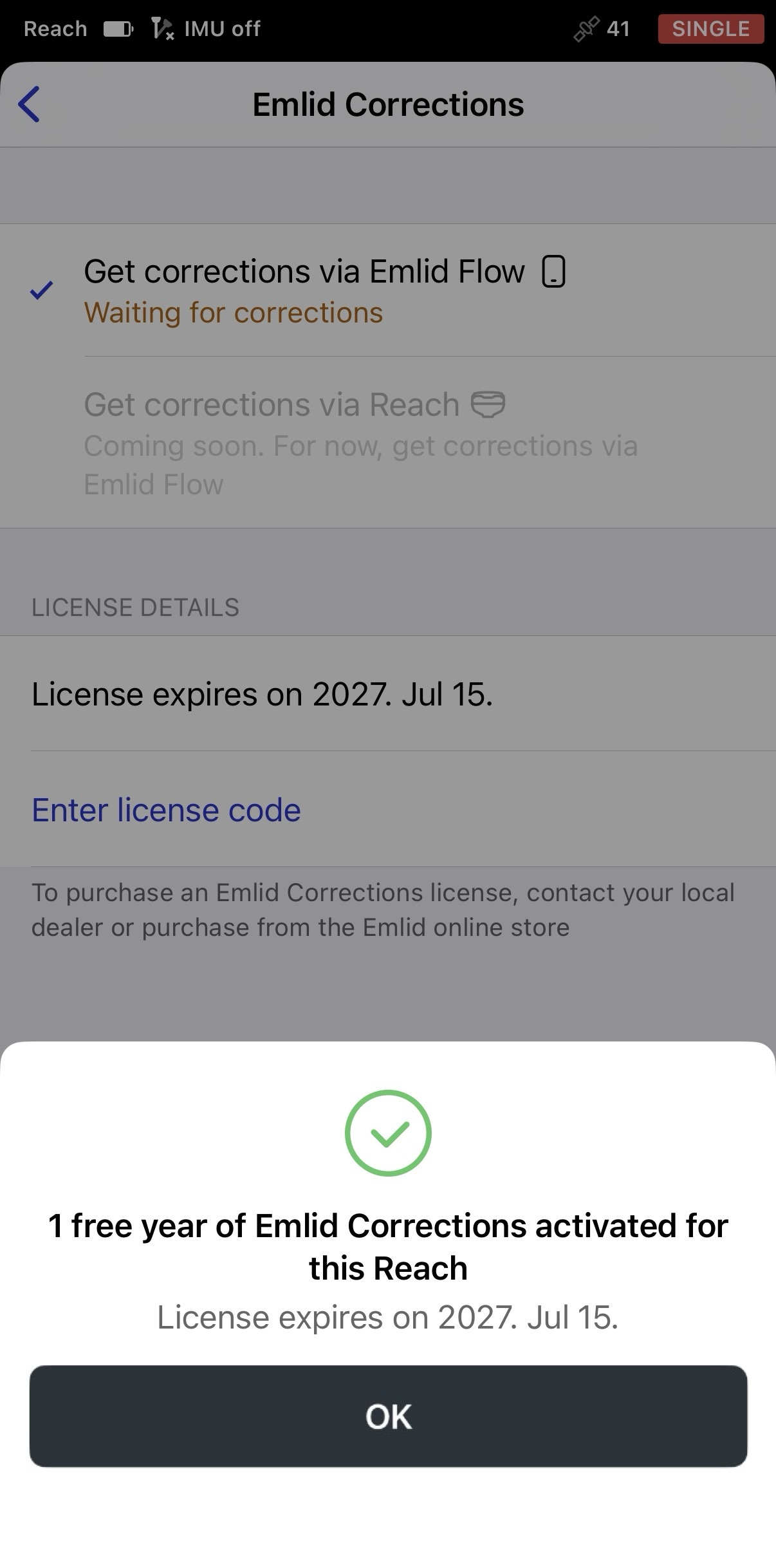
-
Toque em OK e você verá a tela Emlid Corrections. Para todos os modelos compatíveis, exceto o Reach RS4 e o Reach RS4 Pro, a opção Get corrections via Emlid Flow (Obter correções via Emlid Flow) está selecionada.
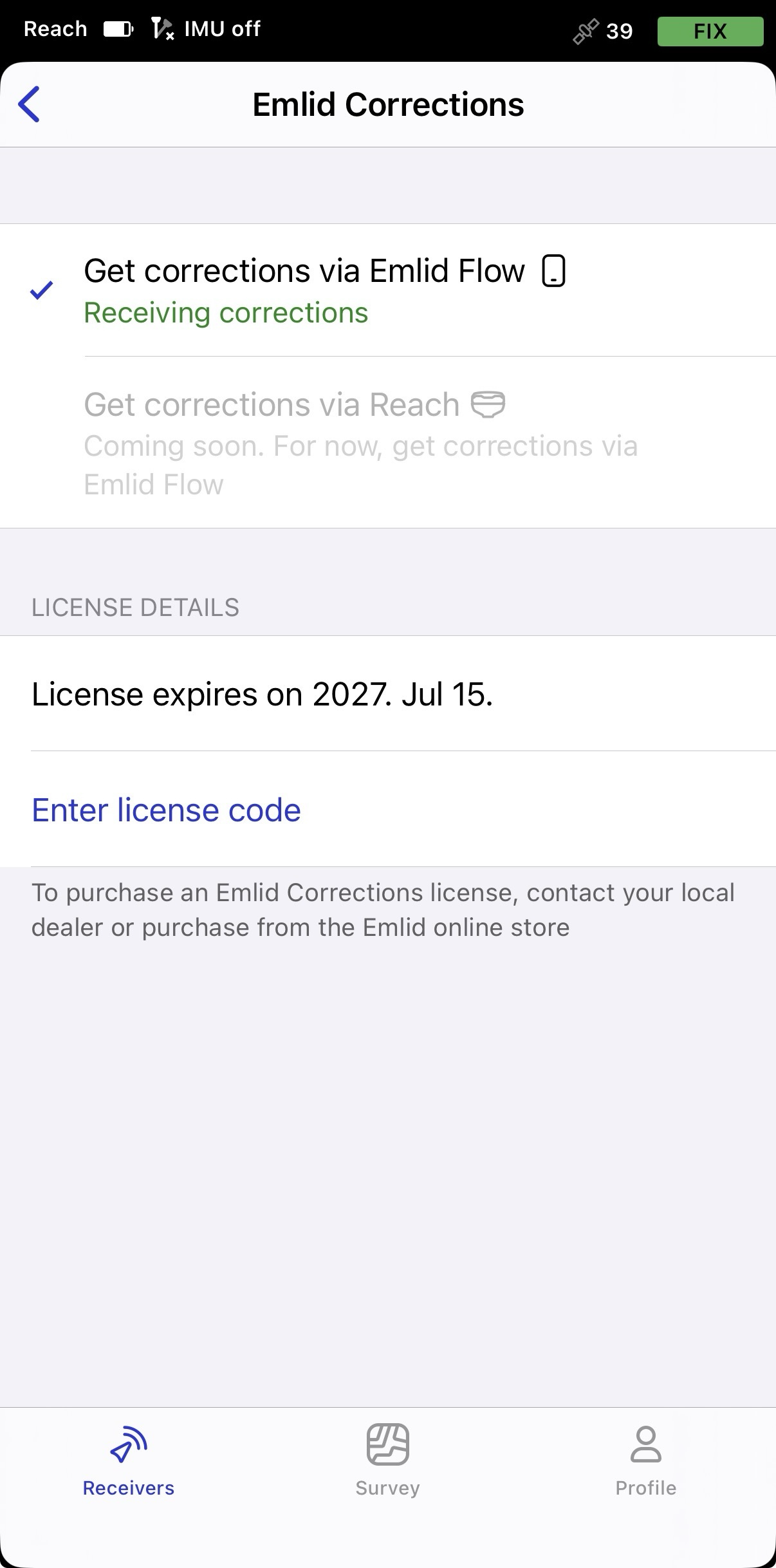
Ao trabalhar com o Reach RS4 ou o Reach RS4 Pro, você verá duas opções. Os métodos de entrega de correções disponíveis dependem da forma como você se conecta ao receptor:
- Quando conectado via Bluetooth, as correções podem ser enviadas tanto pelo Emlid Flow quanto diretamente pelo Reach. Selecione Get corrections via Reach (Receber correções via Reach) para receber correções usando a conexão à Internet do próprio Reach e permitir que o receptor funcione independentemente do seu dispositivo móvel.
- Quando conectado por Wi-Fi, as correções só podem ser enviadas pelo Reach, utilizando a própria conexão à internet do receptor.
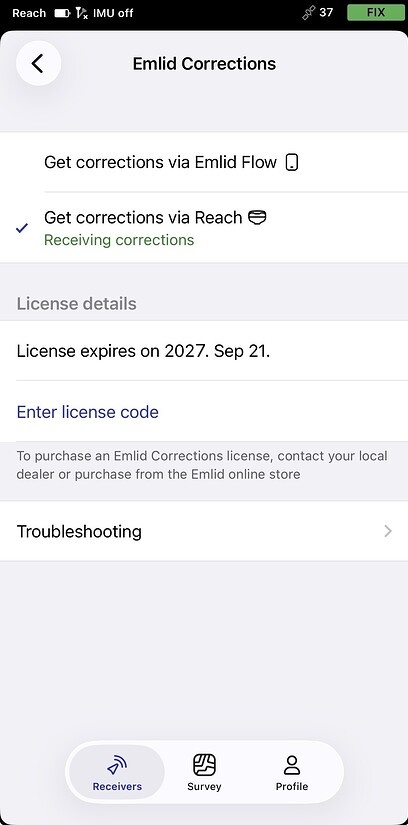
Sua licença já está ativada. Antes de iniciar seu levantamento, siga as recomendações da seção Como garantir que o Reach tenha visão desobstruída do céu abaixo para receber correções e obter uma solução FIX.
Se você adquirir um código de licença do Emlid Corrections na Loja Emlid ou junto ao seu revendedor local após ativar o período gratuito, insira o código no Emlid Flow da seguinte maneira:
-
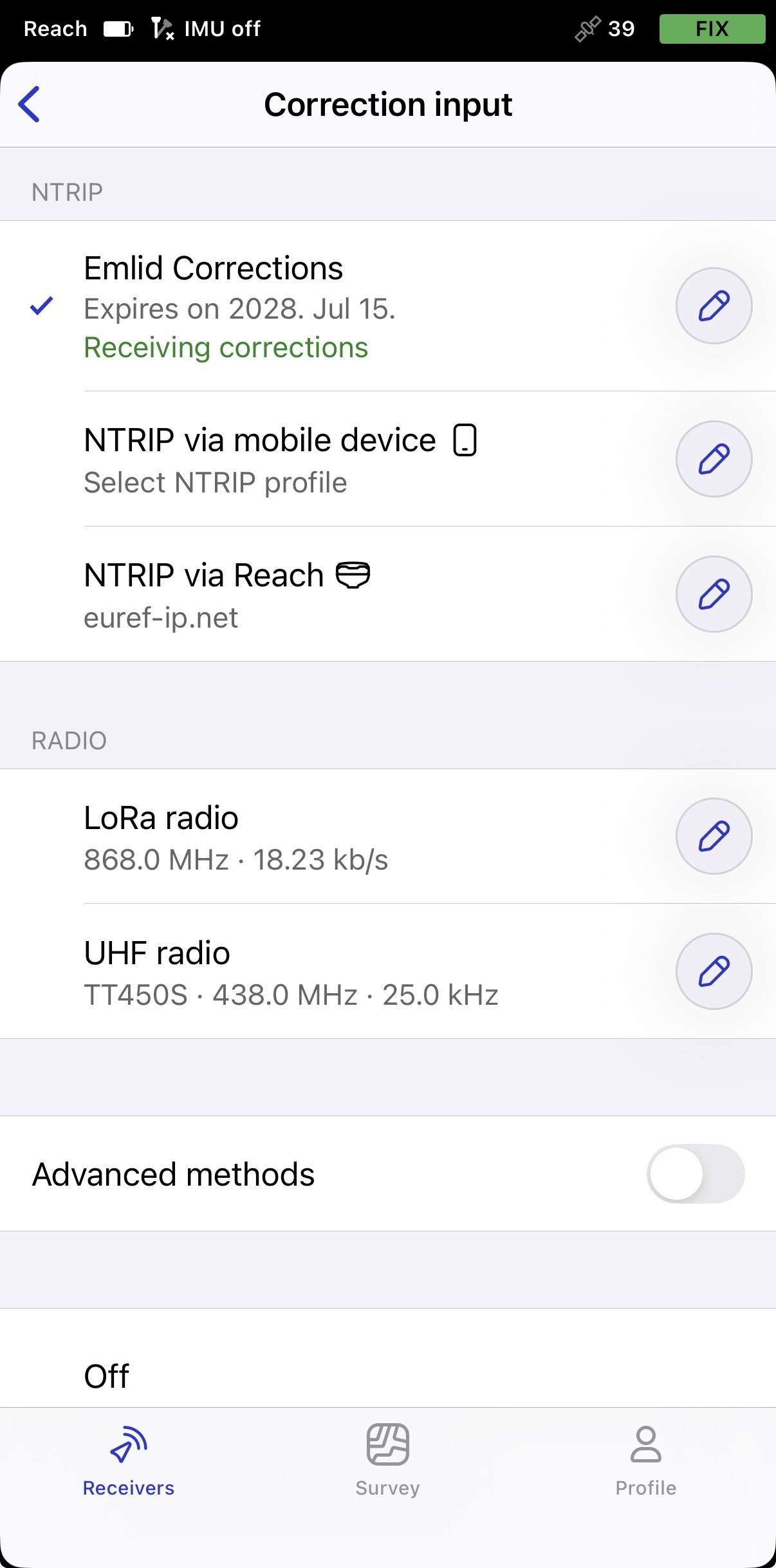
Em Settings (Configurações), toque em Correction input (Correção de entrada) e, em seguida, em Emlid Corrections.
-
Perto da célula Emlid Corrections, toque no ícone do lápis.
-
Na tela exibida, toque na seção Enter license code (Inserir código de licença).
-
Digite o código obtido. A assinatura adquirida será somada ao período gratuito restante, e a data de validade atualizada será exibida.
O código de licença já foi aplicado, e o período da licença adquirida foi adicionado ao seu período atual do Emlid Corrections.
Como garantir que o Reach tenha visão desobstruída do céu
Antes de realizar o levantamento, certifique-se de que seu Reach tenha uma visão clara do céu de, pelo menos, 30 graus acima do horizonte. Não deve haver obstáculos que possam bloquear a visão, como prédios, árvores, carros, pessoas, laptops, etc.
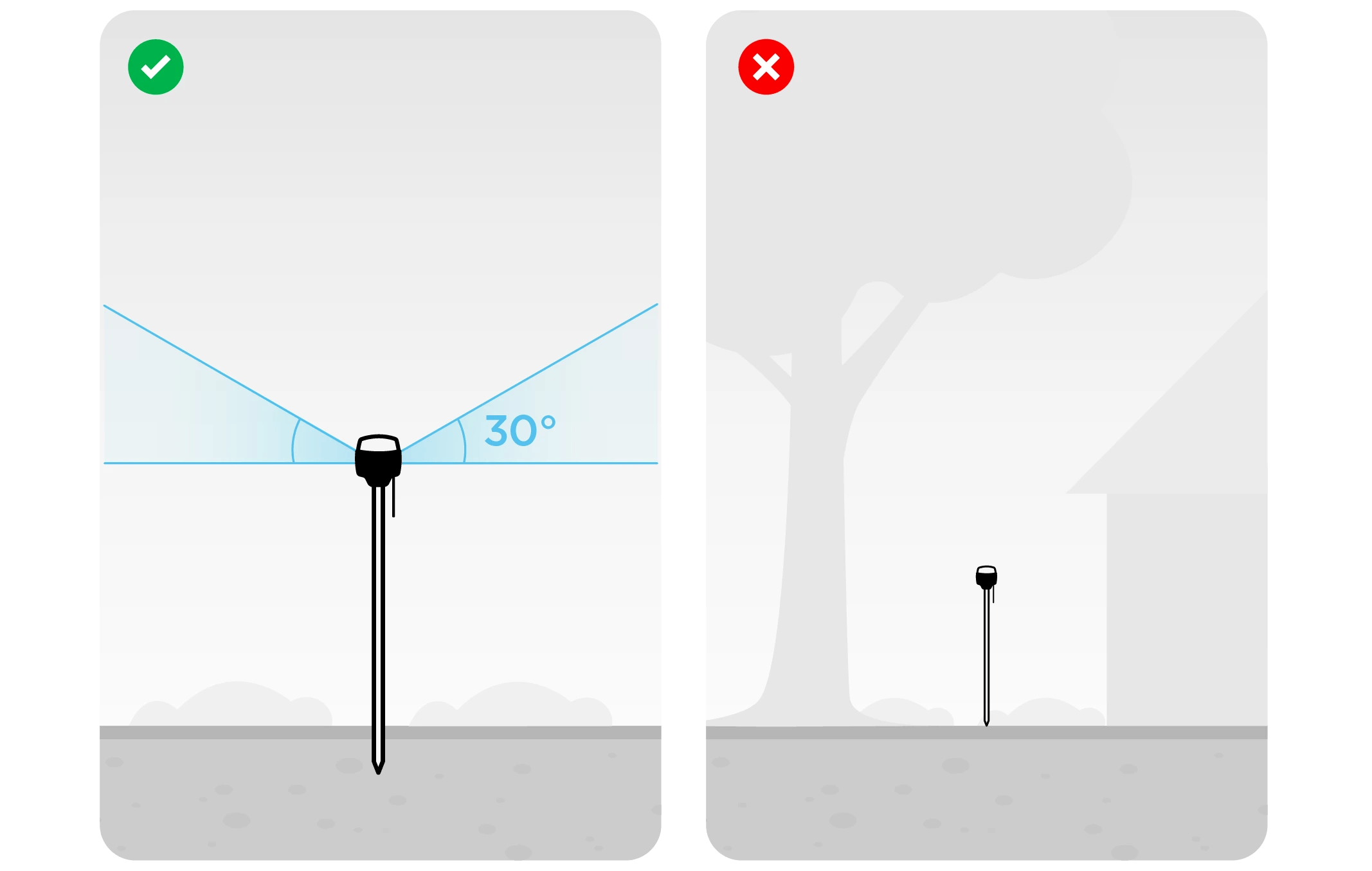
Saiba mais sobre a configuração do Reach no guia Colocação.
Quando o receptor tiver uma visão clara do céu e visibilidade do satélite, as correções começarão em alguns segundos.
Visualizando resultados
Ao concluir a configuração do RTK por meio do Emlid Corrections, você poderá ver o status atual da solução no canto superior direito do aplicativo Emlid Flow:
- SINGLE significa que o rover encontrou uma solução que depende de seu próprio receptor e que as correções de base não são aplicadas. A precisão em modo standalone situa-se geralmente no nível de vários metros.
- FLOAT significa que o rover recebe os dados de observação e a posição da estação base, mas não consegue resolver as ambiguidades necessárias para calcular sua posição com precisão na ordem de centímetros. Nesse caso, a precisão do posicionamento pode variar de alguns centímetros a cerca de 1 metro.
- FIX significa que o rover, usando as correções da base, resolveu as ambiguidades em seu cálculo posicional e obteve a solução com precisão de centímetro.
Após um curto período de tempo, o rover obtém uma solução fixa. Em bons ambientes, demorará alguns segundos para obter uma solução de fixação. Em condições difíceis, pode demorar um pouco mais. Assim que o rover receber o FIX, estará tudo pronto para o levantamento topográfico.