Getting Started
This guide shows you how to use Emlid Corrections in Emlid Flow with Reach receivers.
Before you begin
To start using the Emlid corrections service, you need the following:
-
supported model of the Reach receiver,
-
Emlid Flow app installed,
-
An Emlid account to activate the license and use Emlid Corrections.
-
Internet connection to receive corrections. All supported Reach models can receive Emlid Corrections through Emlid Flow over Bluetooth (BLE). In this setup, your mobile device provides the internet connection and must stay connected to Reach via Bluetooth. Reach RS4 and RS4 Pro can also use their own cellular connection to receive Emlid Corrections.
tipTo learn how to receive Emlid Corrections using the built-in LTE modem on Reach RS4 and RS4 Pro, see the How to set up RTK over Emlid Corrections guide.
Downloading Emlid Flow
To manage your Reach receiver and get access to the service, download the Emlid Flow app on your iOS or Android device.


Download Emlid Flow
Some Android devices have battery optimization enabled by default. Make sure you disable it for Emlid Flow to avoid disconnection.
Connecting to Reach
For most supported Reach models, Emlid Corrections is available only when you connect to the receiver via Bluetooth (BLE) in Emlid Flow. Reach RS4 and RS4 Pro also support a hotspot connection when the receiver gets internet access through its built-in modem. To learn how to receive Emlid Corrections using the built-in LTE modem on Reach RS4 and RS4 Pro, see the How to set up RTK over Emlid Corrections guide.
To connect to your Reach receiver using Bluetooth, follow these steps:
-
Enable Bluetooth on your smartphone or tablet.
-
Open the Emlid Flow app. When prompted, do the following depending on the platform:
- On iOS, allow Bluetooth access so the app can find and connect to Reach receivers. Then, allow local network access so it can discover and connect to Reach receivers over Wi-Fi.
- On Android, allow Bluetooth access so the app can find and connect to Reach receivers. Then, allow notifications to help maintain the connection and receive corrections from the receiver.
noteThe required permissions may vary between Android versions. Devices running Android 12 and earlier typically require fewer permissions than Android 13 and later.
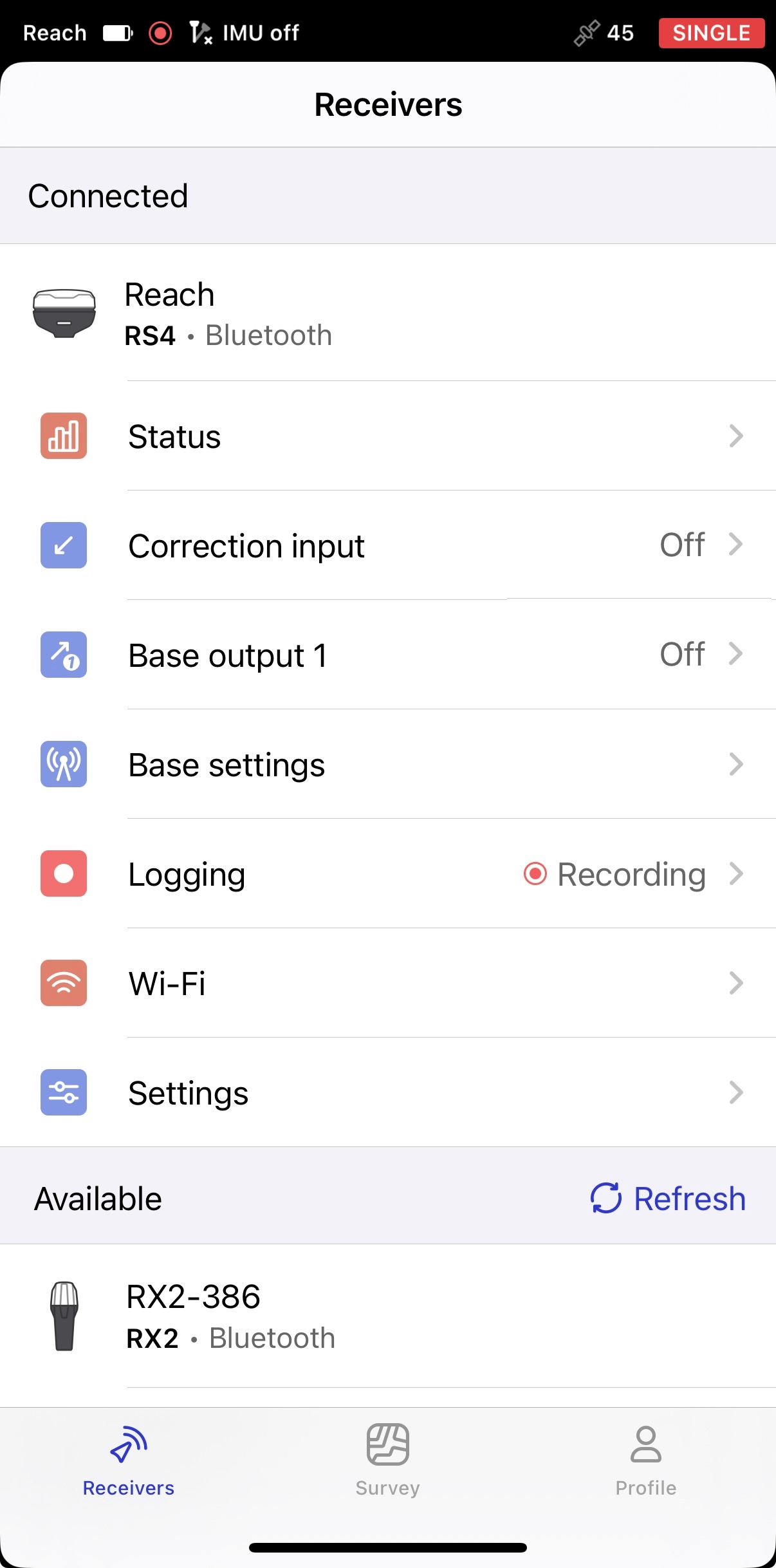
These permissions are required for full receiver functionality. After you grant them, the receiver will appear in the list and the app connect to it automatically. If multiple Reach receivers are available, tap the receiver you want to connect to and wait for the connection to complete.
-
Once connected, check for firmware updates. If an update is available, a red dot will show next to the Settings section. Update the receiver firmware.
noteThis step is optional, but we recommend updating your receiver regularly to ensure full functionality and access to the latest features. For more details, check out the How to update firmware guide.
Now you can proceed with creating an Emlid account.
Creating Emlid account
An Emlid account allows you to sync your projects between Emlid Flow and Emlid Flow 360 as well as between different devices, and instantly save the progress of your survey. To sync projects, you need an Emlid account and an internet connection. Once you’re logged in, every change in your projects will be synced in real-time. You can have access to all your project data, custom coordinate systems, code libraries, and NTRIP profiles across your devices.
Using an Emlid account, you can access our Community forum and Emlid Caster.
To create an Emlid account, follow the steps below:
-
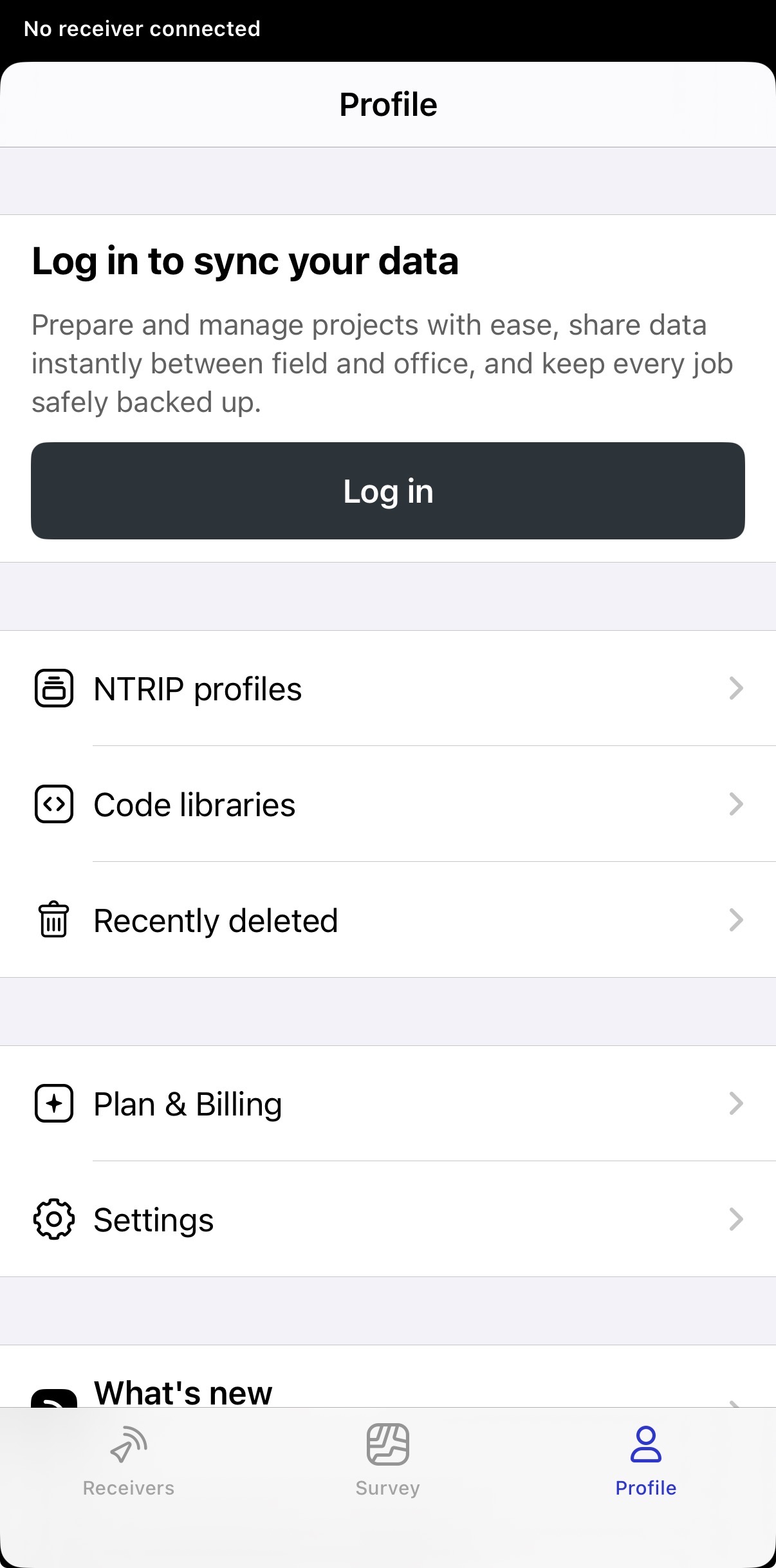
Open Emlid Flow and go to the Profile tab.
-
Tap the Log in button. You will be redirected to the Emlid account creation page.
-
To create an account, go to the Sign Up tab.
-
Type in your email and password in the corresponding fields.
-
Tap the SIGN UP button.
-
Verify your email address by following the on-screen instructions.
After creating an Emlid account, you can activate your free year of Emlid Corrections or apply a license code.
Activating license code
If you purchased a Reach receiver bundled with Emlid Corrections, you'll receive a license code. Activating the license also automatically applies the included free one-year subscription to the same receiver. To activate the license code, do as follows:
-
Open Emlid Flow and connect to your Reach receiver via BLE.
-
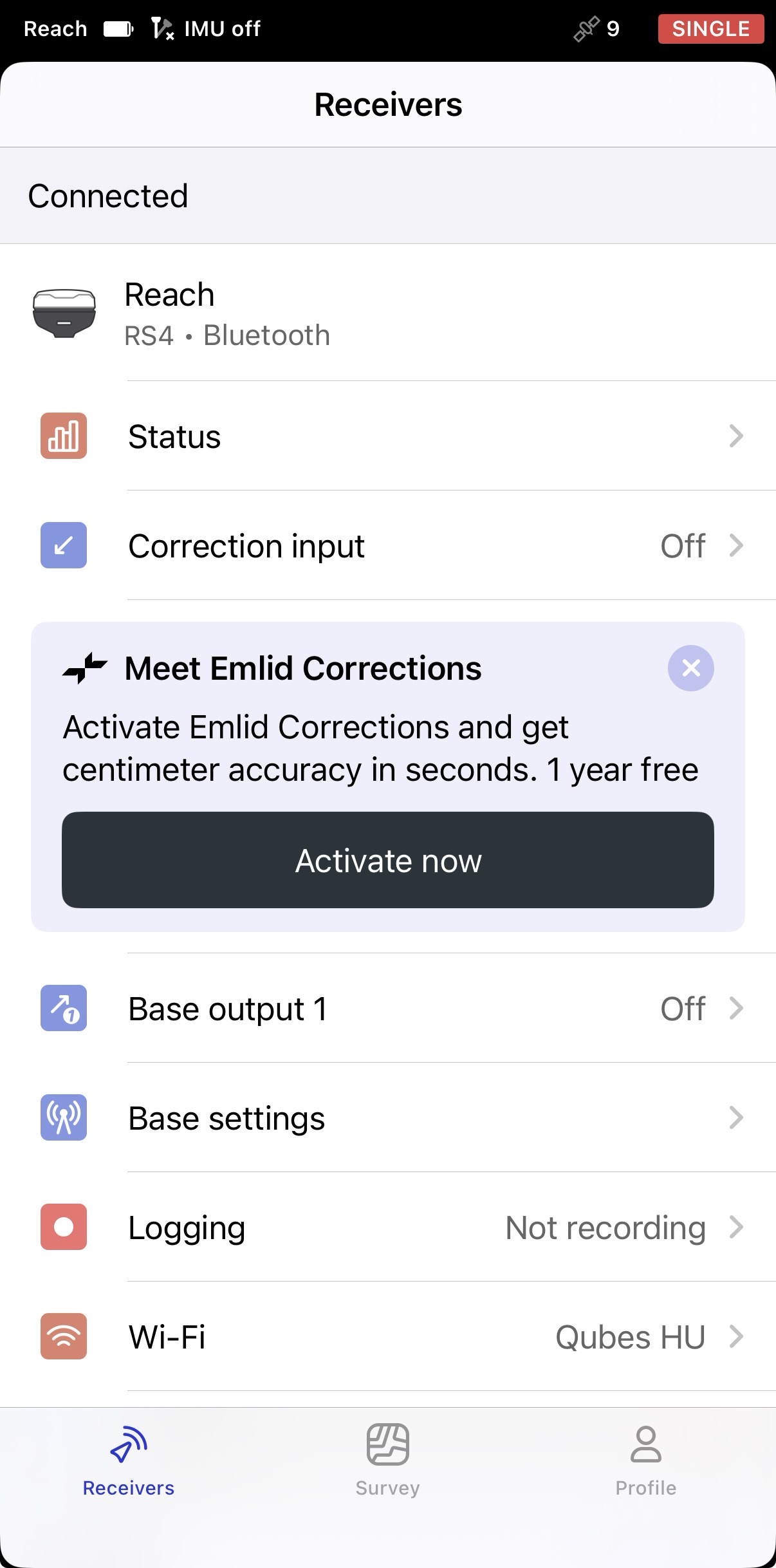
On the screen that opens after connecting, tap Activate now to start using Emlid Corrections.
-
If you haven’t signed in to your Emlid account, sign in now.
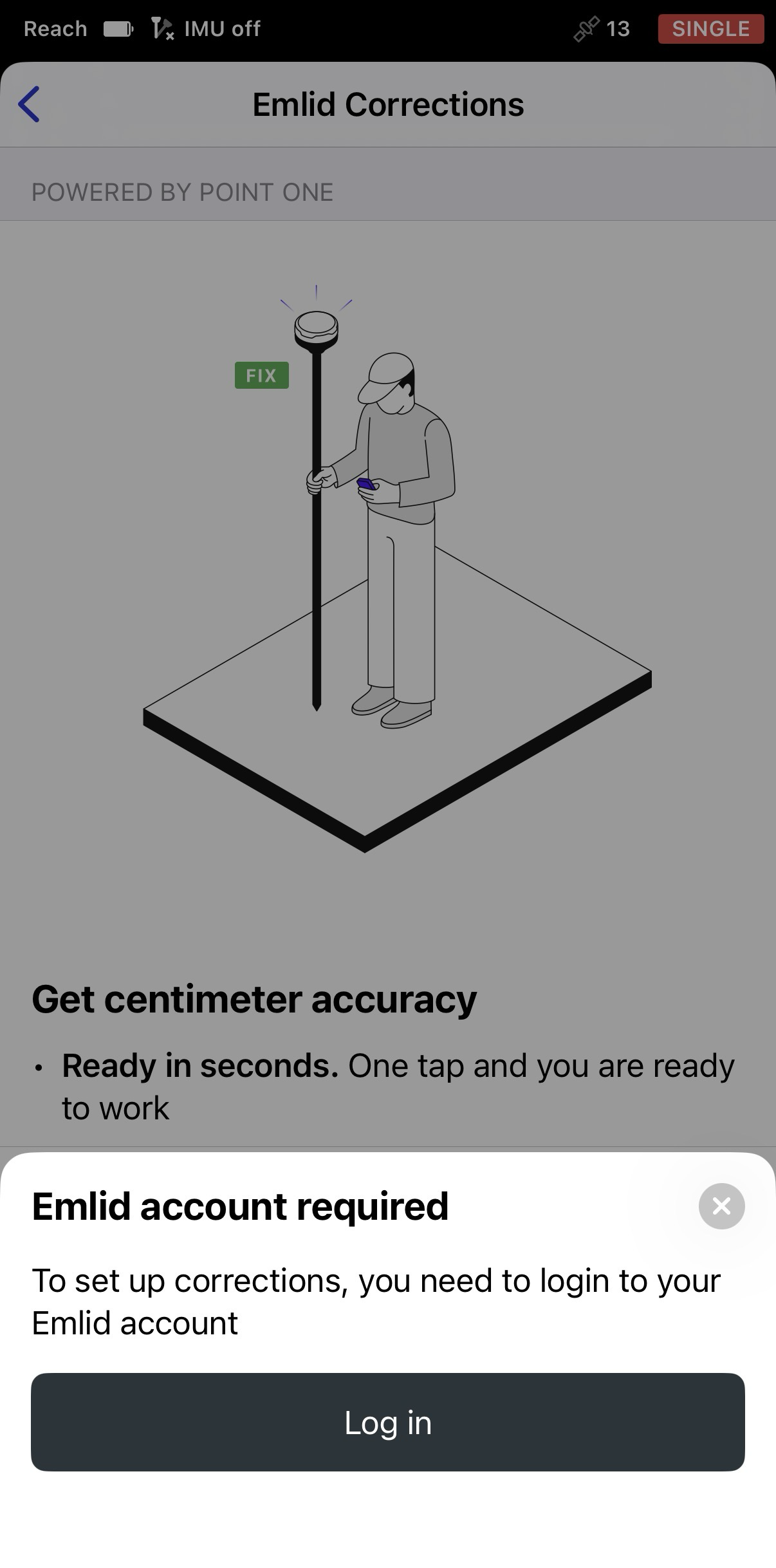
-
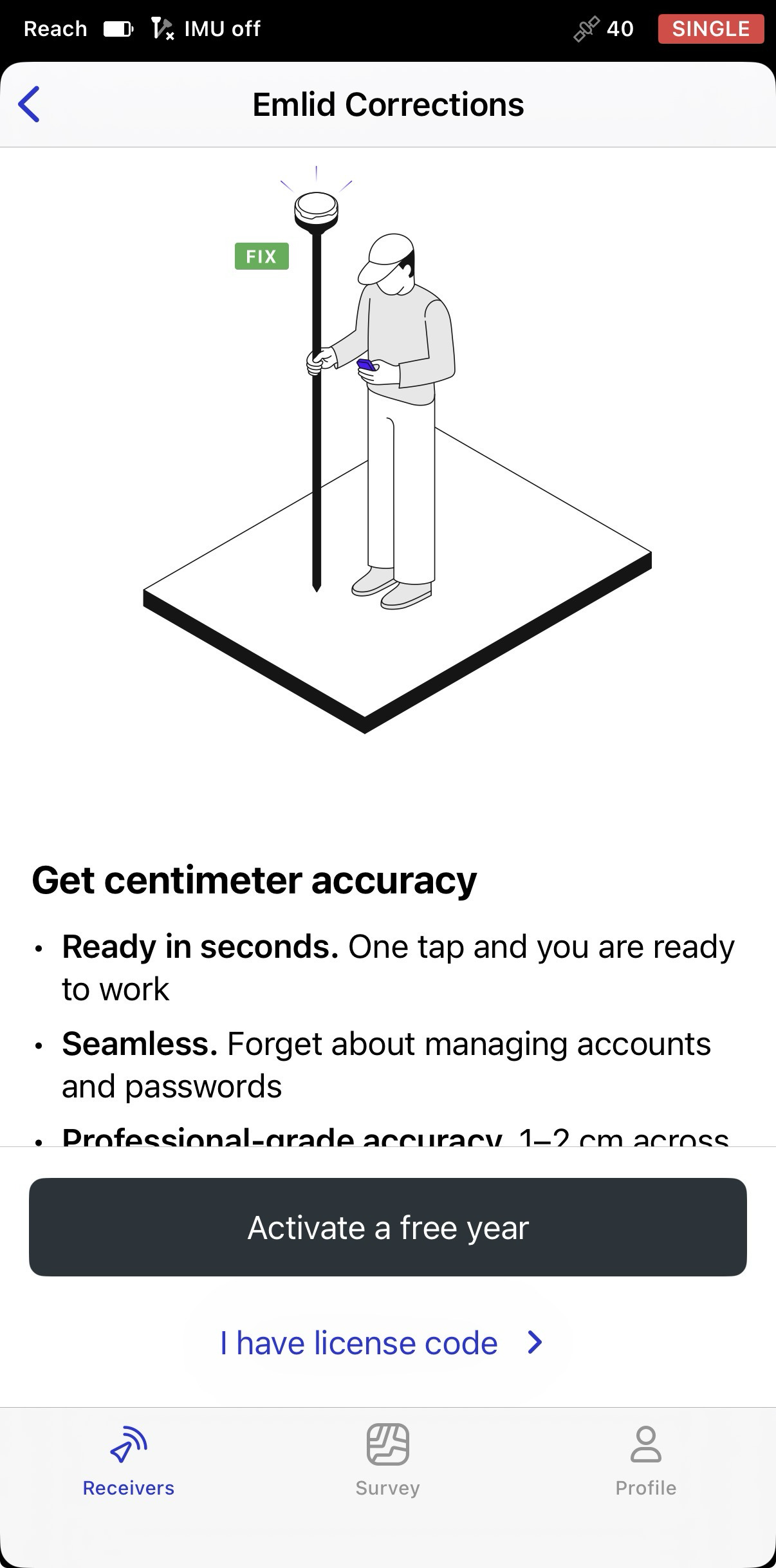
After that, tap I have a license code.
-
Tap Enter license code.
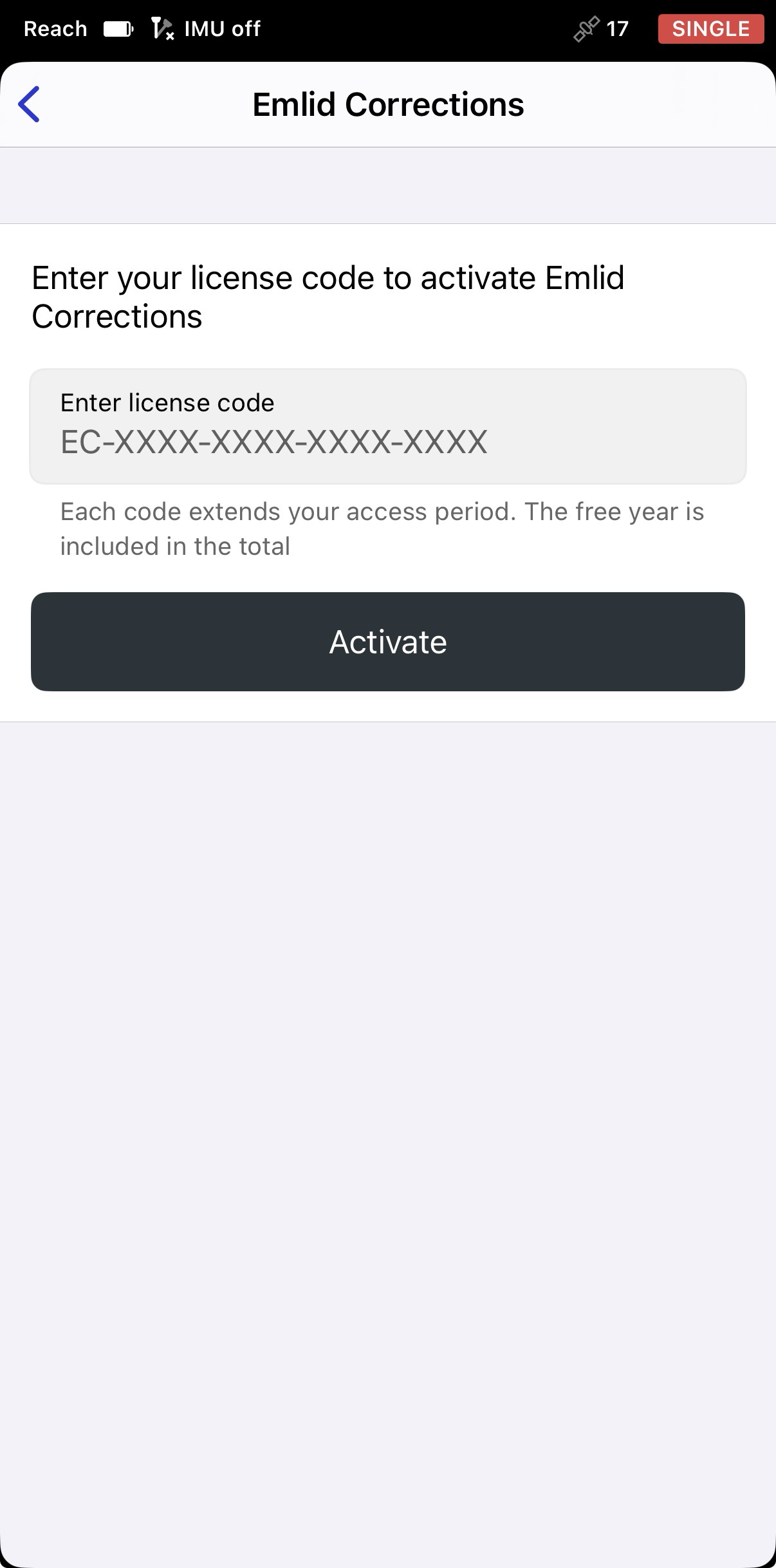
-
Enter the license code and then tap Activate.
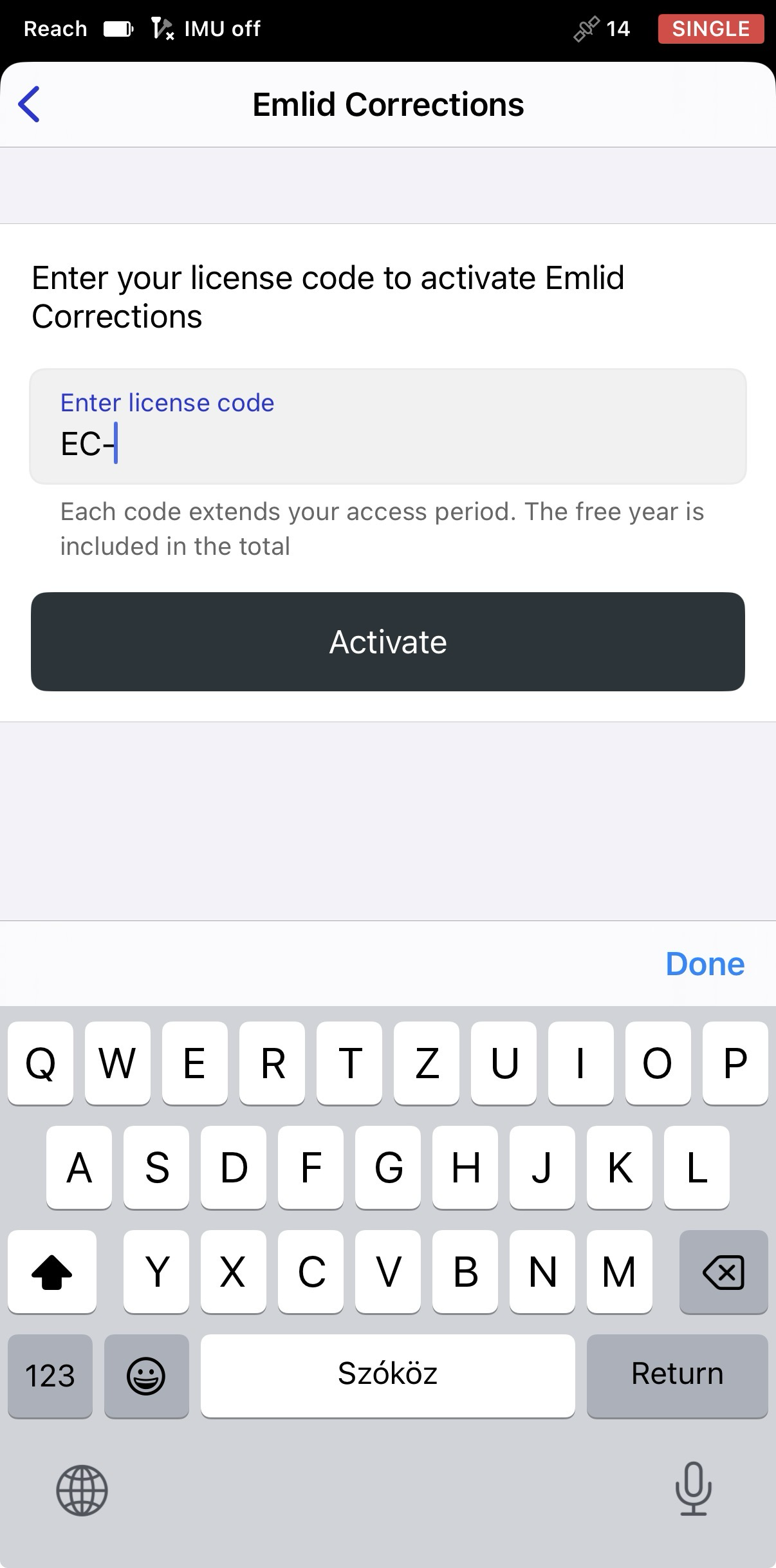
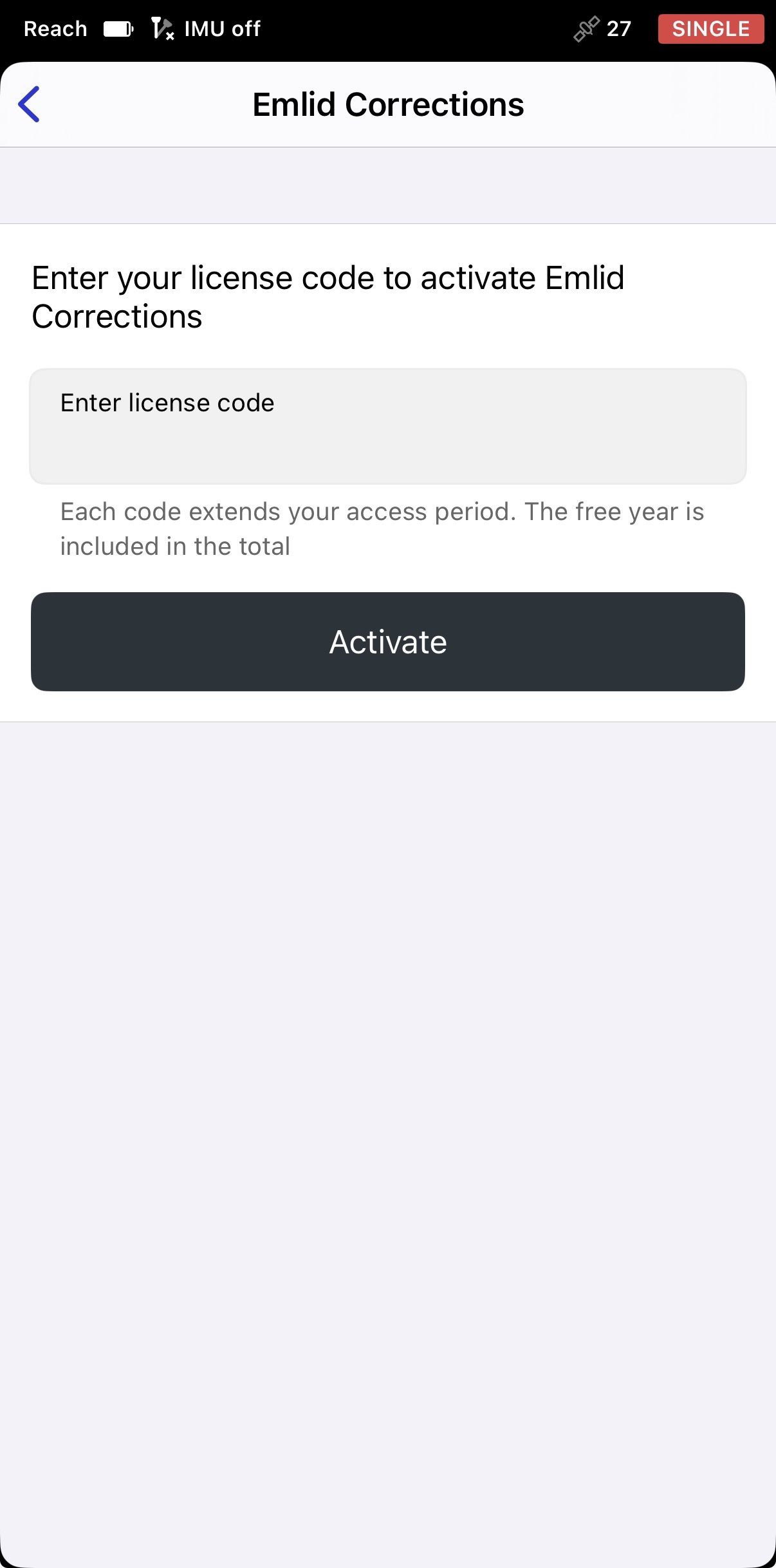
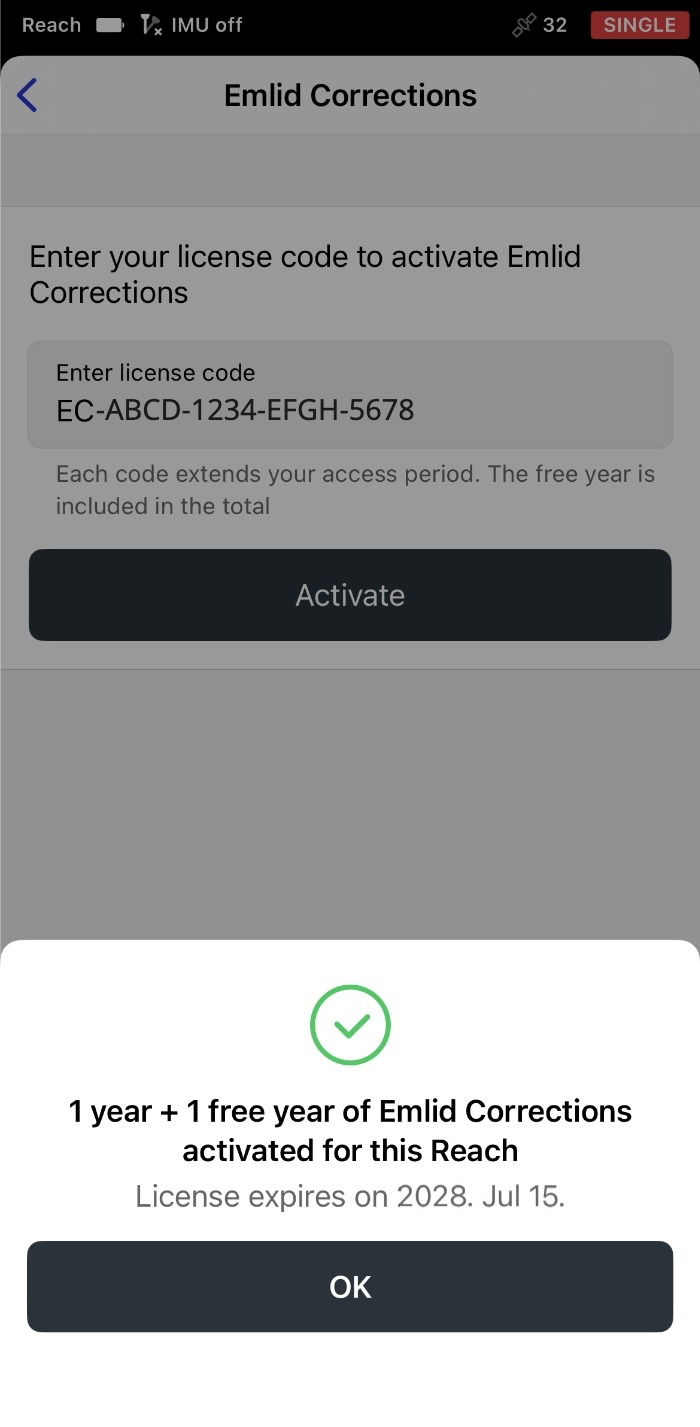
Once activation is complete, you'll see the subscription expiration date. The included free one-year subscription is automatically combined with the subscription from your license code.
-
Tap OK. The Emlid Corrections screen will now show you the information on your license details. For all supported models except Reach RS4 and Reach RS4 Pro, Get corrections via Emlid Flow is selected.
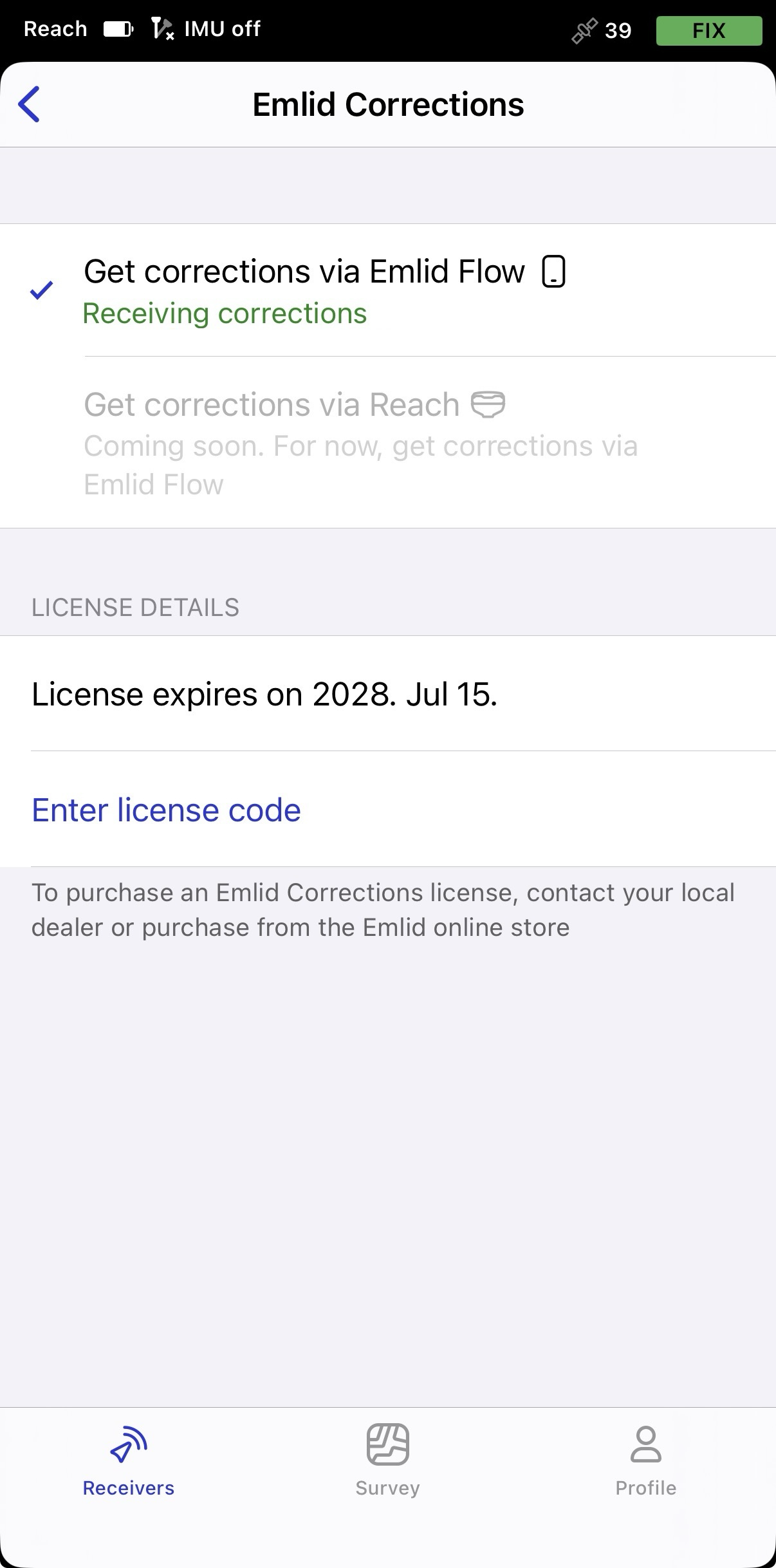
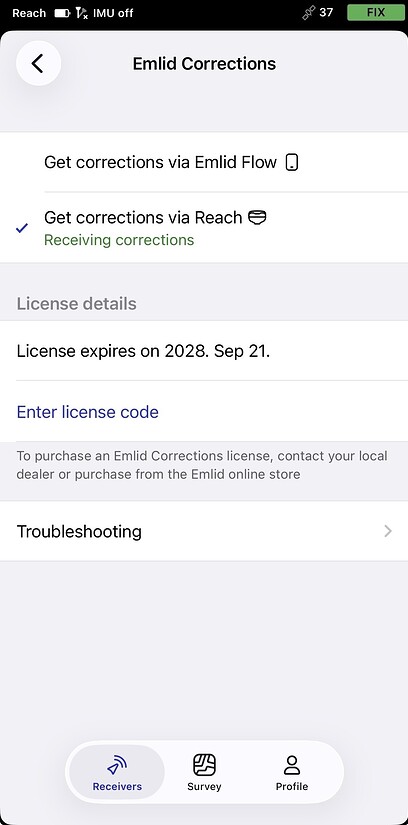
When working with Reach RS4 or Reach RS4 Pro, you will see two options. The available correction delivery methods depend on how you connect to the receiver:
- When connected via Bluetooth, corrections can be delivered either through Emlid Flow or directly through Reach. Select Get corrections via Reach to receive corrections using Reach’s own internet connection and let the receiver work independently of your mobile device.
- When connected via Wi-Fi, corrections can be delivered only through Reach using the receiver’s own internet connection.
Your license is now activated. Before starting your survey, follow the recommendations in the Providing Reach with clear sky view section below to receive corrections and achieve a FIX solution.
Activating free year
Every compatible Reach receiver includes a free one-year subscription to Emlid Corrections. Activate it in Emlid Flow to start using the service:
-
Open Emlid Flow and connect to your Reach receiver via Bluetooth (BLE).
-
On the screen that opens after connecting, tap Activate now to start using Emlid Corrections. If you didn’t log in to your Emlid account, do it now.
-
If you haven’t signed in to your Emlid account, sign in now.
-
After that, tap Activate a free year to start using Emlid Corrections.
-
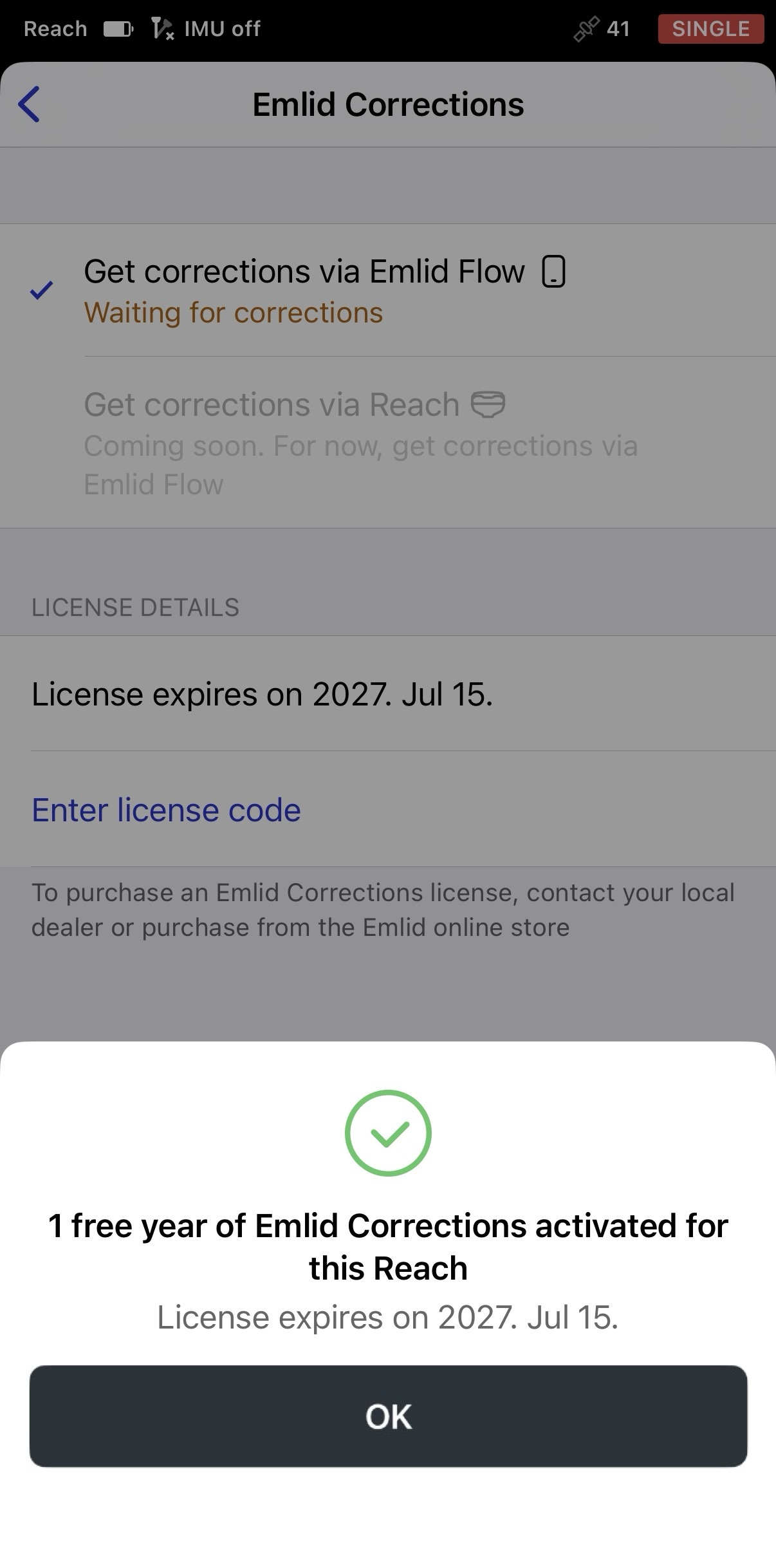
Tap Activate a free year. The free one-year subscription is tied to the receiver on which it is activated and cannot be transferred to another Reach receiver. Once activation is complete, you'll see the subscription expiration date.
-
Tap OK, and you’ll see the Emlid Corrections screen. For all supported models except Reach RS4 and Reach RS4 Pro, Get corrections via Emlid Flow is selected.
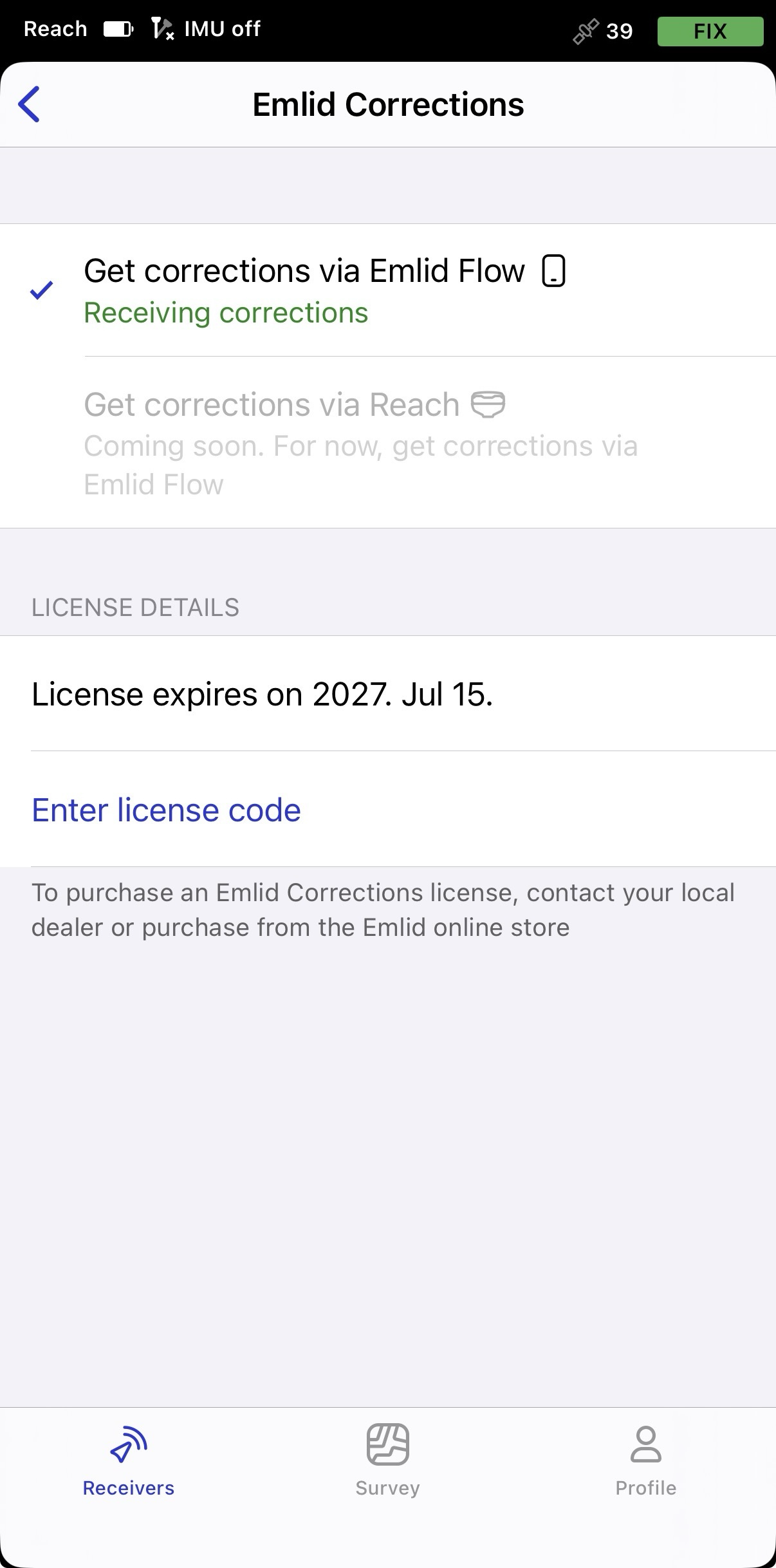
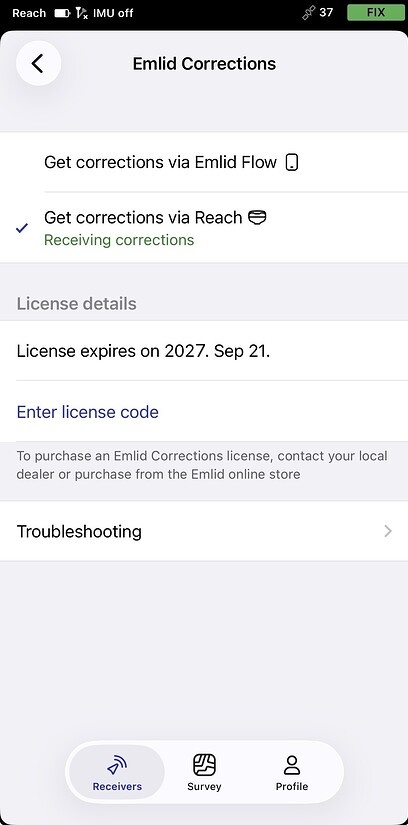
When working with Reach RS4 or Reach RS4 Pro, you will see two options. The available correction delivery methods depend on how you connect to the receiver:
- When connected via Bluetooth, corrections can be delivered either through Emlid Flow or directly through Reach. Select Get corrections via Reach to receive corrections using Reach’s own internet connection and let the receiver work independently of your mobile device.
- When connected via Wi-Fi, corrections can be delivered only through Reach using the receiver’s own internet connection.
Your license is now activated. Before starting your survey, follow the recommendations in the Providing Reach with clear sky view section below to receive corrections and achieve a FIX solution.
If you purchase an Emlid Corrections license code from the Emlid Store or your local dealer after activating the free period, enter the code in Emlid Flow as follows:
-
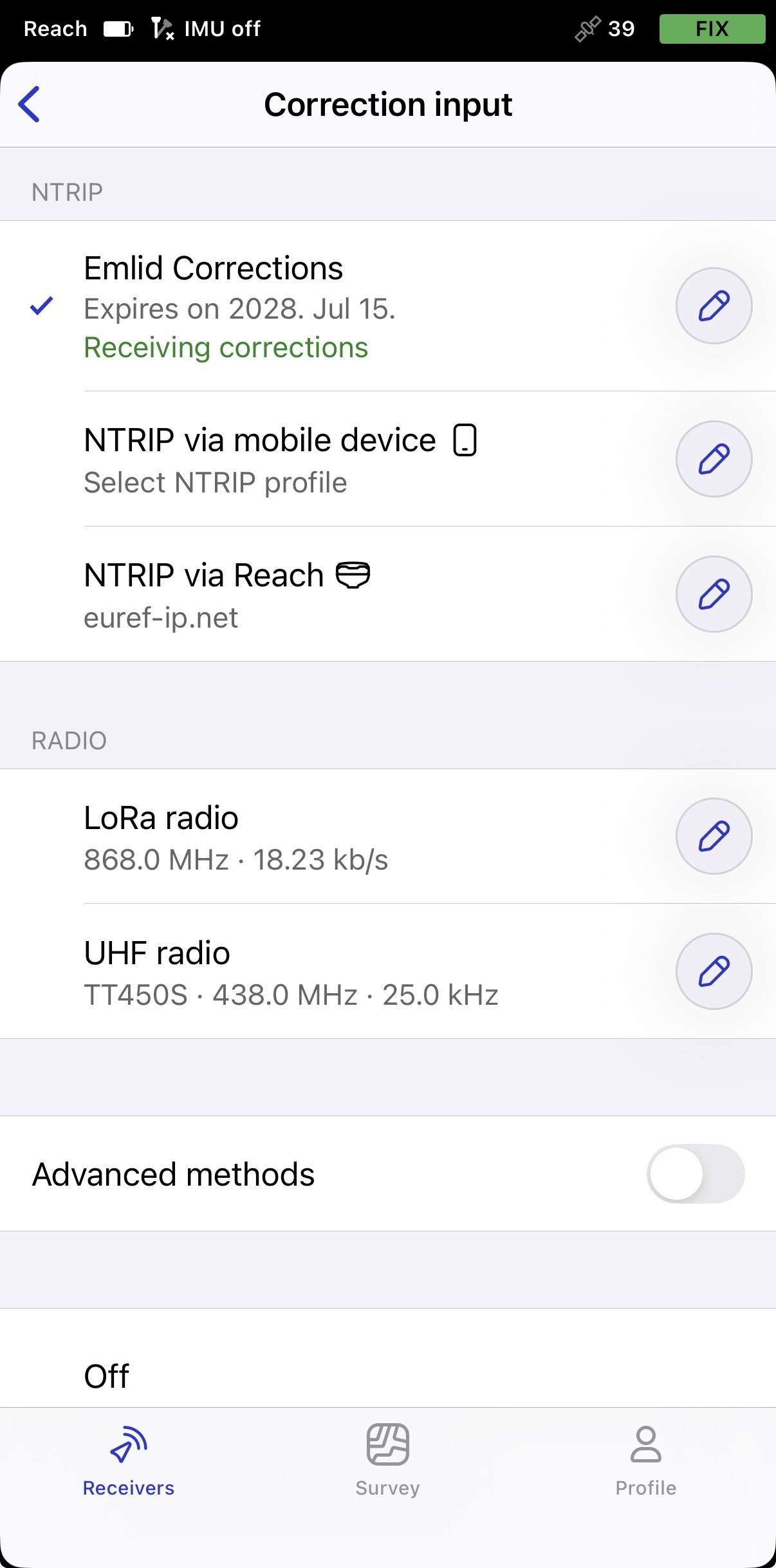
In Settings, tap Correction input, and then Emlid corrections.
-
Near the Emlid corrections cell, tap the pencil icon.
-
On the opened screen, tap Enter license code section.
-
Enter the obtained code. The purchased subscription will be added to the remaining free period, and the updated expiration date is displayed.
The license code is now applied, and the purchased license period is added to your existing Emlid Corrections period.
Providing Reach with clear sky view
Before surveying, make sure your Reach has a clear sky view of at least 30 degrees above the horizon. There should be no obstacles that could block the view like buildings, trees, cars, people, laptops, etc.
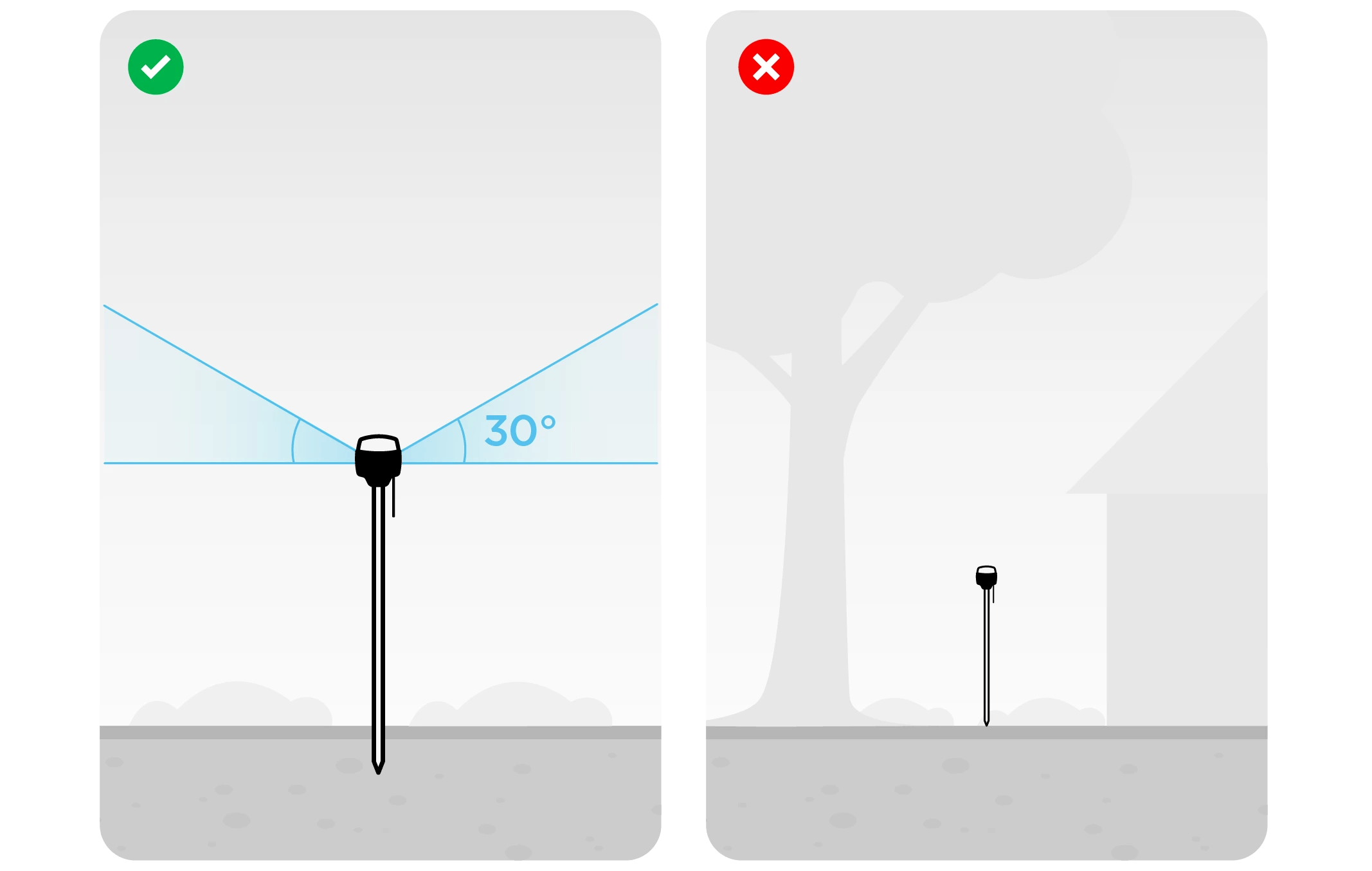
Learn more about Reach setup in the Placement guide.
Once the receiver has a clear sky view and satellite visibility, corrections will start within a few seconds.
Viewing results
When you complete your RTK setup over Emlid Corrections, you can see the current solution status in the top right corner of the Emlid Flow app:
- SINGLE means that the rover has found a solution relying on its own receiver and base corrections are not applied. Precision in standalone mode is usually at the several-meter level.
- FLOAT means that the rover receives the base station's observation data and position but cannot resolve ambiguities needed to calculate its position with centimeter-level accuracy. In this case, the positioning accuracy can vary from a few centimeters to about 1 meter.
- FIX means that the rover using corrections from the base resolved the ambiguities in its positional calculation and achieved the solution with the centimeter-level precision.
After a short period of time, the rover gets a fixed solution. In good environments, it will take a few seconds to get a fixed solution. In tough conditions, it may take a little longer. Once rover gets FIX, you are all set for surveying.