How to update firmware
If your receiver has firmware version 34.1, update it using the Reach Firmware Flash Tool to ensure a smooth update process. Before flashing, make sure you’ve downloaded any available logs, as the flashing process will delete them.
This guide explains how to update the firmware on your Reach RS4 / RS4 Pro using the Updater tool in the Emlid Flow app.
Overview
Updater is a tool in Emlid Flow that helps update the firmware on your receiver. Firmware refers to the background program that runs your receiver and requires updates to upgrade the receiver with new features, optimize its performance, and protect it from vulnerabilities.
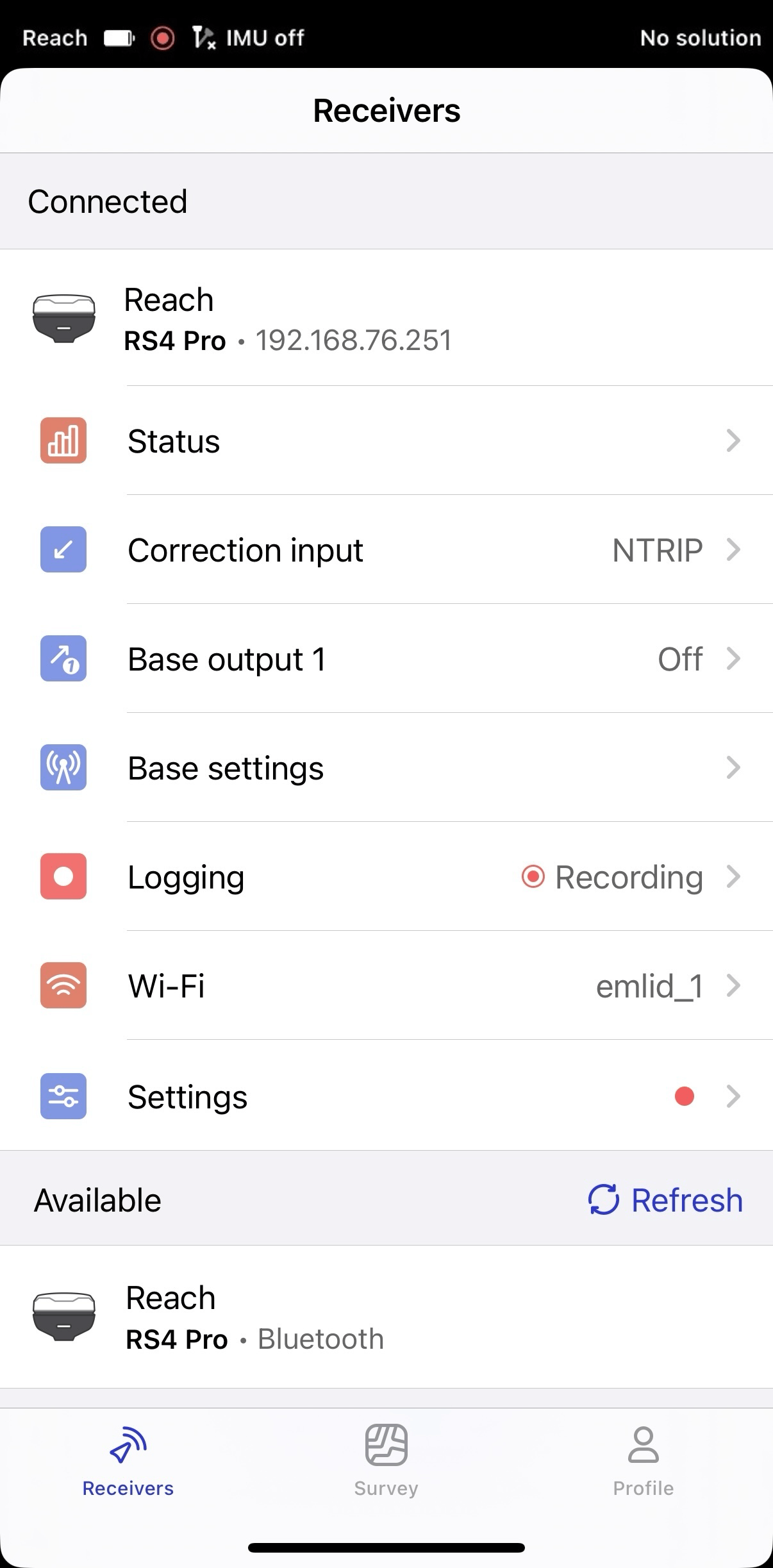
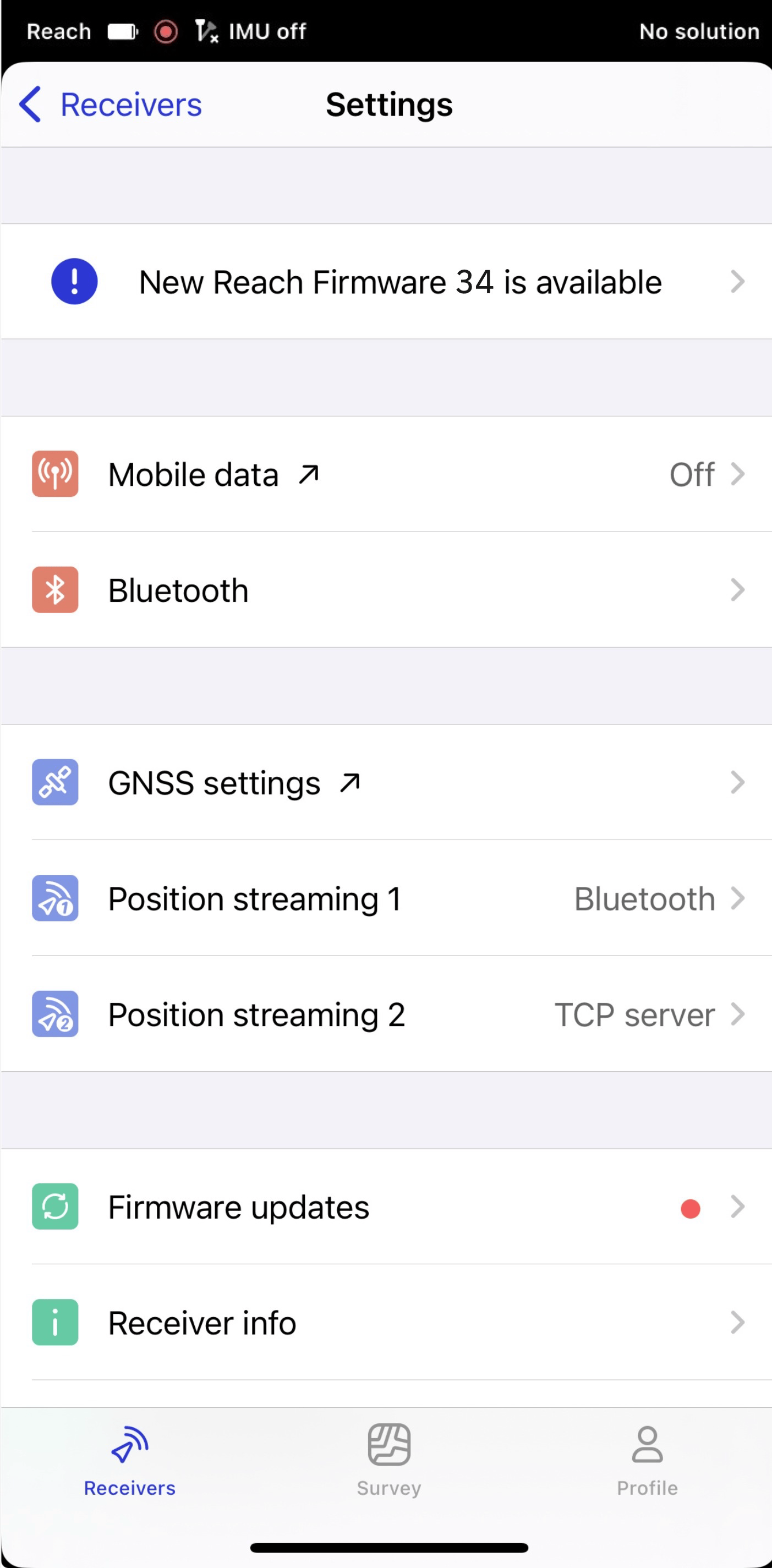
When a firmware update is available, a red dot appears next to the Settings icon. The process requires a Wi-Fi connection, regardless of the current connection type. Update the receiver directly from Emlid Flow. This is the recommended method to update your receiver to the latest firmware version.
You can also subscribe for Beta updates in Emlid Flow. In Settings, go to Firmware updates, tap Beta Updates and enable Beta updates.
Update firmware
To update the receiver, do the following:
- Bluetooth connection
- Hotspot connection
-
Once connected to your Reach, tap Settings.
-
Tap the update notification plate or Firmware updates to access Updater.
-
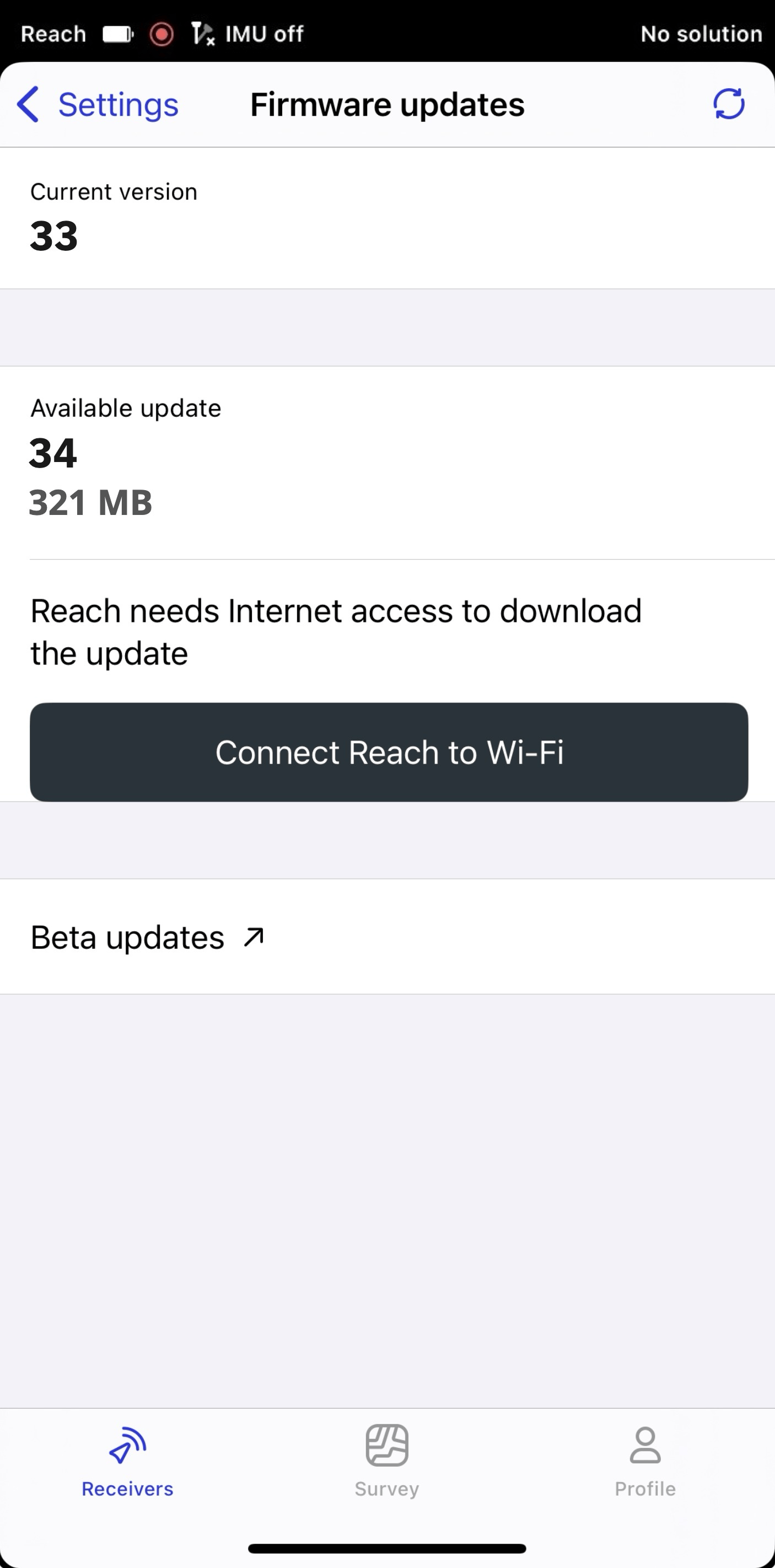
Tap Connect Reach to Wi-Fi to connect your receiver to the internet.
-
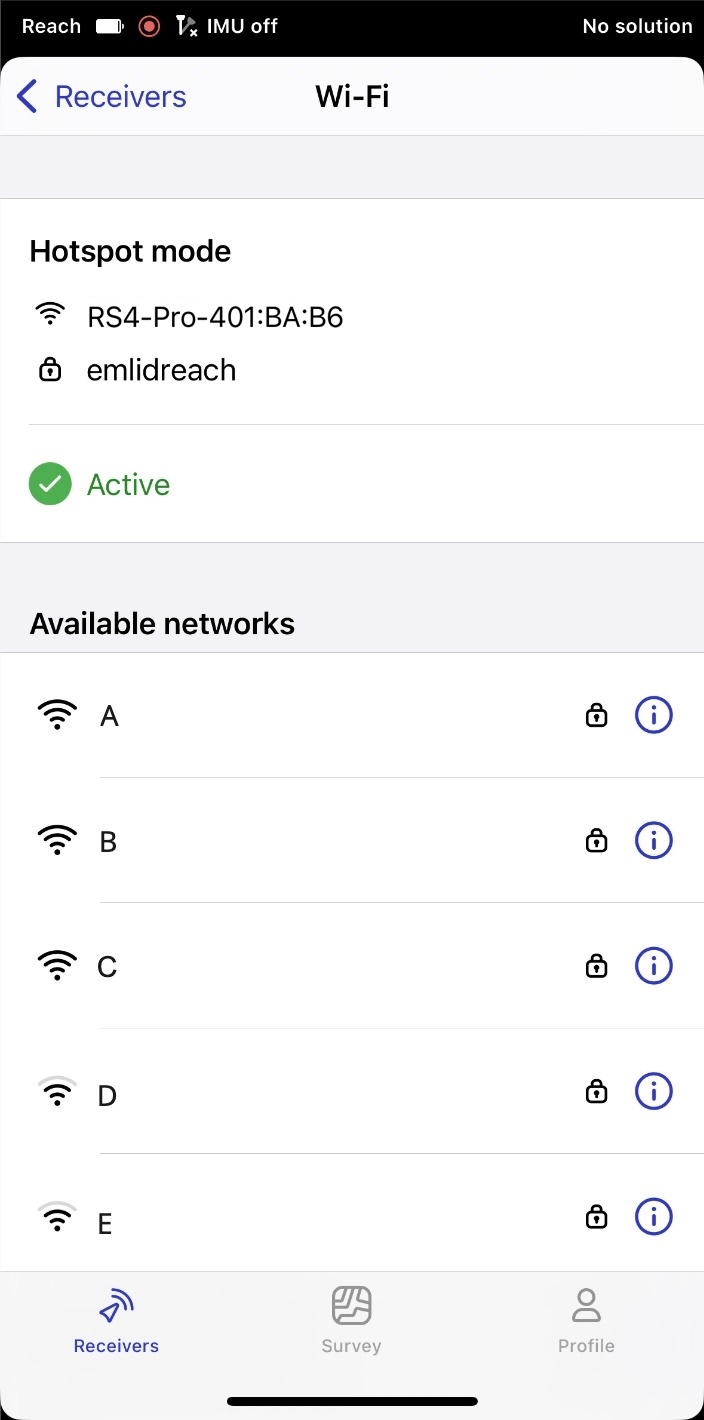
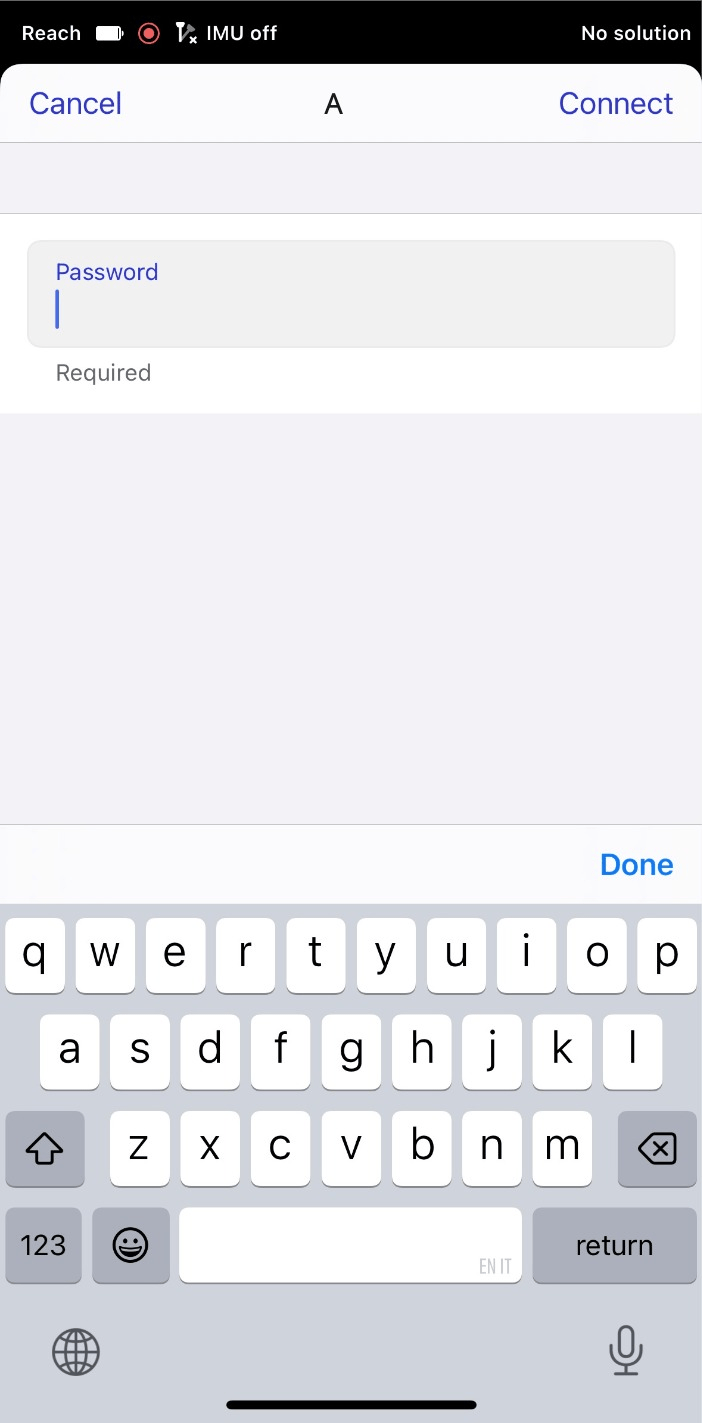
Select a Wi-Fi network you want to connect to and enter the password. Tap Connect.
-
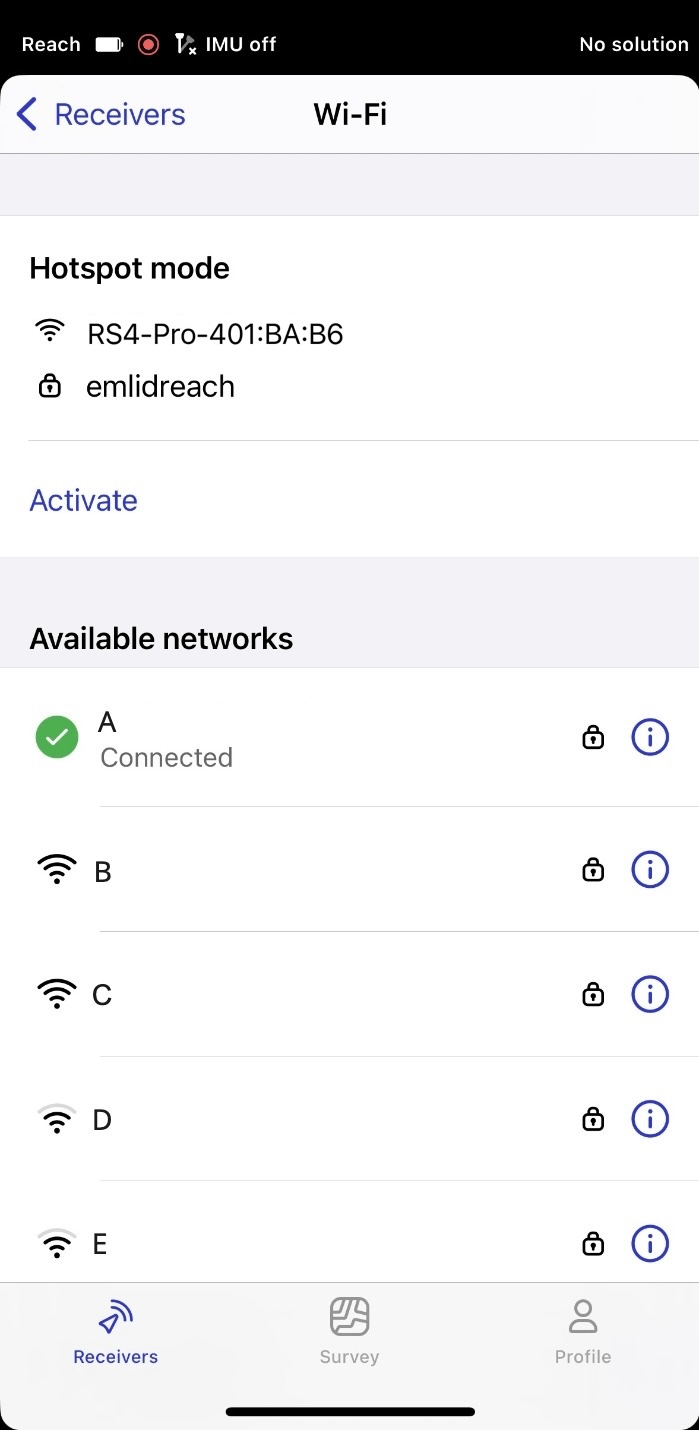
Wait for the successful connection and close this screen.
-
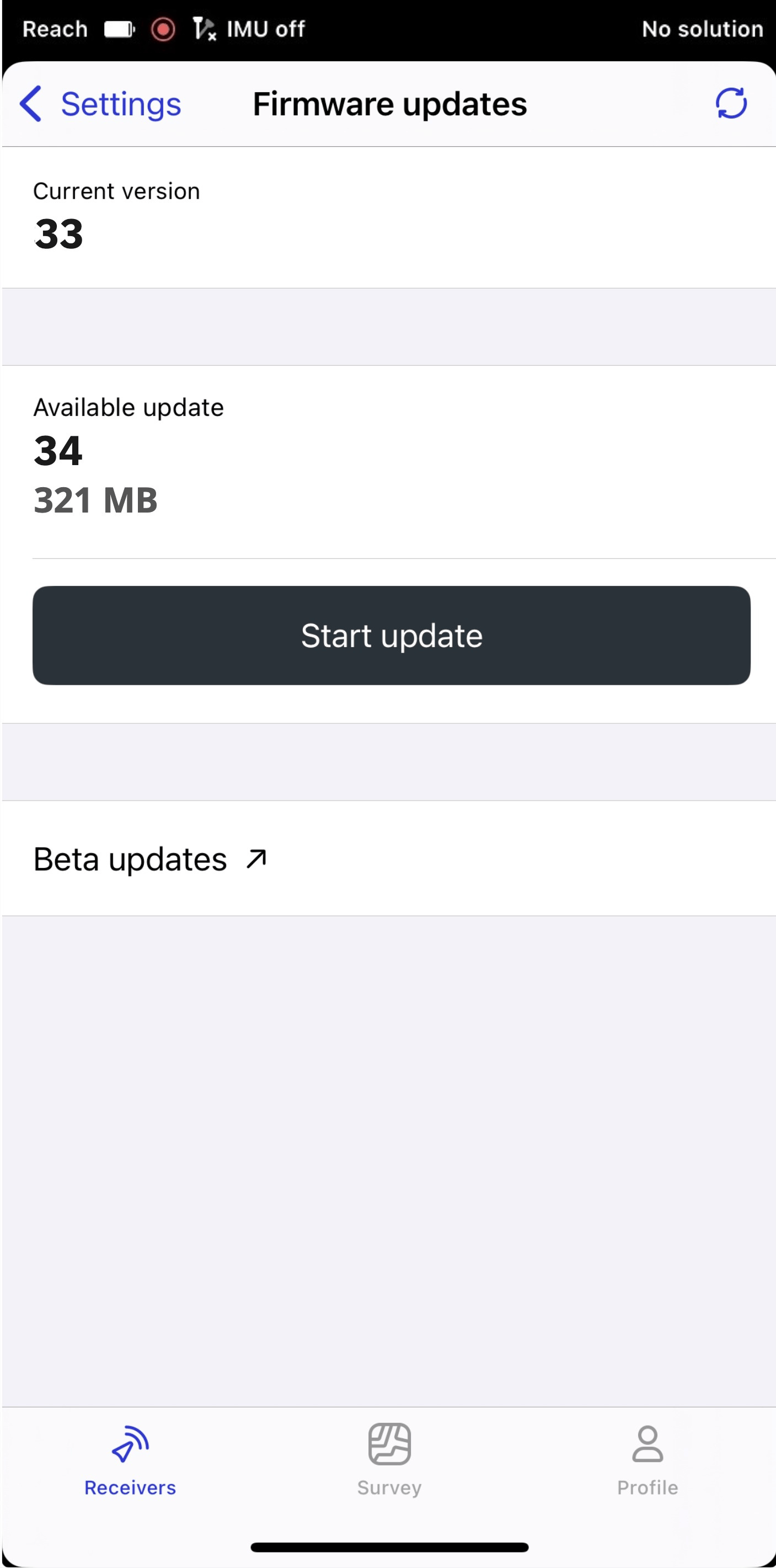
Tap the Start update button.
-
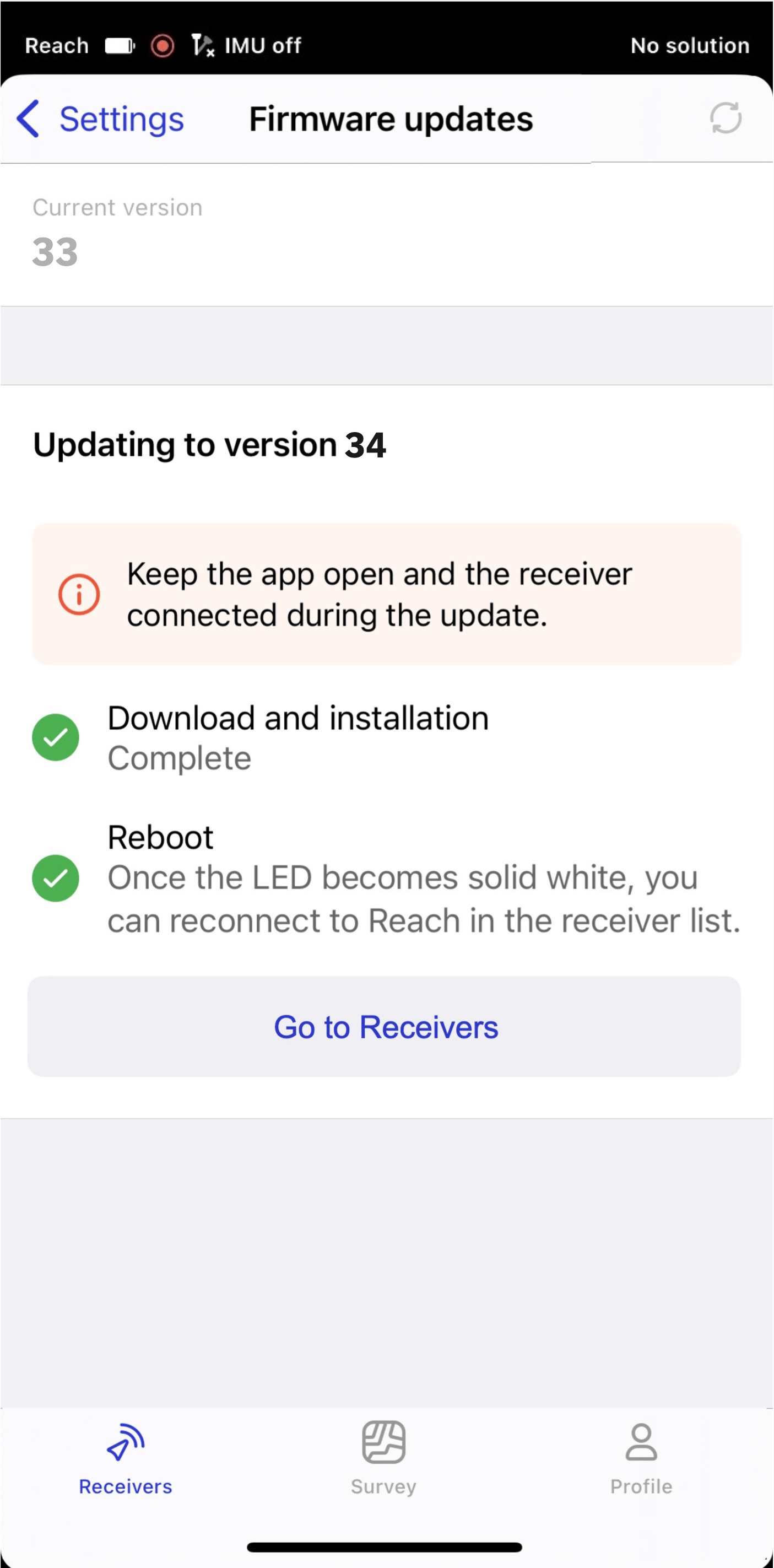
Keep the Updater screen open and wait for the receiver firmware to update. The update process includes two steps:
-
The app downloads and installs the new firmware version.
-
Reach automatically reboots after the firmware installation is complete.
-
-
Wait until your Reach reboots and reconnect to it in the Receivers tab.
-
Connect your Reach to the internet using one of the following ways:
-
Tap the Start update button.
-
Keep the Updater screen open and wait for the receiver firmware to update. The update process includes two steps:
-
The app downloads and installs the new firmware version.
-
Reach automatically reboots after the firmware installation is complete.
-
-
Wait until your Reach reboots and reconnect to it in the Receivers tab.
Your Reach is now ready for use.
Roll back from Beta to stable
Rolling back from Beta to stable will reset Reach settings to default.
You can roll back to the stable firmware version via Updater. Follow the steps below:
-
Go to Settings and select Firmware updates.
-
Go to Beta updates and tap Roll back to stable version.
-
Tap the Roll back to version XX.X button and wait until the firmware downgrading and installing process is over.
noteThe process may take several minutes.
-
Wait until Reach reboots.
After reboot, your Reach RS4 / RS4 Pro is ready for work.