Connecting to Reach
This guide explains how to connect to your Reach RS3 using the Emlid Flow app.
Overview
Emlid Flow allows you to control Reach RS3 receivers with iOS or Android devices. Using the app, you can access your receiver over a Wi-Fi network, set it up for the survey, and collect and stake out points. The connection process is similar for both iOS and Android devices.
Download Emlid Flow
To manage Reach RS3, download the Emlid Flow app on your iOS or Android mobile device.


Download Emlid Flow
Some Android devices have battery optimization enabled by default. Make sure you disable it for Emlid Flow to avoid disconnection.
Power up Reach
You can read more about power supply in the Power supply guide.
To power up your Reach, follow the steps below:
-
Hold the power button for 5 seconds to turn the unit on.
-
Wait for about 30 seconds until the Power LEDs will stop blinking and the Network LED stays solid white.

Now you can connect to your Reach.
Connect to Reach
You can connect to your Reach in two ways:
-
Using the BLE connection option. This is the recommended connection method. It is especially useful when working with corrections from an NTRIP provider. In this setup, the receiver uses your mobile device’s internet connection, so you only need to select the NTRIP over BLE option when configuring the receiver’s correction input.
tipLearn more about working with corrections from an NTRIP provider in the How to set up RTK over NTRIP service guide.
-
Using the Wi-Fi connection option. In this case, your device and Reach must be in the same Wi-Fi network. This type of connection becomes available only after you enable it in Advanced settings in Emlid Flow.
To connect to your Reach receiver using Bluetooth, follow these steps:
- Bluetooth connection
- Hotspot connection
Make sure your Reach receiver is running firmware version 32.2 or later, and that the Emlid Flow app is updated to version 12.2 or newer on both iOS and Android devices.
-
Enable Bluetooth on your smartphone or tablet.
-
Open the Emlid Flow app. When prompted, do the following depending on the platform:
-
On iOS, allow Bluetooth access so the app can find and connect to Reach receivers. Then, allow local network access so it can discover and connect to Reach receivers over Wi-Fi.
-
On Android, allow Bluetooth access so the app can find and connect to Reach receivers. Then, allow notifications to help maintain the connection and receive corrections from the receiver.
noteThe required permissions may vary between Android versions. Devices running Android 12 and earlier typically require fewer permissions than Android 13 and later.
These permissions are required for full receiver functionality. After you grant them, the receiver will appear in the list and the app connect to it automatically. If multiple Reach receivers are available, tap the receiver you want to connect to and wait for the connection to complete.
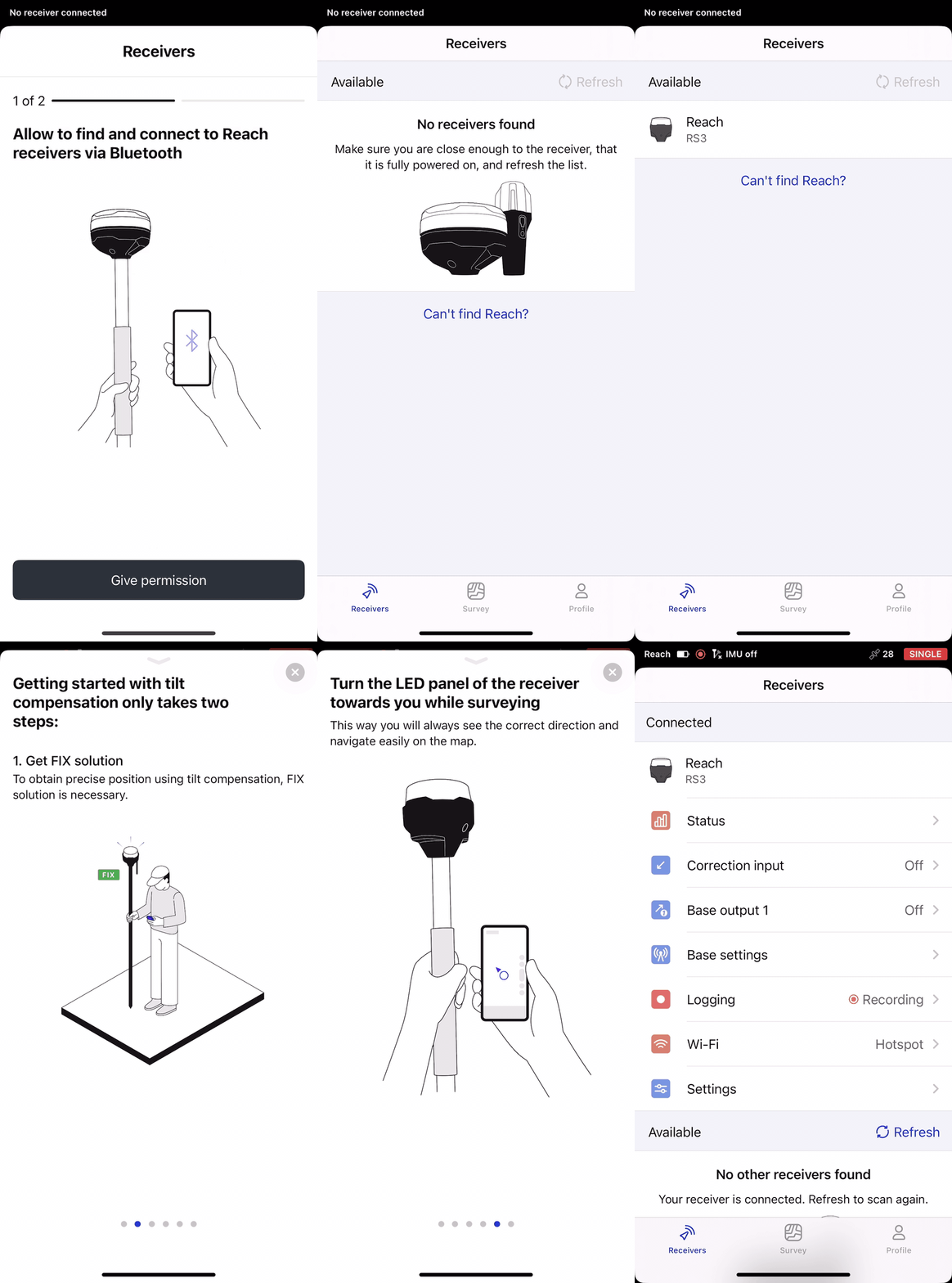
Reach prioritizes the current connection when using BLE, regardless of type:
- If Reach is connected via Bluetooth Classic to third-party software, disconnect it before using BLE in Emlid Flow.
- If another device is connected to Reach, disconnect it before reconnecting using BLE in Emlid Flow.
-
-
Once connected, check for firmware updates. If an update is available, a red dot will show next to the Settings section. Update the receiver firmware.
noteThis step is optional, but we recommend updating your receiver regularly to ensure full functionality and access to the latest features. For more details, check out the How to update firmware guide.
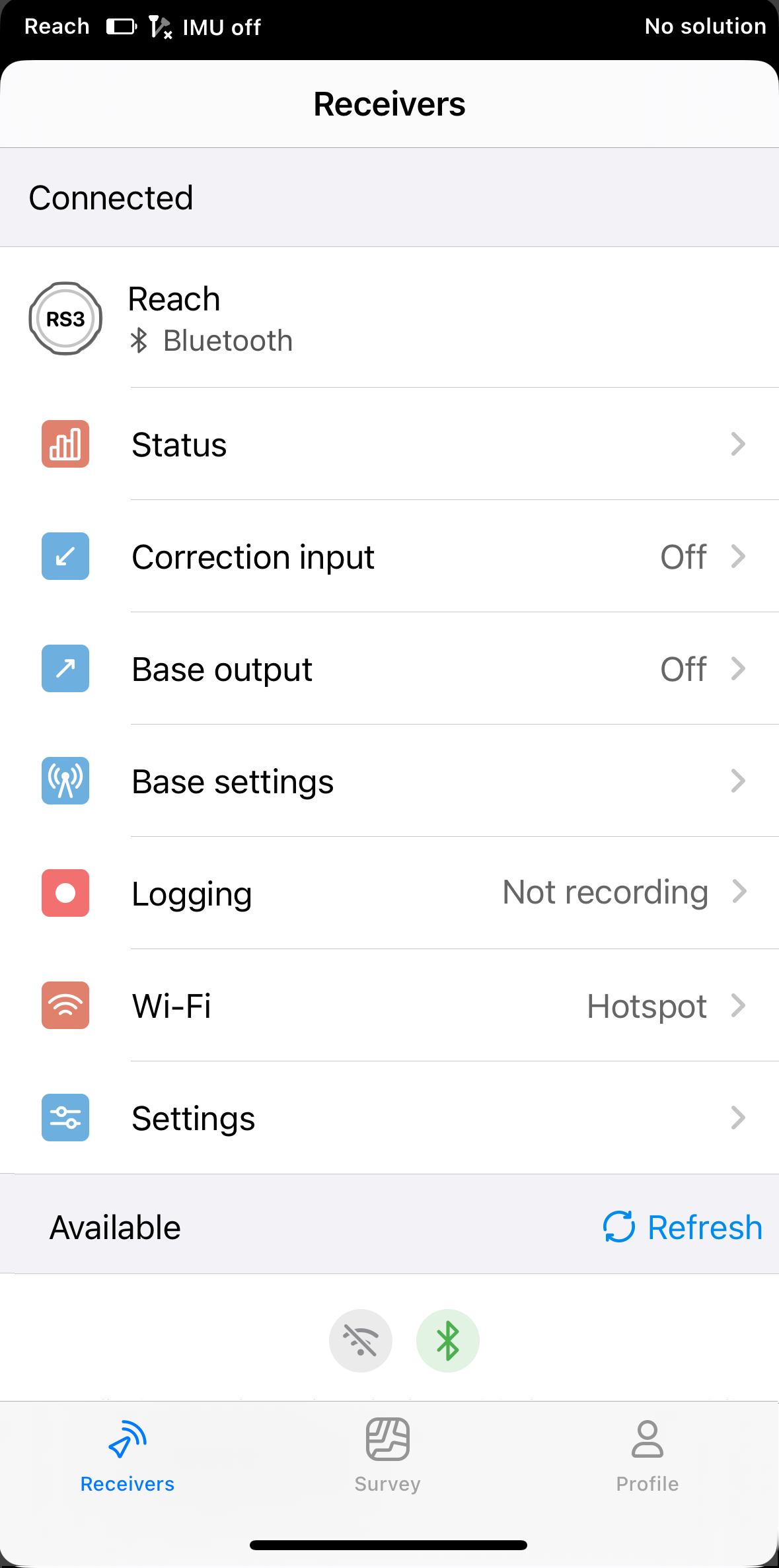
Turn off the mobile data on your device before connecting to Reach's hotspot.
When Reach is in hotspot mode, it shares its own Wi-Fi network. To connect to your Reach via its hotspot, follow the steps below:
-
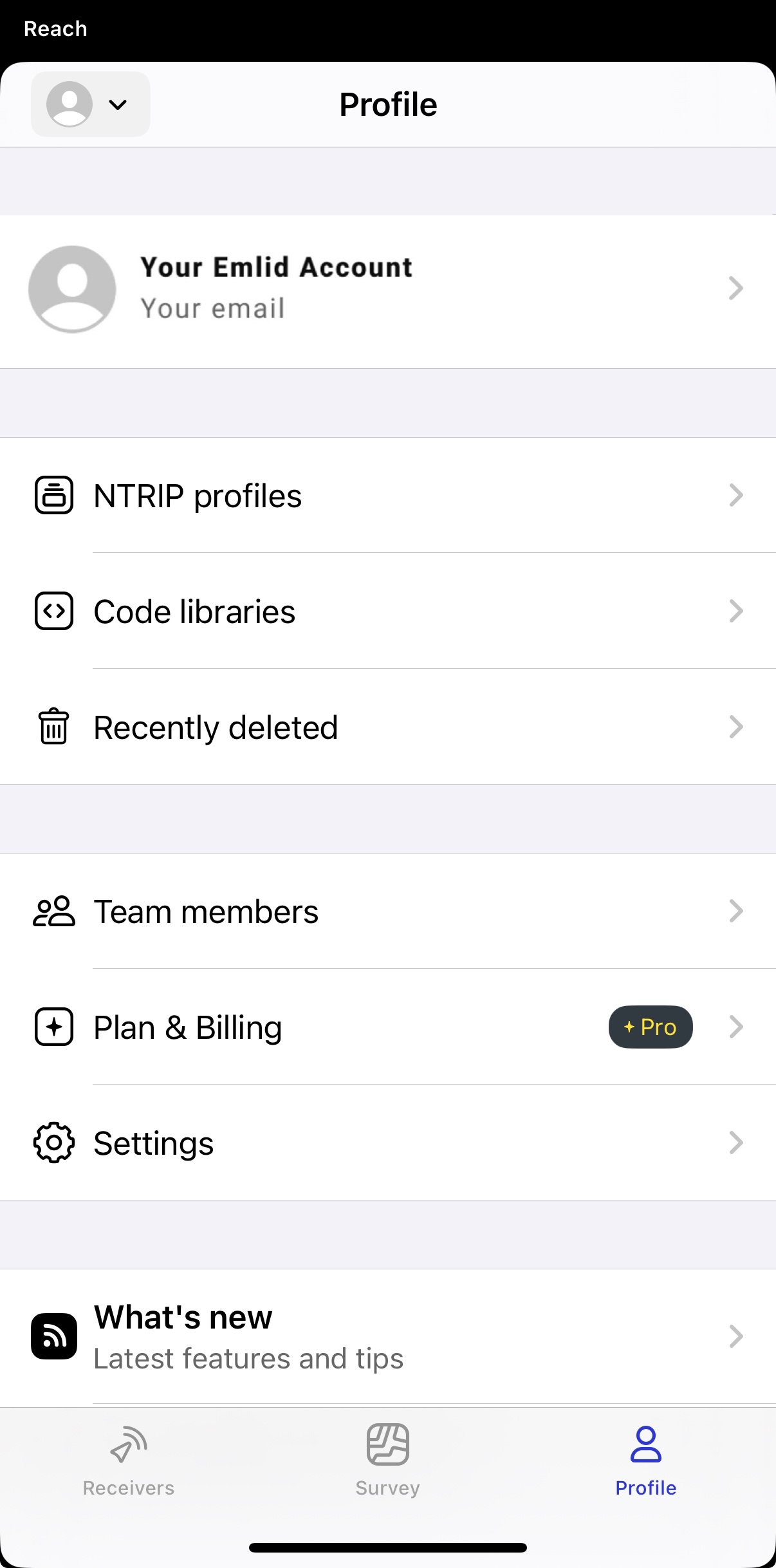
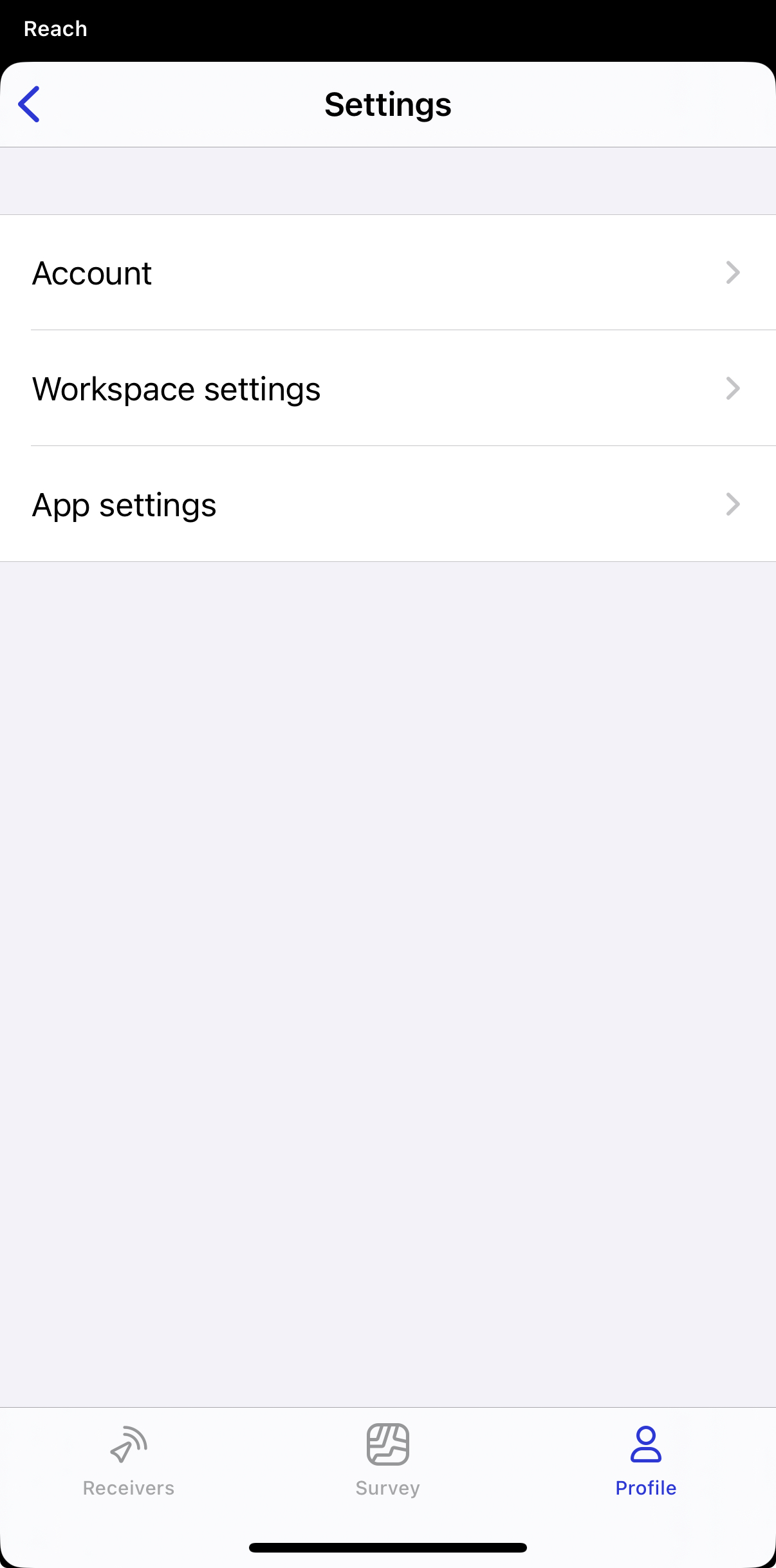
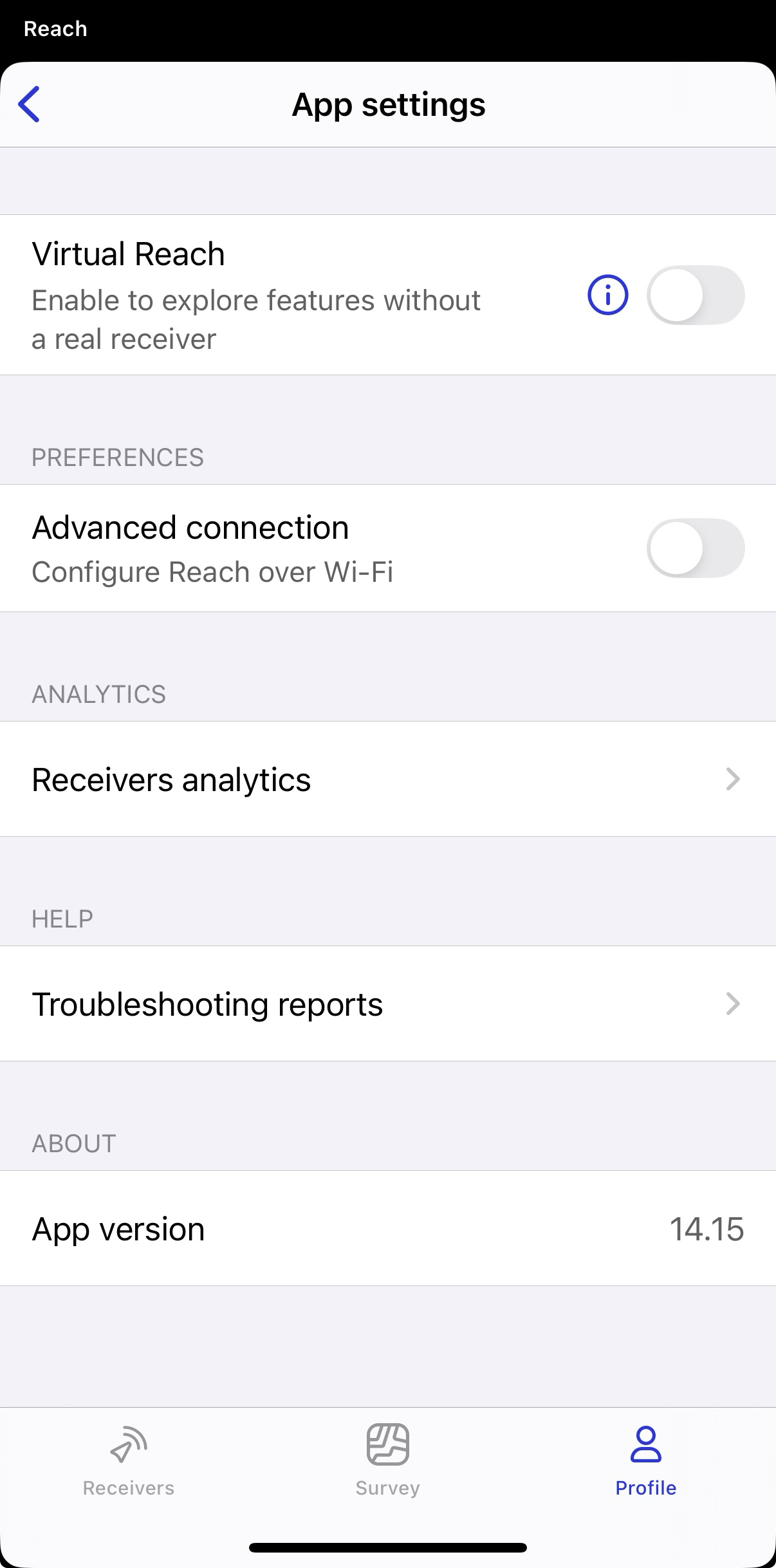
When connected via Bluetooth in Emlid Flow, go to the Profile tab and tap App settings.
-
In the Preferences section, enable advanced connection to configure Reach over Wi-Fi.
-
Open a list of Wi-Fi networks on your smartphone or tablet.
-
Connect to a network named reach:xx:xx.
-
Type network password emlidreach.
noteIf needed, you can change the receiver’s password in the Wi-Fi tab. To do that, open Advanced settings at the bottom of the page, tap the pencil icon, and enter a new password.
To restore the default Wi-Fi password, emlidreach, you need to reflash the receiver. Note that reflashing erases all logs stored on the receiver and restores all settings to their default values.
-
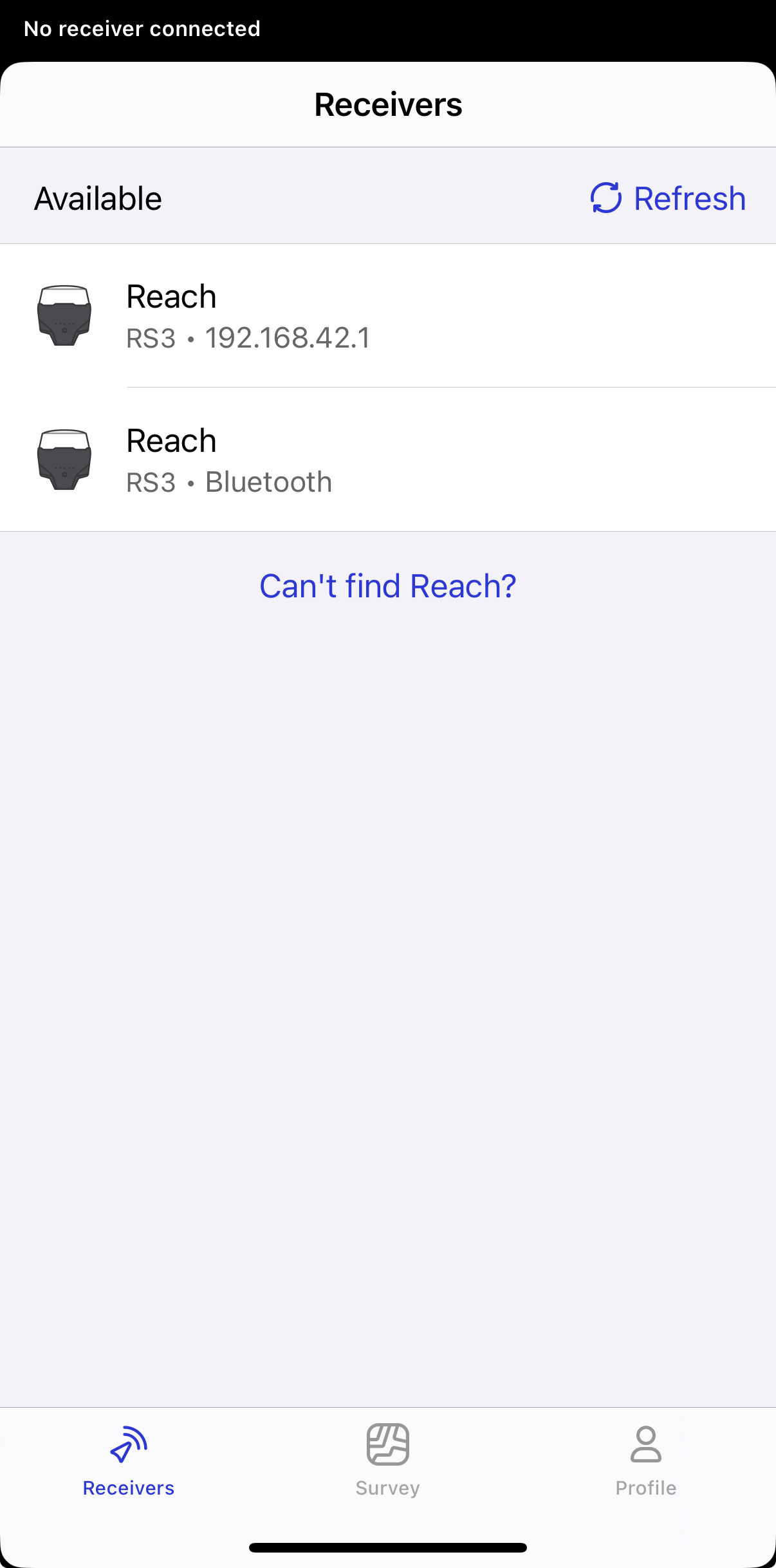
In Emlid Flow, return to the Receivers list and select the Wi-Fi connection option identified by the receiver’s IP address.
noteThe available connection options depend on whether Bluetooth and Wi-Fi are enabled on your mobile device.
You can establish connection between your Reach unit and your device in two ways:
Hotspot mode

When Reach is in hotspot mode, it shares its own Wi-Fi network. In this case, perform the following steps:
-
Open Wi-Fi settings of your device and turn on Wi-Fi.
-
Find a network with the name reach:XX:XX.
-
Type the password emlidreach to connect to this network.
-
Wait until it shows that you are successfully connected to the network.
Client mode

When Reach is in client mode, it is connected to the external Wi-Fi network. In this case, perform the following steps:
-
Open Wi-Fi settings of your device.
-
Connect it to the same Wi-Fi network.
-
Wait until it shows that you are successfully connected to the network.
If your device is connected to Reach via Bluetooth, select NTRIP over Bluetooth to establish an RTK connection when using corrections from the NTRIP service.
Now your Reach is ready to use!
To check for the latest firmware updates, you can access Reach's settings and connect it to your Wi-Fi network or mobile hotspot. Learn more from the guides below:
- Connecting Reach to the internet via Wi Fi
- Connecting Reach to the Internet via mobile hotspot
- How to update firmware
Checklist
For your Reach receiver to appear in the list and be ready to connect, make sure the following requirements are met:
- Bluetooth and Wi-Fi are enabled on your mobile device.
- You have allowed all the required Bluetooth and location permissions in Emlid Flow.